Category Archives: How to Fix

Navicat remote connection SQL Server 2014 express report 08001 error

Scenario: Navicat remote connection SQL Server 2014 express reports 08001 error, and it is verified that the firewall port 14341433 has been opened

Process: 1. At first, I think it’s a problem with the connection name. I use IP address or host name to connect, and then change to IP address / instance naming mode, which is better

2. After changing the connection string, the error 08001 is still reported. Try to close the firewall, and the connection is successful, indicating that the problem is on the port

3. Use the netstat – ano command to check, and find that this command is too weak. Find tools on the Internet, and find currports tool, which is very good. Send a screenshot. The software can clearly see all kinds of connection information, especially the remote IP, which is convenient to view the port needed for remote connection when the firewall is closed.

4. It is found that Navicat needs to use port 9061 to open in the firewall, and the remote connection is successful.

Reproduced in: https://www.cnblogs.com/zhengcong/p/4417916.html

Installing docker on Huawei Kunpeng server arm64

Installing docker on Huawei Kunpeng server arm64


1、 Download of installation package

The required version of the installation package can be downloaded according to the actual needs

https://download.docker.com/linux/ubuntu/dists/xenial/pool/stable/arm64/

2、 Installation procedure

1. Download the installation package

wget https://download.docker.com/linux/ubuntu/dists/xenial/pool/stable/arm64/containerd.io_1.2.6-3_arm64.deb

wget https://download.docker.com/linux/ubuntu/dists/xenial/pool/stable/arm64/docker-ce_19.03.8~3-0~ubuntu-xenial_arm64.deb

wget https://download.docker.com/linux/ubuntu/dists/xenial/pool/stable/arm64/docker-ce-cli_19.03.8~3-0~ubuntu-xenial_arm64.deb


2. Installation

Enter the location where the installation package is downloaded and install it

dpkg -i *.deb

Set boot up

systemctl enable docker

Start docker service

systemctl start docker

View docker status

systemctl status docker


404 error in accessing GitHub personal blog

Warehouse name must be uername.github.io , the user name is your GitHub user name, so that 404 will not appear
but I didn’t use my user name at first, and later found that it was the same, so I went to modify my user name to keep it consistent with the warehouse name, so the final result of this operation is still 404
solution: Delete the warehouse you just built, create another warehouse with the new user name, and repeat the steps

Microsoft Store install Ubuntu

Search for Ubuntu in the Microsoft Store (I only tested this system. If someone likes to toss, they can also try other systems, such as SUSE and Debian). The process of installing Ubuntu in the application page is very simple, just like installing software.

Search for Ubuntu in Cortana in the lower left corner, and click to enter. The interface you see is just like our terminal interface in Ubuntu. Test the LS command in this window, and it is correct.

Windows 10 Linux subsystem graphical interface
Update

sudo apt-get update

Install xorg

sudo apt-get install xorg

Install xfce4

sudo apt-get install xfce4

Installing xrdp

sudo apt-get install xrdp

Configuring xrdp

sudo sed -i ‘s/port=3389/port=3390/g’ /etc/xrdp/ xrdp.ini

Above is the configuration port

Write xfce4 session to xsession

sudo echo xfce4-session >~/.xsession

Restart xrdp service

sudo service xrdp restart

If there is a firewall, just allow it.

Search for remote desktop connection in Cortana, click enter, input local IP: port, and subsystem user name (in step 2, before the @ symbol in the terminal window)

Graphical interface of Linux subsystem under Windows 10
graphical interface of Linux subsystem under Windows 10
login is successful, and the graphical interface of Ubuntu is displayed.

Graphical interface of Linux subsystem under Windows 10

Xrdp should be started in the terminal before each remote connection, and the window cannot be closed.

WeChat official account web page authorized, redirect_ Uri parameter error, solution!

Recently, WeChat has been experiencing some problems, such as WeChat official account authorization, redirect_ The URI parameter is wrong, but many articles on the Internet can’t be explained clearly. They have been revised over and over again, but they still can’t.

The callback in WeChat official account can only be a full domain name, such as your visit. http://www.xx.com/authorize Authentication, but callback to fill in www.xx.com And then the request parameter is HTTP% 3A% 2F% 2 fwww.xx.com%2fauthorize , URLEncode is required

Caused by: org.springframework.beans.factory.NoSuchBeanDefinitionException

If there is no problem with the annotation, I suggest you check it web.xml Configuration, I was sliding monitoring class introduction error, resulting in an error.
That’s right:

<listener>
    <listener-class>org.springframework.web.context.ContextLoaderListener</listener-class>
  </listener>

This is hand skating:

<listener>
    <listener-class>org.springframework.web.context.ContextLoader</listener-class>
  </listener>

AttributeError: module ‘cv2.cv2‘ has no attribute ‘face‘

Today, there was an error when running opencv module attributeerror: module 'CV2. CV2' has no attribute 'face' , CSDN checked and said that it was necessary to uninstall opencv first and then install it again. I felt that it was too troublesome, so I tried to find the answer in stackoverflow, which was effective. I specially recorded it

Opencv has two modules, OpenCV_ contrib_ pythonopencv_ Python let their two version numbers be the same is OK.
If not, adjust the version number of the two modules at the same time and try again. Remember to be consistent

PIP install the specified version

pip install opencv_contrib_python == version

If this helps you, please click like to support it 😀

(20210301 solved) can’t connect to HTTPS URL because the SSL module is not available

Overview uses requests to send a message with the following error:

Can’t connect to HTTPS URL because the SSL module is not available.

there is no problem with the requested URL, and the Linux side is running normally. Only Anaconda under Windows runs abnormally. In the solution reference, 3, 4 and 5 are common explanations, which have no effect on my situation. In my case, I use the second answer in reference 1:

# copy the files
libcrypto-1_1-x64.*
libssl-1_1-x64.*
# from ~\anaconda3\Library\bin to ~\anaconda2\DLLs

This can solve the problem, the specific reason is still not understand, mainly for the SSL network transmission level understanding is not deep enough. References

    requests (caused by sslerror (“can’t connect to HTTPS URL because the SSL module is not available.”) error in pychar requesting websitecan’t connect to HTTPS URL because the SSL module is not available ⁑ python3 sends an HTTPS request using the requests module, indicating caused by SSL error, can’t connect to HTTPS URL because the SSL module is not available When using the requests library, python reports an error when visiting the website of HTTPS. SSL module is not available. Python encounters can’t connect to HTTPS URL because the SSL module is not available.

C++ compiler prompt “undefined reference to…”[How to Fix]

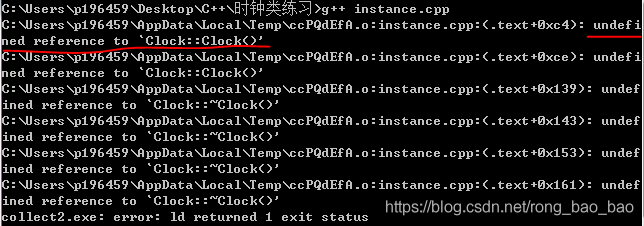
Write a simple C + + clock class, put into the header file, the main function in the call header file compilation error, the specific code is as follows:

clock.h:

#include <iostream>
using namespace std;

class Clock
{
    private:
        int h,m,s;
    public:
        Clock();
        ~Clock();
        void SetTime(int h,int m,int s);
        void AddOneS();
        void ShowTime();
};
void Clock::SetTime(int h,int m,int s)
{
    
    this->h = h;
    this->m = m;
    this->s = s;
}
void Clock::ShowTime()
{
    cout<<h<<":"<<m<<":"<<s<<endl;
}

Main function:

#include "clock.h"   //When calling custom headers, use "" instead of<>
using namespace std;

int main(void)
{
    Clock c1,c2;
    c1.SetTime(2,45,36);
    c2.SetTime(6,40,34);
    c1.ShowTime();
    c2.ShowTime();
return 0;
}

Error prompt:

Check the error because “reference clock:: clock() and clock:: clock() are not defined”

It turns out that there is no function body for constructors and destructors

(1) : define function body in class: clock () {} ~ clock () {}

(2) : define function body outside class: void clock:: clock() {} void clock:: ~ clock() {}

Three ways of latex supporting Chinese

Cjkutf8ctex’s utf8 option (I use) xelatex compilation

We know that latex generally uses CJK and CTeX macro package to support Chinese editing. The default encoding of CJK and CTeX is GBK, while the silent encoding under windows is GBK. Therefore, CJK and CTeX can directly support Chinese latex compilation without special configuration, just save the file with GBK encoding. But if the character encoding of the file is changed to UTF-8, which is more common now, how should it be operated? There are three ways to use it.

CJKutf8

CJK has two basic macro packages: CJK and cjkutf8. The latter is oriented to UTF-8 encoding, and its general usage is as follows:

\usepackage{CJKutf8}
\begin{document}
\begin{CJK}{UTF8}{}

\end{CJK}
\end{document}

%test.tex
\documentclass{article}
\usepackage{CJKutf8}
\begin{document}
\begin{CJK}{UTF8}{gbsn}
This is an example of CJKutf8, and the font used is gbsn.
\end{CJK}
\end{document}

The output result can be obtained by compiling tex file with pdflatex.

Utf8 option of CTeX (I use it)

Cjkutf8 above only provides two kinds of fonts, so the choice is too small. We can directly use utf8 option to make CTeX support UTF-8 encoding. CTeX’s rich fonts and Chinese settings can better edit latex Chinese text, and its syntax format is as follows:

\documentclass[UTF8]{article}
\usepackage{CTEX}
\begin{document}

\end{document}

Or, use ctexart directly

\documentclass[UTF8]{ctexart}
\begin{document}

\end{document}

% ctex_test.tex
\documentclass[UTF8]{ctexart}
\begin{document}
This is a CTEX utf-8 encoding example, {\kaishu is shown here in italic}, {\songti is shown here in Song}, {\heiti is shown here in bold}, {\fangsong is shown here in imitation Song}.
\end{document}

Xelatex compilation

Xetex is a tex typesetting engine that uses Unicode. It supports Unicode natively and its input file is UTF-8 by default. Xetex can directly use fonts installed in the operating system without additional configuration. Xelatex is a typesetting engine that uses latex. It also has the advantages of xetex. If you use xelatex * *. Tex directly under the command, the corresponding PDF file will be generated. Here is a simple example of how to compile CTeX with xelatex (also save the Tex file in UTF-8 format)

% xelatex_test.tex
\documentclass{article}
\usepackage{CTEX}
\begin{document}
This is a CTEX utf-8 encoding example, {\kaishu is shown here in italic}, {\songti is shown here in Song}, {\heiti is shown here in bold}, {\fangsong is shown here in imitation Song}.
\end{document}

Mingyan’s students found that compared with the CTeX code in Item 2 above, this product lacks a utf8 option! Well, on the surface, it looks like this, but if you just put xelatex_ test.tex Compile with pdflatex, the system will report an error. This is because without the utf8 option, pdflatex silently processes the Tex file according to the GBK encoding, and this file is encoded with UTF-8, which will cause decoding failure. If you directly compile with xelatex, it will be compiled successfully, because the default input file of xelatex is UTF-8 encoding. Switch to the directory where the Tex file is located, and directly compile the Tex file with xelatex: xelatex xelatex_ test.tex The following output results can be obtained,