Category Archives: How to Fix

Solution of no response of progress bar in MFC program

The MFC program written a few days ago, the progress bar will not respond when the program is running to deal with large tasks. It will be updated again only at the end of processing, and it will be directly updated to the full status of the progress bar, which is very unpleasant. Today, running MFC program again, I really can’t stand this situation. It’s very easy to find information on the Internet and get a solution.

reference resources http://blog.csdn.net/thinkhy/article/details/5777856

 
MSG msg;


while(PeekMessage(& msg,NULL,0,0,PM_ REMOVE))

{

TranslateMessage(& msg);

DispatchMessage(& msg);

}


The problem can be solved by adding the above code before the program loop processing task, and the progress bar can be updated continuously. As for the inherent principle of the solution, there is probably an understanding about MFC message circulation and message pump.

Opencv2.4.9 + ffmpeg1.2.12 installation configuration and problem solution under Ubuntu 14.04

In the process of video processing, two feature extraction methods, space-time interest points (stip) and improved dense trajectories (IDT), are used. We can find the open algorithm source code on the author’s home page. They need opencv and ffmpeg to run smoothly under Linux. We have used these two tools before, but now we want to use them again after changing the working environment, but there are still many problems in the process of configuration and installation. Therefore, I feel it is necessary to record the specific process, problems and solutions for future use, and hope to bring a little help to others.


Opencv2.4.9 and ffmpeg 1.2.12 source package download

These two software in the official website can be directly found in various versions of the source code package, download, compile and install. If you don’t particularly need the latest version of the software, I suggest that you use the earlier version that has been used by most people, and you can easily find the corresponding solution when there is a problem. I chose opencv2.4.9 and ffmpeg 1.2.12.

Opencv2.4.9 download
the official website provides download links from the earlier version 1.0.0 to 3.1 and 2.4.13, which means that different operating systems have different software packages
http://opencv.org/downloads.html
The download address of version 2.4.9 that I used is as follows:
0 https://sourceforge.net/projects/opencvlibrary/files/opencv-unix/2.4.9/opencv-2.4.9.zip/downloadFFmpeg1.2.12 The latest version of ffmpeg is 3.1.4, and the update speed is relatively fast. Personal choice of the early version 1.2.12 has been able to meet the actual needs, and the download address is as follows:
0 https://ffmpeg.org/olddownload.html

Ffmpeg compilation configuration

Ffmpeg is a leading multimedia framework, which can be used to record, convert digital audio and video, and convert them into open source programs. It includes the leading audio/video coding libraries libavcodec, libavutil, libavformat, etc.

1. Uninstall the previously installed ffmpeg and x264 software
in order to prevent version problems, it is recommended to uninstall the previously (possibly) installed version first. The order is as follows:

sudo apt-get -qq remove ffmpeg x264 libx264-dev

2. Install dependencies and related software

sudo apt-get install yasm
sudo aptitude install libx264-dev libfaac-dev libmp3lame-dev libtheora-dev libvorbis-dev libxvidcore-dev  libxext-dev libxfixes-dev

3. Compile and install
decompress the ffmpeg package and enter the decompressed directory

cd ffmpeg-1.2.12

Environment configuration [4]

./configure --prefix=/usr/local/ffmpeg --enable-gpl --enable-version3 --enable-nonfree --enable-postproc --enable-pthreads --enable-libfaac --enable-libmp3lame --enable-libtheora --enable-libx264 --enable-libxvid --enable-x11grab --enable-libvorbis --enable-nonfree --enable-pic --enable-shared

Note that there may be carriage return or character problems in the process of copying. If there is a problem with the prompt command, you need to carefully check the space and carriage return. If you use prefix to specify the installation path of the software, you need to modify the corresponding path in the configuration file so that the system can find the installation path of ffmpeg

vi /etc/profile

Press insert and add the following two lines at the end of the file:

export FFMPEG_HOME=/usr/local/ffmpeg 
export PATH=$FFMPEG_HOME/bin:$PATH

Press ESC and enter “: WQ” to exit and save, and then make the above changes take effect. The command is as follows:

source profile

After all configuration is completed, prepare to install. The command is as follows:

make
make install

After installation, you will see three directories in/usr/local/ffmpeg: Bin executable file directory, lib static and dynamic link library directory, and header files used in include programming.

4. Check whether the installation configuration is correct
it is said on the Internet that you can test whether the installation is successful by executing ffplay to play the video file in the bin directory. However, I did not generate ffplay after compiling and installing. There are only ffmpeg and ffserver in the bin directory. Therefore, we directly check whether the version is correct, and there is no problem when we use it later. The order is as follows:

ffmpeg -version

The correct version and configuration information appears, indicating that the installation is successful.

Opencv compilation and installation

The full name of OpenCV is: open source computer vision library. Opencv is a cross platform computer vision library based on BSD license (open source), which can run on Linux, windows and Mac OS operating systems. It is lightweight and efficient, which is composed of a series of C functions and a small number of C + + classes. It also provides the interfaces of python, ruby, MATLAB and other languages, and realizes many general algorithms in image processing and computer vision [5].

1. Install dependencies

sudo apt-get -qq install libopencv-dev build-essential checkinstall cmake pkg-config libjpeg-dev libjasper-dev libavcodec-dev libavformat-dev libswscale-dev libdc1394-22-dev libxine-dev libgstreamer0.10-dev libgstreamer-plugins-base0.10-dev libv4l-dev python-dev python-numpy libtbb-dev libqt4-dev libgtk2.0-dev libopencore-amrnb-dev libopencore-amrwb-dev x264 v4l-utils 

2. Compile and install
to unzip the downloaded opencv package and enter the unzipped directory

cd opencv-2.4.9

Create compile directory, compile and install

mkdir release
cd release
cmake -D CMAKE_BUILD_TYPE=RELEASE -D CMAKE_INSTALL_PREFIX=/usr/local ..
make
sudo make install

It takes a long time to compile here. After completion, the following prompt information will be printed on the last line:

-- Configuring done
-- Generating done
-- Build files have been written to: /opt/opencv-2.4.9

During the compilation process, you may stay in the line “configuring done” for a long time. Don’t stop the compilation in a hurry. You need to wait patiently for the compilation to complete. During the installation process, there will be a progress prompt in the form of “[10%]” percentage, and the process will be very slow. Please wait patiently.

Tip: after cmake is completed, relevant information will appear, in which you can check whether ffmpeg has been supported. If yes is supported, ffmpeg will appear after it. There are also some encoding and formats with yes.

3. Environment configuration
all library files are installed under/usr/local/lib by default, and all header files are installed under/usr/local/include/opcv * /. Modify the environment configuration [6], and the command is as follows:

vim /etc/ld.so.conf

Press the insert key to add in the last line of the file

/usr/local/lib

Press ESC key to enter “: WQ” to exit and save, and then execute the following command:

ldconfig

At this point, opencv installation is complete.

Libcxcore. So. 2 cannot find a solution to the problem

After opencv is installed, the IDT algorithm can run normally, but the following errors appear when executing stip program:

./bin/stipdet: error while loading shared libraries: libcxcore.so.2: cannot open shared object file: No such file or directory

Look at the problem, it means that the shared library file libcxcore. So. 2 can’t be found during the execution of the program. This file or path doesn’t exist. From the online search results, most of the problems are prepared to use stip to obtain video features, but dense track programs do not have this problem. This problem and several solutions are available on the stackoverflow website for reference [7].

I didn’t succeed in creating soft links. Maybe I didn’t set it correctly at that time, and then I didn’t have root permission. Finally, I adopted a temporary method. To set the search directory of shared library, the command is as follows:

export LD_LIBRARY_PATH=[enter your path]/opencv-2.4.9/release/lib

When executing some external programs under Linux, you may be prompted that the shared library cannot be found, which is quite common. The reason for this problem is that although the shared library has been installed, the program cannot find the file when it is ready to call.

My problem is that the shared library file is installed in other “non/lib or/usr/lib” directory, but after the installation, the non root user does not have the permission to add a path in the “/ etc/LD. So. Conf”. So export is a global variable LD_ LIBRARY_ Path, and then run the program will go to this directory to find the shared library [8].

Execute stip program

If you directly execute “.”/bin/stippet – help “in this directory, you will not be able to execute. You must turn stippet and stipshow into executable files. For convenience, I directly changed it to fully open executable permissions [9]. The order is as follows:

chmod 777 bin/stipdet
chmod 777 bin/stipshow

For programs with dense trajectories, the same method can be used to execute normally. In addition, the global variable of export will no longer take effect every time the command window is closed. Therefore, before executing the stip program, we must first set the search directory of the shared library according to the above method, and there will be no problem that libcxcore. So. 2 cannot be found.

Opencv version view

During use, you may need to check the installed version of OpenCV. You can use the following command [10]:

pkg-config --modversion opencv

PKG config is a very useful tool for compiling applications and library files. One of its functions is to check the version number of the library.

Python calls opencv module

If you need to use Python to call opencv module, you can install Python first and then load CV [4]. The order is as follows:

sudo apt-get install python-opencv
sudo apt-get install python-numpy
python
import cv


References: <
> 1] https://www.di.ens.fr/~laptev/interestpoints.html
[2] https://lear.inrialpes.fr/people/wang/improved_trajectories
[3] https://ffmpeg.org/about.html
[4] http://blog.csdn.net/u010106759/article/details/51931815
[5] http://opencv.org/
[6] http://blog.csdn.net/firefoxbug/article/details/7554409
[7] http://stackoverflow.com/questions/5212728/libcxcore-so-2-missing-in-opencv
[8] http://blog.csdn.net/sahusoft/article/details/7388617
[9] http://blog.chinaunix.net/uid-21880738-id-1813031.html
[10] http://blog.csdn.net/ppp2006/article/details/47445903

Install Java runtime JRE in Ubuntu 16.04

Recently, we need to use Vuze software to download things in the Ubuntu system. When we run the program, we are prompted that there is a lack of JRE environment. In order to solve this problem, we have found many solutions on the Internet. Under normal conditions, run the following command to install:

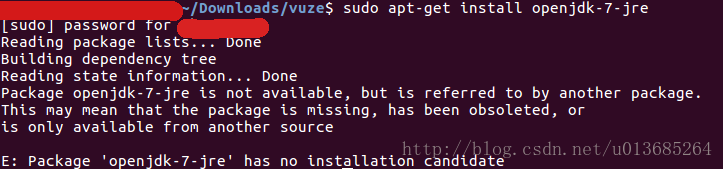
sudo apt-get install openjdk-7-jre

However, after the command is executed, the error “package ‘openjdk-7-jre’ has no installation candidate” is prompted, as shown in the figure below

This problem should be caused by the current data source does not contain JRE, but it is also troublesome to find an available data source to add. In fact, you can directly download the tar.gz package corresponding to JRE from Oracle’s Java official website. The command is as follows:

wget http://javadl.oracle.com/webapps/download/AutoDL?BundleId=225345_090f390dda5b47b9b721c7dfaa008135

Unzip the downloaded file, I put it directly under the home directory, and change the unzipped folder name to JRE, which is ~/JRE . Then, set the environment variables by modifying the /etc/profile file. The command is as follows:

sudo gedit /etc/profile

Add the following lines at the end of the file:

export JAVA_HOME=~/jre
export PATH=$PATH:$JAVA_HOME/bin
export CLASSPATH=$JAVA_HOME/lib

Save, exit. Enter the following command to make it work. (you may need to restart the system here)

sudo source /etc/profile

Check the Java version,

java -version

If the version information is displayed successfully, the environment is installed successfully

When executing the source command, the prompt "command not found" is also dizzy. The reason mentioned on the Internet is due to the modification of the path environment variable. You need to re export the environment variable through the following command:

export PATH=/bin:/usr/bin:/usr/local/bin

So far, the problem has been solved.

Solutions to the problem that Ubuntu is stuck when copying large files and can’t mount mobile hard disk normally

Recently, in the process of copying a large number of files (more than 100g) from the Ubuntu system to the mobile hard disk, there is a situation of stuck. At the beginning, it used the direct folder copy and paste method. When it got stuck, it was replaced by the “SCP – R” method, but it didn’t work.

The main reason for this problem is that the write cache of kernel in Ubuntu system is too large, so that there is a congestion bottleneck when writing from high-speed storage to low-speed devices.

The solution is to avoid using file manager and SCP. When copying large files, the following instructions can be used:

rsync -avP source/ target/

Rsync is a remote data synchronization tool, which can quickly synchronize the files between multiple hosts through LAN/WAN, and view the file transfer process and rate, which is very convenient.

In addition, when the copy to the mobile hard disk is stuck, the file index directory is damaged due to forcibly pulling out the mobile hard disk, which makes the Ubuntu system unable to mount the mobile hard disk, and the following error prompt appears:

Failed to mount '/dev/sdb1': Input/output error 
NTFS is either inconsistent, or there is a hardware fault, or it's a 
SoftRAID/FakeRAID hardware. In the first case run chkdsk /f on Windows 
then reboot into Windows twice. The usage of the /f parameter is very 
important! If the device is a SoftRAID/FakeRAID then first activate 
it and mount a different device under the /dev/mapper/ directory, (e.g. 
/dev/mapper/nvidia_eahaabcc1). Please see the 'dmraid' documentation 
for more details.

According to the above tips, it can be solved in Windows system  
1. Enter CMD in “run” under windows to enter DOS command line window  
2. Find the volume name of the mobile hard disk (such as G:)  
3. On the command line, enter:

chkdsk G:/f

CHKDSK command is used to scan disk, automatically check and fix index error. There are three stages after the instruction input in step 3 above. If there are a large number of files, it will take a long time, and you need to wait patiently for the repair to be completed. After that, it can be mounted normally in the Ubuntu system.

C#: Analysis of the difference between write() and writeline()

Both write() and writeline() are methods provided by system.console, which are mainly used to display the output stream from the specified output device (screen by default).
the differences between the two methods are as follows:

The console. Writeline() method outputs the string to be output together with the newline control character. When the next statement is executed, the cursor will move to the next line of the current output string.
as for the console. Write() method, the cursor will stop after the last character of the output string in C # tutorial, and will not move to the next line.

The difference between write() and writeline()

All the methods provided by system.console
are displayed on the screen
write() does not wrap after it is displayed, and writeline() wraps
code examples

using System;
using System.Collections.Generic;
using System.Linq;
using System.Text;
using System.Threading.Tasks;
 
namespace The difference between WriteLine and Write
WriteLine
class Program
{
static void Main(string[] args)
{
//WriteLine output with mouse at the beginning of the next line
//Write output does not start a new line
System.Console.WriteLine("First WriteLine Line");
System.Console.WriteLine("Second WriteLine Line");
 
System.Console.Write("First Write Line");//Instead of starting a new line after the First Write Line, the output is directly followed by the Second Write Line
System.Console.Write("Second Write Line");
 
//passing parameters
System.Console.WriteLine("\nWriteLine:Parameter={0}", 123);
System.Console.Write("Write:Parameter={0}", 456);
System.Console.ReadKey();
}
}
}
output

First WriteLine Line
Second WriteLine Line
First Write LineSecond Write Line
WriteLine:Parameter=123
Write:Parameter=456

Here is the article about the difference between write() and writeline() in C #. For more information about CSharp write and writeline, please search the previous articles of script home or continue to browse the following related articles. I hope you can support them in the future

How to distinguish the source channel of router.push jump fast application

Phenomenon description:

Jump from a fast app a to the B1 page of B fast app. A may be a fast app or a card with a negative screen. How can you tell which one comes from?

Solution:
fast application and card jump to other fast applications through router.push interface, which is realized by using the HAP link in deeplink. At the same time, parameters can be carried in the HAP link, and a flag parameter can be added when skipping. Parameters can be obtained from B1 page of B fast application. According to the parameter value, whether the source is a negative screen card or fast application a can be judged, Then do the corresponding logic processing according to the needs. Fast application uses this.xx to get parameters carried by jump.

Example code:
a fast application code:

<template>
    <div>
        <text class="button" onclick="router">test</text>
    </div>
</template>
<style>
    .button{
        width: 100%;
        height: 200px;
        color: #000000;
        font-size: 80px;
    }
</style>
<script>
    import router from '@system.router';
    module.exports = {
        data: {
            
        },
        onInit() {
            this.$page.setTitleBar({ text: '' })
        },
        router(){
            console.log("router");
            router.push({
                uri: 'hap://app/com.huawei.ceshi/Test?body=quickapp',
            })
        }
    }
</script>

Card related codes:

<template>
    <div>
        <text class="button" onclick="router">测试</text>
    </div>
</template>
<style>
    .button{
        width: 100%;
        height: 200px;
        color: #000000;
        font-size: 80px;
    }
</style>
<script>
    import router from '@system.router';
    module.exports = {
        data: {
            
        },
        onInit() {
            this.$page.setTitleBar({ text: '' })
        },
        router(){
            console.log("router");
            router.push({
                uri: 'hap://app/com.huawei.ceshi/Test?body=card',
            })
        }
    }
</script>

B fast application code:

In the oninit() life cycle method, the parameter value is obtained. In the following code, the accept variable is defined to receive the parameter value. For example, in the onbackpress() method, different business logic is implemented according to the source.

<template>
    <div style="flex-direction: column;">
        <text class="text">datas</text>
        <text class="text" style="background-color: black">{{accept}}</text>
    </div>
</template>
<style>
    .text {
        height: 80px;
        font-size: 50px;
        color: red;
        width: 500px;
    }
</style>
<script>
    import router from '@system.router';
    module.exports = {
        data: {
            accept: ""
        },
        onInit() {
            this.$page.setTitleBar({ text: '' })
            this.accept = this.body;
        },
        onBackPress() {
            if (this.accept === "quickapp") {
                console.log("this is quickapp");
            } else if (this.accept === "quickapp") {
                console.log("this is crad");
            }else{
                router.back()
            }
            return true;
        }
    }
</script>

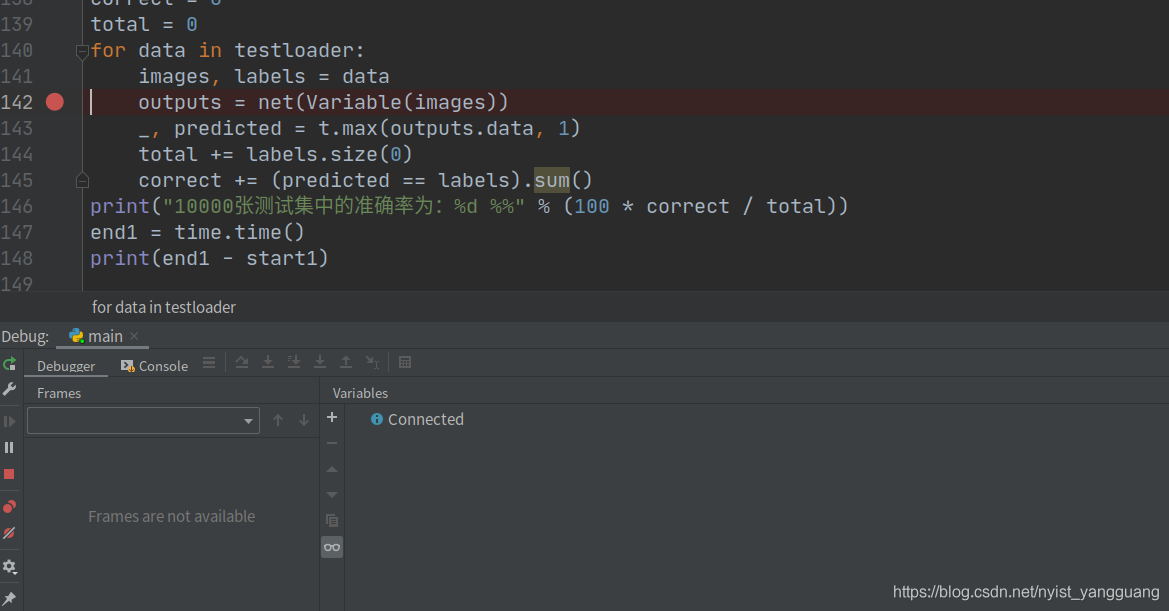
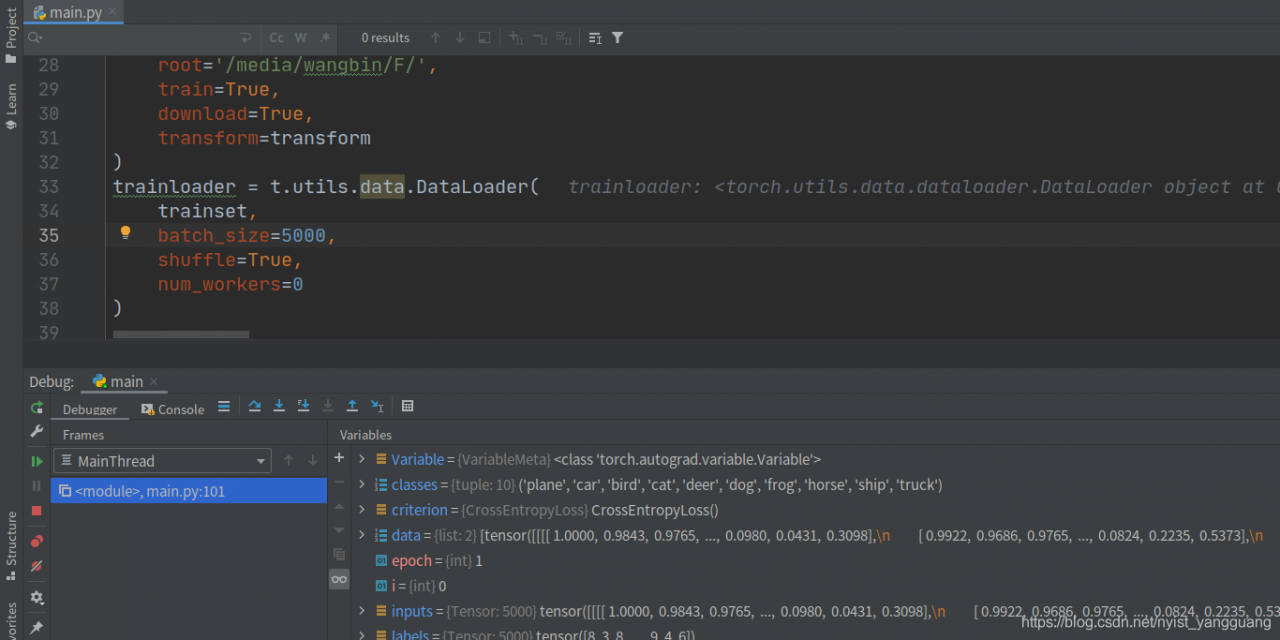
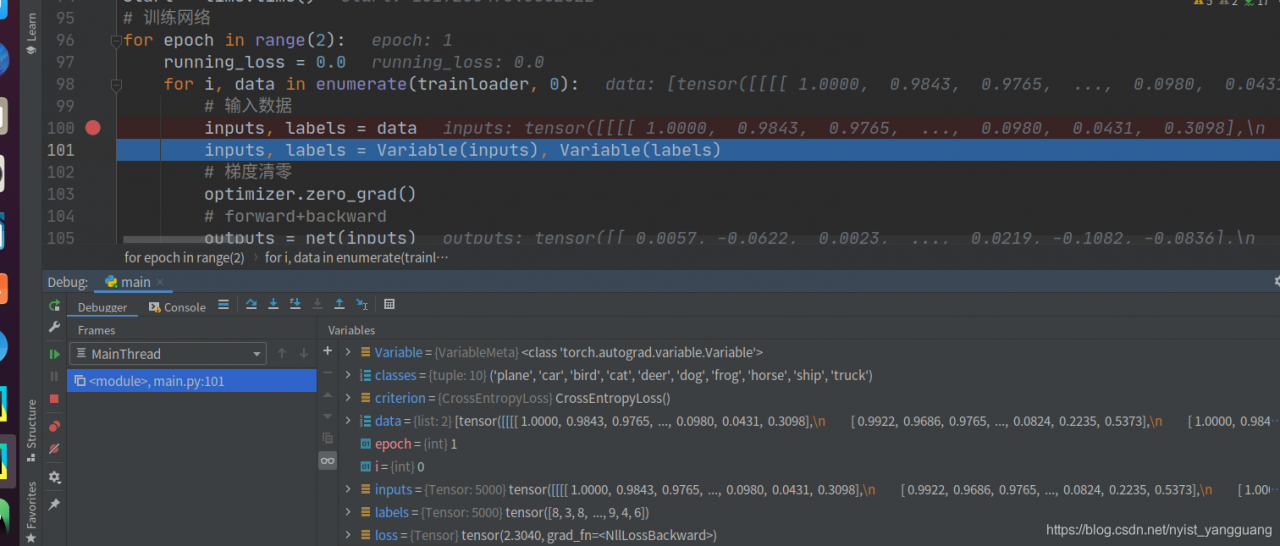
Due to multi process — pychar debug breakpoint debugging encounter pychar dataloader will be stuck

num_ Works parameters   This is the usage of the process.

 
num_ When works is nonzero, the for loop will be stuck here.

 
Changed to 0, ready to run.

Add the num parameter in the dataloader_ Workers can be set to 0

Resources
debugger freezes stepping forward when using torch with workers (multiprocessing)
Zhihu – torch dataloader uses batch and num_ What is the principle of works parameter?Principle analysis
CSDN – pytorch training encountered in the stuck stop and other problems (recommended)
using the python dataloader stuck error solution
dataloader, when num_ worker > 0, there is a bug
to solve the pytorch dataloader num_ Problems of workers  

[error record] the tinker hot fix example runs with an error (patch receive fail: / storage / simulated / 0 / patch)_ signed_ 7zip.apk, code: -2)

Contents of articles

1、 2. Solutions

Refer to [Android hotfix] to run Tinker’s official example blog;

1、 Error information


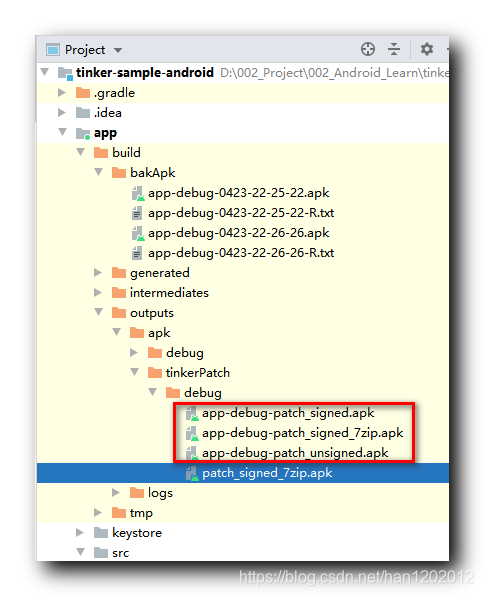
In Tinker hotfix, the generated patch package app debug patch_ signed_ 7zip.apk to the root directory,

The following error occurred when trying to hot repair;

2021-04-23 22:52:50.533 22855-22855/tinker.sample.android V/Tinker.SamplePatchListener: receive a patch file: /storage/emulated/0/patch_signed_7zip.apk, file size:0
2021-04-23 22:52:50.536 22855-22855/tinker.sample.android I/Tinker.DefaultLoadReporter: patch loadReporter onLoadPatchListenerReceiveFail: patch receive fail: /storage/emulated/0/patch_signed_7zip.apk, code: -2

2、 Solutions


Pay attention to the patch package loading path, and tinker will automatically load the patch in the root directory_ signed_ 7zip.apk file;

receive a patch file: /storage/emulated/0/patch_signed_7zip.apk, file size:0

Run the tinkerpatchdebug gradle task, and the generated patch package name is app debug patch_ signed_ 7zip.apk ,

Blind lead, wasted dozens of minutes, looking for errors;

Add the app debug patch_ signed_ 7zip.apk renamed patch_ signed_ 7zip.apk, and then copy it to the root directory of mobile phone SD card;

Net Q & A: how to avoid the exception thrown by max() on emptyenumerable?

Consultation area

Naor:

I have the following query:


int maxShoeSize = Workers.Where(x => x.CompanyId == 8)
                          .Max(x => x.ShoeSize);

If workers. Where (x = & gt; x. Companyid = = 8) if no workers are found, the above code will throw an exception.

Now the idea is: query can return 0 if it can't be found, but don't throw an exception. How can I modify the query above?

Answer area

Ron K.:

You can use the extension method of IEnumerable defaultifempty() to avoid this embarrassment. Refer to the following code.


    class Program
    {
        static void Main(string[] args)
        {
            List<Worker> Workers = new List<Worker>()
            {
                new Worker(){ CompanyId=1, CompanyName="tweet", ShoeSize=10 },
                new Worker(){ CompanyId=2, CompanyName="google", ShoeSize=20 },
            };

            int maxShoeSize = Workers.Where(x => x.CompanyId == 8)
                          .Select(x => x.ShoeSize)
                          .DefaultIfEmpty(0)
                          .Max();

            Debug.WriteLine($"maxShoeSize={maxShoeSize}");
        }

    }

    class Worker
    {
        public int CompanyId { get; set; }

        public string CompanyName { get; set; }

        public int ShoeSize { get; set; }
    }

Output results:


maxShoeSize=0

Of course, the above 0 is not necessary. You can change it to any other number.

CptRobby:

Although the plan provided by the man upstairs can work normally, it doesn't look very eye-catching. It can be transformed into the following one.


    int maxShoeSize = Workers.Where(x => x.CompanyId == 8)
                             .Select(x => (int?)x.ShoeSize)
                              .Max() ?? 0;

Does the code look a little lengthy?The best way is to customize a extension method , as shown in the following code:


public static int MaxOrDefault<T>(this IQueryable<T> source, Expression<Func<T, int?>> selector, int nullValue = 0)
{
    return source.Max(selector) ?? nullValue;
}

For simplicity, this extension only deals with the int type. You can change it to any type, such as: (long, double,...), and then you can continue to reform the caller.


int maxShoeSize = Workers.Where(x => x.CompanyId == 8).MaxOrDefault(x => x.ShoeSize);

I hope my answer can help more people.

Comment area

Xiaobian never dares to do Max on the empty collection , after all, it's not once or twice, so every time we judge whether there is a value in the collection in advance, and then execute Max , we didn't expect that there are magic extension methods defaultifempty and empty type that can help us to do it, and we all forget about sensory science????????????.

invalid connection string format, a valid format is host:ip:port

After Oracle 11.2.0.4 database is upgraded to 19C, the original interface program reports an error: invalid connection string format, a valid format is host:ip :port

The reason is: Java variables refer to classes12. Jar and Ojdbc14. Jar, which leads to conflicts

Solution: after removing classes12. Jar, it will be normal.

In addition, the program should use JDK1.8 and ojdbc8.jar or above synchronously, which is a big change.

Relevant information:

The driver package classes12.jar is used for JDK 1.2 and JDK 1.3, while ojdbc14.jar is used for JDK 1.4

https://sqlora.blog.csdn.net/article/details/112985085

Error in go running: cannot find package “

When the file is imported, the case of the path is not correct. It was compiled under Mac, but not under docker and CentOS.

===

An error is reported in the operation as follows:

[root@localhost ginlaravel]# go run server.go
routes/route.go:19:2: cannot find package "." in:
	/home/wwwroot/go/src/ginlaravel/app/http/Controller
routes/route.go:20:2: cannot find package "." in:
	/home/wwwroot/go/src/ginlaravel/app/http/Controller/Gen1Controller

Or an error will be reported when running as follows:

[root@localhost ginlaravel]# go build -mod=mod
routes/route.go:19:2: package ginlaravel/app/http/Controller is not in GOROOT (/usr/local/go/src/ginlaravel/app/http/Controller)
routes/route.go:20:2: package ginlaravel/app/http/Controller/Gen1Controller is not in GOROOT (/usr/local/go/src/ginlaravel/app/http/Controller/Gen1Controller)

In fact, the above two are written in lowercase for the uppercase HTTP of the custom space naming path.

Appium step pit summary — solution

1. There are appium command version and appium desktop version in the computer, After opening appium desktop version, the script will run with an error:
selenium.common.exceptions.webdriverexception: Message: an unknown server-side error occurred while processing the command. Original error: cannot start the ‘com. XXXX’ application.
main meaning: an unknown server-side error occurred while processing the command

Check:
I found that the command line version (1.20.2) is inconsistent with the desktop version (1.14.1), appium – V, view version

Solution:
close the desktop version, enter appium in the CMD to execute the command line version, execute the script, and it can run successfully
solution 2: upgrade the desktop appium version or reduce the appium command line version