Category Archives: Error

Docker service startup error: Job for docker.service failed because the control process exited with error code.

Error message: Job for docker.service failed because the control process exited with error code. See “systemctl status docker.service” and “journalctl -xe” for details.
Environment: The local environment is the Centos7 system installed on VirtualBox.

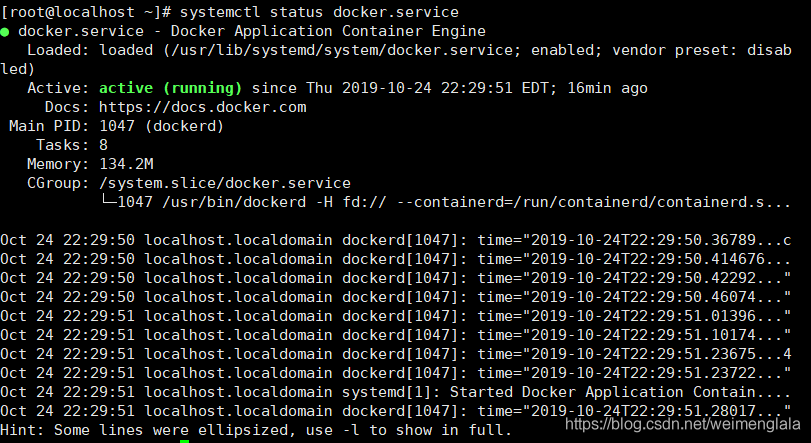
Docker service status: According to the prompt, use the command systemctl status docker.service to check the status of the docker service, and find the following status information:
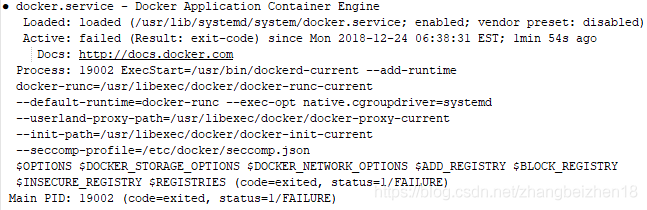


Solution: Uninstall docker and reinstall the new docker.

Solution steps:

  1. Uninstall Docker. Uninstall the old version of docker without success.

    (1) View installed packages: yum list installed | grep docker

             Old versions installed on this machine: docker.x86_64, docker-client.x86_64, docker-common.x86_64

    (2) Delete the installed Docker-related software packages:

             yum -y remove docker.x86_64

             yum -y remove docker-client.x86_64

             yum -y remove docker-common.x86_64

  2. Install Docker

    (1) Check the kernel version [Docker requires the kernel version of the Centos system to be higher than 3.10]

            uname -r [The kernel version of this machine: 3.10.0-327.el7.x86_64]

    (2) Update the yum package to the latest (the time may be a bit long, wait slowly…)

            yum update

    (3) Install the required software packages. [Yum-util provides the yum-config-manager function, the other two are required by the devicemapper driver]

            yum install -y yum -utils device-mapper-persistent-data lvm2

    (4) Set yum source

            yum install -y yum -utils device-mapper-persistent-data lvm2

    (5) View the docker version of the warehouse

            yum list docker-ce –showduplicates | sort -r

    (6) Install docker

            yum install docker-ce

    (7) Start docker, set to start docker at boot.

            systemctl start docker

            systemctl enable docker

            systemctl stop docker [Supplement: This is the command to close docker]

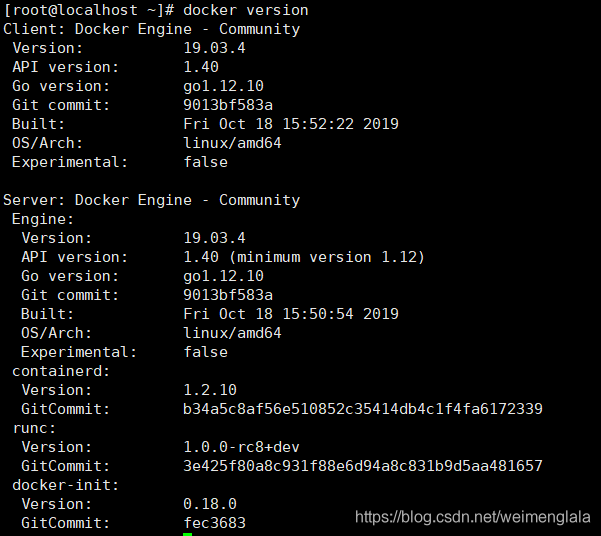
    (8) View version

            docker version


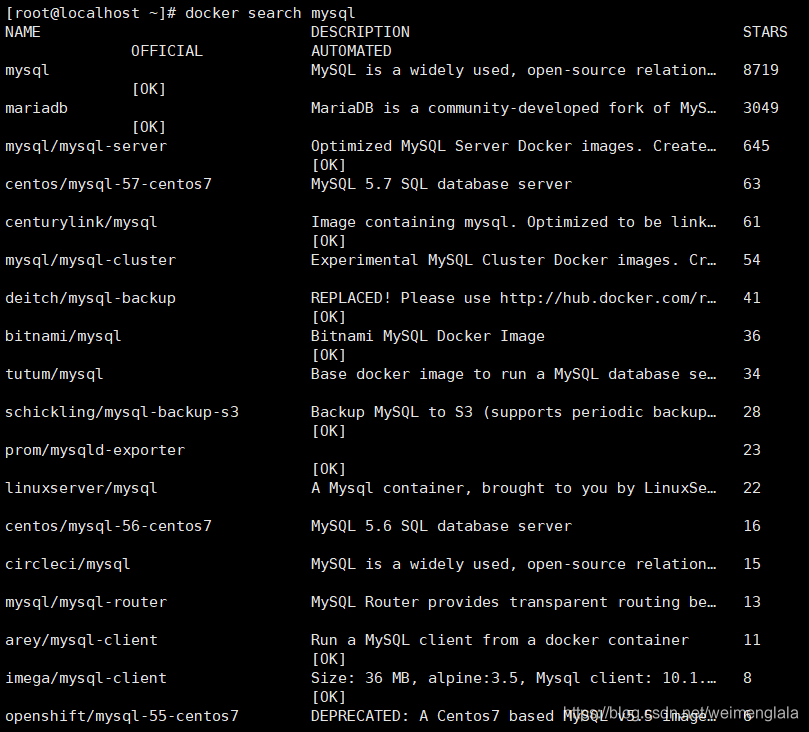
    (9) To check whether the startup is successful, you can use the search command.

            docker search mysql


    (10) View log status

            systemctl status docker.service


Solution to java.lang.IllegalArgumentException: Property’dataSource’ is required

java.lang.IllegalArgumentException: Property’dataSource’ is required 

When I was working on a travel website today, I encountered an exception. The console showed that there was an error when creating the JdbcTemplate object. After inspection, it was found that the code in the custom JDBCUtils tool class
InputStream is = JDBCUtils.class.getClassLoader( ).getResourceAsStream(“druid.properties”);
Add one more / to the configuration file path inside, just remove /; or the durid.properties file is placed in the wrong location, the correct one is to put it in the src directory, not The directory of the project.

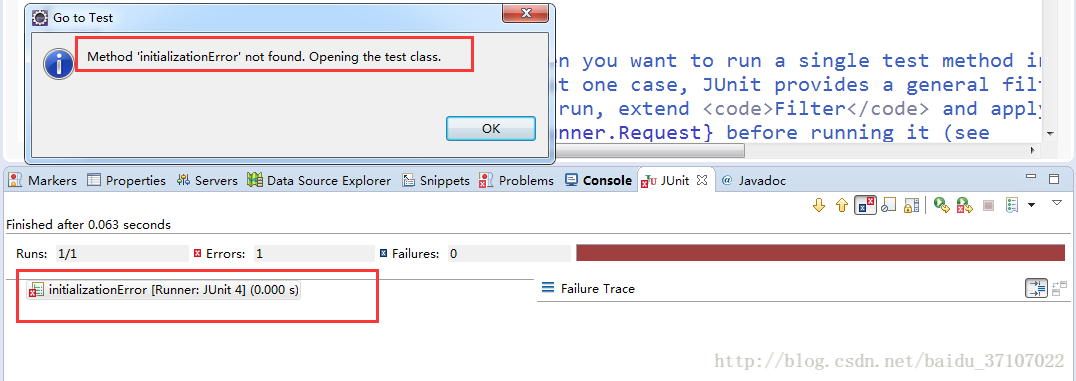
[Solved] Initialization error encountered by JUnit unit test: Method initialization error not found


The reasons may be as follows:
1. Methods with return values cannot be tested directly
2. Methods with parameters cannot be directly tested
3. Methods with access rights under public cannot be directly tested
Static static methods cannot be directly tested
5. Do not add an @test annotation to any of the first four conditions, or an initializationError will occur to any method that meets the @test condition


Only the methods of public void can be tested using @test

Point one: must be public, the following are not allowed
Point two: must be void, no return value, without any modification final, static, etc.

Many bloggers say it could be the lead pack problem:
in addition to introducing junit-4.12.jar, two dependent jars were introduced: hamcrest-core-1.3.rc2.jar, and hamcrest-library-1.3.rc2.jar
(Note: After personal testing, this is usually not the case.)

Chrome Error: Uncaught Error: SECURITY_ERR: DOM Exception 18

Uncaught Error: SECURITY_ERR: DOM Exception 18

Question:
I get the following error in Chrome’s developer tools window when I try to set a cookie using this jQuery plugin:

Uncaught Error: SECURITY_ERR: DOM Exception 18

What does this error mean and how can I fix it? I get the same error when I use this jQuery plugin.

Answer:
You’re most likely using this on a local file over the file://URI scheme, which cannot have cookies set. Put it on a local server so you can use http://localhost.

How to Solve Docker ERROR: Service’workspace’ failed to build: ERROR: Service’php-fpm’ failed to build

Use Laradock to build a PHP development environment based on Docker in Windows system to
execute commandsdocker-compose up nginx mysql redis

Errors occur during execution
newspaper laradock ERROR: Service ‘workspace’ failed to build:
reporteddocker ERROR: Service 'php-fpm' failed to build:

Solution: .envthe WORKSPACE_TIMEZONE=UTCchange WORKSPACE_TIMEZONE=PRC.

In C:\Windows\System32\drivers\etcthe Add

199.232.28.133 raw.githubusercontent.com

Then you need to try a few more times, and the network may have problems.

[Solved] go cobra Error: required flag(s) “pkg-name” not set

Cobra is a Golang package that provides a simple interface to create command line programs. At the same time, Cobra is also an application that is used to generate application frameworks to develop applications based on Cobra.

Use cobra init the command to initialize framework, but found an error:

Error: required flag(s) " pkg-name " not set

After checking the official documentation, I found that after the Cobra version is updated, a mandatory parameter needs to be added --pkg-name, which is the package imported by the main function by default.

Updates to the Cobra generator have now decoupled it from the GOPATH. As such --pkg-nameis required.

So use the following command to initialize:

Create the directory cobra_demo first, enter and then initialize

cobra init --pkg-name cobra_demo

After the initialization is successful, the following prompt message appears:

Your Cobra application is ready at


At this time, the project structure should be as follows:

cobra_demo/ 
    cmd / 
    root.go
    main.go
    LICENSE

[Solved] configure: error: C++ preprocessor “/lib/cpp” fails sanity check

configure: error: C++ preprocessor “/lib/cpp” fails sanity check

The root of the problem is the lack of necessary C++ libraries.

If it is a CentOS system, run the following command to solve:

   yum install glibc-headers
  
   yum install gcc-c++ 

In Ubuntu system, run the command:

   apt-get install build-essential 
 
   apt-get install g++

[Solved] cnpm: Cannot load the file C:\Users\Raytine\AppData\Roaming\npm\cnpm.ps1 because running scripts is prohibited on this system

Solution:

1. Enter Windos PowerShell in the search box in the system

2. Click “Run as Administrator”

3. Enter “set-ExecutionPolicy RemoteSigned” and press Enter

4. According to the prompt, enter A and press Enter

5. Return to cnpm -v again to execute successfully.

Not only cnpm commands, including pnpm, yarn and other commands, if such an error is reported when executed, it can be solved by this method. The premise is that if you use the npm command to install these CLI command tools, they must be installed in the global environment to take effect.