Author Archives: Robins

Resolve – bash: fork: Retail: resource temporarily unavailable error

1. If -bash: fork: retry: Resource error is unavailable, then you have no further questions. If the maximum number of Linux processes is exceeded, then change the maximum number of Linux processes.

Connect to the server using the CRT connection tool

[support@localhost ~]$ ulimit -a
core file size          (blocks, -c) 0
data seg size           (kbytes, -d) unlimited
scheduling priority             (-e) 0
file size               (blocks, -f) unlimited
pending signals                 (-i) 127405
max locked memory       (kbytes, -l) 64
max memory size         (kbytes, -m) unlimited
open files                      (-n) 1024
pipe size            (512 bytes, -p) 8
POSIX message queues     (bytes, -q) 819200
real-time priority              (-r) 0
stack size              (kbytes, -s) 10240
cpu time               (seconds, -t) unlimited
max user processes              (-u) 1024
virtual memory          (kbytes, -v) unlimited
file locks                      (-x) unlimited
[support@localhost ~]$ 

You can’t switch root after logging in, even if you type the clear command, you will get an error.
online said it could open too many processes, the system allows you to create the maximum number of processes Max user the processes the parameters.
> Max user processes can use ulimit-u 4096, but only in the session of the current terminal. The default values will be used once you log in again. So it can’t be used.
the right way to change is to modify the/etc/security/limits. D/90 – nproc. The values in the conf file. CD/etc/securit/lims.d/
: : : : : : : : : : : : : : : : : : : : : : : : : : : : : : : : : :

# Default limit for number of user's processes to prevent
# accidental fork bombs.
# See rhbz #432903 for reasoning.

*          soft    nproc     4096
root       soft    nproc     unlimited

You can change the value, but note that root is used for the change, and no other user has permission by default.
because they have no root, he found a can be resource-intensive process, users can connect.
On the Internet to see the number of connections command
ps – the eLf | grep username, check the progress of the target user.
Reference links: http://www.nginx.cn/3002.html
https://zhidao.baidu.com/question/1640745287732090500.html


Git bash run error, GIT 32 bit

Environment:
Win10 64-bit
Error: Could not fork child process: Resource Error is unavailable (-1).
l rebasing may be required; See ‘rebaseAll/rebase — help’.
: failed to fork child process no such file or directory, DLL rebasing may be required
Solutions:
1. Go to the Git installation directory and run git-cmd.exe;
>
>
>
>
> rebase-b 0x76000000…
rebase-b 0x76000000… /msys-2.0.dll
/msys-2.0.dll
/msys-2.0.dll
/msys-2.0.dll
/msys-2.0.dll
/msys-2.0.dll
/msys-2.0.dll
/msys-2.0.dll. Copy msys-2.0.dll back to /bin current directory (.. Represents the current directory)
Rerun git-bash.exe, problem solved!

Git bash error, version 2.16.2-64-bit

Environment: Win7 64-bit
Error: Could not fork child process: Resource temporarily unavailable (-1).
DLL rebasing may be required; See ‘rebaseAll/rebase — help’.
 
Failed to fork child process no such file or directory, DLL rebasing may be required
 
Solutions:
1. Go to the Git installation directory and run git-cmd.exe;
2, Execution command: CD usr/bin, enter /bin directory;
3, Execute command: CP MSYS-2.0. DLL.. /, copy msys-2.0.dll to the directory above;
Rebase-b 0x76000000… rebase-b 0x76000000…/msys – 2.0. DLL
Rebase-b 0x30000000… rebase-b 0x30000000…/msys – 2.0. DLL
6, Execute command: cp.. /msys-2.0.dll. Copy msys-2.0.dll back to /bin current directory (.. Represents the current directory)
 
Rerun git-bash.exe, problem solved!
 
If the problem persists, try modifying the registry:
1. Open Run and type regedit to open the registry
[HKEY_CLASSES_ROOT \ DIRECTORY \ BACKGROUND \ SHELL \ GIT_SHELL \ COMMAND] :\Program Files\Git\git-bash.exe
3, Replace it with C: Program Files\Git\bin\sh.exe


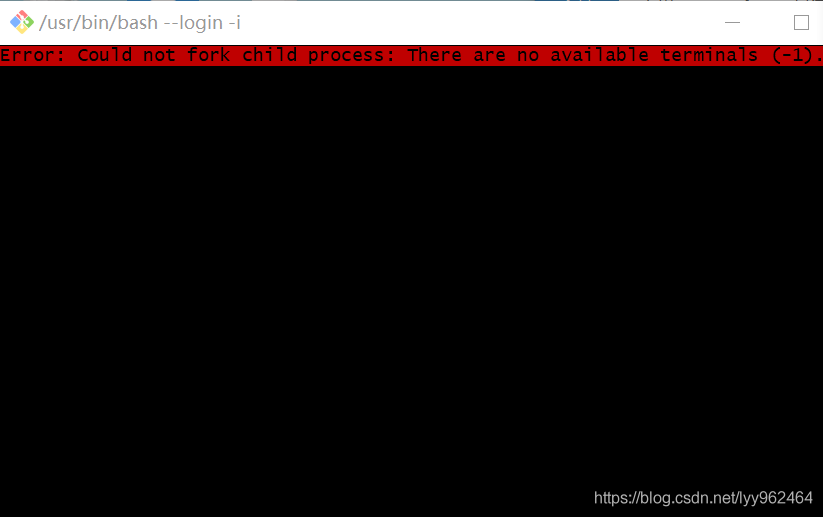
Error:could not fork child process: There are no available terminals (-1).

Git Bash terminal cannot be opened

1, in the CMD command input tasklist check git – bash. Exe process, find the corresponding process pid
no. 2, tasklist | findstr searches process, pid # find process, the corresponding process
no. 3, taskkill/pid process pid – t – f # is corresponding process termination command, after the termination, can open the git bash terminal
If that still doesn’t work, restart your computer


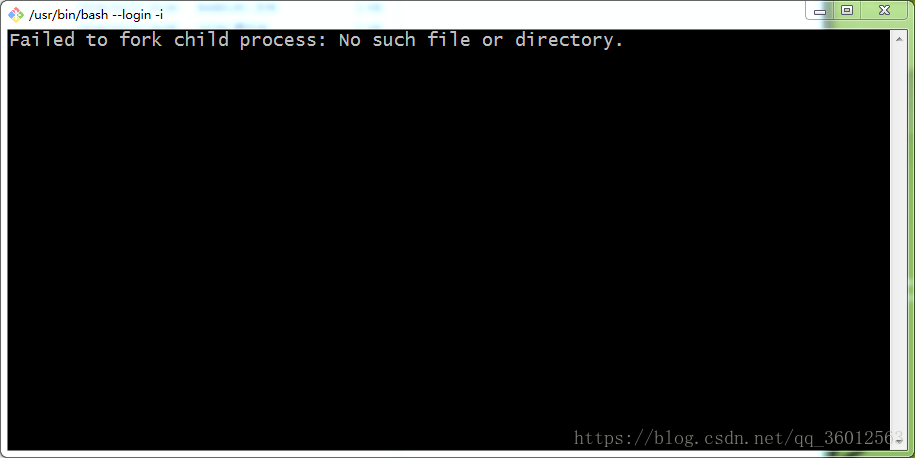
Git bash here running error: failed to fork child process

The following error occurs when you run Git Bash Here…

Git bash here Failed to fork child process: No such file or directory

The Git version is 2.9.3, and reinstalling different versions of Git does not solve this problem

Solution:
Step 1: Find the Git installation directory on your computer
Step 2: Enter the directory –>; user –> Bin, locate the msys-2.0.dll file
Step 3: Copy msys-2.0.dll to a directory
Step 3: Open the CMD command in the bin file (Shift + mouse right-click –>; Open the command window here), and run the command
Rebase – 0 x76000000 b… \ msys – 2.0. DLL
Rebase – 0 x30000000 b… \ msys – 2.0. DLL
Step 4: Replace the DLL under the bin file with the MSYS-2.0.dll copied in the third step

glassfish:Resource temporarily unavailable in tsStartJavaThread

Today the test server (using glassfish3.1.1) suddenly reported the following exception while deploying the application. -bash: fork: retry: Resource permanently unavailable. If you have no further questions, then you have no further questions.

[ERROR] [ERROR][thread ] Could not start thread Keep-Alive-Timer. Resource temporarily unavailable
[ERROR] Exception in thread "Main Thread" java.lang.OutOfMemoryError: Resource temporarily unavailable in tsStartJavaThread (lifecycle.c:1096).
[ERROR] Java heap 3G reserved, 64M committed
[ERROR] Paged memory=18014398505034060K/18389412K.
[ERROR] Your Java heap size might be set too high.
[ERROR] Try to reduce the Java heap size using -Xmx:<size> (e.g. "
[ERROR]         at java.lang.Thread.start0(Native Method)
[ERROR]         at java.lang.Thread.start(Thread.java:597)
[ERROR]         at sun.net.www.http.KeepAliveCache$1.run(KeepAliveCache.java:89)
[ERROR]         at sun.net.www.http.KeepAliveCache.put(KeepAliveCache.java:75)
[ERROR]         at sun.net.www.http.HttpClient.putInKeepAliveCache(HttpClient.java:370)
[ERROR]         at sun.net.www.http.HttpClient.finished(HttpClient.java:358)
[ERROR]         at sun.net.www.http.ChunkedInputStream.closeUnderlying(ChunkedInputStream.java:196)
[ERROR]         at sun.net.www.http.ChunkedInputStream.processRaw(ChunkedInputStream.java:428)
[ERROR]         at sun.net.www.http.ChunkedInputStream.readAheadNonBlocking(ChunkedInputStream.java:493)
[ERROR]         at sun.net.www.http.ChunkedInputStream.readAhead(ChunkedInputStream.java:584)
[ERROR]         at sun.net.www.http.ChunkedInputStream.available(ChunkedInputStream.java:698)
[ERROR]         at java.io.FilterInputStream.available(FilterInputStream.java:142)
[ERROR]         at java.nio.channels.Channels$ReadableByteChannelImpl.read(Channels.java:196)
[ERROR]         at com.sun.enterprise.util.io.FileUtils.copy(FileUtils.java:915)
[ERROR]         at com.sun.enterprise.admin.remote.RemoteResponseManager.<init>(RemoteResponseManager.java:79)
[ERROR]         at com.sun.enterprise.admin.remote.RemoteAdminCommand.handleResponse(RemoteAdminCommand.java:1056)
[ERROR]         at com.sun.enterprise.admin.remote.RemoteAdminCommand.handleResponse(RemoteAdminCommand.java:1045)
[ERROR]         at com.sun.enterprise.admin.remote.RemoteAdminCommand.access$600(RemoteAdminCommand.java:101)
[ERROR]         at com.sun.enterprise.admin.remote.RemoteAdminCommand$1$1.handleReport(RemoteAdminCommand.java:526)
[ERROR]         at org.glassfish.admin.payload.PayloadFilesManager.processReport(PayloadFilesManager.java:473)
[ERROR]         at org.glassfish.admin.payload.PayloadFilesManager.access$900(PayloadFilesManager.java:93)
[ERROR]         at org.glassfish.admin.payload.PayloadFilesManager$DataRequestType$4.processPart(PayloadFilesManager.java:776)
[ERROR]         at org.glassfish.admin.payload.PayloadFilesManager.processPartsExtended(PayloadFilesManager.java:624)
[ERROR]         at org.glassfish.admin.payload.PayloadFilesManager.processParts(PayloadFilesManager.java:643)
[ERROR]         at com.sun.enterprise.admin.remote.RemoteAdminCommand$1.useConnection(RemoteAdminCommand.java:531)
[ERROR]         at com.sun.enterprise.admin.remote.RemoteAdminCommand.doHttpCommand(RemoteAdminCommand.java:700)
[ERROR]         at com.sun.enterprise.admin.remote.RemoteAdminCommand.doHttpCommand(RemoteAdminCommand.java:543)
[ERROR]         at com.sun.enterprise.admin.remote.RemoteAdminCommand.executeRemoteCommand(RemoteAdminCommand.java:482)
[ERROR]         at com.sun.enterprise.admin.remote.RemoteAdminCommand.executeCommand(RemoteAdminCommand.java:419)
[ERROR]         at com.sun.enterprise.admin.cli.remote.RemoteCommand.executeCommand(RemoteCommand.java:335)
[ERROR]         at com.sun.enterprise.admin.cli.CLICommand.execute(CLICommand.java:264)
[ERROR]         at com.sun.enterprise.admin.cli.AsadminMain.executeCommand(AsadminMain.java:306)
[ERROR]         at com.sun.enterprise.admin.cli.AsadminMain.main(AsadminMain.java:238)
[ERROR] [ERROR][thread ] Could not start thread Thread-0. Resource temporarily unavailable
[ERROR] Deployment of /home/javadev/codes/*****************.war failed.
[ERROR] For more detail on what might be causing the problem try running maven with the --debug option 
[ERROR] or setting the maven-glassfish-plugin "echo" property to "true".

We first analyzed the abnormal, see “Paged memory = 18014398505034060 k/18389412 k.” immediately startled, thought who is boring and the change of configuration information. Looking at the configuration parameters for the GlassFish startup JVM in the GlassFish console, I found nothing unusual and nothing changed compared to the other configurations. The same configuration worked well on the other test servers, initially eliminating GlassFish and JVM parameter configuration issues.
= “-bash: fork: retry: Resource permanently” (check the number of processes :

 [javadev@snaqi-test3 ~]$ ps -ef|wc -l
 1025

But in the/etc/security/limits the conf javadev user configuration

    javadev             soft    nproc   1024
    javadev             hard    nproc   16384
    javadev             soft    nofile  2048
    javadev             hard    nofile  65536

Obviously the number of user processes has reached the limit of the limit. Change line 1 from 1024 to 2048. Problem solved. In addition, the third line 2048 can be enlarged to prevent the “too many file litres” of the program.

Su prompt when switching users: resource temporarily unavailable

I failed to connect the FTP server authentication with WinSCP today. I felt really strange. Nothing has been moved and everything was normal before.
If I su to FTP user, I keep saying “-bash:fork:Resource permanently unavailable”. If I have no further questions, I have no further questions. If I su to FTP user, I have no further questions.
[root@cls vsftpd]# su bupdate
bash: fork: retry: Resource temporarily unavailable
^C
1, first check the disk, memory are OK
[bupdate@cls vsftpd]$ top
PID USER PR NI VIRT RES SHR S %CPU %MEM TIME+ COMMAND
32141 bupdate 20 0 16296 2548 1004 R 2.3 0.1 0:00.61 top
root 20 0 19272 1576 1312 S 0.0 0.0 0:06. 43 init
2 root 20 0 0 0 0 S 0.0 0.0 0:00. 00 kthreadd
root RT 3 0 0 0 0 S 0.0 0.0 0:01.45 migration/0
4 root 20 00 0 S 0.0 0.0 0:00.12 ksoftirqd/0
root RT 00 0 S 0.0 0.0 0:00.00 migration/0
6 root RT 0 0 0 0 S 0.0 0.0 0:00. 00 watchdog/0
7 root RT 0 0 0 0 S 0.0 0.0 0:02. 26 migration/1
root RT 8 0 00 0 0 0 S 0.0 0.0 0:00. The migration/1
9 root 20 0 0 0 0 S 0.0 0.0 0:00. 25 ksoftirqd/1
10 root RT 0 0 0 0 S 0.0 0.0 0:27. 92 watchdog/1
11 root RT 0 0 0 0 S 0.0 0.0 0:00. 92 migration/2
12 root RT 0 0 0 0 S 0.0 0.0 0:00. 00 migration/2
13 root 20 0 0 0 0 S 0.0 0.0 0:00. 01 ksoftirqd/2

2. Use ulimit-a to get the result

(plain)
view plain
copy

    the core file size (data blocks, -c) 0 seg size (kbytes, -d) unlimited Max nice (-e) 0, the file size (blocks, -f) is unlimited Pending signals (-i) 71679 Max locked memory (in kbytes, -l) 32 Max memory size (kbytes, -m) unlimited open files (-n) 1024 Pipe size (512 bytes, the -p) 8 POSIX message the queues (bytes, – q) 819200 Max rt priority (-r) 0 stack size (10240 kbytes, -s) CPU time (seconds, -t) unlimited Max user the processes (-u) 2047 virtual memory (in kbytes, -v) unlimited file locks (-x) unlimited

     
    3, modify the/etc/security/limits. Conf

    (plain)
    view plain
    copy

    The

      * soft nproc 2047 * hard nproc 16384

      limits. Conf format:

      username | @ groupname type resource limit
      The username | @ groupname: Settings need to be restricted user name, add @ in front of the group name and user name. You can also limit all users with a wildcard *.
      Type: soft, hard and -, soft refers to the current system in effect. Hard indicates the maximum value that can be set in the system. The maximum value of soft cannot exceed the value of hard. Using – indicates that both soft and hard values are set.
      The resource:
      the core – limit the size of the kernel file
      the date – the largest data size
      fsize – maximum file size
      memlock – largest lock memory address space
      nofiles – the maximum number of open file
      RSS – maximum persistent set size
      stack – stack size
      maximum CPU – units of minutes up CPU time
      noproc – process the maximum number of
      the as – Address space limit
      maxlogins – the maximum number of logins allowed by this user
      For the lims.conf file configuration to take effect, you must ensure that the pam_lims.so file is added to the startup file.
      session required /lib/security/pam_limits. So.
      session required /lib/security/pam_limits
       
      4. Or modify the /etc/profile file
      Ulimit [- acdfHlmnpsStvw] [size]
      Parameter details:

      -a>
      size: Sets the maximum value of the core file.
      -c size: Sets the maximum value of the core file. Blocks
      -d Size: Sets the maximum number of blocks in the data segment.
      -f size: Set the maximum value of the file to create. Blocks
      -l Size: Sets the maximum number of processes locked in memory.
      -m Size: Sets the maximum amount of resident memory that can be used. Kbytes
      -n Size: Sets the maximum number of file descriptors that the kernel can open at the same time. N
      -p Size: Sets the maximum value of the pipeline buffer.
      -s size: Sets the maximum value of the stack.
      -t size: Set the maximum CPU usage time. Seconds
      -v size: Sets the maximum value of virtual memory. Unit: kbytes
      Add something like ulimit -f 1000 to the end of /etc/profile so that each session will take effect when logged in.

      Ps:

      Permanent change

      remove
      Limits on maximum number of processes and maximum number of files open for Linux systems:

      Vi/etc/security/limits. Conf

      # Add the following line

      * Soft noproc 11000 # soft connection

      * Hard noproc 11000 # hard connection

      * soft nofiles 4100

      * hard nofiles 4100

      Note: * represents for all users, noproc represents the maximum number of processes, nofile represents the maximum number of open files

      Refer to the address: http://blog.csdn.net/jlds123/article/details/9146865

How to Fix NVIDIA-SMI has failed because it couldn‘t communicate with the NVIDIA driver.

Error:

NVIDIA-SMI has failed because it couldn't communicate with the NVIDIA driver. 
Make sure that the latest NVIDIA driver is installed and running.

Situation:
Cuda: did install NVCC-V: messages appear

Solution:
1) query the current NVIDIA driver version number

ls /usr/src | grep nvidia

#if output: nvidia-450.57

2) Install relevant tools

sudo apt install dkms

3) Reinstall the driver

sudo dkms install -m nvidia -v 450.57

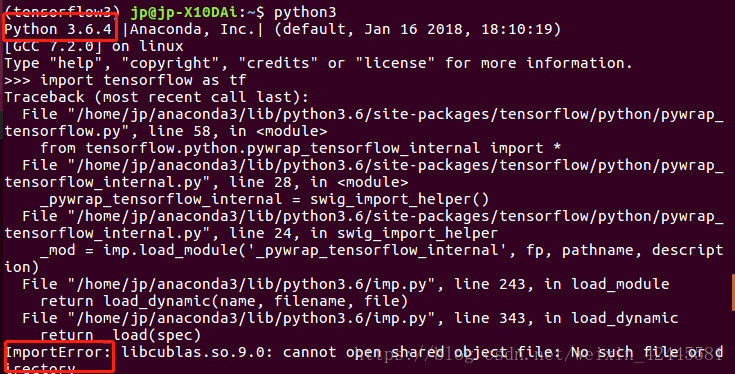
ImportError: libcublas.so.9.0: cannot open shared object file: No such file or directory

Runtime environment: Anaconda’s virtual environment
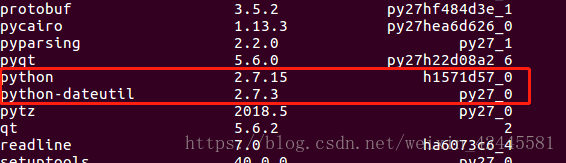
A lot of people say this is because of the CUDA version, but I’ve found that another reason is the Python version of TensorFlow. If you look at the picture, TensorFlow at this point is Python 2.7.
So when I’m using Python 2.7, I don’t get anything wrong

I got an error when I imported TensorFlow in Python 3.6

Use the Conda List to see the Python version

I found that the default version of Python is 2.7. I created this virtual environment with 3.6, but for some reason it changed to 2.7.
The solution. Re-create the Conda environment and re-install TensorFlow.

conda create --name tensorflow python=3.6
conda install tensorflow      
conda install tensorflow-gpu 
conda list

Once installed, you will notice that TensorFlow is now Python 3.6.

Look at the default Python version

Is 3.6. The TensorFlow version corresponds to the Python version, so it should work fine.

As for why the Python version of the Anaconda virtual environment changed, I’m not sure.

Error: cannot find module ‘webpack cli/bin/config yargs’‘

NPM run dev</code bbb>ror: Cannot find module 'webpack-cli/bin/config-yargs'

// current package.json file
​
"devDependencies": {
    "webpack": "^5.2.0",
    "webpack-cli": "^4.1.0",
    "webpack-dev-server": "^3.11.0"
}

Question Quote:

refer to: Error: Cannot find module 'webpack-cli/bin/config-yargs' #1948

If you upgrade webpack to 5. *, and webpack cli to 4. *, an error will be reported:

Error: Cannot find module 'webpack-cli/bin/config-yargs'
Temporary solution: Back off webpack cli to version 3. * for example:

"webpack-cli": "^ 3.3.12"

Solution:
NPM install webpack-cli@3 -d </code bbb>/ ol> <>ode>

Webpack-dev-server ^3 requires webpack-cli ^3 installation

// package.json file
"devDependencies": {
    "webpack": "^5.2.0",
    "webpack-cli": "^3.3.12",
    "webpack-dev-server": "^3.11.0"
}

Think about:
If you encounter a problem, go to the Issues section of the GitHub project first and retrieve the related problem. It is much better than directly searching for unofficial solutions on Google.
Please feel free to reprint the original article. Wish to share with you and make progress together. – jiang coder

How to Fix Webpack run error webpack dev server

Error report:

The CLI moved into a separate package: webpack-cli.
Please install 'webpack-cli' in addition to webpack itself to use the CLI.
-> When using npm: npm install webpack-cli -D
-> When using yarn: yarn add webpack-cli -D
module.js:442
    throw err;
    ^

Error: Cannot find module 'webpack-cli/bin/config-yargs'
    at Function.Module._resolveFilename (module.js:440:15)
    at Function.Module._load (module.js:388:25)
    at Module.require (module.js:468:17)
    at require (internal/module.js:20:19)
    at Object. (D:[email protected]@webpack-dev-serverbinwebpack-dev-server.js:6
5:1)
    at Module._compile (module.js:541:32)
    at Object.Module._extensions..js (module.js:550:10)
    at Module.load (module.js:458:32)
    at tryModuleLoad (module.js:417:12)
    at Function.Module._load (module.js:409:3)

npm ERR! Windows_NT 6.1.7601
npm ERR! argv "C:\Program Files\nodejs\node.exe" "C:\Program Files\nodejs\node_modules\npm\bin\npm-cli.js" "run
" "server"
npm ERR! node v6.2.1
npm ERR! npm  v3.9.3
npm ERR! code ELIFECYCLE
npm ERR! @ server: `webpack-dev-server --open`
npm ERR! Exit status 1
npm ERR!
npm ERR! Failed at the @ server script 'webpack-dev-server --open'.
npm ERR! Make sure you have the latest version of node.js and npm installed.
npm ERR! If you do, this is most likely a problem with the  package,
npm ERR! not with npm itself.
npm ERR! Tell the author that this fails on your system:
npm ERR!     webpack-dev-server --open
npm ERR! You can get information on how to open an issue for this project with:
npm ERR!     npm bugs
npm ERR! Or if that isn't available, you can get their info via:
npm ERR!     npm owner ls
npm ERR! There is likely additional logging output above.

npm ERR! Please include the following file with any support request:
npm ERR!     D:wabgnpm-debug.log

The reason:
Webpack is not compatible with the webpack-dev-server version, resulting in a compilation error.
Solution:
Uninstall and reinstall with the following command:
Uninstall version:

cnpm uninstall webpack -g   or    npm uninstall webpack -g
cnpm uninstall -g webpack-dev-server   or   npm uninstall -g webpack-dev-server

Install the specified version

cnpm install [email protected] --save-dev   or   npm install [email protected] --save-dev
cnpm install [email protected] --save -dev   or   npm install [email protected] --save -dev