CRON_TIME="0 18 * * * ?"
To
CRON_TIME=0 18 * * *
Double quotes cannot be present, otherwise the task cannot be performed
CRON_TIME="0 18 * * * ?"
To
CRON_TIME=0 18 * * *
Double quotes cannot be present, otherwise the task cannot be performed
After importing the Vue project, #npm run dev reported an error:
|
1
2
|
error in ./src/pages/hello.vueModule build failed: Error: Node Sass does not yet support your current environment....... |
Roughly it is a failure to compile a certain vue file, because the module fails to be constructed, and node sass does not support the current environment [mainly node].
Let’s take a look at the node version first:
#node –version

Upgrading the node version/node version is too high will cause node-sass incompatibility, then just install node-sass again.
|
1
|
#npm i node-sass -D |
[<==>#npm install node-sass -save-dev]
Solution: add the specified version to the __init__.py of the project file
import pymysql
pymysql.version_info = (1, 4, 13, “final”, 0)
#Specify the version pymysql.install_as_MySQLdb()
An error occurred when using Gitlab’s clone project:
schannel: next InitializeSecurityContext failed: SEC_E_UNTRUSTED_ROOTFor this error, open the cmd window in administrator mode and execute the following command:
git config --system http.sslbackend opensslThen you can clone.
Farewell:
Error: Cannot find module’webpack/lib/RequestShortener’
This is really clueless. Later, there was an article to solve other similar error reporting methods, and I borrowed it, and it really worked!
After that, it’s okay~
It happened after I installed element-plus, the vue server directly reported an error.
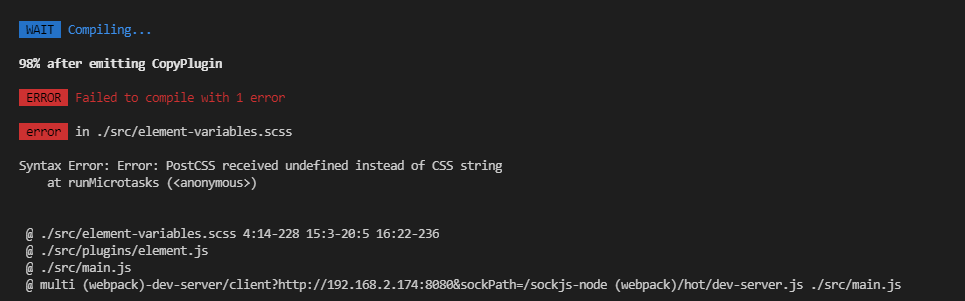
Then, I checked the npm list, and finally executed npm install sass-loader
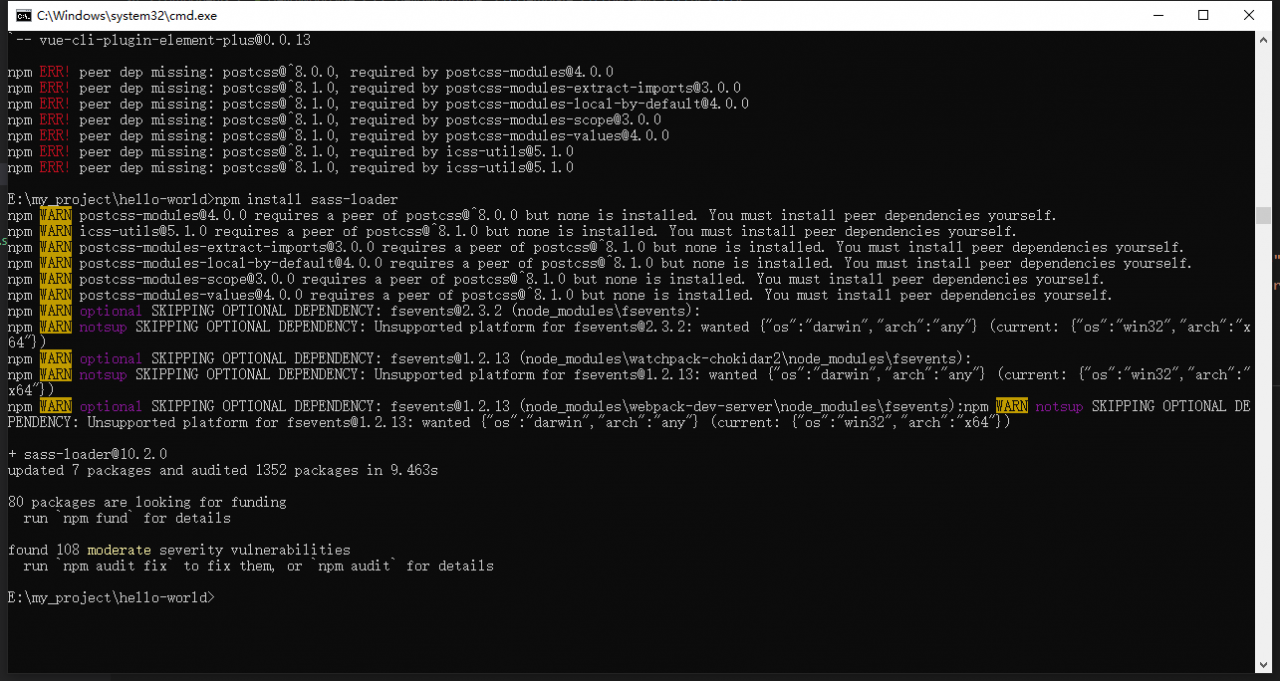
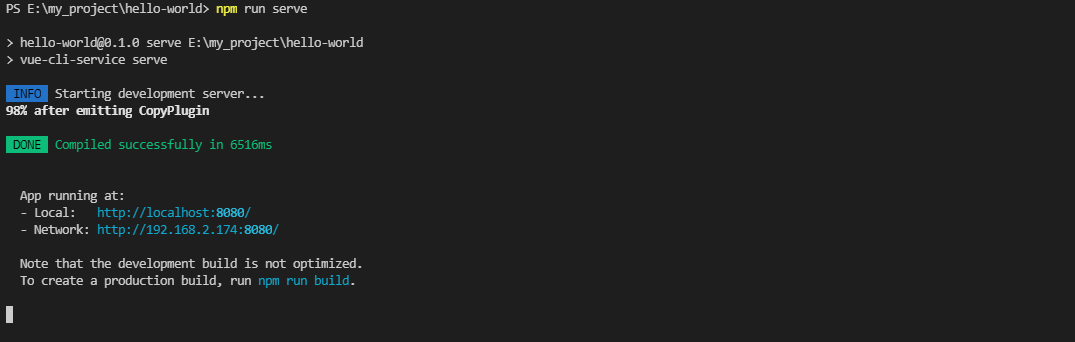
All right

An ERROR occurred while performing the step: “Building kernel modules”. See /var/log/nv
To solve the problem
NVIDIA Software Installer for Unix/Linux
ERROR: An ERROR occurred while performing the step: “Building kernel modules”. See
/var/log/ nvidia-log for details.
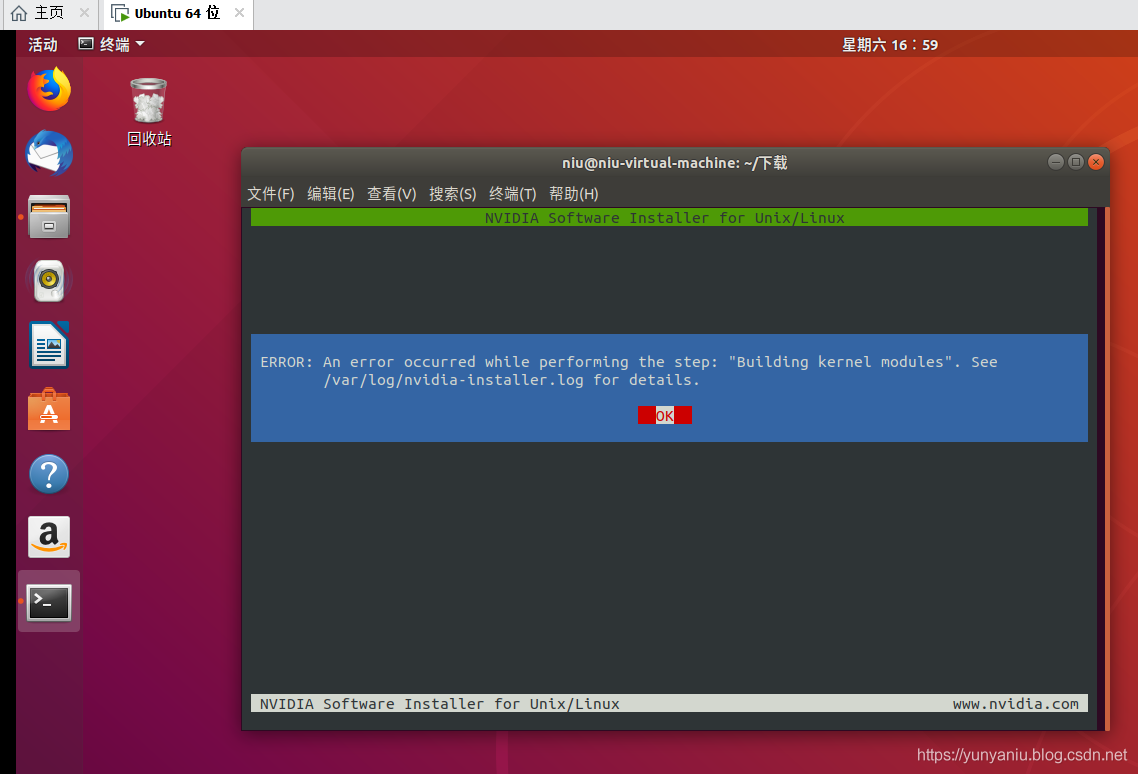
solution
Error: An error occurred while performing the step “build a kernel module”. For more information, see /var/log/nvidia-installer.log.
The solution
First check the error log, the solution is really forgotten, really sorry……
PS: friends, really sorry, in the past for a long time, the specific solution to forget, I hope that friends, brainstorm, together to solve this problem, there is a better more detailed way, leave a message we discuss together! Thank you very much!
update
First of all, thank you for your recommendation!
Understand bugs: Nvidia drivers are “fragile.” Because of the execution of the apt-get Upgrade command, the kernel from 4.10 to 4.13, install the Nvidia driver will report an error, so put the kernel version back to 4.10 version, install again!
uname -r                       #Check the current kernel version
sudo apt-get remove linux-image-(version-number)-generic
For example
sudo apt-get remove linux-image-4.4.0-140-generic-generic # to remove the current kernel version


nvidia-smi # Use the command to view the GPU information after installing the graphics driver
Kernel version in the upgrade, will not delete the old version, just replace the old with the new version, only need to delete the new version of the kernel, the system will automatically descend to the old version, delete the new version of the kernel.
Local environment:
operating system – windows7 32 bit
MYSQL version – MYSQL Ver 14.14 Distrib 5.7.25, for Win32 (AMD64)
Execution process:
Error contents:
Error installing ODBC driver MySQL ODBC5.3 ANSI
Driver,ODBC error 13:Unable to load MySQL ODBC5.3 ANSI Driver ODBC driver
Installation routine, because there is a system error code 126: ... \Myodbc5S.dll) cannot find the specified module.
Solutions:
Solution 1: general online solution: install Microsoft Visual C++ 2013 Redistributable Package above. Verification results: Installing mysql-Connector-ODBC still prompts for the same error message after the following three versions are installed on the machine.
Microsoft Visual C++ 2015 Redistributable Package
Microsoft Visual C++ 2013 Redistributable Package
Microsoft Visual C++ 2010 Redistributable Package
Solution 2: Replace the lower version of mysql-Connector-ODBC. Try installing mysql-connector-odbc-5.1.13-win32.msi verification solution :(the current environment has all three versions of vc++ installed) install the lower version (5.1.13) successfully! The ODBC data source manager was able to successfully create the user data source.
Recently, I need to use Excel to generate a series of charts, the data is naturally obtained through sql server. The problem is that this excel has nearly 50 charts, and each chart has to be connected to DB to get the data. The problem comes, when refreshing all the time often encountered
“[DBNETLIB] [ConnectionWrite (send()). General network error. Check your network documentation” error. The initial judgment is definitely too much data connection caused by (for Excel rookies do not have the ability to solve from the Excel side). After a while Google, finally found a solution, maybe not the best, right as a record.
Possible causes.
This problem occurs because Windows Server 2003 and higher implements a security feature that reduces the size of the queue of concurrent TCP/IP connections to the server. This feature helps prevent denial-of-service attacks. Under high load conditions, the TCP/IP protocol may incorrectly recognize a valid TCP/IP connection as a denial-of-service attack. This behavior can lead to the problems described in the Symptoms section.
Solution.
This section, method, or task contains steps that tell you how to modify the registry. However, serious problems can occur if the registry is not modified correctly. Therefore, make sure you follow these steps carefully. For extra protection, back up the registry before modifying it. Then, if a problem occurs, you can restore the registry.
To resolve this issue, turn off this new feature by adding SynAttackProtect entry to the following registry entry for the computer that is running Microsoft SQL Server, which houses your BizTalk server database.
HKEY_LOCAL_MACHINE \ SYSTEM \ CurrentControlSet \ Tcpip \ \ Service Parameters
Settings
SynAttackProtect
Enter a DWORD value of 00000000. to do this, follow these steps:
Click Start, click Run, type regedit, and then click OK. Find and click on the following registry entry:
HKEY_LOCAL_MACHINE \ SYSTEM \ CurrentControlSet \ Tcpip \ \ Service Parameters
On the Edit menu, point to New, then click on the DWORD value. Type SynAttackProtect, and then press ENTER. Click Modify on the Edit menu. In the Value Data box, type 00000000. click OK. exit the Registry Editor.
Note To complete this registry change, you must restart the computer running SQL Server.
Some time ago, after the installation of vb6.0 in the flagship version of Win7, when opening the vb development environment, “OLE registry error access” (Chinese error description forgot to make a record) prompt error, after referring to the article reproduced below to install, after the completion of the installation, can normally run under Win7 vb development (I also had some small problems during the installation process, see the note in red at the end of the article), now the original article is recorded for future use.
There are thousands of legacy applications that need support, and people like me who speak VB6 need to install tools on our workstations in order to implement and test updates to these legacy applications and so on. It is also helpful when I need a quick tool to use in my daily work.
This process has been tested on Windows 7, both 32-bit and 64-bit with no problems. Here is how I installed visualbasic6 on my Windows 7 machine.
.The wizard will exit and you are done. You can find VB6 under Start, All program, Microsoft Visual Studio 6. Enjoy!
Update
You may notice that after successfully installing VB6 on Windows 7, working in the IDE is a bit slow. For example, resizing objects on a form can be a real pain.
After installing VB6, you will want to change the compatibility settings for the IDE executable.
Using Windows Explorer, browse to the location where you installed VB6. By default, the path is C:\Program Files\Microsoft Visual Studio\VB98\ Right-click on the VB6.exe program file and select properties from the context menu. click the Compatibility tab. Add a checkbox to each of the checkboxes:
Run this program in Windows XP compatibility mode (Service Pack 3) Disable visual themes Disable desktop combinations Disable display scaling High DPI settings
After changing these settings and starting the IDE, things should return to normal and the IDE should no longer be sluggish
With some development experience with IBM MQ, you should realize when you look at 2035 that it was a permissions issue. The following figure
MQJE001: Completion code is '2', reason is '2035'.
Exception in thread "main" com.ibm.mq.MQException: MQJE001: Completion code is '2', reason is '2035'.
	at com.ibm.mq.MQManagedConnectionJ11.<init>(MQManagedConnectionJ11.java:247)
	at com.ibm.mq.MQClientManagedConnectionFactoryJ11._createManagedConnection(MQClientManagedConnectionFactoryJ11.java:588)
	at com.ibm.mq.MQClientManagedConnectionFactoryJ11.createManagedConnection(MQClientManagedConnectionFactoryJ11.java:630)
	at com.ibm.mq.StoredManagedConnection.<init>(StoredManagedConnection.java:107)
	at com.ibm.mq.MQSimpleConnectionManager.allocateConnection(MQSimpleConnectionManager.java:205)
	at com.ibm.mq.MQQueueManagerFactory.obtainBaseMQQueueManager(MQQueueManagerFactory.java:911)
	at com.ibm.mq.MQQueueManagerFactory.procure(MQQueueManagerFactory.java:799)
	at com.ibm.mq.MQQueueManagerFactory.constructQueueManager(MQQueueManagerFactory.java:750)
	at com.ibm.mq.MQQueueManagerFactory.createQueueManager(MQQueueManagerFactory.java:157)
	at com.ibm.mq.MQQueueManager.<init>(MQQueueManager.java:681)
	at com.yusys.SendMsg.connect(SendMsg.java:30)
	at com.yusys.SendMsg.main(SendMsg.java:76)
Of course, you can also view the log file under the error folder of MQ, which has detailed error instructions.
Here is the test code:
package com.yusys;


import java.io.IOException;

import com.ibm.mq.MQEnvironment;
import com.ibm.mq.MQException;
import com.ibm.mq.MQMessage;
import com.ibm.mq.MQPutMessageOptions;
import com.ibm.mq.MQQueue;
import com.ibm.mq.MQQueueManager;
import com.ibm.msg.client.wmq.v6.base.internal.MQC;

public class SendMsg {
	static MQQueueManager qMgr;
	static int CCSID = 1381;
	static String queueName = "RQ_0000";
	static String message;

	public static void connect() throws MQException{
		MQEnvironment.hostname = "172.20.35.98";
		MQEnvironment.channel = "JMS_RECEIVE";
		MQEnvironment.port = 1416;
		MQEnvironment.CCSID = CCSID;
		//User name with privileges in MQ
		MQEnvironment.userID = "MUSR_MQADMIN";
		// the password corresponding to the user name
		MQEnvironment.password = "123456";

		qMgr = new MQQueueManager("QMA");
	}

	public static void sendMsg(String msgStr){
		int openOptions = MQC.MQOO_OUTPUT|MQC.MQOO_FAIL_IF_QUIESCING;
		MQQueue queue = null;
		try {
			//Open the queue
			queue = qMgr.accessQueue(queueName, openOptions);
			// Create message buffer
			MQMessage msg = new MQMessage();
			//set the options for placing messages
			MQPutMessageOptions pmo = new MQPutMessageOptions();
			//the message data to be sent
			msg.format = MQC.MQFMT_STRING;
			msg.characterSet = CCSID;
			msg.encoding = CCSID;
			msg.writeString(msgStr);
			msg.expiry = -1;//Set messages to never expire
			queue.put(msg,pmo);
			qMgr.commit();

		} catch (MQException e) {
			e.printStackTrace();
		} catch (IOException e){
			e.printStackTrace();
		} catch (Exception e){
			e.printStackTrace();
		} finally {
			if(queue!=null){
				try {
					queue.close();
				} catch (MQException e) {
					e.printStackTrace();
				} finally{
					try {
						qMgr.disconnect();
					} catch (MQException e) {
						e.printStackTrace();
					}
				}
			}
		}
	}

	public static void main(String[] args) throws MQException{
		connect();
//		String msg = HttpClientUtil.doGet("http://localhost:8080/user/all");
//		sendMsg(msg);
		sendMsg("Zhuang Sheng dawned a butterfly and wished the emperor a cuckoo in spring");
		System.out.println("End of insertion");
	}
}
Usually, MQ client and MQ server communication, using the MQ server connection channel service in the MCAUSER attribute specified by the user as the MQ client even come up with the user, if the MCAUSER attribute value is empty, use the MQ client in the operating system used by the user as the MQ client even come up with the user, communication, reported a 2035 error, is due to the client and server communication used by the user without permission, there are two solutions.
Method one:
If you set the MCAUSER property to MUSR_MQADMIN(CHANNEL definition name JMS_RECEIVE) in the server’s service connection CHANNEL definition: ALTER CHANNEL(JMS_RECEIVE) CHLTYPE(SVRCONN); MCAUSER(MUSR_MQADMIN) must ensure that the MUSR_MQADMIN user is a member of the MQM group as follows:
Usermod-g GroupName Username (change the group of the existing user)
Useradd-g GroupName Username (create new user and group)
Method 2:
If MQ channel definition on the server MCAUSER attribute values for vacant province, namely is empty, the MQ client can be used by the users to add to the MQ server’s operating system, for example, if the MQ client USES for the ADMIN user, the user is added to the MQ server ADMIN, and ensure the users in the MQM group MQ the server, and how to perform the necessary permissions on the queue manager operation.
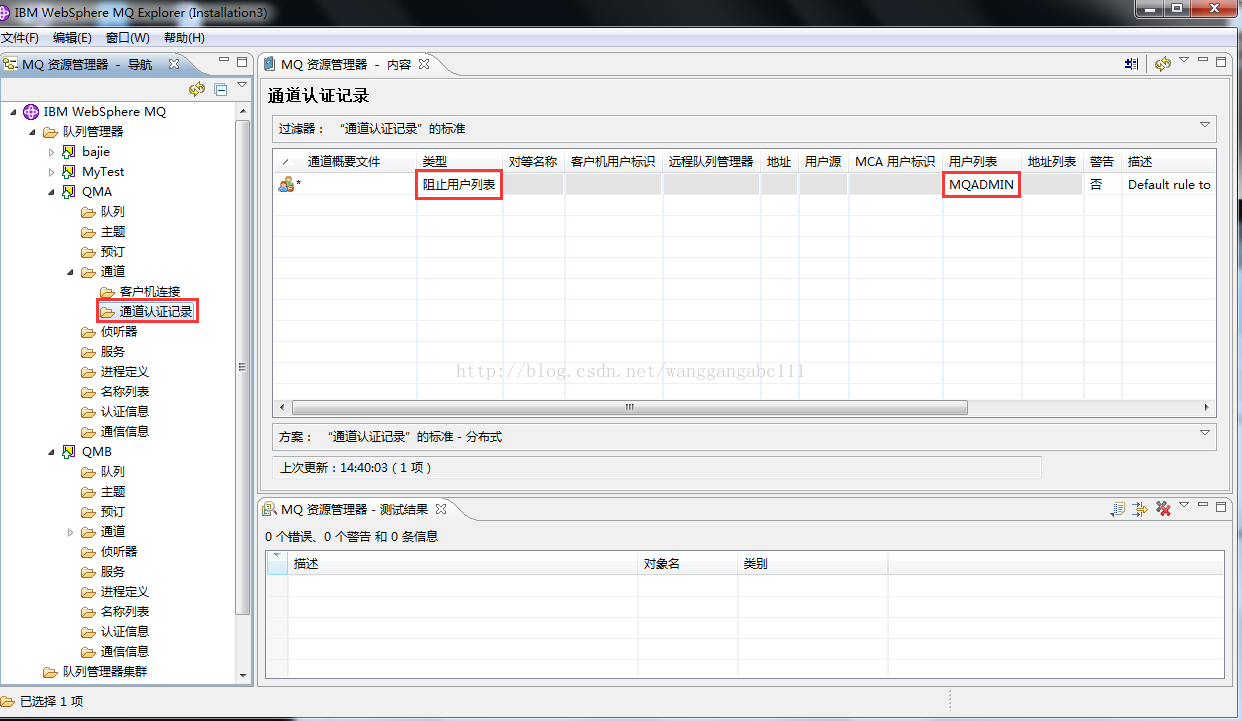
Special note: When claiming MCA authentication under Windows and finding 2035, it may be because the channel authentication record Settings are blocked. You just need to change the list of users.