Category Archives: Python

Import win32API; importerror: DLL load failed: the specified program was not found

Error information

(venv) D:\pyvenv_xlwings64\venv>pip list
Package    Version
---------- -------
comtypes   1.1.7
pip        19.2.3
PyQt5      5.13.1
PyQt5-sip  4.19.19
pywin32    225
setuptools 41.2.0
wheel      0.33.6
xlwings    0.15.3

(venv) D:\pyvenv_xlwings64\venv>python
Python 3.6.5 |Anaconda, Inc.| (default, Mar 29 2018, 13:32:41) [MSC v.1900 64 bit (AMD64)] on win32
Type "help", "copyright", "credits" or "license" for more information.
>>> import xlwings
Traceback (most recent call last):
  File "<stdin>", line 1, in <module>
  File "D:\pyvenv_xlwings64\venv\lib\site-packages\xlwings\__init__.py", line 42, in <module>
    from . import _xlwindows as xlplatform
  File "D:\pyvenv_xlwings64\venv\lib\site-packages\xlwings\_xlwindows.py", line 10, in <module>
    import win32api
ImportError: DLL load failed: The specified program could not be found.
>>>

Cause of the problem

There is a problem with the new version 224 and 225. Just go back to version 223

(venv) D:\pyvenv_xlwings64\venv>pip install pywin32==223
Collecting pywin32==223
  Downloading https://files.pythonhosted.org/packages/9f/9d/f4b2170e8ff5d825cd4398856fee88f6c70c60bce0aa8411ed17c1e1b21f/pywin32-223-cp36-cp36m-win_amd64.whl (9.0MB)
     |████████████████████████████████| 9.0MB 218kB/s
Installing collected packages: pywin32
Successfully installed pywin32-223

(venv) D:\pyvenv_xlwings64\venv>
(venv) D:\pyvenv_xlwings64\venv>pip list
Package    Version
---------- -------
comtypes   1.1.7
pip        19.2.3
PyQt5      5.13.1
PyQt5-sip  4.19.19
pywin32    223
setuptools 41.2.0
wheel      0.33.6
xlwings    0.15.3

(venv) D:\pyvenv_xlwings64\venv>python
Python 3.6.5 |Anaconda, Inc.| (default, Mar 29 2018, 13:32:41) [MSC v.1900 64 bit (AMD64)] on win32
Type "help", "copyright", "credits" or "license" for more information.
>>> import xlwings
>>> 
Conda Install Library Error: failed with initial frozen solve. Retrying with flexible solve.

Error in CONDA installation Library:

conda install keras
Collecting package metadata (current_repodata.json): done
Solving environment: failed with initial frozen solve. Retrying with flexible solve.
Solving environment: failed with repodata from current_repodata.json, will retry with next repodata source.

Solution:

conda config --set channel_priority flexible

Then it’s running normally

conda install keras
Collecting package metadata (current_repodata.json): done
Solving environment: failed with initial frozen solve. Retrying with flexible solve.
Solving environment: failed with repodata from current_repodata.json, will retry with next repodata source.
Collecting package metadata (repodata.json): done
Solving environment: done

## Package Plan ##

  environment location: E:\Apps\Anaconda3

  added/updated specs:
    - keras


The following packages will be downloaded:

    package                    |            build
    ---------------------------|-----------------
    tensorflow-base-1.15.0     |mkl_py37h190a33d_0        36.2 MB
    ------------------------------------------------------------
                                           Total:        36.2 MB

The following NEW packages will be INSTALLED:

  keras              pkgs/main/win-64::keras-2.2.4-0
  keras-base         pkgs/main/win-64::keras-base-2.2.4-py37_0

The following packages will be DOWNGRADED:

  tensorflow                       2.0.0-mkl_py37he1bbcac_0 --> 1.15.0-mkl_py37h3789bd0_0
  tensorflow-base                  2.0.0-mkl_py37hd1d5974_0 --> 1.15.0-mkl_py37h190a33d_0
  tensorflow-estima~                     2.0.0-pyh2649769_0 --> 1.15.1-pyh2649769_0


Proceed ([y]/n)?y


After looking at the installation process, it seems that keras is based on tensorflow 1.5…

Then I gave up keras, refactored the code, and used the tensorflow.keras Instead of keras. Most of keras are in tensorflow.keras Have, some can’t directly correspond to their own online search on the line.

[Solved] Jupyter notebook: TypeError: __init__() got an unexpected keyword argument ‘io_loop’

When opening a Python file today, an error message was reported:
TypeError: __init__() got an unexpected keyword argument’io_loop’
Obviously it is a file copied from the old computer to the new computer. The previous operation was OK. Why did it report an error when running on the new computer?
wrong reason:
When configuring the python environment, the default tornado version is the latest version (it happens that my new computer reconfigured the python environment, so I installed the latest version), but the io_loop parameter was discarded after version 4.0.
solution:
1. First uninstall the currently installed tornado
pip uninstall tornado
2. Install the lower version of tornado
pip install tornado==4.1
After the installation is successful, re-execute the python file and it can run normally

How to Solve Automatic error keyerror:***‘

r  =  {'code': 200, 'body': {'code': 200, 'msg': 'request success', 'data': {'username': 'a***', 'mobile': '132**51', 'companyType': 6, 'token': 'ey**RI', 'companyName': '** Company', 'nickname': 'ab**'}}}
body = r['body']
print(body)     # {'code': 200, 'msg': 'request success', 'data': {'username': 'a***', 'mobile': '132**51', 'companyType': 6, 'token': 'ey**RI', 'companyName': '**Company', 'nickname': 'ab**'}}
# Initialize the database object
conn = init_db("db_1")
# Search Results
res_db = conn.fetchone("select mobile from hy_user where username = 'abc'")
print("Database query result is: %s"%res_db)
# Validate the results
user_mobile = body['mobile']
assert user_mobile == res_db['mobile']

Keyerror: ‘mobile’

Because mobile is in the data dictionary of body, change to user_ Mobile = body [‘data ‘] [‘mobile’]

Record Stanford corenlp running all the time without error

Record the relevant contents of Stanford corenlp running without error

1. Detection method

NLP handles how to get the code for the cause of the error

from stanfordcorenlp import StanfordCoreNLP
import logging
# Use logging to monitor why errors occur

nlp = StanfordCoreNLP("D:\study\python\Lib\site-packages\stanfordcorenlp\stanford-corenlp-full-2018-02-27", lang='zh',quiet=False,logging_level=logging.DEBUG)
text = "Knowledge background in business management and related industry knowledge."

print('hello')
nlp.close()

2. Reason analysis

“The main problem is that my java environment is 32-bit. The largest memory of the 32-bit Java environment is 4G. And the memory required by Stanford corenlp is 4G. That’s why the Java environment refuses to create a JVM, and that’s why the program can’t run in the end. ” (from a blogger)

[Solved] Selenium.common.exceptions.WebDriverException: Message: newSession

This is the error reported:

Traceback (most recent call last):
  File "D:\python-professional-workplace\pycharm projest\ArticleSpider\lib\site-packages\twisted\internet\defer.py", line 1386, in _inlineCallbacks
    result = g.send(result)
  File "D:\python-professional-workplace\pycharm projest\ArticleSpider\lib\site-packages\scrapy\crawler.py", line 81, in crawl
    start_requests = iter(self.spider.start_requests())
  File "D:\python--\scrapytest\Scripts\scrapypy3\Scripts\ArticleSpider\ArticleSpider\spiders\zhihu.py", line 68, in start_requests
    browser = webdriver.Firefox(executable_path="D:/python--/geckodriver.exe")
  File "D:\python-professional-workplace\pycharm projest\ArticleSpider\lib\site-packages\selenium\webdriver\firefox\webdriver.py", line 162, in __init__
    keep_alive=True)
  File "D:\python-professional-workplace\pycharm projest\ArticleSpider\lib\site-packages\selenium\webdriver\remote\webdriver.py", line 154, in __init__
    self.start_session(desired_capabilities, browser_profile)
  File "D:\python-professional-workplace\pycharm projest\ArticleSpider\lib\site-packages\selenium\webdriver\remote\webdriver.py", line 243, in start_session
    response = self.execute(Command.NEW_SESSION, parameters)
File "D:\python-professional-workplace\pycharm projest\ArticleSpider\lib\site-packages\selenium\webdriver\remote\webdriver.py", line 312, in execute
    self.error_handler.check_response(response)
  File "D:\python-professional-workplace\pycharm projest\ArticleSpider\lib\site-packages\selenium\webdriver\remote\errorhandler.py", line 242, in check_response
    raise exception_class(message, screen, stacktrace)
selenium.common.exceptions.WebDriverException: Message: newSession

Solution:

1. The browser I use is Firefox. The main reason is that the version of geckodriver is too low, and the version of the browser is 64.0.

Update to v0.23.0: https://github.com/mozilla/geckodriver/releases

Put the downloaded geckodriver.exe into the Scripts folder under the python installation path.

Note: I set up a virtual environment, so geckodriver.exe is placed in a folder under the virtual environment, not under the scripts file.

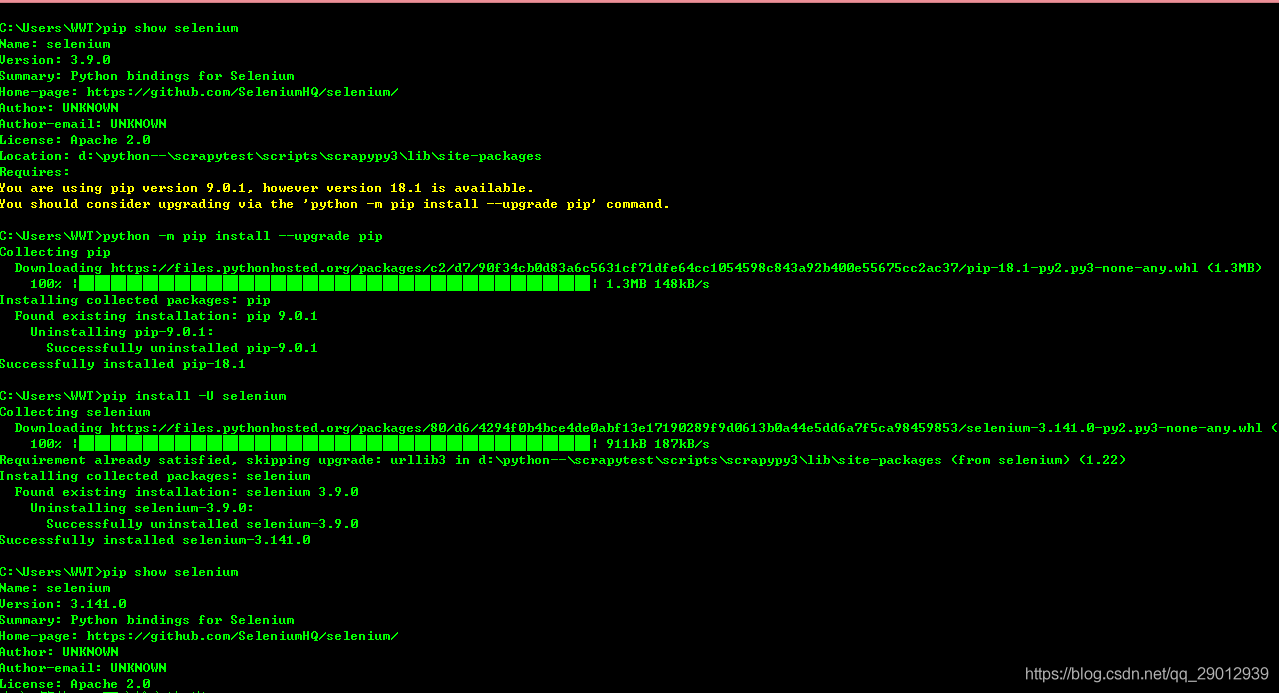
2. Update the version of selenium (I updated the selenium first and then updated the geckodriver, so I am not sure if only updating geckodriver is useful, but only updating selenium is useless)

They are:

pip show selenium
python -m pip install --upgrade pip
pip install -U selenium

After the update, update selenium in pycharm.

The automatic token of Python interface is passed into the header

The automatic token of Python interface is passed into the header

(1) Create login request to get token

#Test case class for login screen
# Import logging class for setting logging information
from Logs.Log import Logger
#Import configuration file class to read public data
from Readini.Read import Readini
# Import excel class for reading data in excel
from DataExcel.readExcel import ExcelUtil
#import request package
import requests
import json
from Public.PageObject import SendRequest
#import json package
import unittest
import json
from builtins import str
#Set the parameters related to reading the login
excel = ExcelUtil(Readini().get_ini_value('Excel','exccelini')).dict_data()
def token():
    # Set message header information
     header=eval(excel[0]['header'])
     # set url data
     url = excel[0]['Url']
    # Set the parameter information
     param=excel[0]['payload']
     # Convert the set parameter information to json format data
     # Set the request type
     type=excel[0]['Method']

    #Send a post login request
     response=SendRequest().send_request(type,url,data=param,header=header)
     #Get token data
     token=response.json()['data']['access_token']
     #Convert the token data to a string format
     return str(token)

(2) Create a unittest public initialization class and pass in the token data

from selenium import webdriver
import unittest
#Create unitest initialization public class
from Logs.Log import Logger
log=Logger('Interface automation result').getlog()
from TOKEN.PublicToken import token
import json
class TestBase(unittest.TestCase):

    #Interface initialization begins
    @classmethod
    def setUpClass(cls):
        log.info('Interface automation test started')
        # Pass in the obtained token as the initialized token data
        cls.token=token()


    #End of interface initialization
    @classmethod
    def tearDownClass(cls):
        log.info('End of interface automation test')


if __name__ == '__main__':
    unittest.main() #Main function for executing a program that has been written

(3) Pass in the token obtained during initialization to the header

Import logging class for setting up logging information
from Logs.Log import Logger
#Import profile class to read public data
from Readini.Read import Readini
#import excel class for reading data in excel
from DataExcel.readExcel import ExcelUtil
# Set the parameters related to reading logins
excel = ExcelUtil(Readini().get_ini_value('Excel','exccelini')).dict_data()
#Set the log type parameter
log = Logger('login interface log execution result').getlog()
# Inherit unittest initialization class
from ChanDao.TestBase import TestBase
#import request package
import requests
from Public.PageObject import SendRequest
import unittest
import json
from Readini.Read import Readini


class Pinlun(TestBase):

  def  test_1_pinglun_success(self):
     '''Login successful'''
    # Set message header information
     header=eval(Readini().get_ini_value('header','headers'))
     #eval(excel[0]['header'])
     #add token information like in the headers header
     header['Admin-Authorization']=self.token
     log.info(header)
     # Set the url data
     url = 'http://localhost:8090/api/admin/posts/comments'
     # log.info('The exit url address is:' + url)
     # Set the parameter information
     param={'page':'0','size':'10','keyword':'68'}
     # Convert the set parameter information to json format data
    # log.info(param)
     # Set the request type
     type='get'
     log.info(type)

    #Send get login request
     response=SendRequest().send_request(type,url,param,header=header)
     print(response.json())


    #Get the status code of the login response, do the assertion
     # self.assertEqual(response.status_code,excel[0]['StatusCode'])
     # log.info('Response status code is 200, login successful')

# Set the main function to execute the written login script
if __name__ == '__main__':
    unittest.main()

Note:
1. To get the token, you need to call the login interface
2. Pass the token into the setup function of unittest
3. Finally, pass the token into the header

[Solved] Command “python setup.py egg_info” failed with error code 1

Solve the problem of Command “python setup.py egg_info” failed with error code 1

In the execution pip install -r requirements.txtencountered an error when:

Command "python setup.py egg_info" failed with error code 1

The solution is to update setuptools and pip:

pip install --upgrade setuptools
python -m pip install --upgrade pip

MAC OS install python3 Error: Permission denied @ dir_s_mkdir-/usr/local/Frameworks

The python version that comes with mac os is 2.7, because it needs to be upgraded to python3. The process is as follows:
execute:

brew install python3

In theory, the installation can be successful by executing this command, but the following error is reported:


The reason is that /usr/local/Frameworks does not exist, the solution:

sudo mkdir /usr/local/Frameworks
sudo chown $USER /usr/local/Frameworks

Then re-run `brew install python3` to install successfully.

[Solved]AttributeError: module ‘urllib’ has no attribute ‘quote’

AttributeError: module’urllib’ has no attribute’quote’ solution.
In crawling Google pictures, the program reported an error. Due to the different versions of python, the problem of AttributeError: module’urllib’ has no attribute’quote’ appeared
as long as the quote Just add parse before

url_init = url_init_first + urllib.quote(keyword, safe='/')
url_init = url_init_first + urllib.parse.quote(keyword, safe='/')
