Category Archives: How to Fix

Error in Cordova project execution command after Android studio upgrade: could not find gradle wrapper within Android SDK

After upgrading Android Studio to 2.3.1 today, the Cordova project execution command reported “Error:Could not find Gradle Wrapper within Android SDK”. Details are as follows:

Trunk1 Sudo Cordova builds Android
ANDROID_HOME=/Users/fxp/Library/Android/sdk
JAVA_HOME =/Library/Java/JavaVirtualMachines jdk1.8.0 _92. JDK/Contents/Home
Reading build config file: /Users/fxp/Desktop/trunk1/build.json
Error: Could not find gradle wrapper within Android SDK. Might need to update your Android SDK.
Looked here: /Users/fxp/Library/Android/sdk/tools/templates/gradle/wrapper

According to the prompt, I went to check FXP/Users/Library/Android/SDK/tools/templates/gradle/wrapper directory, execute the command:

cd  /Users/fxp/Library/Android/sdk/tools/templates/gradle/wrapper

Just found that this directory does not exist. So I went to check my SDK and found that there was no Templates folder in the SDK/Tools directory! It seems that SDK Tools also need to be updated after Android Studio is updated to version 2.3.1.
Then I go to http://www.androiddevtools.cn to download the SDK Tools, after download decompression, the templates folder is copied to the SDK Tools directory, cordova command will no longer quote this error again.

C++:error C2228: left of ‘.str’ must have class/struct/union

Error C2228: Left of ‘. STR ‘must have class/struct/union

#include <string>
#include <iostream>
#include <vector>

using namespace std;

template <typename T>
class ValueBox {
private:
    T value;

private:

    template<typename U, 
        typename std::enable_if<std::is_class<U>::value && !std::is_same<U, string>::value, U>::type* = nullptr, 
        typename std::enable_if<!class_str<U>::ret, U>::type* = nullptr>
    std::string str(const T&) {
        cout << "1.---------------------" << endl;
        return "null";
    };

    template<typename U, 
        typename std::enable_if<std::is_class<U>::value && std::is_same<U, string>::value, U>::type* = nullptr>
    std::string str(const T&) {
        cout << "2.---------------------" << endl;
        return value;
    };

    template<typename U, 
        typename std::enable_if<std::is_class<U>::value && !std::is_same<U, string>::value, U>::type* = nullptr, 
        typename std::enable_if<class_str<U>::ret, U>::type* = nullptr>
    std::string str(const T&) {
        cout << "3.---------------------" << endl;
        return value.str();
    };

    template<typename U, 
        typename std::enable_if<!std::is_class<U>::value && std::is_arithmetic<U>::value, U>::type* = nullptr>
    std::string str(const T&) {
        cout << "4.---------------------" << endl;
        return std::to_string(value);
    };

public:
    ValueBox(const T& _value) : value(_value) {
    }

    const T& getValue() const {
        return value;
    };

    T& getValue() {
        return value;
    };

    std::string str() {
        return str<T>(value);
    };
};


int main() {
    ValueBox<string> s("sddds");
    cout << s.str() << endl;

    ValueBox<bool> j ( true);
    cout << j.str() << endl;

    ValueBox<int> i(100);
    cout << i.str() << endl;

    ValueBox<float> f ( 10.6f);
    cout << f.str() << endl;

    ValueBox<Box> b1 (Box());
    cout << b1.str() << endl;

    ValueBox<Bin> b2 (Bin());
    cout << b2.str() << endl;

    return 1;
}

The error was caused by the C++ compiler putting ValueBox< Box> b1 (Box()); In b1, Box() is regarded as the function definition, and Box() is regarded as the parameterless function with the return value of Box, except the function name is not defined at this time. There is a common name for the mistake: Most Vexing Parse
The modification methods are as follows:
1. Put Box on a separate line and initialize
Box b; // Box B () cannot be used; In this case, b is defined as a function
ValueBox< Box> b1 (b);
2. Wrap Box() in parentheses so that Box() is not treated as a function
ValueBox< Box> b1 ((Box()));
3. Use the uniform initialization syntax in C++11, that is, use {}
ValueBox< Box> b1 {Box()};
 

–Be alert for C++’s most vexing parse
Item 6. Be alert for C++’s most vexing parse
Effective STL note: Item 6–Be alert for C++’s most vexing parse

Unloading and installation of node and NPM of Vue Foundation

Problem background: Node and NPM have been installed on the original MAC computer, but in the process of a misoperation, it was found that the nPM-V command could not be typed out, prompting the Command not Found. Tamping many times, finally decisive after all kinds of search uninstall clean and then reinstall all.

Problems:
1 node-v can have a version prompt, npm-v does not have a version prompt, and the output NPM command not found
2 brew install node can have a version prompt, brew install NPM prompt error.
Solutions:
(1) Delete old files: delete them according to the prompts, or delete them directly (operation can be carried out in access)

sudo npm uninstall npm -g
sudo rm -rf /usr/local/lib/node /usr/local/lib/node_modules /var/db/receipts/org.nodejs.*
sudo rm -rf /usr/local/include/node /Users/$USER/.npm
sudo rm /usr/local/bin/node
sudo rm /usr/local/share/man/man1/node.1
sudo rm /usr/local/lib/dtrace/node.d

Confirm whether to uninstall:

node -v 
npm -v

(2) Reinstall Node

brew install  node

(3) Associate node with the soft link

brew link node

At this time, we may have the following results:

Linking /usr/local/Cellar/node/11.2.0...
Error: Could not symlink include/node/common.gypi
Target /usr/local/include/node/common.gypi
already exists. You may want to remove it:
  rm '/usr/local/include/node/common.gypi'

To force the link and overwrite all conflicting files:
  brew link --overwrite node

To list all files that would be deleted:
  brew link --overwrite --dry-run node
localhost:wkdir meng$ brew link --overwrite node
Linking /usr/local/Cellar/node/11.2.0...
Error: Could not symlink include/node/common.gypi
/usr/local/include/node is not writable.

(4) Then we will enforce it according to the prompts:

brew link --overwrite --dry-run node

Enforcement may require us to delete some of the previous files related to Node, as shown below

Would remove:
/usr/local/include/node/common.gypi
/usr/local/include/node/config.gypi
/usr/local/include/node/libplatform/libplatform-export.h
/usr/local/include/node/libplatform/libplatform.h
/usr/local/include/node/libplatform/v8-tracing.h

(5) Continue to delete the above file and run it again

brew link --overwrite node

Install the NPM

sudo npm install --registry=https://registry.npm.taobao.org

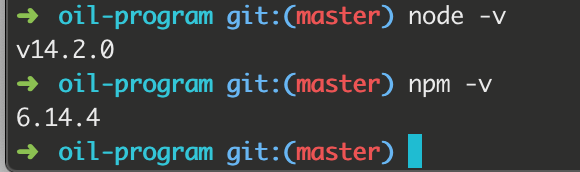
Check node and NPM again

node -v
npm -v

Results:

Note: There may be a variety of problems. When there is a problem, try baidu, and then go on to solve the next problem.
For more personal tutorials, please visit the personal homepage:
Github builds personal blog (2019 update, pro test)
.https://blog.csdn.net/xudailong_blog/article/details/78762262
The public no. :

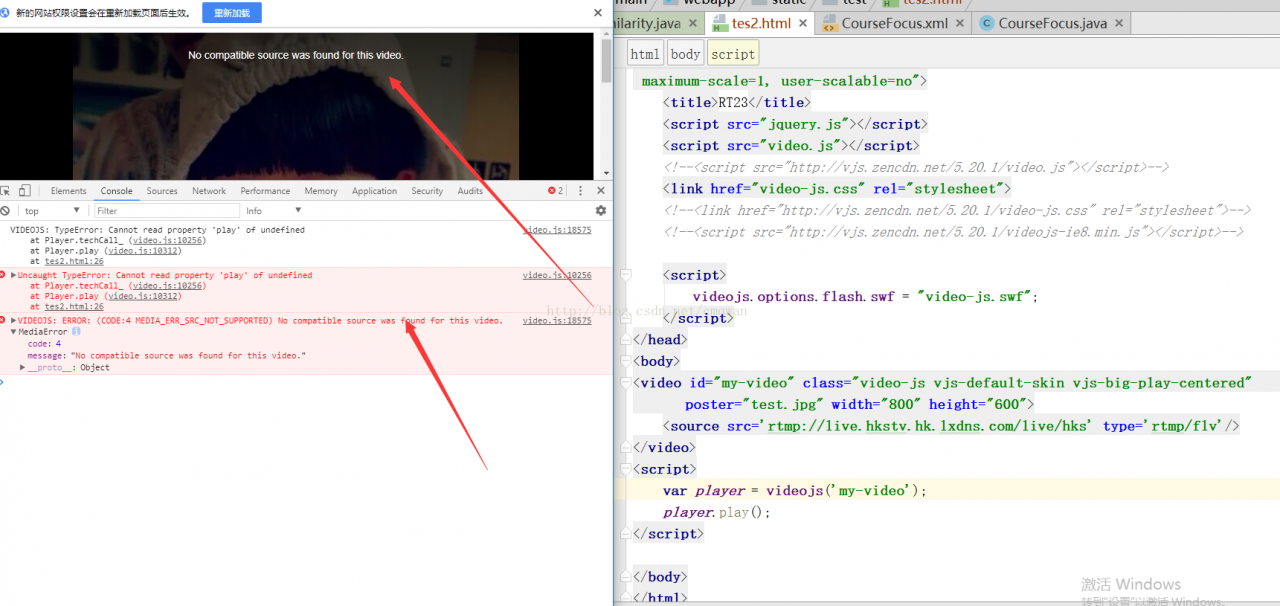
Video JS can’t play the prompt( CODE:4 MEDIA_ ERR_ SRC_ NOT_ SUPPORTED) No compatible source was found for this video.

Some guys said videoJS doesn’t play RTMP, that’s the wrong thing to say.
Videojs No compatible Source was found for this video (CODE:4 MEDIA_ERR_SRC_NOT_SUPPORTED)
It looks like this.

 
Because have a few little elder brother add my QQ, ask me how to solve. I happened to encounter this problem at that time, so I looked it up everywhere. Find some solutions later
Temporary solutions:
1. Put the file on the server, but don’t open it as a local file
 
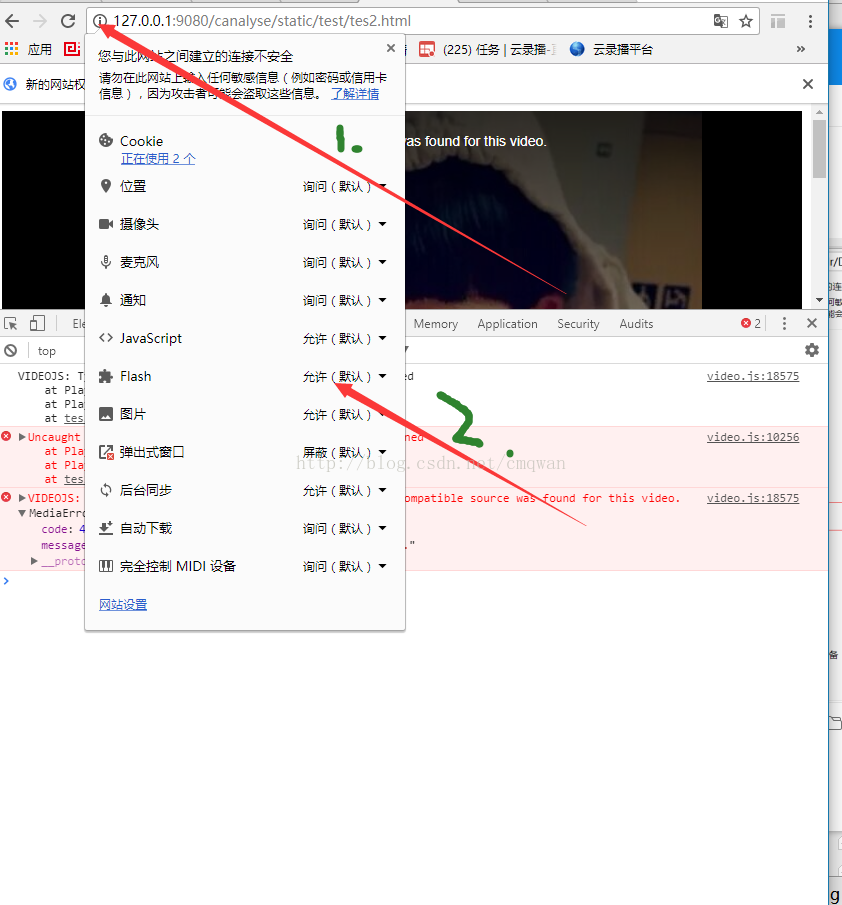
2. Using Chrome, set the site’s Flash to allow the default, and then refresh it. Set it like this


Updated September 19, 2017,
You can use http://download.csdn.net/download/cmqwan/9983862
The code in this resource.
Put this code on the server and use the above solution, which is generally fine
 
Updated January 9, 2019
Sometimes a black screen is played, using this play source
1. RTMP protocol live broadcast source
Hong Kong TV: rtmp://live.hkstv.hk.lxdns.com/live/hks
This RTMP URL is not always available. If it is not available, you can access the following two urls:

1. rtmp://live.hkstv.hk.lxdns.com/live/hks1
2. rtmp://live.hkstv.hk.lxdns.com/live/hks2

Js :13002 Uncaught TypeError: Cannot read property ‘0’ of undefined. Errors point to the return _utilsTimeRangesJs. CreateTimeRange (ranges [0] [0], ranges [0] [1]). This line of code,
This has little impact on the play, to solve the play, here to change the source code will not have a problem
 
Updated January 5, 2019
The resource score has gone up to 50 points, most of the kids can’t download it.
Now to upload a resource, the address is: (https://download.csdn.net/download/cmqwan/10897650)
 
If there is really no integral, it can be obtained in the following way:
1. Contact my QQ3060507060
2. Follow the official account of Xiaowang Old Store, click the menu of “Resource-Live” or send “Live”.

 
Updated January 22, 2019
I have sorted out the most complete process of live broadcast from push to play. I hope you will give me more support
Guide for quick Construction of Live/On-demand systems
https://gitbook.cn/gitchat/activity/5c459895e1f3a5423d1c3a6c


How to Fix IWAB0489E Error when deploying Web service to Axis runtime

Web
Eclipse
Application server
WebService
The SOAP

Eclipse Europa comes with its own Web tools. We can make it generate dynamic Web applications. But by default, the generated dynamic default program does not contain Web Service-related dependencies. so
When generating the project, check the Axis2 Web Service option in the Projet Facets dialog step
A project with web Service-related dependencies can be generated.

When it is generated, you may feel a little disappointed. “How could it be wrong?” . If you do, then you can gain some knowledge again. Because Eclipse doesn’t have Axis itself. So we need to download Axis and associate Eclipse’s WebService Settings with it. I downloaded the Axis2 1.4 release. Unzip to the directory you want, and then
Menu “Windows” – & gt; “Preferences…” —> Produce the left “Web Service” node –& GT; Select the Axis2 Preferences project –& GT; Set the Axis2 Runtime Location on the right under the “Axis2 Runtime” TAB
Just set up Axis2 1.4, which we just downloaded and unzipped.

After the above steps, we know how to successfully create a dynamic Web project with web Service-related dependencies. After we set up a project, we can try to write a Java class and publish it as a Web Service. If write the class as follows:

Java code

The

    1. package test; Public class HelloWorld {public String hello (String name) {return name + said: “hello world”; }}


The

      1. package test; Public class HelloWorld {public String hello (String name) {return name + said: “hello world”; }}
package test;

public class HelloWorld {

	public String hello(String name) {
		return name + "Hello World";
	}
	
}

So how do you publish him?If you’ve looked at the Axis documentation, there are many ways to do this. If you don’t have patience, you’ll get confused. It’s a good thing we use tools for convenience. Try right-clicking the HelloWorld class you just wrote (under Java EE attempts). You can go to the “Web Services” option and in its word menu, click Create Web Service. Well, following the dialog wizard and your intentions, you might think it will work out pretty well. But it may not turn out that way. You will most likely encounter an exception named IWAB0489E. Specific as follows

The

IWAB0489E Error when deploying a Web service to The Axis runtime
The Axis – admin failed with {http://schemas.xmlsoap.org/soap/envelope/} Client service always be found for it endpoint reference (EPR) http://localhost:8080/WebServiceTest/services/AdminService

Don’t be discouraged, I have encountered this too, and when I searched for information on the Internet, I found that many foreigners have encountered this too. Probably this tool is not used much by Chinese people, the data is scarce. And some foreign English-language technology forums have been muddled. I’m not going to say anything here, just say the solution
In the generated webservice first dialog click Confingration the links below – & gt; Click “Apache Axis2” in the dialog box that pops up -> Click OK to return to the remote dialog and select Publish the Web Service, Monitor the Web Services
Well, now that you know the reason for the exception, Eclipse is generated by default according to Axis rules, not Axis2 rules. And we’re using Axis2. What follows the second arrow is to let you publish the Web service directly after generating it, and to enable our monitor to detect it.

Ok, so basically follow the Eclipse wizard down the road and you’ll be fine. When the launch is over and we believe that our server is open, we can test our launch success in the browser.
Login (note that WebsServiceTest is the name of the dynamic Web project I built)
http://localhost:8080/WebServiceTest/services/listServices to see if monitoring program has detected a Hello World we just write a web service.
landing
http://localhost:8080/WebServiceTest/services/HelloWorld?WSDL looks at the generated WSDL content.
landing
http://localhost:8080/WebServiceTest/services/HelloWorld/hello?Name = Zhangyt check the information returned by our Web service. At this point the meeting will open as follows

Xml code

        1. < Ns :helloResponse XMLNS :ns = “http://test” > & lt; ns:return > Zhangyt said: Hello world & LT;/ns:return > & lt;/ns:helloResponse > </ ol>

Xml code

          1. < Ns: helloResponse XMLNS: ns = “http://test” & gt; & lt; ns:return> Zhangyt said: Hello world & LT; /ns:return> & lt; /ns:helloResponse> </ ol>
  <ns:helloResponse xmlns:ns="http://test">
  <ns:return>zhangyt: Hello World</ns:return> 
  </ns:helloResponse>

This was exciting because the test found that our Web service worked and returned what we wanted.

Well, this statement really just highlights some of the first things to notice about writing Web services using Eclipse. That’s how the tool is used. You can write a Web service using a tool, but you don’t really understand it. It is believed that many people will not be able to do many things once they leave Eclipse. Therefore, some homework should be done outside the application time. To see why, look at the relevant information.

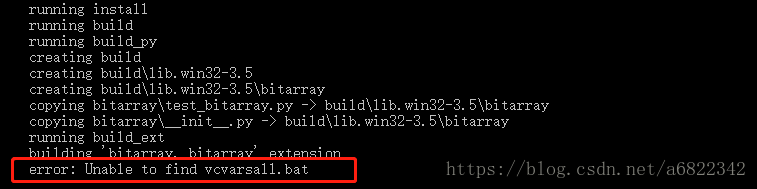
error: Unable to find vcvarsall.bat terms of settlement

I got an error installing Impyla on Windows

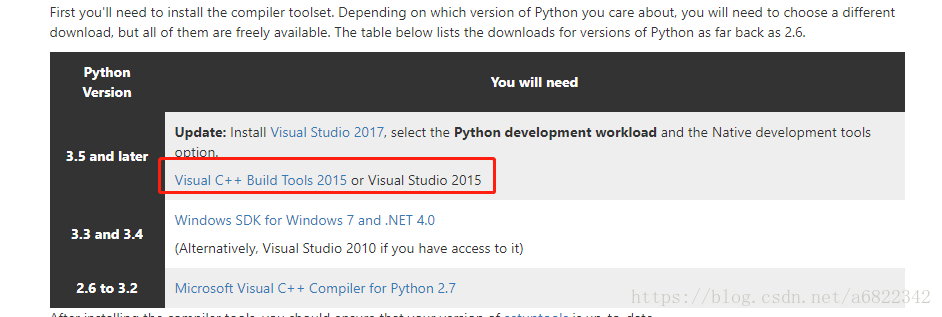
Then I searched some information on the Internet, some said to install WHL files directly (failed), some said to install vs files (too big), some said to install a separate development tool set (vc++), the following I use is to install vc++, its download site and instructions are as follows:
https://blogs.msdn.microsoft.com/vcblog/2015/11/02/announcing-visual-c-build-tools-2015-standalone-c-tools-for-build-environments/
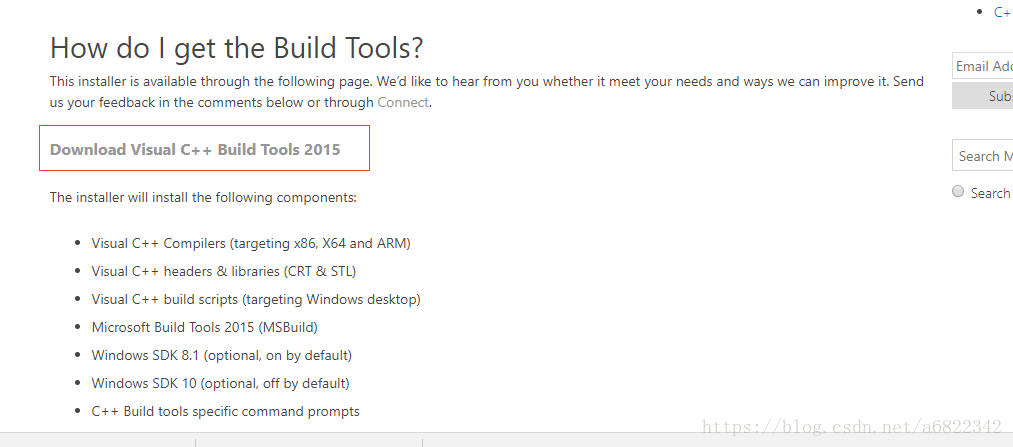
After entering the url, click the url in the red box

You can choose the old version, I will not screenshot demonstration here, directly give a 2015 version of the download address
https://blogs.msdn.microsoft.com/pythonengineering/2016/04/11/unable-to-find-vcvarsall-bat/
Select the one in the red box, and then download:

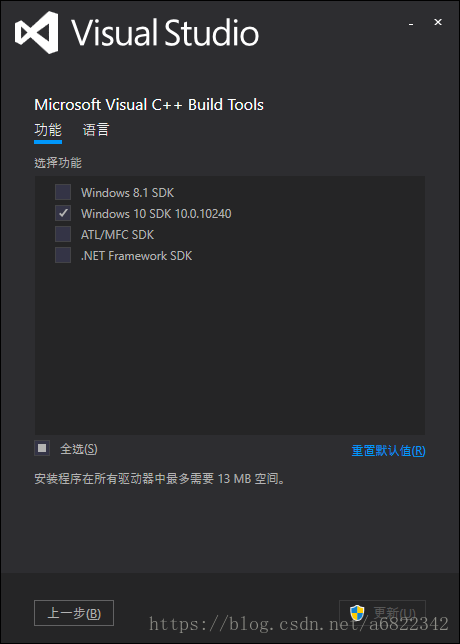
Because I was win10, and I chose

If you reported this error during the installation process: Error code 15605
So you need over the wall to download.
After downloading, reinstall Impyla, success!


[tools] vscode debug report G + +. Exe no such file or directory fatal error no input files

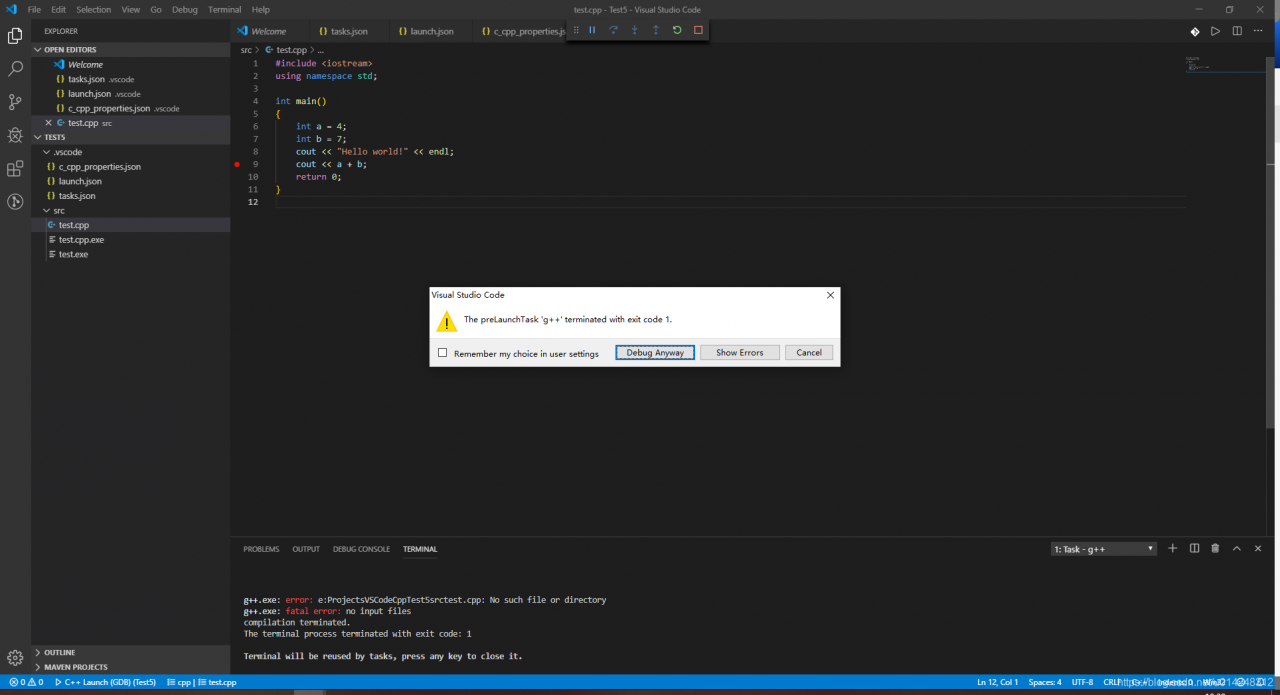
Yesterday, we set up the debugging environment of VSCode Cpp breakpoint. It could still run at noon, but it started to report errors in the evening. According to the environment set up by the article I published, when I tried to debug by pressing F5, the error was reported as follows:


watch VSCode integrated in the TERMINAL error
g + +. The exe: error: e: ProjectsVSCodeCppTest5srctest. CPP: No to the file or directory
here's e: ProjectsVSCodeCppTest5srctest. CPP should actually be e: \ Projects \ VSCode \ CPP \ Test5 \ SRC \ test CPP.
but is resolved to an address without a slash, so the compiler cannot find the file.
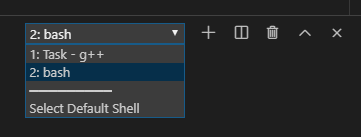
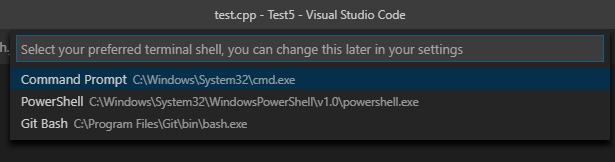
Turns out, the reason for this error parse is because. Different terminals parse slashes and backslashes differently. Yesterday, after configuring the environment, I happened to find that VS Code integrated terminal itself, and also integrated all terminals in the environment, including PowerShellCommand Prompt (CMD) , and Git Bash. When using the shortcut key CTRL + shift + ~ to open the terminal, click the drop-down arrow on the right to select the default open terminal.

click Select Default Shell, all shells in the environment will pop up at the top of the interface for selection.

select Git Bash and F5 debug Cpp code, it will report the opening error. When you select PowerShell or Command Prompt, you are ready to debug normally!
Note that the default shell cannot be selected by clicking the drop-down menu when
error is reported. You need to open a terminal by yourself with the shortcut key.

Error: listen eadrinuse::: 8000 solution

Events. Js: 182
throw er;// Unhandled ‘error’ event
^
the error: Listen EADDRINUSE :::8000
at object.exports._errnoException (util.js:1022:11)
at exports._exceptionWithHostPort (util.js:1045:20)
at server.setuplistenhandle [as] _listen2] (net. Js: 1315:14)
the at listenInCluster (net. Js: 1363:12)
the at Server. Listen (net. Js: 1463:7)
ats Function. Listen (G: \ webstorm \ movieManageWeb \ node_modules \ _express @ 4.16.2 @ express \ lib \ application js: 618-24)
the at Object. & lt; anonymous> (G: \ webstorm \ movieManageWeb \ app js: rising)
at the Module. The _compile (Module. Js: 569:30)
at the Object. The Module. _extensions.. Js (module. Js: 580:10)
at the module. The load (module. Js: 503:32)
the at tryModuleLoad (module. Js: 466:12)
at the Function, the module. _load (module. Js: 458:3)
the at Function.Module.runMain (module.js:605:10)
at startup (bootstrap_node.js:158:16)
at bootstrap_node.js:575:3
       
EADDRINUSE is err Address in use, which translates to using the wrong port
Actually, after the previous command runs, it still occupies port 8000. There are two solutions.
1, you can reset another port number.
2. Kill the process that was still occupying port 8000.

[Fixed] Unity error CS1704: An assembly with the same name `UnityEngine.UI’ has already been imported

Reasons for error:
The project was opened with Unity 5.5.5.p2 before. Today, it was opened with Unity 5.5.5.p2 by accident. After opening it, I didn’t care about it until I started importing it for some time.

Solutions:
1, close the project and then open again, at this time found that the probability of this error did not report;
2. If method 1 is invalid, then:
1. Shut down the Unity project;
2. Delete the Library folder of this project;
3. Restart the project;
This error should be caused by importing unityin. UI twice when the same project was opened with different Unity versions.
Method 1 tried to solve the problem by opening the lower version of the project with the higher version, but not at other times;

Android ADB command adb devices error: protocol fault (no status)

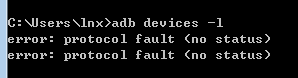
Background:Installation of apk times error:protocol fault<no status>or error:device not found phone driver problems

The problem appears as follows: ADB Devices – L or ADB Devices

Solution 1
Windows:
The task manager sees the ADB process, closes it, and restarts ADB Start-Server.
Linux (My machine is Ubuntu)
Execute the command
gnome-system-monitor
Open task Manager and close adb’s.
Solution 2:

1, after launching the emulator.
2, enter the cmd command, and enter the cd D:\Android\sdk\platform-tools directory (Note: the reality is subject to the situation, here must enter the adb storage directory).
D:\android\sdk\platform-tools>adb kill-server #Shut down the service.
D:\Android\sdk\platform-tools>adb start-server #Restart the service.
Note: Checking related information on the Internet, we found the cause of this problem: The emulator will be idle for a period of time, which will cause an exception.

Solution Three.
Try again with a different phone.

My problem is due to a failed phone driver installation, it could be a data cable issue, but strangely doesn't affect my Appium!