Category Archives: How to Fix

The solution of flicker and no refresh caused by OpenGL + MFC

We know that when you drag a figure in a window, it will flash as you draw it. In GDI, it is more complicated to solve this problem. By generating a memory DC in the memory and letting the brush draw in the memory DC when painting, the flashing problem can be solved by “pasting” the memory DC to the display with BitBLT once after painting. In OpenGL, we solve this problem by double caching. In general, dual caching is common in graphics working software. A double cache is two caches, a foreground cache and a background cache. The drawing is drawn in the background cache, and when it is done, it is swapped to the foreground cache so that there is no flicker.

A: the pixel format defined as support double buffered pixelDesc. DwFlags = PFD_DRAW_TO_WINDOW | PFD_SUPPORT_OPENGL | PFD_DOUBLEBUFFER | PFD_STEREO_DONTCARE;

B: Add such a line of code SwapBuffers(HDC) after the object is drawn. At this point, the OpenGL drawing has no flicker, but the MFC will repeatedly redraw the background to generate flicker

C: Process message loop ON
asebkgnd EraseBkgnd EraseBkgnd

BOOL CoglView::On
EraseBkgnd(CDC* pDC)

{

// TODO: Add message handler code here and/or invoke default values

return TRUE;

//return CView::On
EraseBkgnd(pDC);

}

That solves the flicker problem once and for all!

Reprinted address:
http://blog.csdn.net/lsldd/article/details/7599225

MFC+OpenGL has many ways to remove flicker online. Such as:

http://hi.baidu.com/piaoshi111/blog/item/66dba5ff643caa275c60083b.html

The basic process of using OpenGL in MFC has been explained in considerable detail above. The steps to realize flicker-free are also given.
Now for the first problem: if you select “Split Windows” in the MFC Generation Wizard, you will find that even reloading OnEraseBkgnd will not solve the flicker problem!
The following code is generated by MFC for you:

(CPP)
view plain
The copy

    // In mainfrm. h: Virtual Bool PrecreateWindow (CreateStruct& Cs); // In mainfrm.cpp: BOOL CMainFrame: : OnCreateClient (LPCS LPCREATESTRUCT/* * /, CCreateContext * pContext) {return m_wndSplitter. Create (this, 2, 2,// TODO: adjust the rows and columns CSize (10, 10),// TODO: adjust the minimum size pContext pane); }

    In other words, MFC overloads the onCreateClient function for you to implement split Windows. We know that MainFrm inherits from CFrameWnd. Let’s take a look at what Cframewnd’s OnCreateClient does:

    (CPP)
    view plain
    The copy

      BOOL CFrameWnd: : OnCreateClient (LPCREATESTRUCT, CCreateContext * pContext) {//default create client will create a view if asked for it if (pContext! = NULL & amp; & PContext – & gt; M_pNewViewClass! = NULL) {if (CreateView (pContext AFX_IDW_PANE_FIRST) = = NULL) return FALSE. } return TRUE; }

      This is where we create the view class CXXXView where we initialize OpenGL.

      However, if splitting is used, MFC will automatically add an object m_WNDSplitter of type CSPLitterWnd, and your CXXXView class will simply be a view inside CSPLitterWnd.
      When changing the window size, CSSPLITTERWND first responds to ON_WM_SIZE, and then lets CXXXView handle it further in its response function.
      The window size of CSPLitterWnd is slightly larger than that of its internal CXXXView. Therefore, the refresh of CSPLitterWnd itself will affect the refresh of CXXXView and cause flicker.
      The solution, then, is to either not use the split, which is absolutely fine.
      If you have to split the window, you might need to derive your own CSSPLitterWnd class to modify its behavior.
      Next problem, you might have a window that doesn’t refresh, but only resizes the window.
      This is because your CXXXView only overloads OnDraw. How is OnDraw invoked?
      See *\Microsoft Visual Studio 9.0\VC\atlmfc\ SRC \ MFC \viewcore.cpp

      (CPP)
      view plain
      The copy

      The

        ///the CView drawing support void the CView: : OnPaint () {//standard paint routine CPaintDC dc (this); OnPrepareDC (& amp; dc); Ontouch (& amp; dc); }

        The response to the ON_WM_PAINT message is CView, which calls OnDraw, which you overloaded. Because of the paintdc, dc(this); This caused the window to not refresh continuously.
        Want to know more detailed reasons, please see http://peipengshuai.blog.163.com/blog/static/1901226620123169431072/
        All you need to know is that CPaintDC will remove ON_WM_PAINT from the refresh message queue. After removal, if the window has not changed, it will not refresh automatically.
        So, what you need to do is very simple. Do not use CPaintDC dc(this) in the ON_WM_PAINT response to your CXXXView class; (comment out) can be.
        The next problem: After maximizing the window, some areas of the window (such as the toolbar) will not refresh, leaving blank space.
        The problem has not yet been perfectly solved. Refer to http://topic.csdn.net/t/20020220/16/534304.html, a driver problem. Unable to verify at this time.
        If there is a solution, let us know in the comments.

Implementation of OpenGL rotating cube


Topic request
OpenGL is used to implement a rotating cube.


Process steps
It is mainly divided into two parts: setting up the environment and completing the code writing.
Set up the environment
TDM GCC 4.9.2code>TDM GCC 4.9.2 TDM GCC 4.9.2 TDM GCC 4.9.2 TDM GCC 4.9.2

File - & gt; New - & gt; Project - & gt; Multimedia -> OpenGL

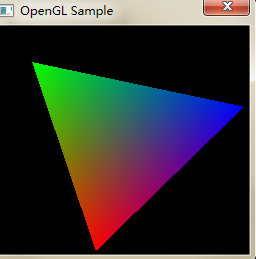
directly compile and run the Demo, which will show a rotating triangle as shown in the image below:


> > >

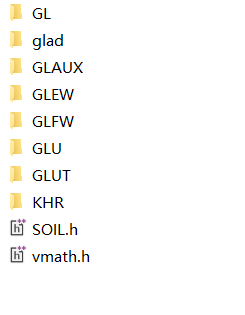
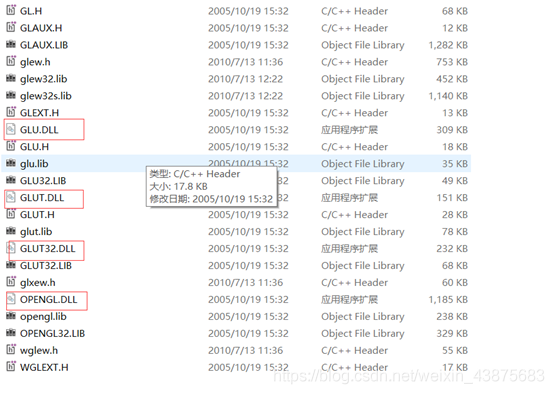
Will be relevant. DLL file copy to the C: \ Windows \ system32 directory
the related. Lib file copy to D: \ \ Program Files \ Dev - Cpp \ MinGW64 \ x86_64 - w64 - mingw32 \ lib32 directory
the related. H file copy to D: \ \ Program Files \ Dev - Cpp \ MinGW64 \ include \ GL directory
the last link is added in the compiler options, Set the appropriate compilation options under Linux and in the Makefile.

Draw cube
void cube()/ code>void cube()
glBegin()
and > glEnd()e> > glColor3f()>>glVertex3f()e> /code> glVertex3f() glVertex3f() glVertex3f()

void cube()
{
    glBegin(GL_QUADS);
    glColor3f(1.0,1.0,0.0);            
    glVertex3f( 1.0, 1.0,-1.0);        
    glColor3f(0.0,1.0,0.0);            
    glVertex3f(-1.0, 1.0,-1.0);        
    glColor3f(0.0,1.0,1.0);            
    glVertex3f(-1.0, 1.0, 1.0);        
    glColor3f(1.0,1.0,1.0);            
    glVertex3f( 1.0, 1.0, 1.0);        

    glColor3f(1.0,0.0,1.0);            
    glVertex3f( 1.0,-1.0, 1.0);        
    glColor3f(0.0,0.0,1.0);            
    glVertex3f(-1.0,-1.0, 1.0);        
    glColor3f(0.0,0.0,0.0);            
    glVertex3f(-1.0,-1.0,-1.0);        
    glColor3f(1.0,0.0,0.0);            
    glVertex3f( 1.0,-1.0,-1.0);        

    glColor3f(1.0,1.0,1.0);            
    glVertex3f( 1.0, 1.0, 1.0);        
    glColor3f(0.0,1.0,1.0);            
    glVertex3f(-1.0, 1.0, 1.0);        
    glColor3f(0.0,0.0,1.0);            
    glVertex3f(-1.0,-1.0, 1.0);        
    glColor3f(1.0,0.0,1.0);            
    glVertex3f( 1.0,-1.0, 1.0);        

    glColor3f(1.0,0.0,0.0);            
    glVertex3f( 1.0,-1.0,-1.0);        
    glColor3f(0.0,0.0,0.0);            
    glVertex3f(-1.0,-1.0,-1.0);        
    glColor3f(0.0,1.0,0.0);            
    glVertex3f(-1.0, 1.0,-1.0);        
    glColor3f(1.0,1.0,0.0);            
    glVertex3f( 1.0, 1.0,-1.0);        

    glColor3f(0.0,1.0,1.0);            
    glVertex3f(-1.0, 1.0, 1.0);        
    glColor3f(0.0,1.0,0.0);            
    glVertex3f(-1.0, 1.0,-1.0);        
    glColor3f(0.0,0.0,0.0);            
    glVertex3f(-1.0,-1.0,-1.0);        
    glColor3f(0.0,0.0,1.0);            
    glVertex3f(-1.0,-1.0, 1.0);        

    glColor3f(1.0,1.0,0.0);            
    glVertex3f( 1.0, 1.0,-1.0);        
    glColor3f(1.0,1.0,1.0);            
    glVertex3f( 1.0, 1.0, 1.0);        
    glColor3f(1.0,0.0,1.0);            
    glVertex3f( 1.0,-1.0, 1.0);        
    glColor3f(1.0,0.0,0.0);            
    glVertex3f( 1.0,-1.0,-1.0);        
    glEnd();                            
}

The cube rotates about its axis
In OpenGL, glRotatef()nction is used to achieve rotation at a specific Angle. However, to achieve rotation, it is necessary to keep changing the parameters of rotation Angle. Here, we control the rotation of the cube around three axes by setting three static variables and allowing them to increase automatically, and control the rotation speed by changing the increment.

static float xrot = 0.0; 
static float yrot = 0.0; 
static float zrot = 0.0; 
glRotatef(xrot, 1, 0, 0);
glRotatef(yrot, 0, 1, 0);
glRotatef(zrot, 0, 0, 1);
cube();
xrot = xrot + 0.01;
yrot = yrot + 0.01;
zrot = zrot + 0.01;

The cube moves along an axis
glTranslatRef ()nction Specifies the position of the cube in the 3D coordinate system in OpenGL. Here let’s take the Z axis as an example and let the cube move back and forth, where H is used to control the speed of motion:

static float z=-5;
static float h=-0.001;
glTranslatef(0, 0, z);
z=z+h;
if(z<-10)
    h=-h;
if(z>-5)
    h=-h;

This completes the simple rotation and axis movement of the cube.


The problem

mainly compiler options. At the same time, references the glut in lib and glut32 lib, and in the compiler options - lglut - lglut32 front, the linker when first looking for OPENGL. DLL without looking for opengl32. DLL, at the moment we entered the DEV in c + + project configuration in the face of the changes:

Project - & gt; Project Properties ->; Parameters - & gt; Link
- lopengl32
- lglut32// in front
- lglut
- LGLU
- lglu32

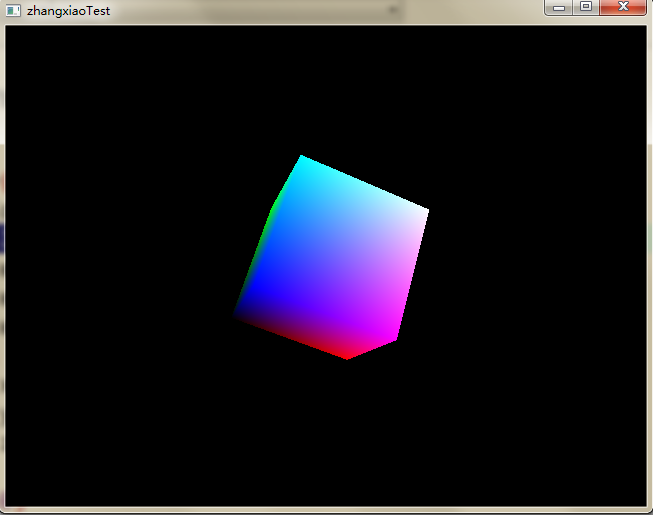
It compiles correctly and runs as expected:


tips
It took a week to finally complete the computer graphics such a simple big job - to achieve the rotation of the cube.
in the code level, is very simple, because of the content is not much involved, and provided a good OpenGL function encapsulation, the Internet has a lot of similar sample.
The most troublesome part is the environment construction, because OpenGL is an open source project, there is no very authoritative manual guide, so the online case is also good and bad, learning efficiency is very low.
in the beginning, for example, to find a project, use the Glaux , finally you can compile all that trouble found that can't run, then online and others said the Glaux basic deprecated , and Windows 7 didn't seem to support, had to start from scratch.

Drawing a cube with OpenGL

So let’s draw a cube in OpenGL

When you use OpenGL to draw a cube, you actually draw multiple triangles, and the triangles end up being stitched together into a cube.

#include "glew.h"
#include <glfw3.h>
#include "common/loadShader.h"
#include "glm.hpp"
#include "ext.hpp"

int main(void)
{
	GLFWwindow* window;

	/* Initialize the library */
	if (!glfwInit())
		return -1;

	/* Create a windowed mode window and its OpenGL context */
	window = glfwCreateWindow(480, 320, "Hello World", NULL, NULL);
	if (!window)
	{
		glfwTerminate();
		return -1;
	}

	/* Make the window's context current */
	glfwMakeContextCurrent(window);

	// Needed in core profile
	if( glewInit() != GLEW_OK)
	{
		glfwTerminate();
		return -1;
	}

	// Our vertices. Tree consecutive floats give a 3D vertex; Three consecutive vertices give a triangle.
	// A cube has 6 faces with 2 triangles each, so this makes 6*2=12 triangles, and 12*3 vertices
	static const GLfloat g_vertex_buffer_data[] = {
		-1.0f,-1.0f,-1.0f, //triangle 1 : begin
		-1.0f,-1.0f,1.0f,
		-1.0f,1.0f,1.0f,  //triangle 1 : end
		1.0f, 1.0f,-1.0f, // triangle 2 : begin
		-1.0f,-1.0f,-1.0f,
		-1.0f, 1.0f,-1.0f, // triangle 2 : end
		1.0f,-1.0f, 1.0f,
		-1.0f,-1.0f,-1.0f,
		1.0f,-1.0f,-1.0f,
		1.0f, 1.0f,-1.0f,
		1.0f,-1.0f,-1.0f,
		-1.0f,-1.0f,-1.0f,
		-1.0f,-1.0f,-1.0f,
		-1.0f, 1.0f, 1.0f,
		-1.0f, 1.0f,-1.0f,
		1.0f,-1.0f, 1.0f,
		-1.0f,-1.0f, 1.0f,
		-1.0f,-1.0f,-1.0f,
		-1.0f, 1.0f, 1.0f,
		-1.0f,-1.0f, 1.0f,
		1.0f,-1.0f, 1.0f,
		1.0f, 1.0f, 1.0f,
		1.0f,-1.0f,-1.0f,
		1.0f, 1.0f,-1.0f,
		1.0f,-1.0f,-1.0f,
		1.0f, 1.0f, 1.0f,
		1.0f,-1.0f, 1.0f,
		1.0f, 1.0f, 1.0f,
		1.0f, 1.0f,-1.0f,
		-1.0f, 1.0f,-1.0f,
		1.0f, 1.0f, 1.0f,
		-1.0f, 1.0f,-1.0f,
		-1.0f, 1.0f, 1.0f,
		1.0f, 1.0f, 1.0f,
		-1.0f, 1.0f, 1.0f,
		1.0f,-1.0f, 1.0f
	};

	
	//This will identify our vertex buffer
	GLuint vertexbuffer;

	
	//Generate 1 buffer,put the resulting identifier in vertexbuffer
	glGenBuffers(1,&vertexbuffer);		

	//The following commands will talk about our 'vertexbuffer' buffer
	glBindBuffer(GL_ARRAY_BUFFER,vertexbuffer);

	//Give our vertices to OpenGL.
	glBufferData(GL_ARRAY_BUFFER,sizeof(g_vertex_buffer_data),g_vertex_buffer_data,GL_STATIC_DRAW);


	// One color for each vertex. They were generated randomly.
	static const GLfloat g_color_buffer_data[] = {
		0.583f, 0.771f, 0.014f,
		0.609f, 0.115f, 0.436f,
		0.327f, 0.483f, 0.844f,
		0.822f, 0.569f, 0.201f,
		0.435f, 0.602f, 0.223f,
		0.310f, 0.747f, 0.185f,
		0.597f, 0.770f, 0.761f,
		0.559f, 0.436f, 0.730f,
		0.359f, 0.583f, 0.152f,
		0.483f, 0.596f, 0.789f,
		0.559f, 0.861f, 0.639f,
		0.195f, 0.548f, 0.859f,
		0.014f, 0.184f, 0.576f,
		0.771f, 0.328f, 0.970f,
		0.406f, 0.615f, 0.116f,
		0.676f, 0.977f, 0.133f,
		0.971f, 0.572f, 0.833f,
		0.140f, 0.616f, 0.489f,
		0.997f, 0.513f, 0.064f,
		0.945f, 0.719f, 0.592f,
		0.543f, 0.021f, 0.978f,
		0.279f, 0.317f, 0.505f,
		0.167f, 0.620f, 0.077f,
		0.347f, 0.857f, 0.137f,
		0.055f, 0.953f, 0.042f,
		0.714f, 0.505f, 0.345f,
		0.783f, 0.290f, 0.734f,
		0.722f, 0.645f, 0.174f,
		0.302f, 0.455f, 0.848f,
		0.225f, 0.587f, 0.040f,
		0.517f, 0.713f, 0.338f,
		0.053f, 0.959f, 0.120f,
		0.393f, 0.621f, 0.362f,
		0.673f, 0.211f, 0.457f,
		0.820f, 0.883f, 0.371f,
		0.982f, 0.099f, 0.879f
	};
	GLuint colorbuffer;
	glGenBuffers(1,&colorbuffer);
	glBindBuffer(GL_ARRAY_BUFFER,colorbuffer);
	glBufferData(GL_ARRAY_BUFFER,sizeof(g_color_buffer_data),g_color_buffer_data,GL_STATIC_DRAW);


	GLuint programID = LoadShaders("./shader/vertex.shader","./shader/fragment.shader");
	glUseProgram(programID);
	glClearColor(0.0f, 0.0f, 0.4f, 0.0f);
	/* Loop until the user closes the window */

	// Projection matrix : 45° Field of View, 4:3 ratio, display range : 0.1 unit  100 units
	//glm::mat4 Projection = glm::ortho(-4.0f/3.0f, 4.0f/3.0f, -1.0f, 1.0f, 0.1f, 100.0f);
	glm::mat4 Projection = glm::perspective(45.0f,4.0f/3.0f,0.1f,100.f);
	glm::mat4 View = glm::lookAt(
		glm::vec3(4,3,-3), // Camera is at (4,3,3), in World Space
		glm::vec3(0,0,0), // and looks at the origin
		glm::vec3(0,1,0) // Head is up (set to 0,-1,0 to look upside-down)		
		);

	//Model matrix : an identity matrix (model will be at the origin)
		glm::mat4 Model = glm::mat4(1.0f);
		
		// Our ModelViewProjection : multiplication of our 3 matrices
		glm::mat4 MVP = Projection * View * Model;// Remember, matrix multiplication is the other way around


		// Get a handle for our "MVP" uniform.
		// Only at initialisation time.
		GLuint MatrixID = glGetUniformLocation(programID,"MVP");
	
		// Send our transformation to the currently bound shader,
		// in the "MVP" uniform
		// For each model you render, since the MVP will be different (at least the M part)
		glUniformMatrix4fv(MatrixID,1,GL_FALSE,&MVP[0][0]);


	while (!glfwWindowShouldClose(window))
	{
		glClear(GL_COLOR_BUFFER_BIT | GL_DEPTH_BUFFER_BIT);


		glEnableVertexAttribArray(0);
		glBindBuffer(GL_ARRAY_BUFFER,vertexbuffer);
		glVertexAttribPointer(
			0,			// attribute 0. No particular reason for 0, but must match the layout in the shader.
			3,			// size
			GL_FLOAT,	// type
			GL_FALSE,	// normalized?
			0,			// stride
			(void*)0	// array buffer offset
			);

		glEnableVertexAttribArray(1);
		glBindBuffer(GL_ARRAY_BUFFER,colorbuffer);	
		glVertexAttribPointer(
			1,			// attribute 0. No particular reason for 0, but must match the layout in the shader.
			3,			// size
			GL_FLOAT,	// type
			GL_FALSE,	// normalized?
			0,			// stride
			(void*)0	// array buffer offset
			);
		
		glDrawArrays(GL_TRIANGLES,0,12*3);// Starting from vertex 0; 3 vertices total -> 1 triangle
		glEnable(GL_DEPTH_TEST);
		glDepthFunc(GL_LESS);


		glDisableVertexAttribArray(0);
		glDisableVertexAttribArray(1);
		/* Swap front and back buffers */
		glfwSwapBuffers(window);

		/* Poll for and process events */
		glfwPollEvents();
	}

	glfwTerminate();
	return 0;
}

vertex.shader

version 330 core

layout(location = 0) in vec3 vertexPosition_modelspace;
layout(location = 1) in vec3 vertexColor;

uniform mat4 MVP;
out vec3 fragmentColor;

void main(){
	vec4 v = vec4(vertexPosition_modelspace,1);
	gl_Position = MVP * v;
	// The color of each vertex will be interpolated
    // to produce the color of each fragment
	fragmentColor = vertexColor;
	
}

fragment.shader

out vec3 color;
in vec3 fragmentColor;

void main(){
	color = fragmentColor;
}

First, you set the vertex position, then the vertex color, glvertexattribute passes the data to the shader, and vertex.shader exports the vertex color to the fragment.shader. Note that glEnable (GL_DEPTH_TEST); glDepthFunc(GL_LESS); With the depth test turned on, the final triangle will be occluded based on the Z-axis position. If not, the occluded triangle will be determined based on the sequence of the drawings.

An example of drawing rotating cube with OpenGL

In the last section, we learned how to use OpenGL to draw 2D graphics. Now let’s learn how to use OpenGL to draw 3D graphics. Let’s really feel the power of OpenGL
In the last video we drew a rotating triangle and square, today we’re going to use OpenGL to draw a rotating cube.
Drawing cubes is basically the same as drawing triangles and squares. The key is to build the coordinates of cubes. When building these vertex coordinates, to rotate the object around its own axis, the object’s center coordinates must always be (0.0f, 0.0f, 0.0f) and drawn in counterclockwise order.
Without further ado, here is an example:
Start by creating an OpenGLView class that inherits GLSurfaceView
public class OpenGLView extends GLSurfaceView{ private GLReader glReader; public OpenGLView(Context context) { super(context); // TODO Auto-generated constructor stub glReader=new GLReader(); setRenderer(glReader); }}
Next is our Activity class:
public class SimpleOpenGLActivity extends Activity { /** Called when the activity is first created. */ @Override public void onCreate(Bundle savedInstanceState) { super.onCreate(savedInstanceState); OpenGLView view=new OpenGLView(this); setContentView(view); }}
Finally, our core class, the GlReader class for rendering 3D graphics, implements the Renderer interface:
package cn.com.karl.opengl; import java.nio.ByteBuffer; import java.nio.ByteOrder; import java.nio.FloatBuffer; import java.nio.IntBuffer; import javax.microedition.khronos.egl.EGLConfig; import javax.microedition.khronos.opengles.GL10; import javax.microedition.khronos.opengles.GL11; import android.opengl.GLSurfaceView.Renderer; import android.opengl.GLU; Public class GLReader implements the Renderer {float box [] = new float [] {//FRONT – 0.5 f to 0.5 f to 0.5 f to 0.5 f to 0.5 f to 0.5 f to 0.5 f to 0.5 f to 0.5 f to 0.5 f to 0.5 f to 0.5 f,// BACK to 0.5 f to 0.5 f to 0.5 f to 0.5 f to 0.5 f, 0.5 f, f, 0.5-0.5 f to 0.5 f to 0.5 f to 0.5 f to 0.5 f,// LEFT – 0.5 f to 0.5 f to 0.5 f to 0.5 f to 0.5 f to 0.5 f to 0.5 f to 0.5 f to 0.5 f to 0.5 f to 0.5 f to 0.5 f,// RIGHT f 0.5, – 0.5 f to 0.5 f, f 0.5, 0.5 f to 0.5 f, 0.5 f to 0.5 f, 0.5 0.5 f, f, f 0.5, 0.5, f// TOP – 0.5 f, 0.5 f, f, 0.5 0.5 f, f 0.5, 0.5 f to 0.5 f, 0.5 f to 0.5 f, f 0.5, 0.5 f to 0.5 f,// BOTTOM – 0.5 f, 0.5 f, f, 0.5-0.5, f – 0.5 f to 0.5 f, 0.5 f to 0.5 f, f 0.5, 0.5, f – 0.5 f to 0.5 f,}; FloatBuffer cubeBuff; Float xrot = 0.0 f; Float yrot = 0.0 f;/* * * to convert a float array is stored in the byte array buffer * @ param arr * @ return */public FloatBuffer makeFloatBuffer (float [] arr) {ByteBuffer bb = ByteBuffer. AllocateDirect (arr. Length * 4); B.order (byteOrder.nativeOrder ()); b.order(); // Set ByteOrder, where byteOrder.nativeOrder () is to get the native ByteOrder FloatBuffer fb = bb.asFloatBuffer(); // Convert to float fb.put(arr); // Add data fb.position(0); Return fb; return fb; } public GLReader(){ cubeBuff = makeFloatBuffer(box); }//// conversion float array all drawing operations are carried out in this method the public void onDrawFrame GL10 (gl) {//TODO Auto – generated method stub gl. GlClear (GL10. GL_COLOR_BUFFER_BIT | GL10. GL_DEPTH_BUFFER_BIT); // Clear the screen and depth cache gl.glMatrixMode(gl10.gl_ModelView); // Switch to the model observation matrix gl.glLodIdentity (); // Reset the current model observation matrix Glu. GluLookAt (GL, 0, 0, 3, 0, 0, 0, 0, 0, 1, 0); // Set the viewpoint and model center position gl.glTexPointer (3, gl10.gl_float, 0, cubeBuff); // Set vertex data gl. glenableClientState (gl10.gl_vertex_array); gl.glRotatef(xrot, 1, 0, 0);// around the (0, 0) and (0, 1). The x axis rotation gl glRotatef (yrot, 0, 1, 0). GlColor4f (1.0f, 0, 0, 1.0f); glColor4f(1.0f, 0, 0, 1.0f); // Set color, red gl.glDraWarRays (gl10.gl_triangle_strip, 0, 4); // draw square FRONT gl.glColor4f(1.0f, 1.0f, 0, 1.0f); gl.glDrawArrays(GL10.GL_TRIANGLE_STRIP, 4, 4); Gl. GlColor4f (0, 1.0 f, 0, 1.0 f); gl.glDrawArrays(GL10.GL_TRIANGLE_STRIP, 8, 4); Gl. GlColor4f (0, 1.0 f, f 1.0, 1.0 f); gl.glDrawArrays(GL10.GL_TRIANGLE_STRIP, 12, 4); Gl. GlColor4f (0, 0, 1.0 f, 1.0 f); gl.glDrawArrays(GL10.GL_TRIANGLE_STRIP, 16, 4); Gl. GlColor4f (1.0 f, f, 1.0 1.0 f, 1.0 f); gl.glDrawArrays(GL10.GL_TRIANGLE_STRIP, 20, 4); Xrot + = 1.0 f; Yrot + = 0.5 f; } public void onSurfaceChanged(GL10 gl, int width, int height) {// TODO auto-generated method stub // set the scene size of OpenGL. GlViewport (0, 0, width, height); gl.glMatrixMode(GL10.GL_PROJECTION); // Set the projection matrix gl.glLodIdentity (); Glu.gluPerspective (gl, 45.0f, ((float) width)/height, 0.1f, 10f); Public void onSurfaceCreated(gl10gl, eGLConfig config) {// TODO Auto-generated method stub gl.glclearColor (0.0f, 0.0f, 0.0f, 1.0f); // Set the background color to R, G, B, A gl.glEnable(gl10.gl_depth_test); // Enable depth cache gl.glEnable(gl10.gl_cull_face); // Enable backside clipping gl.glclearDepthf (1.0f); // Set the depth cache value gl.glDepthFunc(gl10.gl_lequal); GL_LEQUAL (gl.glclearDepthf (1.0f)); gl.glshaDemodel (gl10.gl_smooth); gl.glclearDepthf (1.0f); gl.glclearDepthf (1.0f);// set the shadow model GL_SMOOTH}}
the upper portion of the more important is to do the comments, so here don’t do too much explanation, finally see how some after the operation effect.

Drawing cube with OpenGL

Define an array, put all eight vertices in the array, and then specify each vertex using a pointer, rather than using direct data. This avoids the need to consider a lot of data when specifying vertices, thus reducing the possibility of code errors.
//the cube to save eight points to an array in
static const GLfloat vertex_list [] [3] = {
0.5 f, 0.5 f, 0.5 f,
//…
};
glBegin(GL_LINE_STRIP);
glVertex3fv (vertex_list [0]).
glVertex3fv (vertex_list [2]).
glVertex3fv (vertex_list [3]).
glVertex3fv (vertex_list [1]).

//…
glEnd();

changes, although the code to get longer, but it is easy to read. It’s easy to see that the four vertices 0, 2, 3, and 1 form a square.
a little observation can be found, we use a lot of glVertex3fv function, each one is only one of the vertex sequence number is different, so we can define an array of serial number, put all the serial number is in. This makes the code much simpler.
//cube will save eight points to an array of
static const GLfloat vertex_list [] [3] = {
0.5 f, 0.5 f, 0.5 f,
0.5 f to 0.5 f, 0.5 f, f
– 0.5, 0.5 f to 0.5 f,
0.5 f, 0.5 f, 0.5 f,
– 0.5 f to 0.5 f, 0.5 f,
0.5 f to 0.5 f, 0.5 f,
0.5 f, f 0.5, 0.5 f,
};
static const GLint index_list[][4] = {
static const GLint index_list[]
0, 2, 3, 1,
0, 4, 6, 2,
0, 1, 5, 4,
4, 6, 7, 5,
1, 3, 7, 3,
2, 6, 7, 7,};

int i, j;
glBegin(GL_LINE_STRIP)
glBegin(GL_LINE_STRIP);
for(i=0; i< 6;
for(j=0; j=0; j=0; j< 4. + + j)// each side has four vertices, cycle four times
glVertex3fv (vertex_list [index_list [I] [j]]).
glEnd();

This gives us a more mature version of how to draw a cube. The data and code are basically separate. All the vertices are put in one array, and the number of the vertices is put in another array, and the code to draw the cube from these two arrays is very simple.

faces counter clockwise, faces away from us clockwise, we have the index_list array above.

An example of 3D data modeling based on VB6 + OpenGL

‘Draw n pieces of quadrilaterals to form a continuous color body (three-dimensional polar coordinates):

Dim vx(0 To 3), vy(0 To 3), vz(0 To 3) ‘four vertex coordinates

Dim AD (0 To 3), bd(0 To 3) ‘four-vertex factor

AD (0) = 0: AD (1) = 1: AD (2) = 1: AD (3) = 0.

bd (0) = 0: bd: (1) = 0 bd (2) = 1: bd (3) = 1:

gluLookAt 0, 0, 0.005, 0, 0, 0, 1, 0, 1 ‘perspective (eyes, center, vertex)

glScalef 0.35, 0.35, 0.35 ‘object zoom

Dim x, y, z1, z2, DLT, v As Single

DLT = 0.25

glLineWidth 0 ‘line thick

glpointSize 0

glPushName 6

For bk = -3.2 To 3.2step DLT

For ak = -3.2 To 3.2step DLT

glBegin GL. GL_QUADS

For I = 0 To 3

the av = ak + AD (I) * DLT: bv = bk + bd DLT (I) *

glColor3f (1 – Sin (bv))/2, (1 – Sin (av Xor bv))/2, (1 + Sin (bv))/2 ‘set the current color

‘v = Format(“0.00”, v)

‘bv = Format(“0.00”, bv)

‘use expressions: expr1 = “2 * sin (” & amp; bv & “) “” ‘EvaluateExpr (expr1)’

‘initial: lmda (0) = 1: lmda (1) = 1: lmda (2) = 1: lmda (3) = 1: lmda (4) = 1: lmda (5) = 1: lmda (6) = 1: lmda (7) = 1: lmda (8) = 1: lmda (9) = 1

‘= = = = = = = = = = = = = = = = = = = = = = = = = = = = = = = = =

‘s vc1 = Tan (av/3.5 – bv/8) ‘& lt; < < = = = = = = = = = = = = =

vc2 = Tan (bv/3.5 av/8) ‘& lt; < < = = = = = = = = = = = = =

vc33 = 1 * Sin (av – bv) ‘& lt; < < = = = = = = = = = = =

ag (I) = Cos Cos (av) * *’s vc1 (bv)

vy (I) = Sin (av) * Cos * vc2 (bv)

vz(I) = Sin(bv) * vc3

‘= = = = = = = = = = = = = = = = = = = = = = = = = = = = = = = = = =

Next


glVertex3f vx (0), vy (0), vz (0)

glVertex3f vx (1), vy (1), vz (1)

glVertex3f vx (2), vy (2), vz (2)

glVertex3f vx (3), vy (3), vz (3)


‘>

glVertex3f vx (3), vy (3), vz (3)

glVertex3f vx (2), vy (2), vz (2)

glVertex3f vx (1), vy (1), vz (1)

glVertex3f vx (0), vy (0), vz (0)

glEnd

‘”‘ — — — — — — — — — — — — — — — the product calculation, strives for the unit normal vector — — — — — — — — — — — — — — — — —

c = vx (0) – ag (1) : b = vy (0) – vy (1) : a = vz (0) – vz (1)

g = vx (2) – ag (1) : f = vy (2) – vy (1) : e = vz (2) – vz (1)

fx0 = (a * f – b * e)

fy0 = (e * c – a * g)

fz0 = (b * g-f * c)
fz0 = (b * g-f * c)

m = Sqr ((a – b * f * e) ^ 2 + (c – e * a * g) ^ 2 + (g – b * f * c) ^ 2)

fx = fx0/m: fy = fy0/m: fz = fz0/m

‘”‘ — — — — — — — — — — — — — — — — — — — — — — — — — — — — — — –


“>

glBegin GL_LINES

glColor3f (1 + Sin (bv))/2, (1 – Sin (av) + bv)/2, (1 – Sin (bv))/2 ‘set the current color

glVertex3f vx (0), vy (0), vz (0)

glVertex3f vx (0), 1.05 * 1.05 * vy (0), 1.05 * vz (0) ‘unified toward the outside

glVertex3f vx(0) -0.12 * fx, vy(0) -0.12 * fy, vz(0) -0.12 * fz

glEnd

“>

‘glBegin GL_LINES

‘glColor3f (1 + Sin (av))/2, (1 + Sin (av Xor bv))/2, (1 – Sin (av))/2’ set the current color

‘glVertex3f vx(3), vy(3), vz(3)

‘glVertex3f vx(1), vy(1), vz(1)

‘glVertex3f vx(2), vy(2), vz(2)

‘glVertex3f vx(0), vy(0), vz(0)
‘ glVertex3f vx(0), vy(0), vz(0)

‘glEnd

Next

Next

glPopName

There are three ways to deal with the problem of vs (Visual Studio) 2017 flashback. I feel that none of them is the fundamental solution.

There are three ways to deal with the VS2017 flashback problem, but none of them is the ultimate solution.
1, Ctrl + F5
2, the system (” pause “);
3, getchar ();
Personally, I feel that these three methods are not the fundamental solution. I also have a headache when I meet this problem. People with obsessive-compulsive disorder see this phenomenon very uncomfortable.
I hope you can see this blog and if you have a better way, you can leave a comment below to benefit more people with your good way.

Advantages and disadvantages of various methods:
System (“pause”) : need to include the preprocessor header # include<; stdlib.h> Or # include< windows.h> Usage: Before the return in main Advantages: solve the flashback problem, small side effects Disadvantages: call system function, large memory overhead Getchar () : Usage: Before the return in main Advantages: low overhead, receive a character to end the program Cons: getchar() takes a string to denote the end. Sometimes we need to use this function in a function, which can confuse the two functions in a program and cause errors when the program runs. Reference links: http://blog.csdn.net/sinat_36101354/article/details/53155836

Make DOS window wait and not flash back in VS

Four ways:

Method 1: When running a program, instead of executing it with the F5 key, use Ctrl+F5 to execute it, which means “Start Execution (Not Debugging)”, so it won’t flash by.

Method 2: Add this console.readline () at the end of your code; That is, “wait for user input,” so the DOS window won’t close until you hit enter

Method 3: Add console.readKey () at the end of the program; The DOS window will not exit until it receives a character.

Method 4: Run the program under CMD.

[vs console program flashback]


Today, when I was writing a program, I encountered a problem with VS console program flashing back. So I Googled it and found the following solutions:
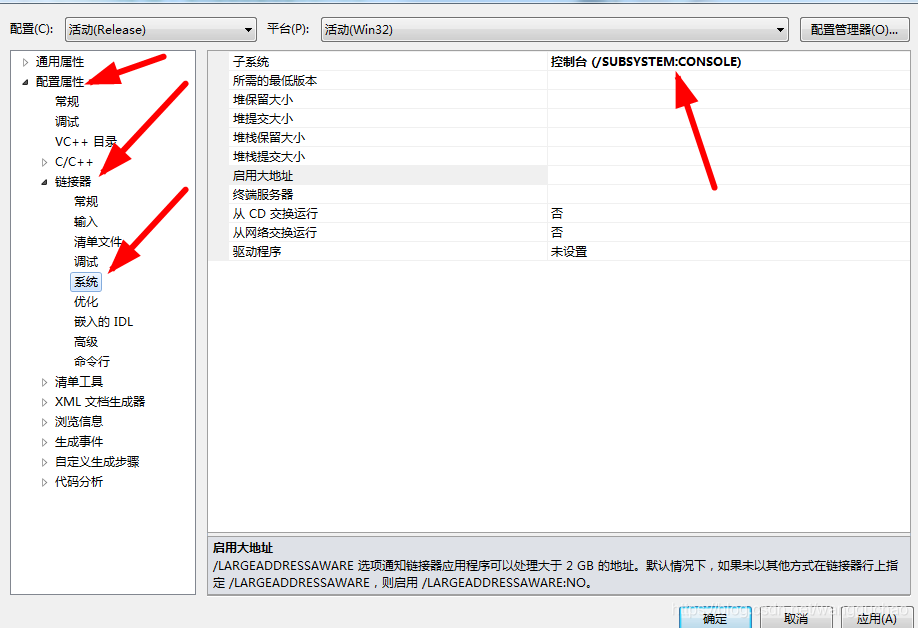
Before the return, add system(” PAUSE “); PAUSE is case-insensitive; Add getchar() before return; Project – & gt; Property – & gt; Configure properties ->; The linker – & gt; System – & gt; Subsystem – & gt; SUBSYSTEM adds the “/SUBSYSTEM:CONSOLE” link option and just configure it
Three methods have been tried, can use ~

Vs debug window flashback

There are three ways:
1. Start debugging Don’t use this button: directly Ctrl+F5 start. The effect is as follows:


2. Add the system (” pause “);
#include< stdio.h>

the main () {
printf (” Hello, World! \n”);
system (” pause “);
}
The effect is as follows:


3. Add _getch ();
#include< stdio.h>
#include < conio.h>

the main () {
printf (” Hello, World! \n”);
_getch ();
}
The effect is as follows:

Problem solving – vs debugging window flash solution

1. Test procedure:

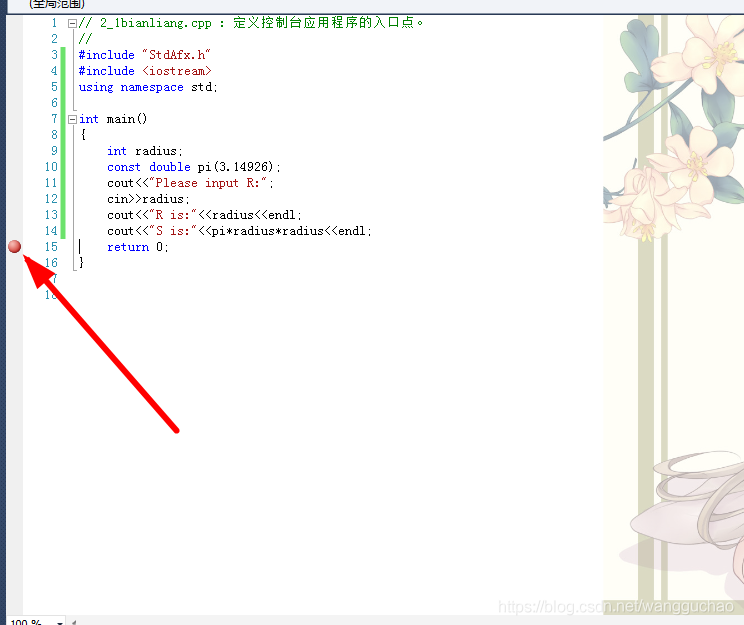
#include "StdAfx.h"
#include <iostream>

using namespace std;

int main()
{ 
	int radius;
	const double pi(3.14926);
	cout<<"Please input R:";
	cin>>radius;
	cout<<"R is:"<<radius<<endl;
	cout<<"S is:"<<pi*radius*radius<<endl;
	return 0;
}

2. Solutions
(1) If the operation is compile (F5), flash, you can run the program first (Ctrl+F5), will not flash.
(2) If the above methods do not work
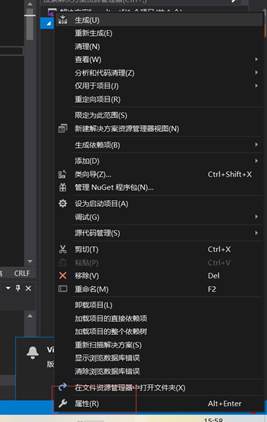
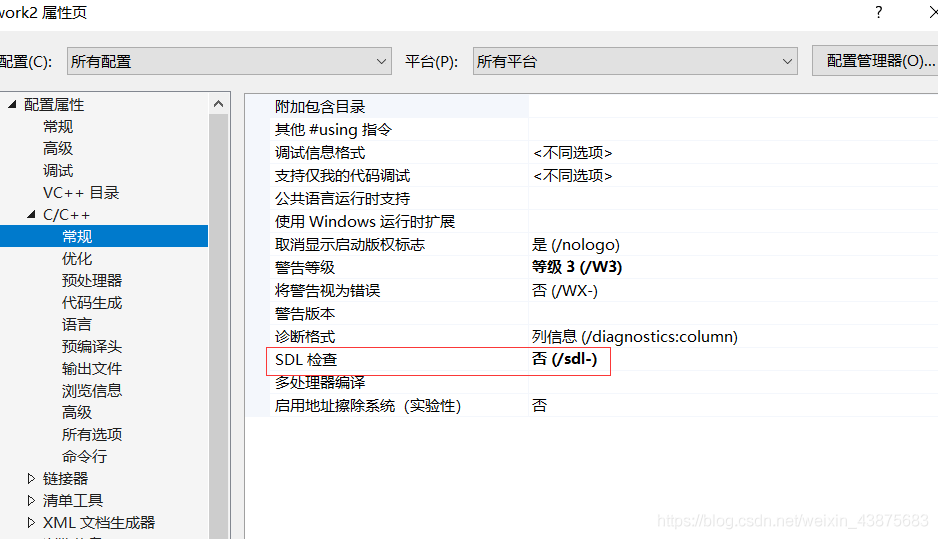
1. Right-click Current Project – Properties
2. Select Configuration Properties – Linker – System
. Change the SUBSYSTEM configuration in System Options and select the first/CONSOLE from the drop-down menu.

Then select “Start (Not Debug) “, that is, press Ctrl +F5;
(3) or program manipulation
In a C++ file, add: system(“pause”) before the last line (return) of the program;
In the case of a C file, the program header adds a header: #include”stdlib.h”; Then add: system(“pause”) at the end of the program (before return); .
(4) Set the breakpoint, and then debug (F5), also can.