1. For the download configuration of glew see: learnOpenGL
2. Download Gladglad and select
d select Generate a Loader
Download the FreeGlutFreeGlut download address here
>
>
>
Configuration of OpenGL development environment under Windows environment, win10 + vs2019 + glfw + glad

After you download it, copy the included file and the corresponding version of the library (because mine is vs2019) lib-vc2019 and place it in a fixed location (create a new folder to put both of them in it), such as my location under the path C: Program Files\OpenGL
2. The second step is the configuration of GLAD. Go to the GLAD online service page and select the corresponding options after entering it, as shown in the picture

You will get a Glad. Zip file. Download it and unzip it. Copy the two Files Glad and Khr in the include folder and place them in the C:\Program Files\OpenGL\ Include folder in the path of our first step

Copy the SRC folder to the path C: Program Files\OpenGL, as shown in the figure

3. Next, open VS2019 and create a new blank item. Click “Other Window” in “View” in the menu bar to find “Property Manager”, as shown in the figure below

Double click the Debug | x64 “folder” Microsoft. Cpp. X64. User], click on the vc + + directories add directory contains 】 【 in 】 directory, add, the following figure, OpenCV everyone here don’t tube, just add the OpenGL.

Configuration engineering library catalog, is also a double click the Debug | x64 】 in the folder. Microsoft. Cpp x64. User 】 【, click on the vc + + library directory 】 【 in 】 to add, as shown, also don’t tube of OpenCV.

Link library configuration, is also a double click the Debug | x64 】 in the folder. Microsoft. Cpp x64. User 】 【, click on the “input” of the “connector”, is added in the “additional dependencies” library Files and library Files in the C: \ Program Files \ OpenGL \ lib – vc2019, copy and paste the name to the “additional dependencies”, as shown in figure

At this point, our OpenGL environment is configured, but each time we create a new project, we need to add the glad.c file under the path C: Program Files\OpenGL\ SRC to the source of our project, and that’s it.
4. Test
The code is as follows:
#include <glad/glad.h>
#include <GLFW/glfw3.h>
#include <iostream>
using namespace std;

void framebuffer_size_callback(GLFWwindow* window, int width, int height);

int main() {
	glfwInit();
	//glfwWindowHint(GLFW_CONTEXT_VERSION_MAJOR, 3);
	//glfwWindowHint(GLFW_CONTEXT_VERSION_MINOR, 1);
	//glfwWindowHint(GLFW_OPENGL_PROFILE, GLFW_OPENGL_CORE_PROFILE);

	GLFWwindow* window = glfwCreateWindow(800, 600, "LearnOpenGL", NULL, NULL);
	if (window == NULL) {
		cout << "Failed to create GLFW window" << endl;
		glfwTerminate();
		return -1;
	}
	glfwMakeContextCurrent(window);

	if (!gladLoadGLLoader((GLADloadproc)glfwGetProcAddress)) {
		std::cout << "Failed to initialize GLAD" << std::endl;
		return -1;
	}

	glViewport(0, 0, 800, 600);

	glfwSetFramebufferSizeCallback(window, framebuffer_size_callback);

	while (!glfwWindowShouldClose(window)) {
		glfwSwapBuffers(window);
		glfwPollEvents();
	}

	glfwTerminate();
	return 0;
}

void framebuffer_size_callback(GLFWwindow* window, int width, int height) {
	glViewport(0, 0, width, height);
}
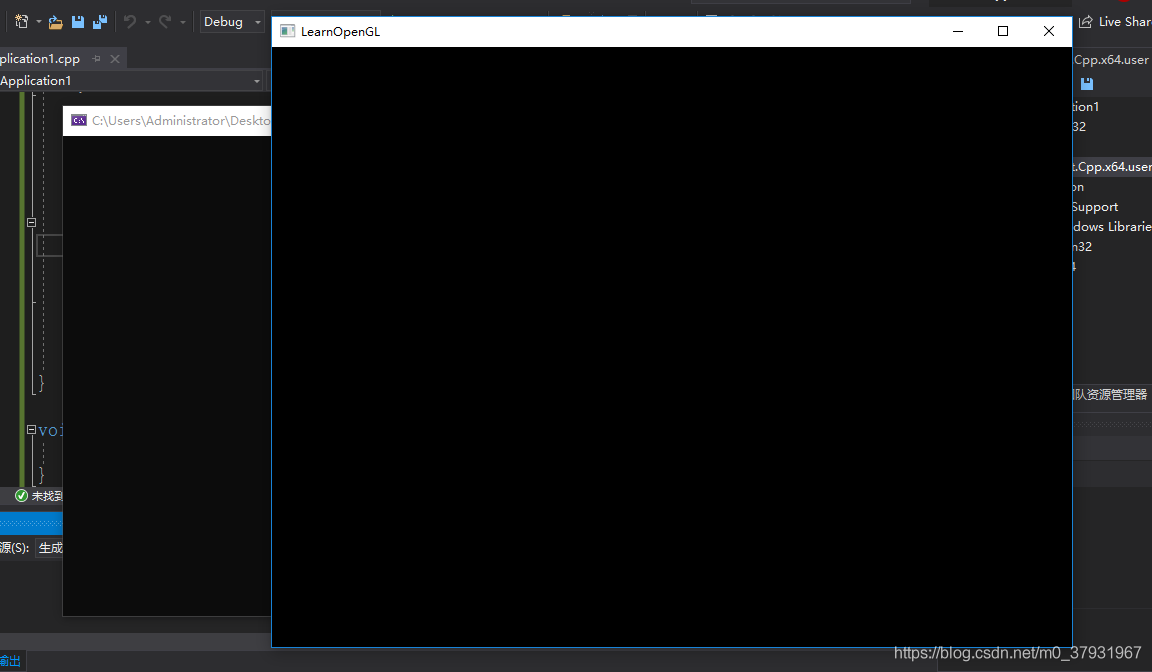
The results show that the configuration was successful.
The problem of window flash after C + + program is compiled and run
Unicorns are hiring Python engineers in 2019. > > 
Problem: When you first learn C++ to write Win32 Console Application using a different compiler, the resulting window may flash and disappear.
Some compilers are very good, and there are similar solutions in the example program. For example, in DevC ++, when creating a new non-empty C++ class, return 0; Before this: system(“PAUSE”); In Visual Studio there is no flash if you follow the steps, but when we press the shortcut key F5, the result will still flash. We can do this in return 0; STD ::cin.ignore(STD ::cin.rdbuf()->; in_avail()+1); That way it will show up, not just go over it. If you just want to see the result, there’s another way, and that’s in return 0; I’m going to say while(1);
Thank you @IM Xinye for reminding me. My posture has risen. When compiling, if you press F5 directly for debugging, there will be a flash of the situation. If Ctrl +F5 is not debugging, then there will be no flash.
Reproduced in: https://my.oschina.net/u/734295/blog/160510
use cin.get () instead of system (“pause”) to avoid the flash of C + + programs
C + + compiled in a separate console program execution time, often a flash, can’t see the output results, in order to solve this problem, there are a lot of people use the system (” pause “) to suspend, but so are a lot of disadvantages, there are two reasons for
a: poor portability
2: consume resources is very big, in both Windows and Linux
Instead of using system(“pause”) to pause, you can use STD ::cin.get() or getchar()
. Why not system(“pause”)?
Let’s take a look at the flow of system(“pause”)
1: Pause your program
: Start the Shell in the sub-process
3>ind commands to execute and allocate memory for them
4: Wai>r input
5: Recluse m>y
6: End the Shell <>> 7: Continue your program>
To summarize, use STD ::cin.get() or getchar() to pause the execution of a C ++ program
PS: the original http://www.gidnetwork.com/b-61.html
Reproduced in: https://blog.51cto.com/zhanggx/1305045
The problem of C + + compile result window flash by
Some compilers are very good, and there are similar solutions in the example program. For example, in DevC ++, when creating a new non-empty C++ class, return 0; Before this: system(“PAUSE”); In Visual Studio there is no flash if you follow the steps, but when we press the shortcut key F5, the result will still flash. We can do this in return 0; STD ::cin.ignore(STD ::cin.rdbuf()->; in_avail()+1); That way it will show up, not just go over it. If you just want to see the result, there’s another way, and that’s in return 0; I’m going to say while(1);
How to solve the problem that the output results of C + + program written in VS2010 flash by
Before I was using Visual C++ to write C++ programs, today I tried to use VS, the results found that after the program run, the results flash away.
>
>
>
>
>
>
>
>
>
>
>
>
>
The solution of console flash in C + +
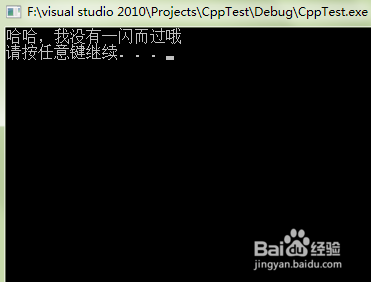
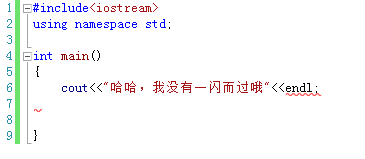
- method one: increase the input statement at the end of program, this will require the user to input before the end of the program runs, the console will stay there, specific code as shown in the figure below
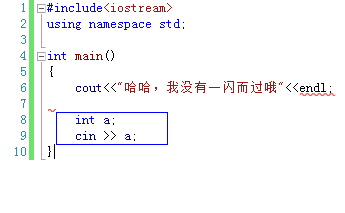
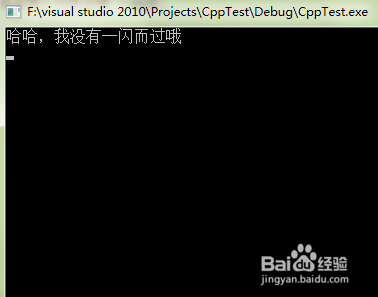
alternative Rich two alternatives: in C: printf (” press any key to continue…” );
getchar(); 12 In C++ : Cout<; <" Press any key to continue..." ;
cin.clear();
cin.sync();
cin.get(); 1234 plus cin. The clear (), cin. The sync () these two words, is to empty the cache area, let cin. The get () to receive your real keyboard input method
2: add the statement at the end of the program: system (” pause “);
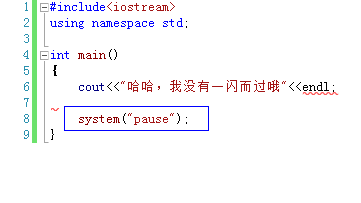
 Things to Avoid in C/C++ — system(“pause”) is not recommended because:
 is not portable: only for DOS or Windows, not Linux, etc.
consumes system resources: Calling the system command system() to “suspend the program” is overkill.
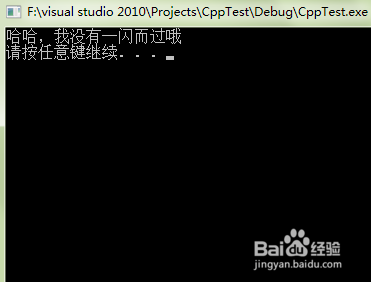
must add a header file: stdlib.h or cstdlib. There are many header files in C ++ that already contain this file, so it is sometimes possible to use this function without the header stdlib.h, but it is better to add it for safety reasons. Method 3: To modify the project configuration, right-click on the project, select Properties from the right-click menu, and then select “Configuration Properties” from the list on the left of the pop-up dialog box –>; ‘Linker’ –>; “System”, then in the list on the right, in the first “subsystem” value, select “Console” (/SUBSUSTEM:CONSOLE) “as shown in the figure below


Solution to the flash of running result of dev C / C + +
(getchar (); Char a=getchar(); char a=getchar(); . But if you have an input statement, you need to add more getchar(); .
stdlib.h> , in return 0; Before adding system (” pause “); Let it press any will continue.
OpenGL function reference (Chinese version)

GL library function
GLU library function
The GLUT library function
Solution of flash screen caused by OpenGL in MFC environment
Activate the WM_ERASEBKGND message handler in the MFC program to disable message processing of the parent window class, and simply return a TRUE. Return CView::OnEraseBkgnd(PDC). Now change this to return TRUE. This will solve the flash screen problem.
Drawing function of GLUT
void glutWireSphere(GLdouble radius, GLint slices, GLint stacks);
void glutWireCube(GLdouble size);
void GlutSolidCube (GlDouble Size); Solid cube
void glutWireTorus(GLdouble innerRadius, GLdouble outerRadius, GLint nsides, GLint rings);
void GlutSolidTorus (glDouble InnerRadius, glDouble OuterRadius, GLint nsides, GLint rings);
void GlutSolidTorus (glDouble InnerRadius, glDouble OuterRadius, GLint nsides, GLint rings) Solid circle
void glutWireIcosahedron(void);
void glutsolidosahedron (void); Solid 20-hedron
void glutWireOctahedron(void);
void glutsolidOctahedron (void);
void glutsolidOctahedron (void); Solid 8-hedron
void glutWireTetrahedron(void);
void glutsolidTrahedron (void);
void glutsolidTrahedron (void); Solid 4-hedron
void glutWireDodecahedron(GLdouble radius);
void glutSolidDoDecaHedron (glDouble radius); Solid 12-hedron
void glutWireCone(GLdouble radius, GLdouble height, GLint slices, GLint stacks);
void glutSolidCone(glDouble radius, glDouble height, GLint Slices, GLint stacks); A solid cone
void glutWireTeapot(GLdouble size);
void glutSolidTeapot(glDouble Size); Solid teapot
To solve the problem of flashback of calling class function of glutsolidcube() in Win32 program
The problem
Functions such as glutSolidCube() are used in Win32 to flash back without reporting an error.
To solve
GlutSolidCube, GlutSolidSphere and other functions will first check whether GLUT is initialized, and exit the program if GLUT is not initialized.
Therefore, put the following code in WinMain() :
int argc = 0;
char *argv[10] = {};
glutInit(&argc, argv);
Can solve