Author Archives: Robins

tensorflow import error: DLL load failed: The specified module could not be found (DLL load failed: The specified module could not be found)

The background,
Recently, after my tensorFlow version was updated, there was a problem, and the error was also very vague: DLL Load failed: the specified module could not be found. Here is my environment first:

win10 + pycharm
Anaconda3 (python3.6)
tensorflow1.9

Ii. Problem description
My own version of TensorFlow, 1.9, has been in use for almost a year and has been fine. Later, I saw that the version of TensorFlow was updated to 1.12, so I thought I would update it. However, after the update, the error of importing tensorFlow was reported. Later, even if the tensorFlow version was reduced to 1.2, the error was still reported:
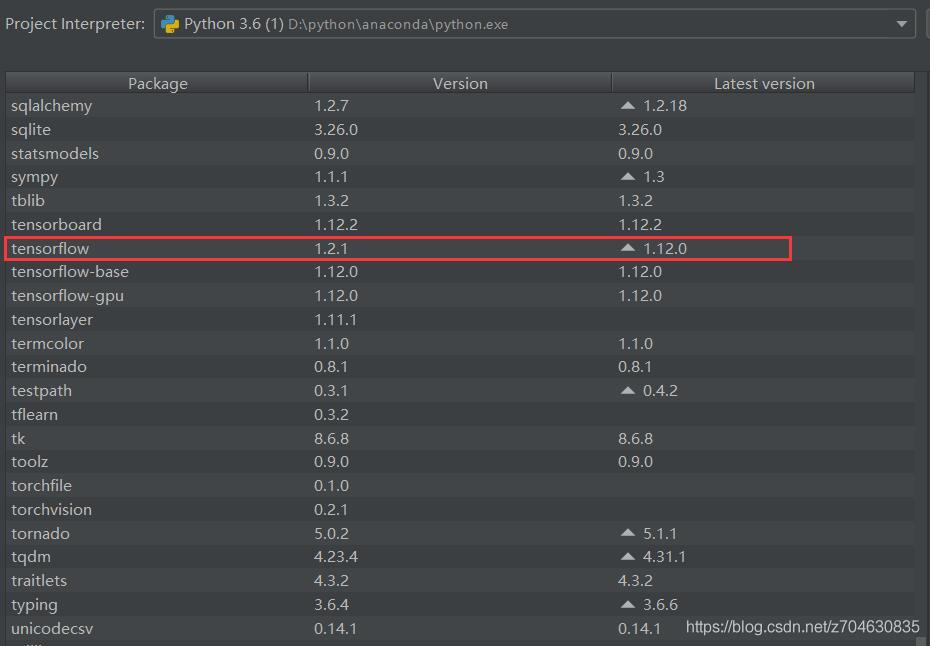
When importing TensorFlow, an error message will be sent:

D:\python\anaconda\python.exe D:*****.py
Traceback (most recent call last):
  File "D:\python\anaconda\lib\site-packages\tensorflow\python\pywrap_tensorflow.py", line 58, in <module>
    from tensorflow.python.pywrap_tensorflow_internal import *
  File "D:\python\anaconda\lib\site-packages\tensorflow\python\pywrap_tensorflow_internal.py", line 28, in <module>
    _pywrap_tensorflow_internal = swig_import_helper()
  File "D:\python\anaconda\lib\site-packages\tensorflow\python\pywrap_tensorflow_internal.py", line 24, in swig_import_helper
    _mod = imp.load_module('_pywrap_tensorflow_internal', fp, pathname, description)
  File "D:\python\anaconda\lib\imp.py", line 243, in load_module
    return load_dynamic(name, filename, file)
  File "D:\python\anaconda\lib\imp.py", line 343, in load_dynamic
    return _load(spec)
ImportError: DLL load failed: The specified module cannot be found.

During handling of the above exception, another exception occurred:

Traceback (most recent call last):
  File "D:/python/item/64-MARTAGAN/train_marta_gan.py", line 7, in <module>
    import tensorflow as tf
  File "D:\python\anaconda\lib\site-packages\tensorflow\__init__.py", line 24, in <module>
    from tensorflow.python import pywrap_tensorflow  # pylint: disable=unused-import
  File "D:\python\anaconda\lib\site-packages\tensorflow\python\__init__.py", line 49, in <module>
    from tensorflow.python import pywrap_tensorflow
  File "D:\python\anaconda\lib\site-packages\tensorflow\python\pywrap_tensorflow.py", line 74, in <module>
    raise ImportError(msg)
ImportError: Traceback (most recent call last):
  File "D:\python\anaconda\lib\site-packages\tensorflow\python\pywrap_tensorflow.py", line 58, in <module>
    from tensorflow.python.pywrap_tensorflow_internal import *
  File "D:\python\anaconda\lib\site-packages\tensorflow\python\pywrap_tensorflow_internal.py", line 28, in <module>
    _pywrap_tensorflow_internal = swig_import_helper()
  File "D:\python\anaconda\lib\site-packages\tensorflow\python\pywrap_tensorflow_internal.py", line 24, in swig_import_helper
    _mod = imp.load_module('_pywrap_tensorflow_internal', fp, pathname, description)
  File "D:\python\anaconda\lib\imp.py", line 243, in load_module
    return load_dynamic(name, filename, file)
  File "D:\python\anaconda\lib\imp.py", line 343, in load_dynamic
    return _load(spec)
ImportError: DLL load failed: The specified module cannot be found.


Failed to load the native TensorFlow runtime.

See https://www.tensorflow.org/install/errors

for some common reasons and solutions.  Include the entire stack trace
above this error message when asking for help.

Process finished with exit code 1

My error message is in Chinese: DLL Load failed: the specified module cannot be found; Specified Module Could not be Found DLL Load Failed: The Specified Module could not be found
3. Solutions
The problem is new, the current solution is less online, after a search, finally found a similar problem and I post on making the first link: https://github.com/tensorflow/tensorflow/issues/25597, are described in detail below.
The situation of paster is similar to mine. The environment of paster is given first:
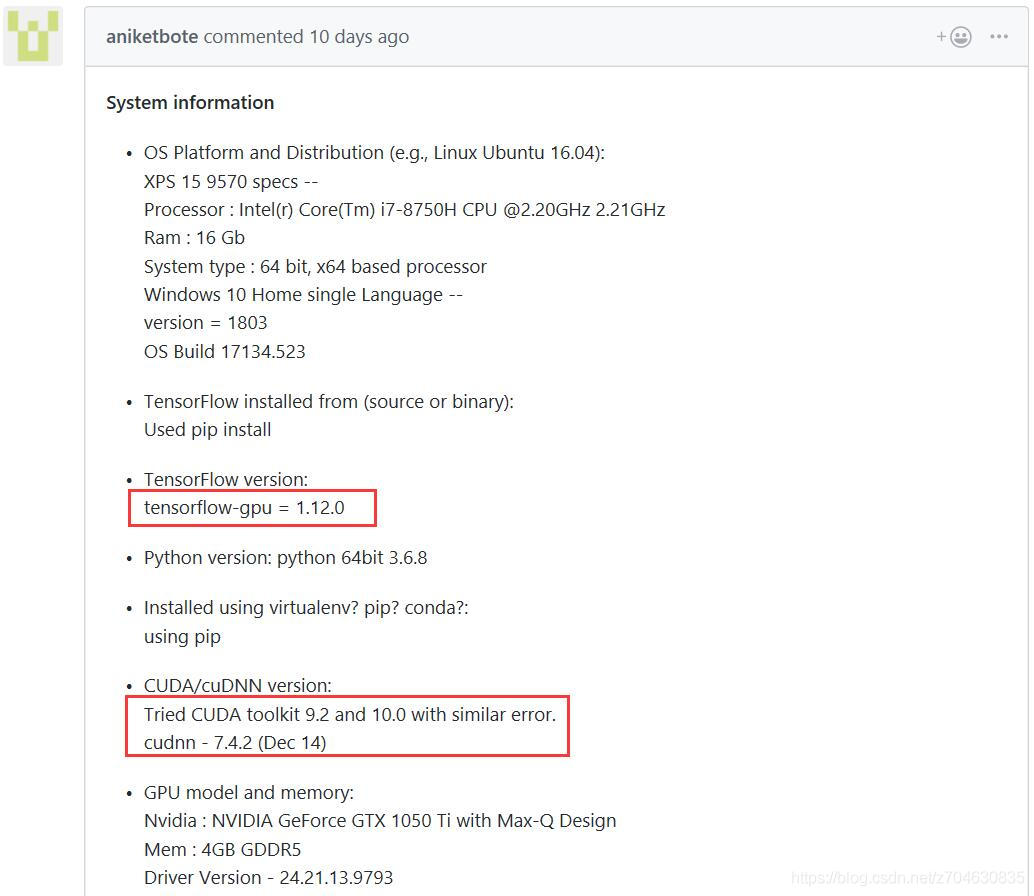
You can see that the sponsor also updated the TensorFlow version to 1.12 before encountering this problem. The following is a detailed description of how to configure your environment, and mentions that this error still occurs with CUDA9.2 and CUDA10.0 versions.
To address this problem, it has been proposed to install CUDA9.0:
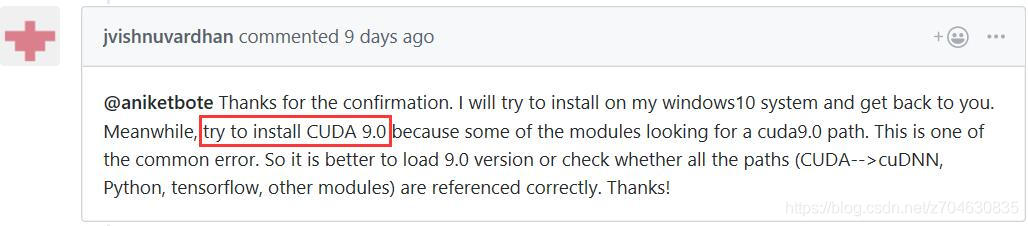
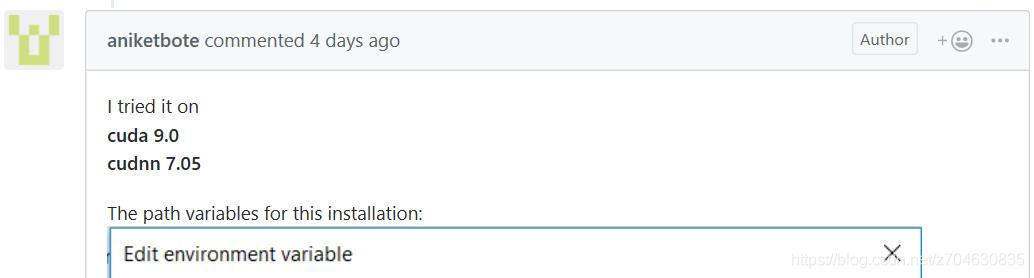
The user then reconfigured his environment to CUDA9.0 and cuDNN7.05
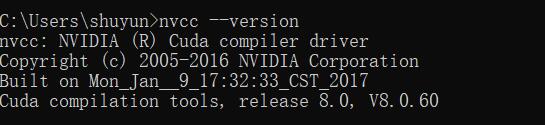
About how to view your CUDA version, you can open CMD and type NVCC — Version in CMD to view:
Here are some of the approaches I tried, but none of them solved the problem:
(1) Install other versions of CUDA. But it didn’t solve the problem…
(2) Update VS2015, reference blog: TensorFlow installation issues and Github. But it doesn’t solve the problem…
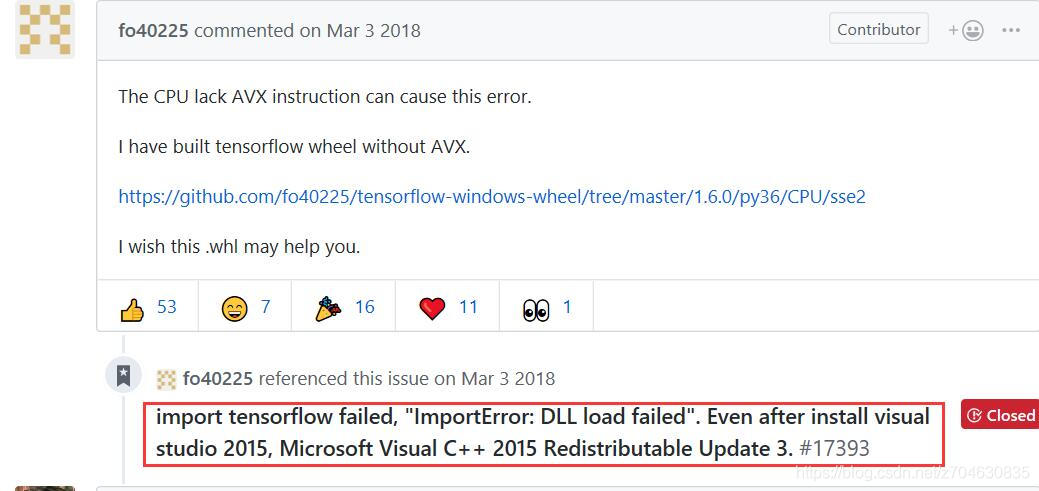
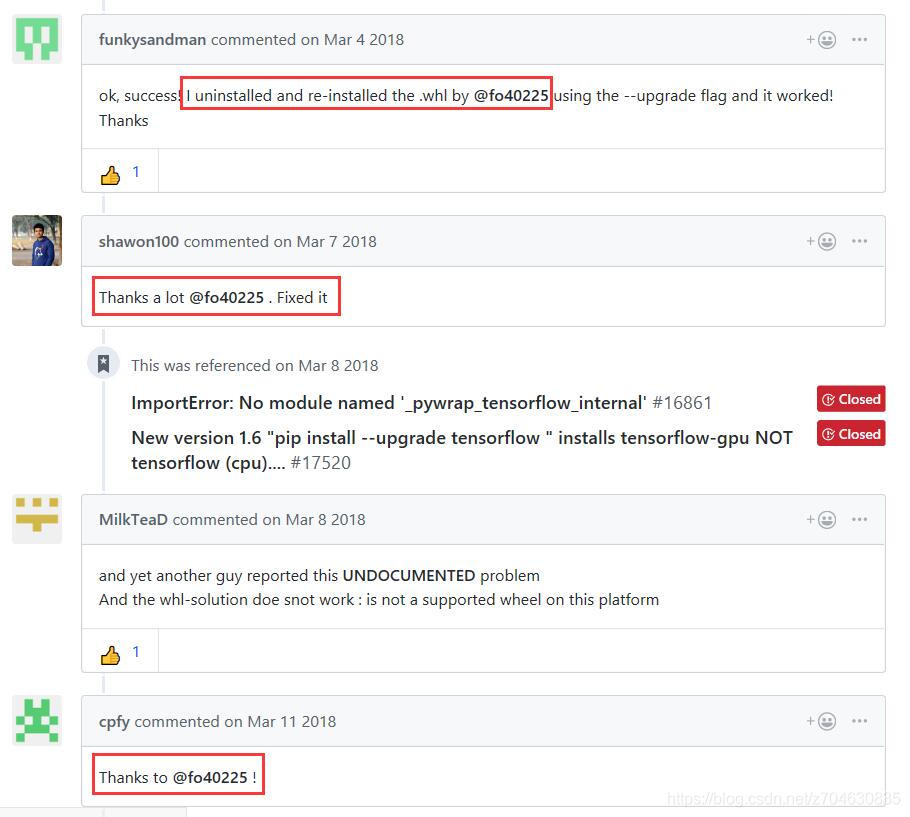
(3) Continue to read the post on Github, found that many people are thanking the layer owner FO40255, which is the above (2) layer owner message, reinstall the.WHL file, but I did not try this method, I will mention my method later, here is a random post:
To sum up my own approach to this problem:
(1) Open CMD and enter PIP Uninstall tensorFlow, that is, uninstall TensorFlow.
(2) Re-install after uninstalling and enter PIP Install TensorFlow.
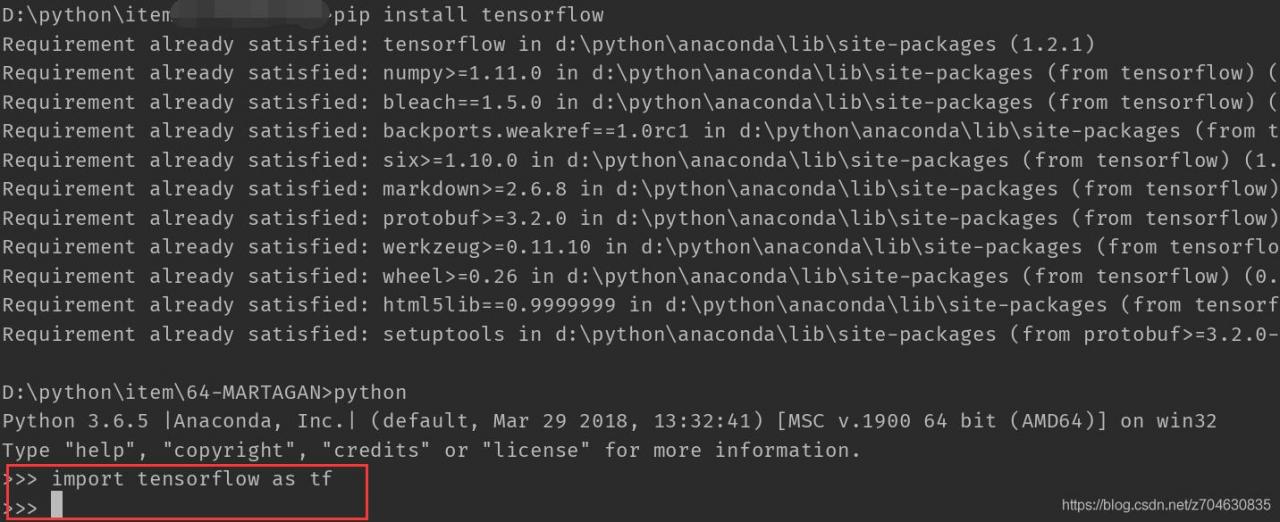
(3) After the installation of a simple test, there is no error. In short, if it breaks, reinstall it… (That’s how I got it back.)
Of course, if reinstall will not solve the problem, can consider fo40255 layer above the main method, cover again. WHL file, the file link here also is given, by the way: https://github.com/fo40225/tensorflow-windows-wheel/tree/master/1.6.0/py36/CPU/sse2
Failed to load Main-Class manifest attribute from when the jar file is running

First of all, I would like to share with you a tutorial on artificial intelligence of Giant cow giant cow, which I found by accident. The course is not only zero basis, easy to understand, but also very funny humor, and from time to time there are connotation jokes, like reading a novel, haha ~ I am learning, I think it is too great, so to share with you! Click here to jump to the tutorial

               
Failed to load main-class manifest Attribute from… , this is due to the program is not set up to run the entry program.

Right-click on your JAR file, select Open mode — Winrar — to open the Meta-INF folder, and double-click on the MANIFEst.MF file inside. When you open it, you will see that there is only manifest-Version: 1.0 and no main-class: XXX configuration.
The solution —
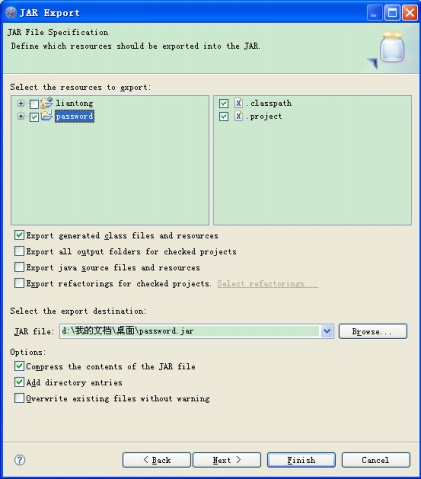
Reopen your Eclipse, select the project that requires Export, right-click Export, and select Java –JAR File

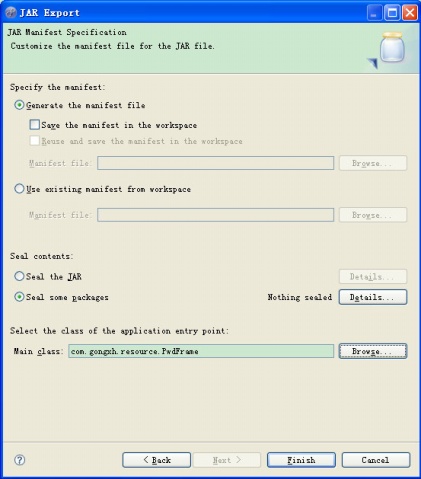
After selecting the items you want to export, click Next – Next and go to the following page:

Notice the Main class :(you definitely don’t have any text), click Browse, select your Main function, and then finish.


Browse the artificial intelligence tutorial

Start Eclipse and pop up the “Failed to load the JNI shared library jvm.dll” dialog box

Look at the
1 Whether the SETTING of JAVA_HOME is correct, my computer -& GT; Property (right click) –& GT; Advanced system setup –& GT; Environmental variable –& GT; System variable, new JAVA_HOME=D:/ Java/JDK
Modify the Path = % % Path; %JAVA_HOME%\bin
Open the command line and type Java-Version to see the output, see the version of Java, and see if it’s 32-bit or 64-bit
 

$ java -version
java version "1.7.0_25"
Java(TM) SE Runtime Environment (build 1.7.0_25-b17)
Java HotSpot(TM) 64-Bit Server VM (build 23.25-b01, mixed mode)

2 It is possible that Java and Eclipse are not compatible 32-bit and 64-bit, Java is 32-bit and Eclipse is 64-bit, or vice versa
The Eclipse.ini file in the Eclipse directory, marked in red as 64-bit Eclipse

-startup
plugins/org.eclipse.equinox.launcher_1.3.0.v20130327-1440.jar
--launcher.library
plugins/org.eclipse.equinox.launcher.win32.win32.x86_64_1.1.200.v20130521-0416
-product
org.eclipse.epp.package.java.product
--launcher.defaultAction
openFile
--launcher.XXMaxPermSize
256M
-showsplash
org.eclipse.platform
--launcher.XXMaxPermSize
256M
--launcher.defaultAction
openFile
--launcher.appendVmargs
-vmargs
-Dosgi.requiredJavaVersion=1.6
-Xms1024m
-Xmx1024m

Where can I view a version of an Eclipse product?A. Eclipseproduct file in the Eclipse directory, the version entry is the version of Eclipse

name=Eclipse Platform
id=org.eclipse.platform
version=4.3.0

SSL handshake failed: SSL error: illegal key usage detected in the certificate

SVN under Linux cannot connect to the Windows server: SSL failure: SSL error: Illegal key usage detected in the certificate.
The SVN server has been configured with visualSVN on Windows 2003 and is available on the Windows virtual machine client side.
Today, however, trying to run SVN on Ubuntu 11.10 installed Subversion. But use times similar to the following error:
SVN: method OPTIONS fail in “https://1.0.0.2:8443/svn/xxx” : the SSL handshake failed: SSL error: key usage of detected irregularities in the certificate.
 
Reason for error: This is because Virtual SVN USES a plug-in when generating authentication data that is supported by OpenSSL but not by GnuTls.
The
correction is to modify the certificate source sky generated for third-party certificates used by visualsvn on the server so that both Windows and Linux can recognize it.
Process:

1.Add the following registry value to the Windows registry :(mine is 32 bits)
for 32-bit system :(run regedit-> Find the following registry key -& GT; Add a value of type DWORD)
[HKEY_LOCAL_MACHINESOFTWAREVisualSVNVisualSVN Server]
“CreateGnuTLSCompatibleCertificate” = dword: 00000001
for 64 – bit system:
[HKEY_LOCAL_MACHINESOFTWAREWow6432NodeVisualSVNVisualSVN Server]
“CreateGnuTLSCompatibleCertificate” = dword: 00000001
Start VisualSVN Server Manager. (open virsualSVN Server)
2. Go to Action | Properties | Certificate.
3.Click Change certificate…
execute SVN again, it will prompt the certificate generator to be warned that it is not trusted, choose to accept it permanently.

and that solves the problem.
 
Another solution (without testing) is to make SVN clients on LINUX support OPENSSL.
The methods are as follows:

wget wget http://subversion.tigris.org/downloads/subversion-1.6.3.tar.gz

http://subversion.tigris.org/downloads/subversion-deps-1.6.3.tar.gz tar XVFZ subversion – 1.6.3. Tar. Gz
the tar XVFZ subversion-deps-1.6.3.tar.gz
CD subversion-1.6.3/neon/

sudo apt-get install libssl-dev libxml2-dev
./configure –with-ssl –with-pic
make
make install

CD.
rm -rf neon
edit /etc/ld.so.conf and add /usr/local/lib
ldconfig

./configure –with-ssl –with-neon=/usr/local
make
make install

dpkg –purge subversion

Chrome Failed to load resource: net::ERR_CACHE_MISS

There is no such error message in IE/FF, but the following error message appears on the Chrome command line:
Failed to load resource: net::ERR_CACHE_MISS
The issue is a bug in the Chrome browser development tool that appears to be related to caching and has been submitted to the Chrome issues system
(https://code.google.com/p/chromium/issues/detail?Id = 424599).
Does not affect normal use, can be ignored, will be fixed in chrome40.x.x.x version.

The mongoDB service failed to start (exception: connect failed)

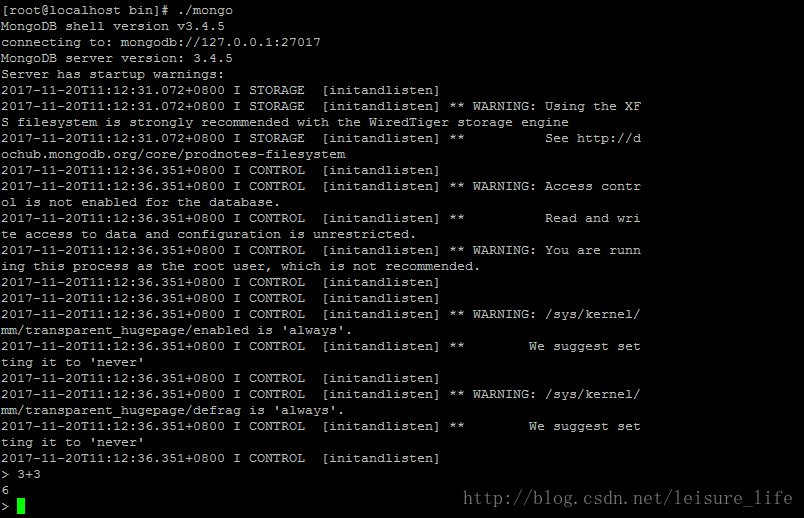
[root@localhost bin]# ./mongo
MongoDB shell version v3.4.5
connecting to: mongodb://127.0.0.1:27017
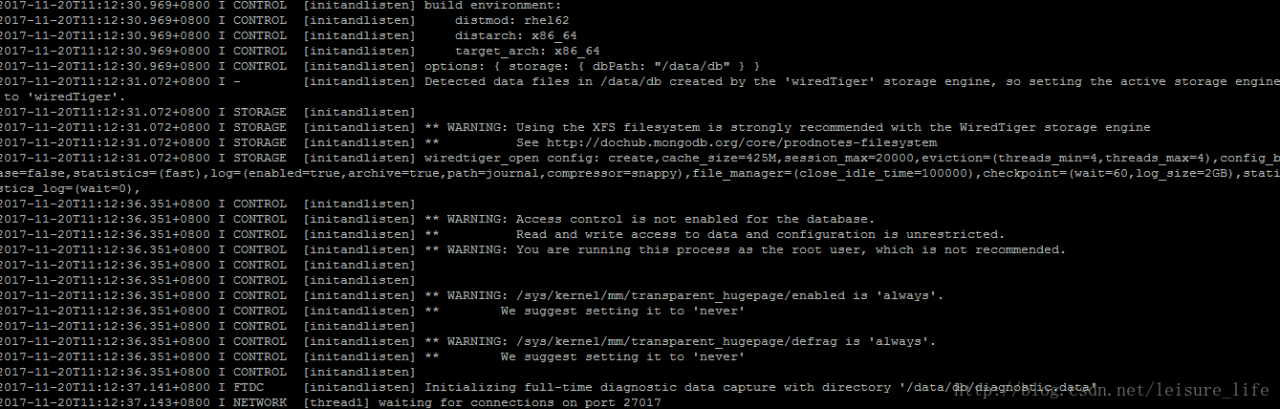
2017-11-20T11:10:49.895+0800 W NETWORK  [thread1] Failed to connect to 127.0.0.1                                                                                        :27017, in(checking socket for error after poll), reason: Connection refused
2017-11-20T11:10:49.896+0800 E QUERY    [thread1] Error: couldn't connect to ser                                                                                        ver 127.0.0.1:27017, connection attempt failed :
connect@src/mongo/shell/mongo.js:237:13
@(connect):1:6
exception: connect failed

The reason is that the database location is not specified

 ./mongod --dbpath /data/db

If your database directory is not /data/db, you can use the -dbpath to specify

. Start service

join

RegOpenKeyEx returns error value 5

Error: (5, ‘RegOpenKeyEx’…)

import win32api

import win32con

key = win32api.RegOpenKey(win32con.HKEY_LOCAL_MACHINE,’SOFTWARE’,0,win32con.KEY_ALL_ACCESS)

error reporting pywintypes.error: (5, ‘RegOpenKeyEx’, ‘xbe\ xbe\xf8\xb7\xc3\ xca\xa1\xa3’)

then the positioning problem occurred in win32con.key_all_access, which was due to the willingness of the registry access to be denied, so the access permission needed to be increased, by the following methods:

the first method:

WIN7 has administrator privileges:
1. Right-click computer, go to administration, and find users and groups.
2. Find administrators, right-click to bring up the property, and remove the check mark before “this account is disabled”.

back to the desktop

3. Create a new “notepad” and copy as follows:

Windows Registry Editor Version 5.00

[HKEY_CLASSES_ROOT\*\shell\runas]

@=” administrator takes ownership”

“NoWorkingDirectory”=””

[HKEY_CLASSES_ROOT\*\shell\runas\command]

@=”cmd.exe /c takeown /f \”%1\” & & icacls \”%1\” /grant administrators:F”

“IsolatedCommand”=”cmd.exe /c takeown /f \”%1\” & & icacls \”%1\” /grant administrators:F”

[HKEY_CLASSES_ROOT\exefile\shell\runas2]

@=” administrator takes ownership”

“NoWorkingDirectory”=””

[HKEY_CLASSES_ROOT\exefile\shell\runas2\command]

@=”cmd.exe /c takeown /f \”%1\” & & icacls \”%1\” /grant administrators:F”

“IsolatedCommand”=”cmd.exe /c takeown /f \”%1\” & & icacls \”%1\” /grant administrators:F”

[HKEY_CLASSES_ROOT\Directory\shell\runas]

@=” administrator takes ownership”

“NoWorkingDirectory”=””

[HKEY_CLASSES_ROOT\Directory\shell\runas\command]

@=”cmd.exe /c takeown /f \”%1\” /r /d y & & icacls \”%1\” /grant administrators:F /t”

“IsolatedCommand”=”cmd.exe /c takeown /f \”%1\” /r /d y & & icacls \”%1\” /grant administrators:F /t”

and then save as win7 to get administrator privileges. Reg, suffix must be.reg

imports the saved registry information, thus gaining WIN7 administrator rights.

right click on the folder and “administrator takes ownership” will appear

the second method:

ctrl+r

input lusrmgr. MSC

user — double-click administrator to uncheck the “account disabled” check

logout

select administrator account to log in

urllib.error.URLError: <urlopen error [WinError 10060] problem solving

Write custom directory titles here
urllib.error.URLError:

urllib.error.URLError: < Urlopen Error [WinError 10060] Connection attempt failed because the connector did not reply correctly after a period of time or the connected host did not respond. >
I used youTube-DL to download YouTube videos, but reported this error. You can access YouTube in your browser or you can download videos. No multithreading is used, and the import is urlopen in urllib.request. The solution is to set up the proxy for the command line. On the command line, type:
set http_proxy=http://127.0.0.1:1080
since I am using the HTTP protocol, I set the proxy for HTTP. If the HTTPS protocol is used, type:
set https_proxy=http://127.0.0.1:1080
it took all afternoon to finally fix it!

Unable to register authentication agent: GDBus.Error:org.freedesktop.PolicyKit1.Error.Failed: Cannot

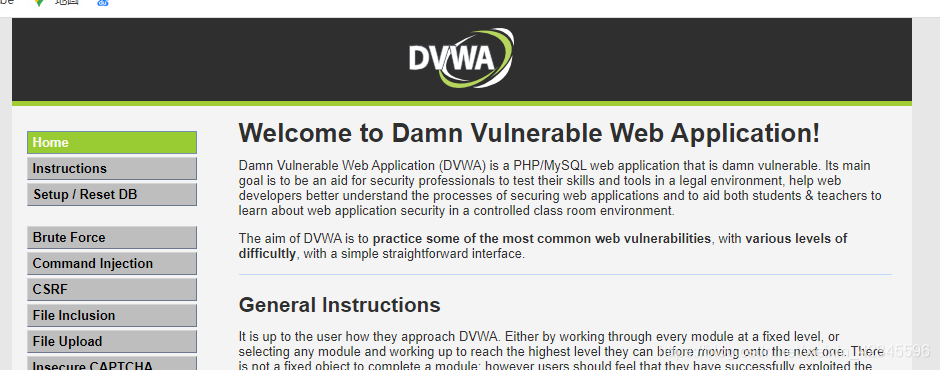
I just installed dvWA range environment. After debugging, I executed the SystemCTL Restart PHP-FPM command as root user, and then reported this error:

[root@localhost ~]# systemctl restart php-fpm
** (pkttyagent:10946): WARNING **: 17:09:31.957: Unable to register authentication agent: GDBus.Error:org.freedesktop.PolicyKit1.Error.Failed: Cannot determine user of subject
Error registering authentication agent: GDBus.Error:org.freedesktop.PolicyKit1.Error.Failed: Cannot determine user of subject (polkit-error-quark, 0)

Refer to such a document, found that was caused by x permissions lost, reference document links: https://blog.csdn.net/huangjin0507/article/details/51536454
The following command is used:

[root@localhost ~]# chmod 755 /

With the changes, the problem disappeared, PHP was rebooted, and DVWA was successfully accessed.


nt service 1072 No need to restart, repeat the method of installing the service program or service driver

Typically, when you install a service program, delete the service, and install again, the system will prompt you with the error code 1072: “The specified service is marked for deletion.” Anti-virus software, for example, needs to be restarted after uninstalling before it can be installed, or it may report an error: “The specified service is marked for deletion.”
Here is a way to repeat the installation without restarting it.
First, close all access instances, that is, close all service handles that are opened by the CreateService and OpenService functions. Close all CreateFile handles.
The ControlService then stops serving.
DeleteService removal service.
As a final step, delete the registry keys “HKEY_LOCAL_MACHINE\SYSTEM\CurrentControlSet\Services\ Name of your server” and “HKEY_LOCAL_MACHINE\SYSTEM\CurrentControlSet\Enum\Root\LEGACY_ name of your server”.
 
 
http://zhanyonhu.blog.163.com/blog/static/161860442010223115539853/