Idea executes Maven command and prompts fatal error matching: invalid target distribution: 11
Environmental Science:
Project JDK version: 11
Environment variable JDK version: 1.8
Maven version: 3.3.9
Querying the data, we found that when executing the Maven command, we will find the JDK version of the environment variable, so the JDK version does not match the JDK version of the project
Treatment method
1. Before executing the Maven command, execute the command:
set JAVA_HOME=D:\Java\jdk\adopt-openjdk-11.0.11After execution, execute the Maven command
2. Modify environment variable Java_ Home, configured as jdk11 directory
Because most of my projects use JDK1.8, only a few projects use jdk11, so I choose to use the first method
MySql 8.x java.sql.SQLNonTransientConnectionException: Public Key Retrieval is not allowed
Questions
Error in remote connection to MySQL 8.0 using mybatis plus to reverse generate entity class codegenerator
Exception in thread "main" java.lang.RuntimeException: java.sql.SQLNonTransientConnectionException: Public Key Retrieval is not allowed
	at com.baomidou.mybatisplus.generator.config.DataSourceConfig.getConn(DataSourceConfig.java:170)
	at com.baomidou.mybatisplus.generator.config.builder.ConfigBuilder.<init>(ConfigBuilder.java:110)
	at com.baomidou.mybatisplus.generator.AutoGenerator.execute(AutoGenerator.java:96)
	at com.dev.docker.config.CodeGenerator.main(CodeGenerator.java:125)
Caused by: java.sql.SQLNonTransientConnectionException: Public Key Retrieval is not allowed
	at com.mysql.cj.jdbc.exceptions.SQLError.createSQLException(SQLError.java:110)
	at com.mysql.cj.jdbc.exceptions.SQLError.createSQLException(SQLError.java:97)
	at com.mysql.cj.jdbc.exceptions.SQLExceptionsMapping.translateException(SQLExceptionsMapping.java:122)
	at com.mysql.cj.jdbc.ConnectionImpl.createNewIO(ConnectionImpl.java:836)
	at com.mysql.cj.jdbc.ConnectionImpl.<init>(ConnectionImpl.java:456)
	at com.mysql.cj.jdbc.ConnectionImpl.getInstance(ConnectionImpl.java:246)
	at com.mysql.cj.jdbc.NonRegisteringDriver.connect(NonRegisteringDriver.java:199)
	at java.sql/java.sql.DriverManager.getConnection(DriverManager.java:677)
	at java.sql/java.sql.DriverManager.getConnection(DriverManager.java:228)
	at com.baomidou.mybatisplus.generator.config.DataSourceConfig.getConn(DataSourceConfig.java:168)
	... 3 more
reason
Official website: https://mysqlconnector.net/connection-options/
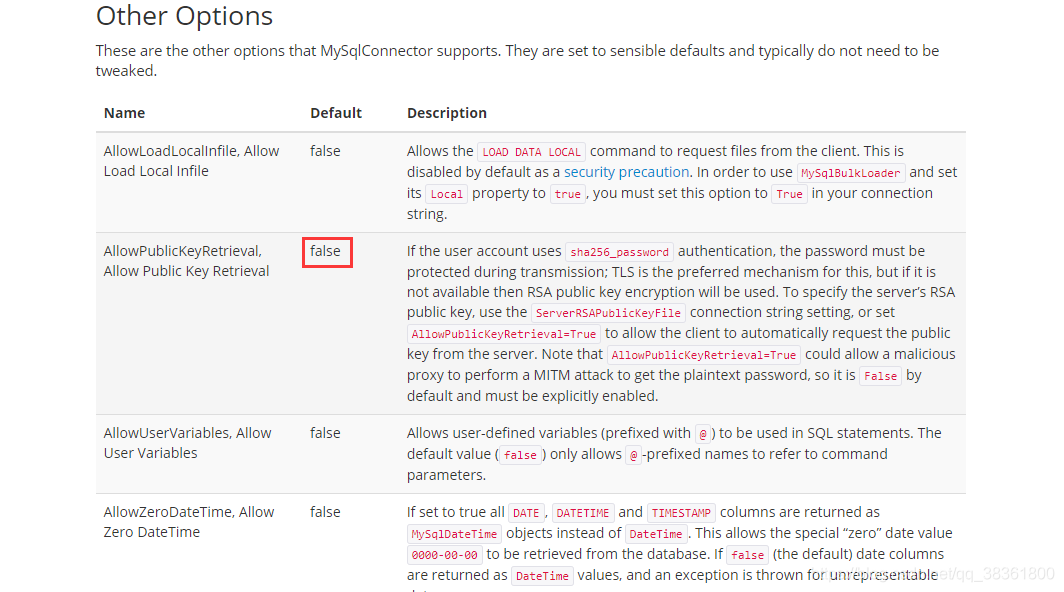
If the user account uses sha256_ Password authentication, transmission must protect the password; TLS is the preferred mechanism, but if it is not available, RSA public key encryption will be used. To specify the RSA public key of the server, use the serverrsapublickeyfile connection string setting, or set allowpublickeyretrieval = true to allow clients to automatically request the public key from the server. Note that allowpublickeyretrieval = true may allow malicious agents to perform mitm attacks to obtain plaintext passwords, so it is false by default and must be explicitly enabled.
Because allowpublickeyretrieval and allowpublickey retrieval are false by default, it is necessary to add “allowpublickeyretrieval = true” on the JDBC connection
Solutions
Add “allowpublickeyretrieval = true” to JDBC connection
jdbc:mysql://xxxx/xxx?serverTimezone=Asia/Shanghai&useUnicode=true&characterEncoding=UTF-8&useSSL=false&allowPublicKeyRetrieval=trueSolution of OpenCV library import error in Python 3
The solution of OpenCV library import error in python3
Operating environment:
Operating system: CentOS 7.9
Software environment: Python 3.6
Error problem description:
When using OpenCV library, error occurred when importing Library:
File "<stdin>", line 1, in <module>
File "/home/summer/.local/lib/python3.6/site-packages/cv2/__init__.py", line 5, in <module>
    from .cv2 import *
ImportError: libGL.so.1: cannot open shared object file: No such file or directory
resolvent:
Enter the command in the terminal:
sudo yum update
sudo yum install mesa-libGL.x86_64
The update is complete.
vue Failed at the [email protected] install script
Today, NPM can’t be installed. After reading most of the answers on the Internet, there are problems with the installed image URL. Finally, the correct website is:
npm install chromedriver --chromedriver_cdnurl=https://npm.taobao.org/mirrors/chromedriver
Then execute the install NPM command
Attached official website: https://www.npmjs.com/package/chromedriver
Using np.set in Python 3_ Printoptions (threshold = NP. Nan) raises an error resolution
Source: [Wu Enda’s after class programming assignment] course 4 – convolutional neural network – fourth week assignment – face recognition
about np.set_ printoptions()
np.set_ Printing options (threshold = sys. Maxsize)
I executed it in vscode Python 3, with the following error:
valueerror: threshold must be non Nan, try sys. Maxsize for untrusted representation
According to the prompt:
Import sys library first Import sys Import
Then change the original sentence to NP. Set_ printoptions(threshold = sys.maxsize)
Reference article: https://blog.csdn.net/qq_ 45068783/article/details/109405850
BUG——Could not resolve placeholder ‘xxx‘ in value ‘${xxx}‘
report errors
1、Error creating bean with name ‘xxx’: Injection of autowired dependencies failed
2、Could not resolve placeholder ‘xxx’ in value ‘${xxx}’
3、Failed to load applicationcontext
Guess
Guess 1: no configuration in YML
guess 2: duplicate or conflicting configuration names, such as my EML
guess 3: no @ component is added to the entity class
guess 4: redundant symbols appear in YML, such as spaces
oneself
User defined EML reports an error, but PNG does not report an error. It is speculated that PNG has affected the EML below. Change “\” to “\ \”, and the EML will run normally (when copying the path to YML, double slash will be automatically changed to single slash, which means single slash is OK, but not expected…).
Original——
custom:
  path:
    png: C:\Users\Administrator\Desktop\AutoMail\png\
    eml: C:\Users\Administrator\Desktop\AutoMail\eml\
    xls: C:\Users\Administrator\Desktop\AutoMail\xls\
Now——
custom:
  path:
    png: C:\\Users\\Administrator\\Desktop\\AutoMail\\png\\
    eml: C:\\Users\\Administrator\\Desktop\\AutoMail\\eml\\
    xls: C:\\Users\\Administrator\\Desktop\\AutoMail\\xls\\
winscp Error loading files using ‘936‘ encoding
Syntax Error: Non-UTF-8 code start with \xce’in file
Question:
SyntaxError: Non-UTF-8 code starting with '\xce' in file E:/python_work/study/no_black.py on line 6, but no encoding declared; see http://python.org/dev/peps/pep-0263/ for detailssolve:
Write [# – * – Coding: GBK – * -] on the first line of the PY file (including #, #, and one space after #)
# -*- coding: gbk -*- pyvista error: root:GLEW could Missing GL version settlement method
Project scenario:
Windows10 + python3.6 + pyvista0.31.3
Problem Description:
Problem Description: after upgrading the windows system, a strange error suddenly appeared in the well run code about pyvista visualization ply file some time ago:
ERROR:root:GLEW could not be initialized: Missing GL version
Cause analysis:
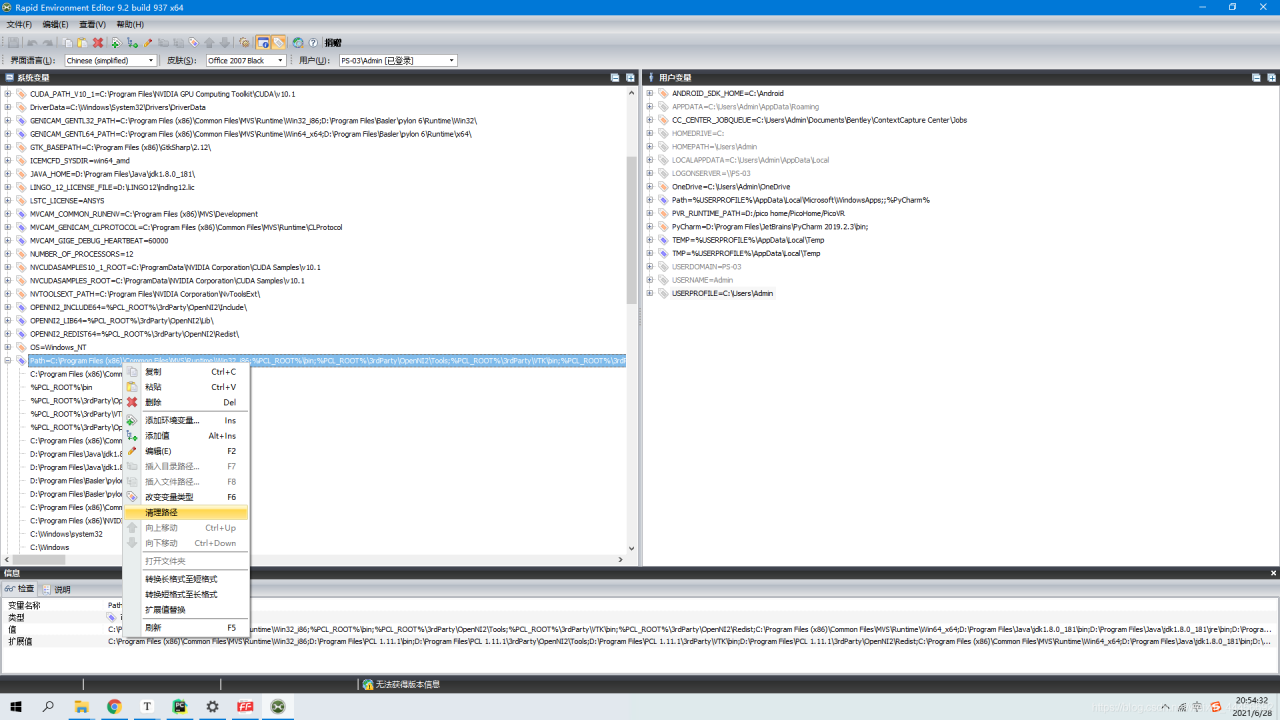
After upgrading windows, some things have been added to the environment variable path, resulting in the environment variable being too long, exceeding the maximum length of 1023 characters, and the following environment variables have been truncated.
Solution:
Find a way to shorten the path of the environment variable, delete some paths that are not used very much, or use RapidEE environment variable editing tool to optimize
#During OpenGL development, fatal error C1083: can’t open include file: “GL / glut. H”: no such file or directory
During OpenGL development, fatal error C1083: can’t open include file: “GL/glut. H”: no such file or directory
I use vs2012 to write a simple OpenGL program, which always prompts when running:
Fatal error C1083: unable to open include file: “GL/glut. H”: no such file or directory;
Or fatal error C1083: cannot open include file: “GL/glaux. H”: no such file or directory;
At this time, the corresponding operations are as follows:
1. Download glut Toolkit: glut_ 37beta. Rar
2. Untie the downloaded compressed package and you will get five files, including glu32. Lib; glut32.dll,glut32.lib; Glut.dll, glut. H, glut. Lib
3. Put the extracted glut. H and glux. H in the folder C: program files (x86) and windows kits (8.0) and include (UM)( Note: the directory where each person installs vs is different, and the operation is based on the actual situation)
4. Put the extracted glut.lib, glut32.lib and glaux.lib in the static function library, which is located in the folder C: program files (x86) – Windows kits (8.0) – lib (win8) – um (x86)
5. If it still can’t work, put glut32.dll back to C: Windows/syswow64
6. Compile again. If there is still an error, change the original name of the header file # include & lt; GL/glut.h> Include & lt; glut.h>。
///
Download address of glut in Windows Environment: (about 150k in size)
http://www.opengl.org/resources/libraries/glut/glutdlls37beta.zip
This is the first article I saw when I configured the environment. Later, I made a mistake and used the method of this article to solve the problem https://www.pianshen.com/article/78231370291/
Maven install error: fatal error matching: error: invalid target distribution: 11.0.8 – > [help 1]
Project scenario:
Maven install: fatal error matching: error: invalid target distribution: 11.0.8 – & gt[ Help 1]
Solution:
Modify settings.xml in Maven directory
<profile>
<id>jdk-11</id>
<activation>
<activeByDefault>true</activeByDefault>
<jdk>11</jdk>
</activation>
<properties>
<maven.compiler.source>11</maven.compiler.source>
<maven.compiler.target>11</maven.compiler.target> <maven.compiler.compilerVersion>11</maven.compiler.compilerVersion>
</properties>
</profile>
https://www.cnblogs.com/zhao1949/p/6180155.html
Python: Django exception when executing migrate operation: django.db.utils.OperationalError: (1051, “Unknown table’xxx’”)
Problem scenario: When executing Python manage.py migrate, an error is reported (1051, “unknown table ‘xxx’), At this time, there is no ‘xxx’ table in the database
Solution:
1. Comment out the tables in models.py that you failed to update
2. Execute after comments are dropped
python manage.py makemigrations

python manage.py migrate --fake
3. After the above execution is successful, cancel the table annotation in models.py
4. Cancel the comment and execute
python manage.py makemigrations

python manage.py migrate