[Solved] pip Fatal error in launcher: Unable to create process using

Problem scenario

When we moved the python folder, the system’s global variables are still the original python path, at this time in cmd, type python, the system will follow the previous path to find python.exe, pip.exe. so you need to modify the global variables. But many friends then modify the global variables, although python is available, but pip still can not be used, will report the error pip Fatal error in launcher: Unable to create process using {original pip path} {now pip path}.

Problem analysis

This is because pip is actually python code, pip inside the python interpreter path or the original path is not updated, modify the system global variables and will not affect the python path in the pip.exe file.

Problem-solving:

The brute force solution is to directly modify the python path inside pip.exe. Note that pip.exe is a binary file and cannot be modified directly.

1. Download and open binary software (WinHex, hedit)

2. Modify and save the file
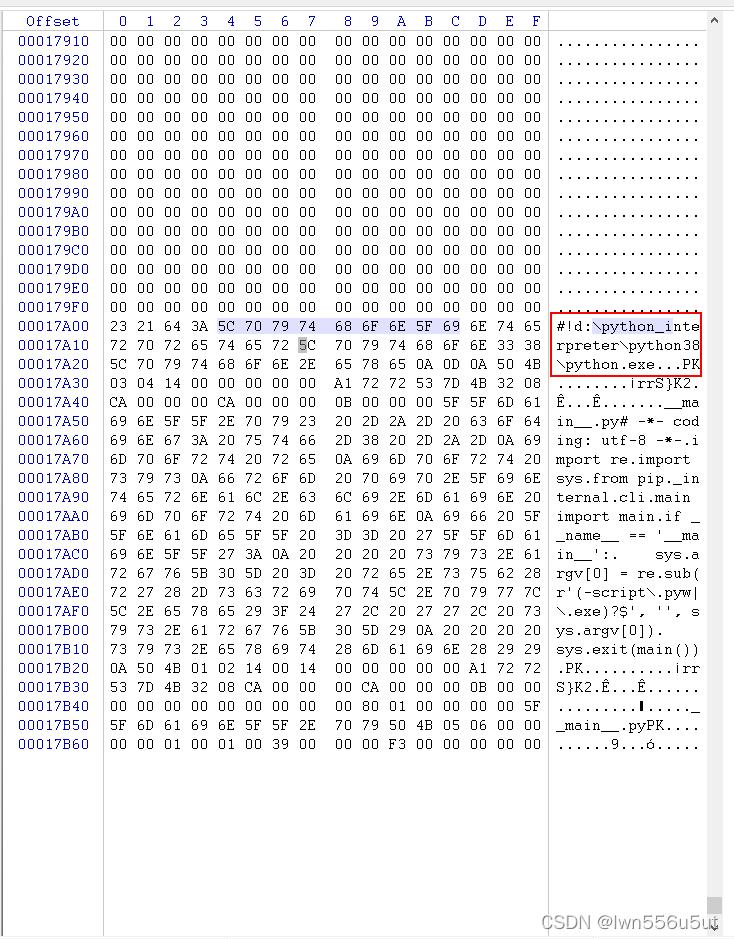
Modify and save directly on the right
[Solved] Except CvBridgeError,e:SyntaxError:invalid syntax

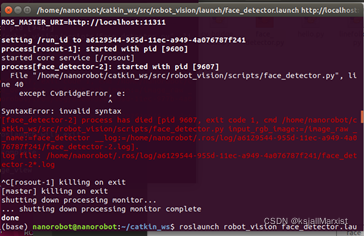
Error reporting for problem:

File “file location”, line 40

Except CvBridgeError,e:

SyntaxError:invalid syntax


Solution:

This is the result of a python version mismatch.

    1. 1. Find the code file according to the file location after File, and find the problematic line of code according to line
    1. 2. Change the code line to except CvBridgeError as e:
    1. 3. Save and exit

[Solved] ROS Error: Could NOT find move_base_msgs

Ubuntu18.04 + ROS melodic, catkin compile mbot error:

-- +++ processing catkin package: 'mbot_navigation'
-- ==> add_subdirectory(mbot_navigation)
-- Could NOT find move_base_msgs (missing: move_base_msgs_DIR)
-- Could not find the required component 'move_base_msgs'. The following CMake error indicates that you either need to install the package with the same name or change your environment so that it can be found.
CMake Error at /opt/ros/melodic/share/catkin/cmake/catkinConfig.cmake:83 (find_package):
  Could not find a package configuration file provided by "move_base_msgs"
  with any of the following names:
    move_base_msgsConfig.cmake
    move_base_msgs-config.cmake


Solution:

sudo apt-get install ros-melodic-move-base-msgs

[Solved] Homebrew Error: xcrun: error: invalid active developer path

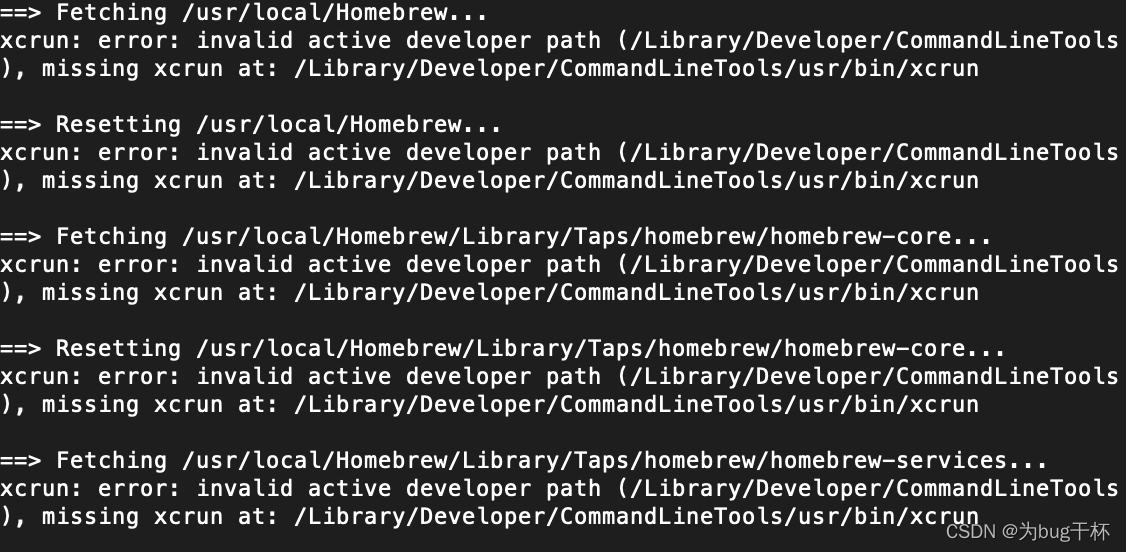
Recently, I found an error when installing things with homebrew. It turned out that homebrew was not adapted after my Mac updated maxos big sur11. In addition, the Xcode tool was deleted before, resulting in the following error:

Input directly at the terminal and xcrun will be installed

xcode-select --install

It can be used directly after installation

Error: error from slirp4netns while setting up port redirection: map[desc:bad request: add_hostfwd:

Causes: accidentally use kill -9 to delete the Podman container running java program process, start the container again with an error

Description of the problem: The problem is because the port is occupied, can not start

Solution: This is because the port is occupied, you can only find out which process is occupying the port through netstat (I am showing the PID/slirp4netns ), and then kill the process number of the occupied port PID with kill -9

jupyter notebook Sets Default Browser Error: SyntaxError: (unicode error) ‘utf-8‘ codec can‘t decode byte 0xd4

Jupiter notebook sets the default browser to open with an error
syntax error: (Unicode error) ‘UTF-8’ codec can’t decode byte 0xd4 in position 0: invalid continuation byte

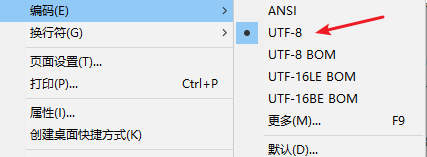
The default code of the Notepad provided by the win system is ANSI. Just reopen the PY script in the notebook,
save it as a py script coded as UTF-8, and it’s OK to run the PY script.

Modify the name of the file: jupyter_notebook_config.py

Code reference

import webbrowser 
webbrowser.register( "Cent Browser", None, webbrowser.GenericBrowser(r"C:\Users\中文用户名\AppData\Local\CentBrowser\Application\chrome.exe"))
c.NotebookApp.browser = "Cent Browser"

Set default browser, CMD input

jupyter notebook --generate-config

Find the PY file of the default configuration file
open it with notepad and find this statement: # c.NotebookApp.browser =
at the bottom of this statement, enter the following statement: the following figure is the configuration of chrome, * * pay attention to double \\**

# c.NotebookApp.password = '' Here
import webbrowser
webbrowser.register('chrome', None, webbrowser.GenericBrowser(u'C:\\Program Files\\Google\\Chrome\\Application\\chrome.exe'))
c.NotebookApp.browser = 'chrome'

MFC:: error C2065: “IDD_DIALOG1”: undeclared identifier Sending and handling custom messages in MFC threads

Just add the resource header file.

#include "Resource.h"

Send message in MFC thread

1. Write the meaning first and accept it

#define WM_SET_FOCUS WM_USER+100


BEGIN_MESSAGE_MAP(CWriteSnDlg, CDialogEx)
    //
	ON_MESSAGE(WM_SET_FOCUS, OnSetFocus)
END_MESSAGE_MAP()


	afx_msg LRESULT OnSetFocus(WPARAM wP, LPARAM lp);


LRESULT CWriteSnDlg::OnSetFocus(WPARAM wP, LPARAM lp)
{
	UNREFERENCED_PARAMETER(wP);
	UNREFERENCED_PARAMETER(lp);
	GetDlgItem(IDC_EDIT1)->SetFocus();
	return 0;
}

2. Send message

UINT  WriteSNProc(LPVOID  lParam){
    CWriteSnDlg *pWnd = (CWriteSnDlg *)lParam; 
    PostMessage(*pWnd,WM_SET_FOCUS, NULL,NULL);
    //SendMessage(*pWnd,WM_SET_FOCUS, NULL,NULL);
}


 PostMessage(this,WM_SET_FOCUS, NULL,NULL);

Python requests Error: ConnectionError: (‘Connection aborted.‘, error(104, ‘Connection reset by peer‘))

Python requests error

ConnectionError: (‘Connection aborted.’, error(104, ‘Connection reset by peer’))

There are two possible causes

1. Requests are too frequent, resulting in requests being rejected

Solution:

Set a sleep time for each request, such as
time sleep(1)

2. The interface has authentication or anti crawling mechanism. It is recognized that it is accessed by Python terminal, and the access is rejected

Solution:

Set user agent in request header to bypass authentication

as

headers = {'User-Agent': 'Mozilla/5.0 (Windows NT 6.1; Trident/7.0; rv:11.0) like Gecko',"Content-Type": "application/json"}