Category Archives: How to Fix

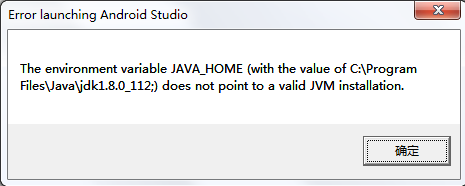
Error launching Android Studio

Just after updating The JDK to version 1.8, I found that Studio could not start, and The error “The environment variable JAVA_HOME does not point to an valid JVM installation” appeared. See The following figure for details:

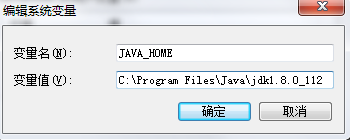
Solution: 1, click on the desktop computer, right-click the properties. ; 2. On the left, select “Advanced System Settings”, environment variables, and configure your JAVA_HOME without a semicolon

This will enable You to launch Android Studio.

Solution for error 7 in lineage OS brush

The test model, the Nexus 6P

    brush steps
    Power key + volume button to enter rec mode to choose the wipe can be removed, in addition to the internal storage (installation package on the inside) wipe after success, return to the interface select install select flash in the install package directly open the brush if ERROR7 mistakes, returned to the main interface, select the mount, cancel and then began to brush in front of the system) can generally in just after entering the rec interface, click the mount interface, will find that in front of the system not check the number, In other words, there is no mounted system, but when you enter mount again after sanqing, you will find that the system is mounted, cancel the check sign in front of the system, and then go to install to remove the error 7

How to share a process among multiple apks

By default, all components in the same application run in the same process, and most applications do, too. However, if we want to control that a particular component belongs to a process, we can configure it in the manifest file.
In the manifest entry for each component element (activity, service, receiver, provider), a “android:process” property is supported, which allows you to specify the process that a component is running. You can set this property so that each component runs in its own process, or you can have only certain components share a process. We want to be able to set the “Android: Process” property so that components in different applications, which share the same Linux user ID and have the same certificate, run in the same process.
< application> The element also has an “Android: Process” attribute that can be set to a default value that applies to all components.
When the amount of available memory is low and some processes that interact with the user in real time need memory, Android can terminate a process at any time. Components running in the terminated process are destroyed, but a second process is started when the components are needed to work again.
In deciding which processes to terminate, The Android system weighs their importance to the user. For example, it makes more sense to terminate a process running invisible activities than a process running visible ones. Whether or not to terminate a process depends on the state of the components that are running in the process.
If two activities cannot be placed in the same application, they can be forced to run in the same process by setting the following properties in their manifest, thus taking full advantage of the Shared resources within the process and reducing the memory footprint:
Java code:
(1) Set the same User Id:
2.< manifest android:sharedUserId=”aaa.bbb”
3. (2) The called activity sets the following properties:
4.< activity android:multiprocess=”true”
Or 5.
6.< activity android:process=”com.cienet.test”
For 3D OpenGL program, after modifying the above attributes, the memory footprint of the called activity will be significantly reduced, such as: 30MB-& gt; 2 MB.
You can do the following test: How do you share a process
Java code:
1. Join Android :sharedUserId=” AAA. BBB “no
2.android:process=”com.cienet.test”
3.07-12 15:42:34. 781: the ERROR/Dean (7615) : Binder. The getCallingPid (7615)
4.07-12 15:42:34. 785: the ERROR/Dean (7615) : runningappprocessinfo. Pid: 7615 runningappprocessinfo processNamecom. Cienet. Testa
5.07-12 15:42:34. 785: the ERROR/Dean (7615) : pkgname: 7615: com. Cienet. Testa
6.
7.
8.07-12 15:42:24. 722: the ERROR/Dean (7602) : Binder. The getCallingPid (7602)
9.07-12 15:42:24. 726: the ERROR/Dean (7602) : runningappprocessinfo. Pid: 7602 runningappprocessinfo processNamecom. Cienet. Testb
10.07-12 15:42:24. 726: the ERROR/Dean (7602) : pkgname: 7602: com. Cienet. Testb
11.
12. Add Android :process=”com.cienet.test” to B
13.
14.07-12 15:46:41. 933: the ERROR/Dean (7738) : Binder. The getCallingPid (7738)
15.07-12 15:46:41. 937: the ERROR/Dean (7738) : runningappprocessinfo. Pid: 7738 runningappprocessinfo processNamecom. Cienet. Test
16.07-12 15:46:41. 937: the ERROR/Dean (7738) : pkgname: 7738: com. Cienet. Testb
17.
18.07-12 15:47:13. 246: the ERROR/Dean (7761) : Binder. The getCallingPid (7761)
19.07-12 15:47:13. 246: the ERROR/Dean (7761) : runningappprocessinfo. Pid: 7761 runningappprocessinfo processNamecom. Cienet. Testa
20.07-12 15:47:13. 250: the ERROR/Dean (7761) : pkgname: 7761: com. Cienet. Testa
21.
22. Add Android :process=”com.cienet.test” to A
23.
24.07-12 15:50:24. 988: the ERROR/Dean (7878) : getApplicationInfo: publicSourceDir/data/app/com. Cienet. Testa – 1. The apk
25.07-12 15:50:24. 988: the ERROR/Dean (7878) : getApplicationInfo: descriptionRes0
26.07-12 15:50:24. 988: the ERROR/Dean (7878) : Binder. The getCallingPid (7878)
27.07-12 15:50:24. 992: the ERROR/Dean (7878) : runningappprocessinfo. Pid: 7878 runningappprocessinfo processNamecom. Cienet. Test
28.07-12 15:50:24. 992: the ERROR/Dean (7878) : pkgname: 7878: com. Cienet. Testa
29.
30.
31.07-12 15:50:46. 964: the ERROR/Dean (7878) : getApplicationInfo: publicSourceDir/data/app/com. Cienet. Testb – 1. The apk
32.07-12 15:50:46. 964: the ERROR/Dean (7878) : getApplicationInfo: descriptionRes0
33.07-12 15:50:46. 964: the ERROR/Dean (7878) : Binder. The getCallingPid (7878)
34.07-12 15:50:46. 968: the ERROR/Dean (7878) : runningappprocessinfo. Pid: 7878 runningappprocessinfo processNamecom. Cienet. Test
35.07-12 15:50:46. 972: the ERROR/Dean (7878) : pkgname: 7878: com. Cienet. Testa
36.
37.
38. Remove the android: sharedUserId = “aaa. BBB”
39.07-12 15:52:29. 574: the ERROR/Dean (7967) : getApplicationInfo: publicSourceDir/data/app/com. Cienet. Testb – 2. Apk
40.07-12 15:52:29. 578: the ERROR/Dean (7967) : getApplicationInfo: descriptionRes0
41.07-12 15:52:29. 578: the ERROR/Dean (7967) : Binder. The getCallingPid (7967)
42.07-12 15:52:29. 578: the ERROR/Dean (7967) : runningappprocessinfo. Pid: 7967 runningappprocessinfo processNamecom. Cienet. Test
43.07-12 15:52:29. 578: the ERROR/Dean (7967) : pkgname: 7967: com. Cienet. Testb
44.
45.
46.07-12 15:53:06. 730: the ERROR/Dean (7990) : getApplicationInfo: publicSourceDir/data/app/com. Cienet. Testa – 2. Apk
47.07-12 15:53:06. 730: the ERROR/Dean (7990) : getApplicationInfo: descriptionRes0
48.07-12 15:53:06. 730: the ERROR/Dean (7990) : Binder. The getCallingPid (7990)
49.07-12 15:53:06. 734: the ERROR/Dean (7990) : runningappprocessinfo. Pid: 7990 runningappprocessinfo processNamecom. Cienet. Test
50.07-12 15:53:06. 734: the ERROR/Dean (7990) : pkgname: 7990: com. Cienet. Testa
As shown above that APK Shared process requires two conditions (1) to set the same User Id:
(2) The called activity sets the following properties:
< activity android:multiprocess=”true”
or
< activity android:process=”com.cienet.test”

ERROR 1010 (HY000): Error dropping database (can’t rmdir ‘./myapp’, errno: 39)

ERROR 1010 (HY000): Error dropping database (can’t rmdir ‘./ahte’, errno: 39)
Because the cold backup did not close the database before, the data file was corrupted and the data could not be qufied
Delete database prompt ~
Since it is known that the file is corrupt, the database cannot recognize it, so we go to the corresponding directory to delete the entity file
cd /data/mysql/mysql3318/data/ahte
rm -f *

Winscp failed to upload the file to the server, indicating permission denied with return code 3

Problem specification
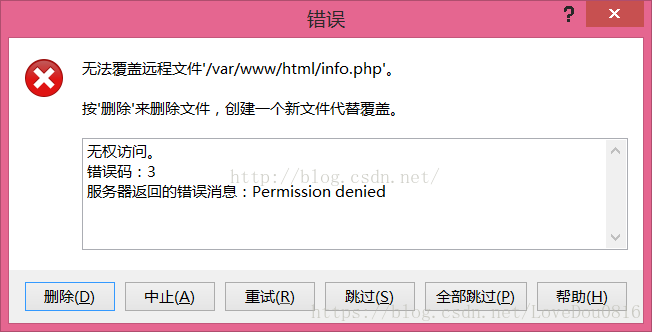
When I am working on a project, the Permission Denied prompt will appear when I upload a file to the Linux server using WinSCP, with an error return code of 3. The error figure is as follows:

As you can see from the above error, the file upload failed because of insufficient permissions, because we connected to the server as a normal user, so the solution is to connect to the server as root user, so you have the right to upload files, so how to connect to the server as root user?Let’s take a look!
The solution
1. Check the path of SFTP service on your server
On the server using the command: cat/etc/SSH/sshd_config | grep SFTP
my server output: Subsystem SFTP/usr/libexec/openssh/SFTP server. –
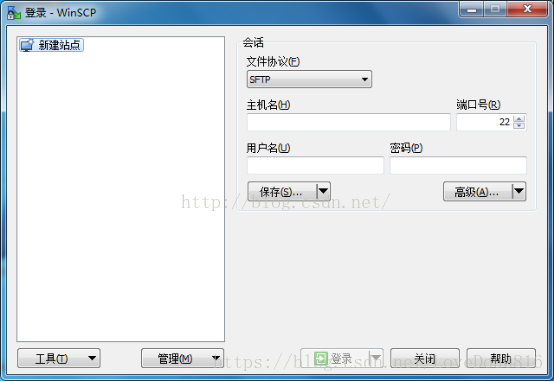
2. Set the connection in winSCP

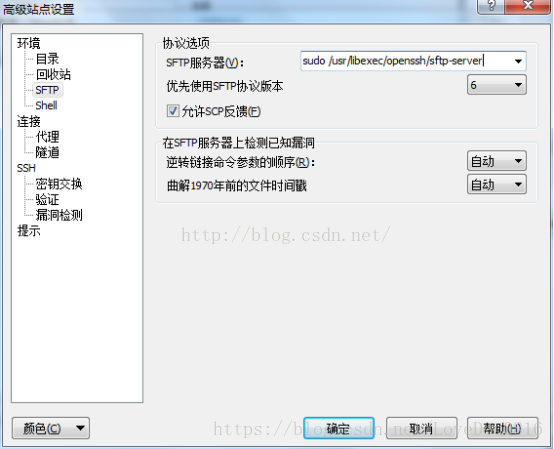
Set up your host name, port, user name and password. If you log in with a key instead of a password, you do not need to fill in the password. Then click Advanced and click SFTP, and the following interface will appear:

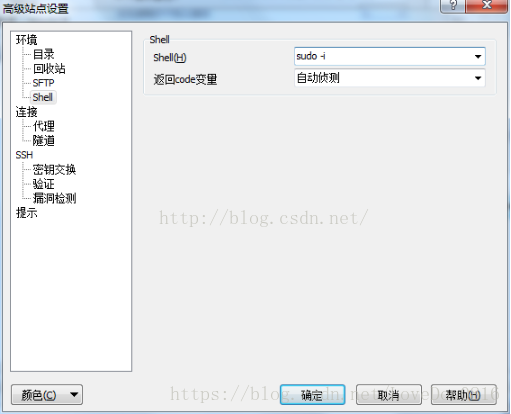
Pictured above Settings SFTP, only need to fill in the SFTP server with sudo/usr/libexec/openssh/SFTP server, sudo the back of the class capacity is the first step we by running the cat/etc/SSH/sshd_config | grep SFTP SFTP service path. After filling in the SFTP server, click shell and the following interface appears:

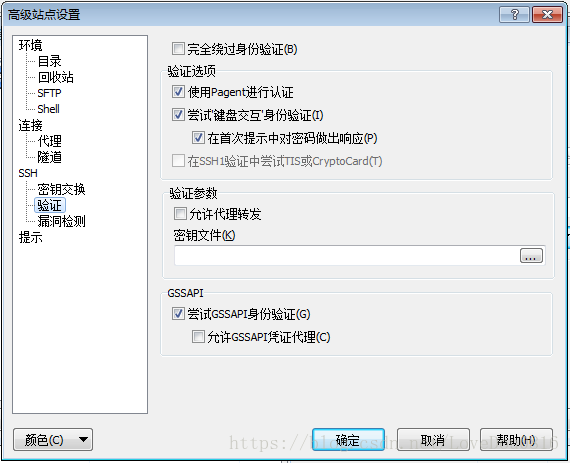
As shown in the figure above, you can set the shell by filling in sudo-I in the shell. If you are using the key to log in, then you need to click the verification under SSH, and the following interface appears:

Then select the key file. Click OK, click log in and connect to the server. At this point, we connect to the server as root. At this point, we can upload files normally.

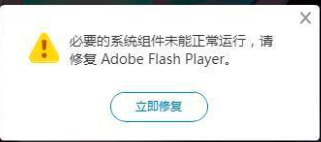
[flash] error: “necessary system components are not working properly, please repair Adobe Flash Player” and error ා 2046

Problem description: internal network application loading flash page error: “necessary system components cannot run normally, please fix Adobe flash Player”

solution:
1. Necessary system components are not working properly. Please fix Adobe Flash Player
1. According to the reference in the first article,
“the problem is that the Flash Helper Service process fails to start properly, or the software Flash Helper service.exe is uninstalled.”
Flash Helper Service process is the Flash version of a Service, a rogue advertising, security software will be a shielding
“, if it exists, that process is not smooth start, following
1, open the “run” window, can quickly tap the Windows + r key, and then input services. MSC click ok
2, Service in the pop-up window, 3. Click “Flash Helper Service”, click “Flash Helper Service”, select properties, in the general page, change the startup type to “auto”, and then click “apply”, “ok”
4. Select “Flash Helper Service”, click “start”, and then reopen the browser after the startup.
2, if it does not exist, you can install the FlashRepairTool, the repair software is very simple to use, just download and double-click to open the scan problem, after which it will install Flash Helper service.exe, and then you can repeat the next step one, the problem can be solved!”

by comparison found that normal access computer flash13.0.0.199 version, the latest version is 32, uninstall 32 version, install 13 version of the problem solved.
flash13.0.0.199 forIE (IE8 under Windows 7 64) version download link
Second, the error# 2046
After installing version 13 of the 4 internal networks, one of them reported error#2046. After checking the 2 and 3 reference, it said that the time value was wrong and it was enough to modify the system time. However, it was found that the machine time was correct. The first time you clear the browser cache, it doesn’t seem to work, and then you check everything except passwords. A few other topologies are clicked and the problem is solved.
summary: the necessary system components did not work properly, please fix Adobe Flash Player: external network environment look up Flash Helper Service, internal network directly use Flash Player version 13
error#2046: first see if there is a problem with the system time, no problem clear the cache, multiple attempts.
Adobe Flash Player
1. Necessary system components are not working properly please fix Adobe Flash Player
2. 3. Failed to open FLASH (SWF), prompt Error #2046 solution summary

[uboot]uboot 2019.04 port errors

error #1: include/config.h:7:10: fatal error: configs/.h: No such file or directory
Solve: reason is CONFIG_SYS_CONFIG_NAME does not have the right on the scripts/Makefile. Autoconf file, the solution is to put the CONFIG_SYS_CONFIG_NAME , this definition is generally in the board/
error #2: include/config.h:7:10: fatal error: configs/imx8mp_evk.h: No such file or directory
solve: H
include configs\imx8mp.h
file,

for example, if you defined CONFIG_SYS_CONFIG_NAME = bobcat , configs\imx8mp.h
file, configs

Solve MySQL error 1064 (42000)

After adding the statement to login to mysql in the shell, the error is reported as follows
ERROR 1064 (42000) at line 2: You have an error in your SQL syntax; check the manual that corresponds to your MariaDB server version for the right syntax to use near ‘exit’ at line 1
After checking, the two back quotes are missing, which is perfectly solved by adding them to the last executed statement

Lock wait timeout exceeded — transaction and index

Problem description
There are two errors reported in the project, one is the task script execution time is too long, the other is the lock wait time is too long, as follows

Lock wait timeout exceeded; try restarting transaction


This task script is used to synchronize data between multiple tables, and there are multiple scripts and other code in the project that may manipulate table data and generate locks. There are two tables with millions of data levels and a large number of items.
If you are not familiar with deadlocks and lock waits, you can quickly jump to the links below to understand what a lock wait is and why it might be causing it. Deadlocks and lock waits
Problem analysis
First of all, let’s put out the pseudocode for this part.

void method(){
	The transaction begins;
	while(true) {
		List<ObjectA> list1 = Get 100 data from table A according to the criteria;
		if(list1 is empty){ // if it is empty, it means the data has been processed.
			return;
		}
		
		// manipulate ObjectA data sequentially
		for(ObjectA objectA: list1) {
			Delete table A data;
			Merge with table B data and update the corresponding data;
			Synchronize the table C data;
		}
	}
	That's it;

Translated with www.DeepL.com/Translator (free version)
}

The main reason is that there is a problem with the location of the transaction addition, and the data table has no corresponding index, resulting in the update time is too long.
Tasks take too long to execute
This is mainly because there is a lack of index when updating the data. When the data volume is relatively large, it takes a long time to find the corresponding data. This can be analyzed through the database SQL statement execution time, because our unit has a big data platform, through the analysis of the big data platform, find the longest execution time of several SQL analysis. If there is no relevant platform, it is suggested to add logging before and after the query and update operation of some tables with large data volume, so as to facilitate the analysis of SQL execution.
Lock wait times are too long
This is the result of both transactions and indexes.
During the execution of a transaction, all tables involved in updating/adding in the transaction are locked and wait when other processes request data from this part of the table. The missing index leads to long loops in the code and transactions are added to the entire loop, so the lock wait time will time out, causing the problem at the beginning of the article. In addition to adding indexes at the database level, you need to adjust the content of the code, remove transactions, or optimize transaction locations.
Problem solving
1. Database: We built the index in Table B according to the query conditions. The average execution time was 10min before, but it was shortened to 1min after addition.
2. Code: Due to the characteristics of our business, this code, even if there is an exception in the update, as long as the data in Table A is still retained, it will not have an impact on the overall business. The next time the script executes, we can add this data back, so we remove the transaction, restructure the code, and add an exception handler. The resulting code looks like this.

void method(){
	while(true) {
		List<ObjectA> list1 = Get 100 data from table A according to the conditions;
		if(list1 is empty){ // if it is empty, the data has been processed, the end
			return;
		}
		
		// manipulate ObjectA data sequentially
		for(ObjectA objectA: list1) {
			try{
				Merge with table B data and update the corresponding data;
				Synchronize table C data;
				Delete the data from table A;
			} catch(Exception e) {
				Logging exceptions;
			} finally {
				Logging execution time;

Translated with www.DeepL.com/Translator (free version)
			}
		}
	}
}

Of course, if the business scenario requires a transaction, you can also pull out the code inside the loop and do the transaction separately.

451 4.7.0 temporary server error. Please try again later. Prx5

4.7.0 Temporary Server Error. Please try again later. PRX5 solves the instance
It’s sunny and beautiful this morning! Suddenly, I received a call from a customer, saying that all outlook POP3 of their Company’s Exchange 2013 could not be used normally. The user and password verification box popped up, and it was of no use to enter the password repeatedly or confirm directly.
After communication, I was informed that there was a similar fault before, that was when the service of POP stopped and started, and no modification was made recently. After learning the situation, I logged in to the server remotely and checked that the Exchange service was started normally without any problems.
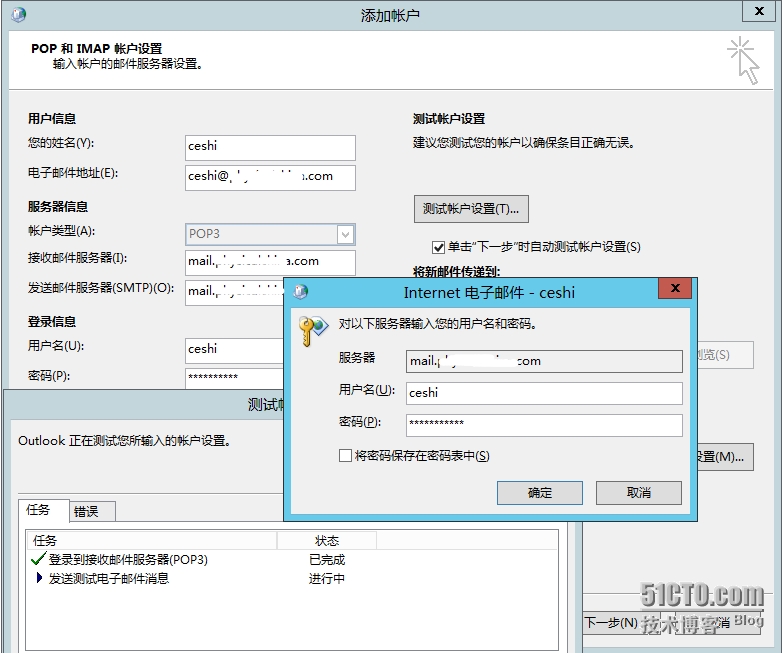
So I quickly configured a POP mode on my computer, and I got an error when Verifying the user name and password. It didn’t matter if I entered the password repeatedly or confirmed it directly, as described by the customer, as shown in the figure below

What do you do next?Restart the server?This is the next best thing. Maybe a restart can solve your problem temporarily, but the reason is not found, and the problem recurs later. How to deal with it?
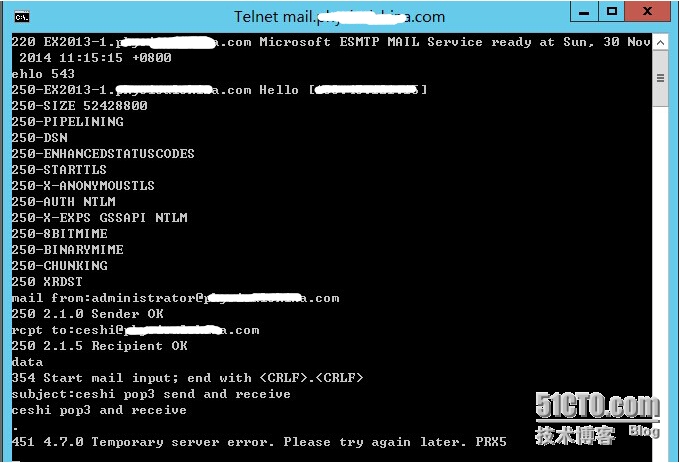
451 4.7.0 Temporary Server Error. Please try again later. PRX5
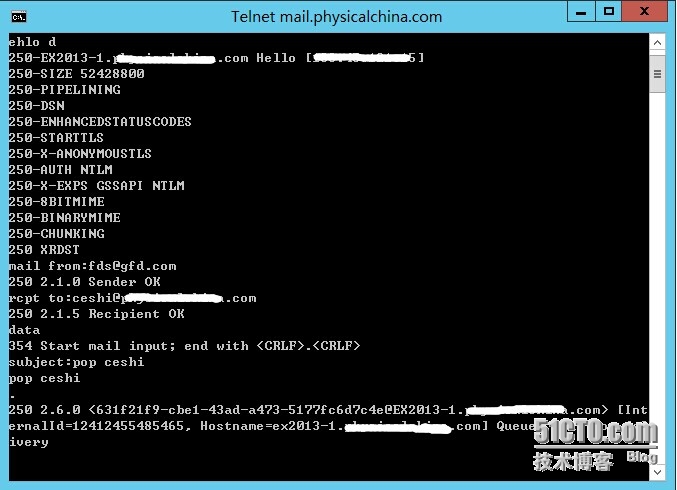
The Telnet test format is as follows:
 
telnet mail.xxx.com 25
Ehlo XXX or HELo, [ESMTP ehlo XXX, SMTP HELo, I’ll fill ehlo XXX, XXX whatever]
Mail from:[email protected][administrator address]
RCPT to:[email protected][recipient address]
Data [Start writing email]
From :XXX[sender address]
To :XXX[Recipient address]
Subject: CEShi pop3 Send and Receive [subject]
Ceshi pop3 send and receive[Note: The body of the email should be blank, otherwise it will be automatically determined as the subject. If you want to send Chinese, you need to download Telnet client separately, see attachment]
.[End of message identifier]
Normally it will prompt you that the message has been queued for sending
Quit [After sending the email]
 

Step 1. Google the cause of the error and find the solution to the problem.
Reference 1.
https://social.technet.microsoft.com/Forums/exchange/en-US/fc26dac5-d4e2-49da-903d-361ea8b85388/451-470-temporary-server-error-please-try-again-later-prx5
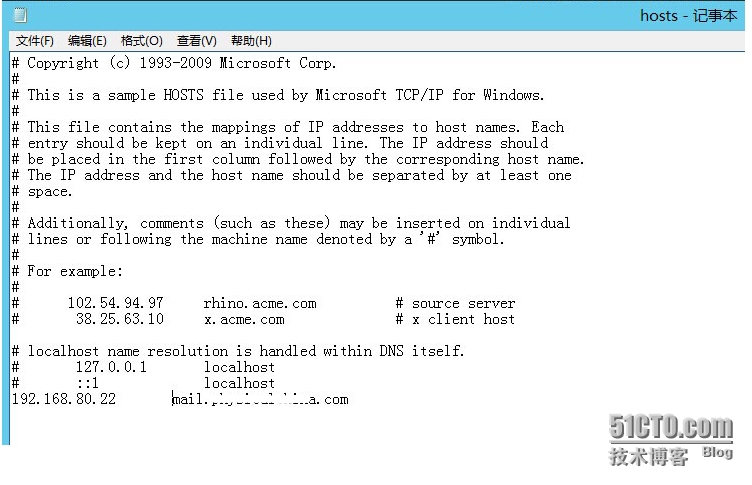
I talked to a MS support rep today and they confirmed the same problem, except to resolve it we had to add the local server’s IP to our hosts file:
192.168.1.5 server
192.168.1.5 server. The domain. The local
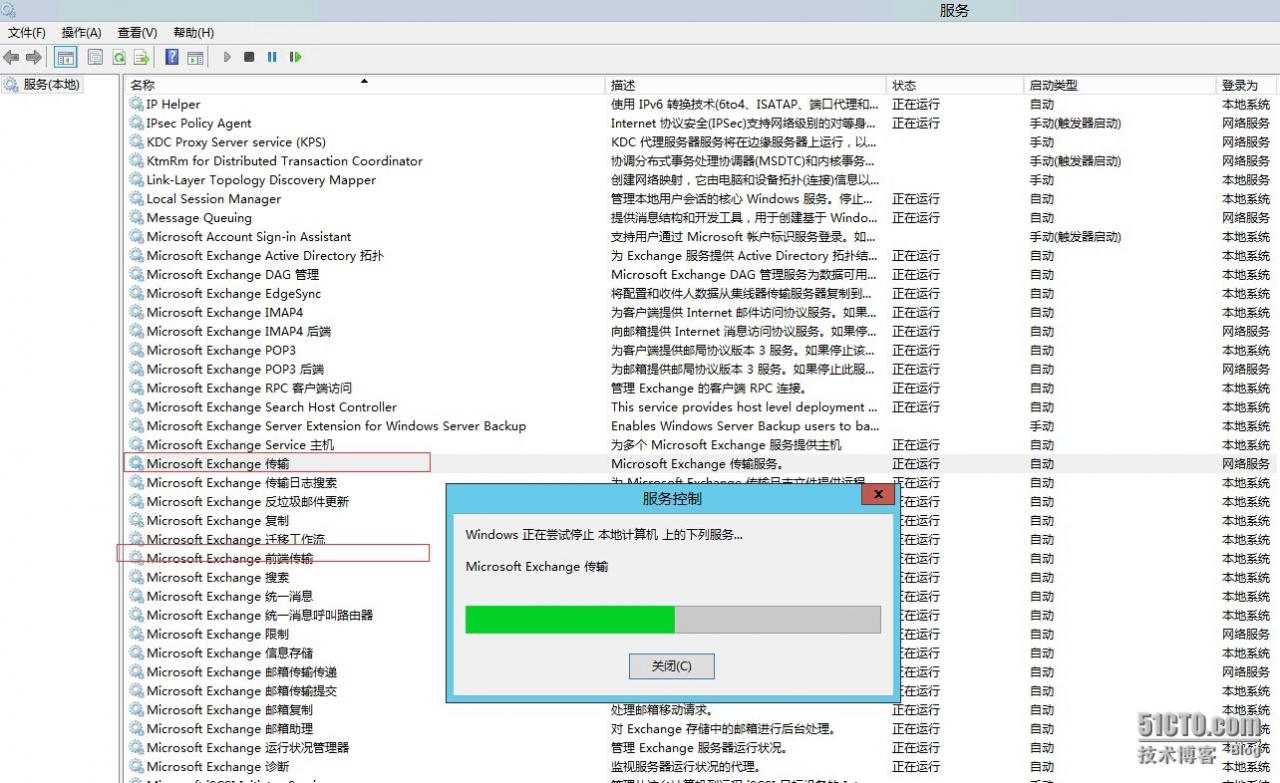
Restart “Microsoft Frontend Transport” and “Microsoft Exchange Transport” services
The support agent stated that he’s seen this in a few cases now. All of which are when the Exchange server front and back-ends reside on the same box. Sounds like an Exchange bug to me.
Reference 2,
http://blog.5dmail.net/user1/1/2014414174021.html
 

Exchange Server 2013 cannot receive emails sent from outside. Remote Host said: 451 4.7.0 Temporary Server Error. Please try again later. PRX2
 
[Reason analysis]
The Exchange Server 2013 in question was installed with multiple roles. Including the mailbox and client access roles of DOMAIN control and Exchange 2013, and because the client server is hosted in the computer room, it is equipped with two network CARDS, which are configured with an Intranet IP and a public network IP respectively, the fault is mainly caused by the two network CARDS using different DNS.
 
Step 2: Modify the local C:\Windows\System32\drivers\etc\ hosts file, add and save the local records of Exchange 2013 server.

Step 3. Check the Exchange server and THE AD domain server, and check that the DNS is pointing to the inside and there is no record pointing to the outside.
Step 4. Restart the “Microsoft Frontend Transport” and the “Microsoft Exchange Transport” services


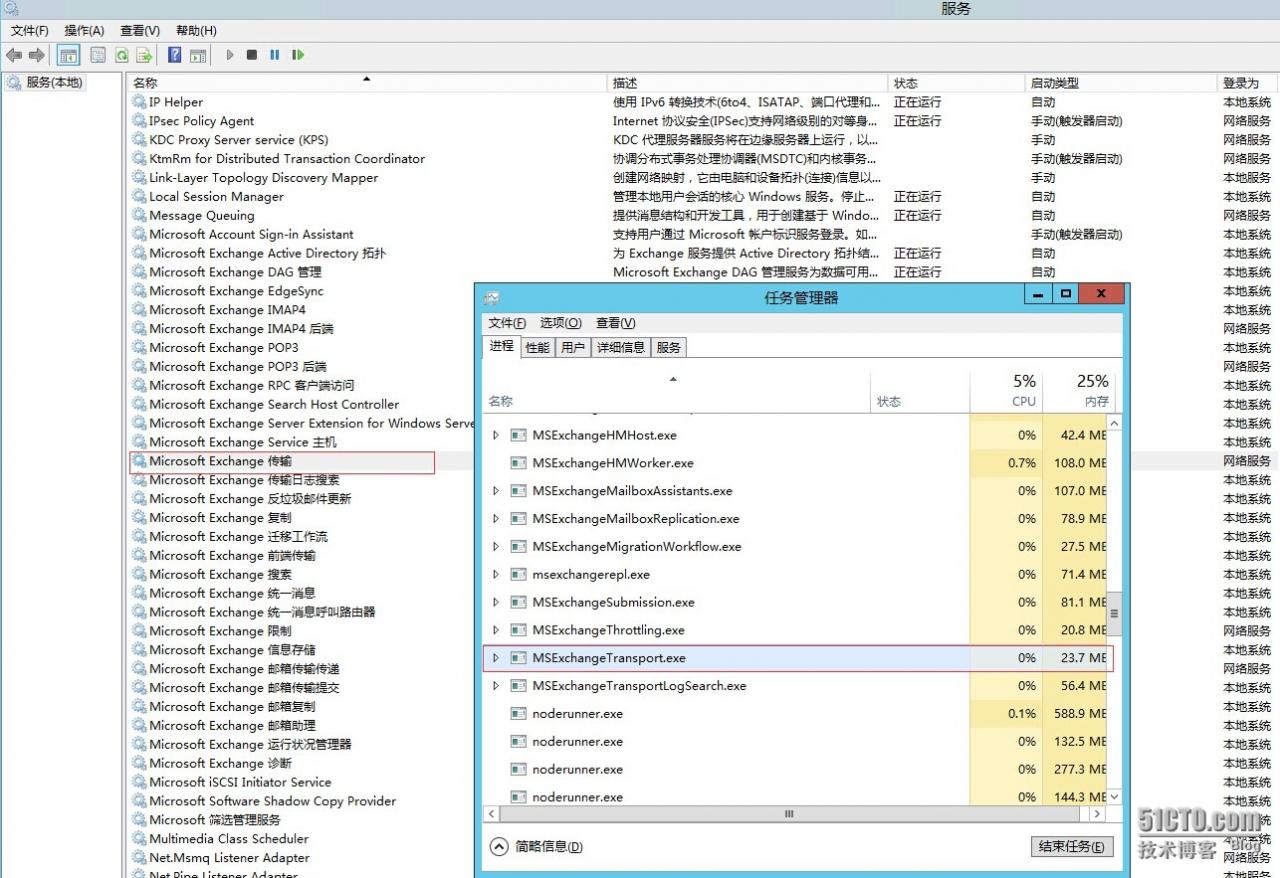
Step 5: If you restart the “Microsoft Frontend Transport”, the Transport service has stopped and cannot get up, restart the server?No, we open the task manager, find Msexchangetransport.exe finish the task and restart the Transport service.

Step 6. After the processing, we tested a Telnet test. The specific method referred to the description in the previous part of the article, and the email was successfully sent.

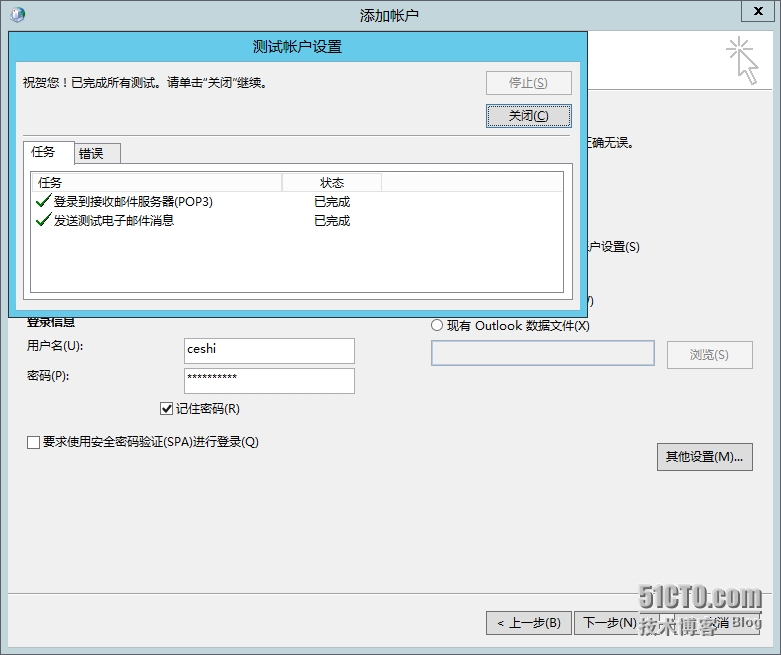
Step 7. When opening Outlook, the test has been successfully tested, the receiving and sending is normal, and there is no password box prompt, and the fault is solved. Thank you for your patience to watch, thank you!


Reproduced in: https://blog.51cto.com/yuntcloud/1584670

Got an error reading communication packets


because an unknown database came out in the middle, the unconnected database does not exist, resulting in the error of connection packet information. Report this error.
Show global status like ‘abort%’;
Aborted_clients and Aborted_connects whether the changes are drastic. The reasons for the aborted_active error include: the client connects to an unauthenticated database, incorrect password, incorrect connection packet information, and connection timeout (the default is 10s)
Aborted_clients may have failed to perform mysql_close(), exceeded the value of wait_timeout or interactive_timeout because the connection has not been closed (the timeout is 8 hours), terminated during program execution, excessively small max_allowed_packet, network issues, thread bugs, etc

Can’t open display: can’t open display: localhost:10.0

Windows connects to the Linux remote desktop with Xmanager4.0’s Xstart

The installation package:
xorg-x11-xauth
xterm.x86_64 0:253-1.el6
Execute the command path:/usr/bin/xterm
 
The benefit of Xstart connecting to the Linux remote desktop is that you don’t need to do anything on the server side, just turn on SSH.
The server has to have a desktop environment, and X Window
 
XDMCP connection, the server side to do some configuration, trouble.
 
The menu
Xmanager Enterprise 4 — Xbrowser
Create a new Xstart session

The protocol is SSH,
Click the following button to select GNOME
 
Open the session and you can connect to the remote desktop. It’s easy.
 
There are three menus in the taskbar,
One is to display the Linux header menu
One is the taskbar that displays Linux
One is the desktop that displays Linux
 
How to quit
Right-click in the taskbar (right) and close XManager
 
You can also set up an Xstart session in the following way
The menu
Xmanager Enterprise 4 — Xstart
 

If an error is reported: the X11 transfer application has been rejected,
(check first that X11Forwarding yes
is set in etc/ssh/sshd_config, but on some hosts, no matter how you set it up in the client side, there’s no way you can forwarding the X11 forwarding feature correctly; after logging in, DISPLAY will always be empty. The sshd_config file also doesn’t disable The X11 Forwarding feature.
solution:
originally X11 forwarding relies on the “xorg-x11-xauth” package, so you must first install the “xorg-x11-xauth” package.
yum install xorg-x11-xauth)
X Window should be installed on the server. See the link below.
 
If the server does not have a desktop environment, the following error is reported
[17:18:41] Start timer (TIMER_SHUTDOWN, 180).
bash: /usr/bin/gnome-session: No such file or directory
 
———————————————————————————————————————————————-

Start the specific Settings for the GNOME desktop with XStart

    start xstart, name a session, enter host name, hang SSH, enter user name and password, and Execution Command box: if GNOME is started, fill in DISPLAY=$DISPLAY /usr/bin/gnome-session; if KDE is started, fill in DISPLAY=$DISPLAY /usr/bin/startkde to modify configuration

1) Click start – All programs – XManager 3 – Xconfig, and then double-click the configuration you are currently using (there is a small checkmark, usually Default Profile).

2) Window Mode select Multiple Windows Mode, then click Settings, select Multiple Windows Mode TAB, Window corresponding to the drop-down box select Remote Only or Automatic Switch, and click OK

Select Terminate at Reset

4) Click OK.

Failure to start XStart several errors and resolution

Error 1: Can’t open display: localhost:10.0 when connecting

_X11TransSocketINETConnect () can ‘t get the address for localhost: 6010: Name or service not known

/usr/bin/xterm Xt error: Can’t open display: localhost:10.0

Solutions:
Add in /etc/hosts
127.0.0.1 localhost
Ipaddress hostname
Then you can go to the graphical interface, and notice the actual IP and machine name
Error 2: The Xterm directory for SLC5 and SLC4 is not the same and should be noted.
/usr/X11/bin/xterm: Command not found.
Change Excution Command to
The/usr/bin/xterm – ls – $display display
Can be
————————————————————————————————————————
 
[16:21:58] Host authentication initiated…
[16:21:58] Hostkey fingerprint:
[16:21:58] SSH – dsa 1024 o c: c3: f8:71:0 f: d2: b2: e1:4 c: 21: f8: abarim: 9 a: 9 a
[16:22:00] Accepted. Verifying the host key…
[16:22:00] Verified.
[16:22:00] User authentication initiated…
[16:22:00] Sent user name ‘oracle’.
[16:22:00] Sent password.
[16:22:00] follow the command line.
[16:22:00] /usr/X11R6/bin/ xterm-ls-display $display
[16:22:00] Start timer (TIMER_SHUTDOWN, Xauthority
/usr/X11R6/bin/xauth: creating new authority file /home/oracle/.Xauthority
bash: /usr/X11R6/bin/xterm: No such file or directory
[16:22:01] Connection closed


Solution:
 
[root@localhost ~]# rpm-qf /usr/bin/xterm
xterm-215-4.el5
 
The RPM package was found missing and installed
 
Mount the cd-rom
 
[root@localhost ~]# mount -t iso9660 /dev/cdrom /mnt/cdrom
[root@localhost ~]#cd /mnt/cdrom
 
[root@localhost cdrom]# cd Server
[root@localhost Server]# ls xterm*
xterm-215-5.el5.i386.rpm

[root@localhost Server]# rpm -ivh xterm-215-5.el5.i386.rpm
warning: xterm-215-5.el5.i386.rpm: Header V3 DSA signature: NOKEY, key ID 37017186
Preparing… # # # # # # # # # # # # # # # # # # # # # # # # # # # # # # # # # # # # # # # # # # # [100%]
the file/usr/bin/resize the from the install of xterm – 215-5. El5 conflicts with the file from package xterm – 215-4. El5
the file /usr/bin/xterm from install of xterm-215-5.el5 conflicts with file from package xterm-215-4.el5
 
An error occurred installing the xter-215-5.el5.i386.rpm package, meaning that the Xterm package named Xter-215-4.el5 has been installed under /usr/bin/xterm
 
Determine what to do now that the package already exists…
modify the configuration of Xstart and click the arrow to add it in the Execution Command: as shown in the figure below:


After clicking the arrow, click Add/Remove… Add the execution command line. The following figure


After adding, in the XStart window, re-specify, as shown in the figure below


That’s it