Category Archives: How to Fix

TSLint:object access via string literals is disallowedtslint(no-string-literal)

Today, when adding attributes to objects, tslint reported an error: object access through string text is not allowed (no string text)

const init = {
  id: 'aaa',
  name: 'bbb'
};
init['sex'] = 'ccc';

There are three solutions.

1: It is not allowed to pass strings. You can use variables

const name = 'sex';
const init = {
  id: 'aaa',
  name: 'bbb'
};
init[name] = 'ccc';

2: Let this line of code disable the tslint rule

const init = {
  id: 'aaa',
  name: 'bbb'
};
// tslint:disable-next-line:no-string-literal
init['sex'] = 'ccc';

3: Change tslint.json , disable this rule completely, add the following

"no-string-literal": false,


VirtualBox failed to start, prompt failed to open a session for the virtual machine windoze 7

1 environment:

Desktop system: Ubuntu 16.04 * x86

VirtualBox version: 5.0.36

Virtual machine installation system: win7 x86

2 phenomenon: unable to start. The following is the detailed information:

Failed to open a session for the virtual machine Windoze 7.

The device helper structure version has changed.

If you have upgraded VirtualBox recently, please make sure you have terminated all VMs and upgraded any extension packs. If this error persists, try re-installing VirtualBox. (VERR_ PDM_ DEVHLPR3_ VERSION_ MISMATCH).

Result Code: NS_ ERROR_ FAILURE (0x80004005) Component: Console

Interface: IConsole {db7ab4ca-2a3f-4183-9243-c1208da92392}

3 solution

① Reference link https://askubuntu.com/questions/386150/virtualbox-fails-to-start-machine-after-installing-extensions

② The command I used was sudo apt get — re install install VirtualBox ext pack, which successfully solved the problem

After entering the command, you will enter the confirmation interface, use the tab key to select the confirmation button, press enter, and then wait for him to finish the prompt

Successfully installed “Oracle VM VirtualBox Extension Pack”

How to Debug ‘The System cannot Execute the specified program’ message.

How to Debug ‘The System cannot Execute the specified program’ message.

Here is another unofficial preview of a topic that I am going to send out to our UE team later today for publishing on MSDN. As always, standard disclosure that this post is provided “AS IS” with no warranties, and confer no rights and use of this sample is subject to the terms specified at http://www.microsoft.com/info/cpyright.htm  Please feel free to send me any feedback (other the grammar and spelling errors :-)).


Loading C/C++ application may fail if dependent Visual C++ libraries can not be found. In this section the most common reasons for a C/C++ application failing to load are described with proposed steps to resolve the problems.

 
One of the most common errors messages one may see when dependent Visual C++ DLLs cannot be found is a message box with a text saying “ The system cannot executed the specified program”. Below several things are listed that may help to understand a reason for this error.

    Dependency walker can show most of dependencies for any particular application or Dll. If you see some of DLLs are missing, please insure that these DLLs are correctly installed on the computer on which you are trying to run your application. Manifest is used by the operating system loader to load assemblies that your applications depend on. It can be either embedded inside the binary as a resource or saved as an external file in the application’s local folder. To check whether manifest is embedded inside the binary, open your binary in Visual Studio and browse through resources of this binary. You should be able to find a resource with name RT_MANIFEST. If you cannot find manifest embedded inside the binary, check for external file named something like <binary_name>.<extension>.manifest.

      If manifest is not present, you need to ensure that the linker generates manifest for your project. You need to check linker’s option “Generate manifest” in Project Properties dialog for this project.

 
Note: It is not supported to build VC++ projects without manifest generation. All C/C++ program built in Visual C++ 2005 have to include a manifest describing its dependencies on Visual C++ libraries.


    If manifest is embedded inside the binary, ensure that ID of RT_MANIFEST is correct for this type of the binary. Such for applications ID should be equal to 1, for most DLLs ID should be equal to 2. If you found this file export it as a file and open in a XML or just a text editor. For more information on manifest and rules for its deployment, see Manifest. Please be aware that on Windows XP, if an external manifest is present in the application’s local folder, the operating system loader uses this manifest over a manifest embedded inside the binary. On Windows Server 2003, this works vice versa – external manifest is ignored and embedded manifest is used when present. It is recommended for all DLLs to have a manifest embedded inside the binary. External manifest are ignore when DLL is loaded thought LoadLibrary() call. For information see, Assemblies manifest. Check all assemblies enumerated in the manifest for their correct installation of the computer. Each assembly specified in the manifest by its name, version number and processor architecture. If your application depends on side-by-side assemblies, check that these assemblies are installed on this computer properly, so they can be found by the operating system loader that uses steps specified in Searching sequence while searching for dependent assemblies. Remember that 64bit assemblies cannot be loaded in 32bit process and cannot be executed on 32bit operating system.

 
Example:

 
Let’s assume we have an application appl.exe built with Visual C++ 2005. This application may have  its manifest either embedded inside appl.exe as a binary resource RT_MANIFEST with ID equal to 1, or store as an external file appl.exe.manifest. The content of a manifest may be something like below:

 
<assembly xmlns=”urn:schemas-microsoft-com:asm.v1″ manifestVersion=”1.0″>

  <dependency>

    <dependentAssembly>

      <assemblyIdentity type=”win32″ name=”Microsoft.VC80.CRT” version=”8.0.50215.4631″ processorArchitecture=”x86″ publicKeyToken=”1fc8b3b9a1e18e3b”></assemblyIdentity>

    </dependentAssembly>

  </dependency>

</assembly>

 
To the operating system loader this manifest says that appl.exe depends on an assembly named Microsoft.VC80.CRT, version 8.0.50215.4631 and built for 32bit x86 processor architecture.

 
The dependent side-by-side assembly can be installed as either shared assembly or as private assembly. For example, Visual Studio 2005 installs CRT assembly as a shared side-by-side assembly and it can be found in the directory

 
C:\WINDOWS\WinSxS\x86_Microsoft.VC80.CRT_1fc8b3b9a1e18e3b_8.0.50215.4631_x-ww_b7acac55  (assuming C:\Windows is the operating system’s root directory).

 
The assembly manifest for a shared Visual C++ CRT assembly is also installed in

 
C:\WINDOWS\WinSxS\Manifests\x86_microsoft.vc80.crt_1fc8b3b9a1e18e3b_8.0.50215.4631_x-ww_b7acac55.manifest

 
And it identifies this assembly and lists its content (DLLs that are part of this assembly):

 
<?xml version=”1.0″ encoding=”UTF-8″ standalone=”yes”?>

<!– Copyright ┬⌐ 1981-2001 Microsoft Corporation –>

<assembly xmlns=”urn:schemas-microsoft-com:asm.v1″ manifestVersion=”1.0″>

      <noInheritable/>

      <assemblyIdentity type=”win32″ name=”Microsoft.VC80.CRT” version=”8.0.50215.4631″ processorArchitecture=”x86″ publicKeyToken=”1fc8b3b9a1e18e3b”/>

      <file name=”msvcr80.dll” hash=”3ca5156e8212449db6c622c3d10f37d9adb12c66″ hashalg=”SHA1″/>

      <file name=”msvcp80.dll” hash=”92cf8a9bb066aea821d324ca4695c69e55b27cff” hashalg=”SHA1″/>

      <file name=”msvcm80.dll” hash=”7daa93e1195940502491c987ff372190bf199395″ hashalg=”SHA1″/>

</assembly>

 
Side-by-side assemblies can also use publisher configuration files, also called policy files, to globally redirect applications and assemblies from using one version of a side-by-side assembly to another version of the same assembly. You can check policies for shared Visual C++ CRT assembly in 

 
C:\WINDOWS\WinSxS\Policies\x86_policy.8.0.Microsoft.VC80.CRT_1fc8b3b9a1e18e3b_x-ww_77c24773\8.0.50215.4631.policy

 
which content is something like

 
</assembly>

<?xml version=”1.0″ encoding=”UTF-8″ standalone=”yes”?>

<!– Copyright ┬⌐ 1981-2001 Microsoft Corporation –>

<assembly xmlns=”urn:schemas-microsoft-com:asm.v1″ manifestVersion=”1.0″>

 
      <assemblyIdentity type=”win32-policy” name=”policy.8.0.Microsoft.VC80.CRT” version=”8.0.50215.4631″ processorArchitecture=”x86″ publicKeyToken=”1fc8b3b9a1e18e3b”/>

      <dependency>

            <dependentAssembly>

                  <assemblyIdentity type=”win32″ name=”Microsoft.VC80.CRT” processorArchitecture=”x86″ publicKeyToken=”1fc8b3b9a1e18e3b”/>

                  <bindingRedirect oldVersion=”8.0.41204.256″ newVersion=”8.0.50215.4631″/>

            </dependentAssembly>

      </dependency>

</assembly>

 
The policy above basically specifies that any application or assembly that asks for version 8.0.41204.256 of this assembly should use version 8.0.50215.4631 of this assembly, which is the current version installed on the system. If  a version of the assembly mentioned in the applications manifest is specified in the policy file, the loader looks for a version of this assembly specified in the manifest in the WinSxS folder, and if this version is not installed load fails. And if assembly of version 8.0.50215.4631 is not installed also, load fails for applications that ask for assembly of version 8.0.41204.256.

 
However CRT assembly can also be installed as a private side-by-side assembly in the applications local folder. If the operating system fails to find CRT or any other assembly as a shared assembly, it starts looking for this assembly as a private assembly. It searches for private assemblies in the following order:
1.                          Check the application local folder for a manifest file with name <assemblyName>.manifest. In this example, the loader tries to find Microsoft.VC80.CRT.manifest file in the same folder as appl.exe.
a.       If the manifest has been found, the loader loads CRT Dll from the application folder.
b.      If CRT DLL is not found, load fails.
2.                          Try to open folder <assemblyName> in appl.exe local folder and if it exists, load manifest file <assemblyName>.manifest from this folder.
a.       If the manifest has been found, the loader loads CRT DLL from <assemblyName> folder.
b.      If CRT DLL is not found, load fails.
See Assembly Searching Sequence for more detailed description on how loader searches for dependent assemblies. If the loader fails to find dependent assembly as a private assembly, load fails and “The system cannot executed the specified program” is display. To resolve this message dependent assemblies and DLLs that are part of them has to be installed on this computer as either private or shared assemblies.

 
Related Sections
About Isolated Applications and Side-by-side Assemblies

Assembly Searching Sequence

Manifest

Publisher configuration files
The key “target densitydpi” is not supported

Run a web page and find the key “target density Pi” is not supported in the log

After checking the relevant information, it is found that the target densitydpi attribute has been abandoned. Specific reference https://petelepage.com/blog/2013/02/viewport-target-densitydpi-support-is-being-deprecated/

“Support for target densitydpi in the viewport meta tag was recently removed from WebKit and with chrome for Android moving forward to current revisions on WebKit, this change is now rolling out in Android.”

In other words, target density PI has been enabled.

At the same time, this blog also gives people a usage, that is, in WebKit, if you need to put target density DPI = device DPI.

My strategy is simpler. When I find that target density Pi is useless in the web page, I delete the relevant attributes directly in the web page.

Uncaught Error: Call to undefined function mysql_select_db()

Reference link:
1 https://stackoverflow.com/questions/40650747/uncaught-error-call-to-undefined-function-mysql-select-db
The solutions are as follows:

<?php  
$username="root";  
$password="namungoona";  
$hostname = "localhost";  
//connection string with database  
$dbhandle = mysqli_connect($hostname, $username, $password)  
or die("Unable to connect to MySQL");  
echo "";  
// connect with database  
$selected = mysqli_select_db($dbhandle, "police")  
or die("Could not select examples");  
//query fire  
$result = mysqli_query($dbhandle,"select * from News;");  
$json_response = array();  
// fetch data in array format  
while ($row = mysqli_fetch_array($result, MYSQLI_ASSOC)) {  
// Fetch data of Fname Column and store in array of row_array
$row_array['Headlines'] = $row['Headlines'];  
$row_array['Details'] = $row['Details']; 
$row_array['NewsPhoto'] = $row['NewsPhoto']; 

//push the values in the array  
array_push($json_response,$row_array);  
}  
//  
echo json_encode($json_response); 
mysqli_free_result($result);
?>

Import error: no module named cryptography.hazmat.backends

Install cryptography from the command line

pip install  cryptography

If sslerror: (‘the read operation timed out ‘), re execute the above command.

If there is a problem of requirement already satisfied (use — upgrade to upgrade): Cryptography in C: / / python27 / lib / site packages, execute the following statement:

pip install cryptography –upgrade

[solved] genymotion, “unable to load VirtualBox engine”

System: win10 64bit

Genymotion version: 2.5.4
version

VirtualBox version: 5.0.4

Today, I plan to try the simulator of genymotion, and then download the latest version from the official website: https://www.genymotion.com/#!/download

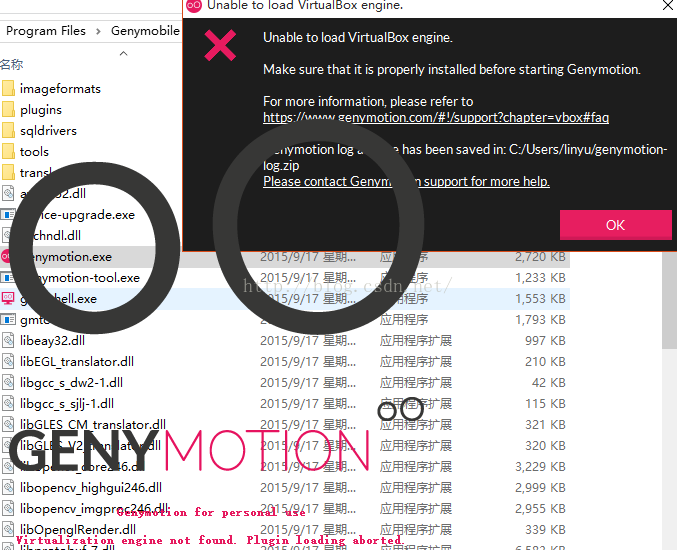
However, the following error occurred after the installation:

Virtualization engine not found. Plugin loading aborted.

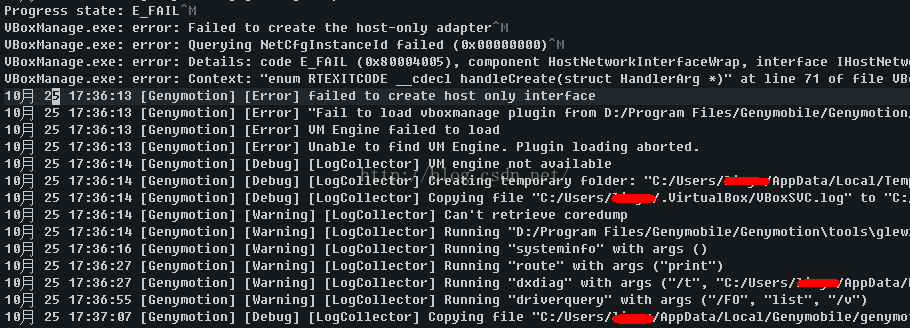
Locate the log directory according to the prompt and open the log file: general- genymotion.log

As shown in the figure below:

Progress state: E_ FAIL

VBoxManage.exe : error: Failed to create the host-only adapter

VBoxManage.exe : error: Querying NetCfgInstanceId failed (0x00000000)

VBoxManage.exe : error: Details: code E_ FAIL (0x80004005), component HostNetworkInterfaceWrap, interface IHostNetworkInterface

VBoxManage.exe : error: Context: “enum RTEXITCODE __ cdecl handleCreate(struct HandlerArg *)” at line 71 of file VBoxManageHostonly.cpp “
October 25 17:36:13 [genomic] [error] failed to create host only interface
October 25 17:36:13 [genomic] [error]” failed to load vboxmanage plugin from D / program files / genomicle / genomiction / plugins / “
October 25 17:36:13 [genomic] [error] VM Engine failed to load
October 25 17:36:13 [genomic] [error] unable to find VM engine. Plug loading above.
engine failed to load
October 25 17:36:13 [genomic] [error] unable to find VM engine

According to the prompt, there is an error in setting host network adapter in VBox. The possible reason is that VBox does not get administrator permission, so it installs genymotion-2.5.4- vbox.exe

This program must be run as an administrator, and then all the way to next…

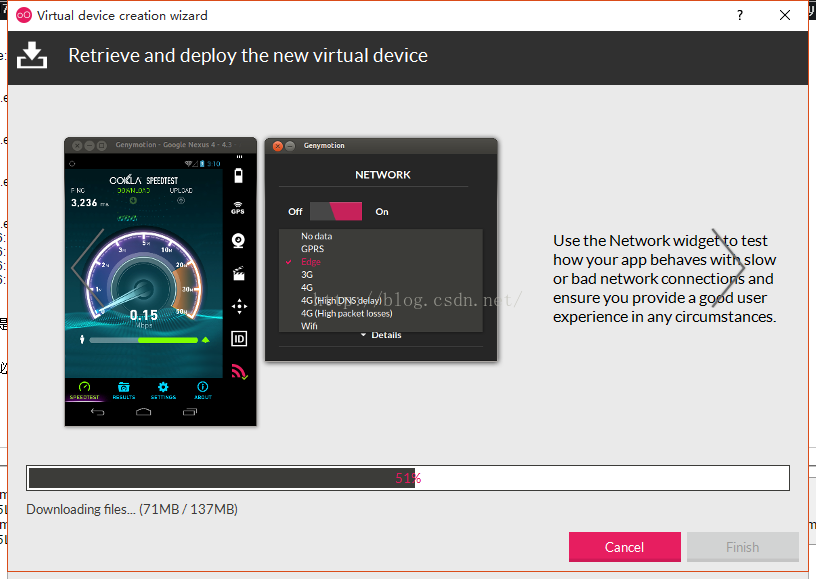
Currently downloading the virtual device, (‘◡’)

If not, please refer to the following steps. I’ve tried it again and it’s completely feasible.

    Run VirtualBox as administrator (By default is installed in C:\Program Files\Oracle\VirtualBox)Go to File -> Preferences -> Network (Left Navigation List) -> Host-only Networks (on the right tab)Select an adapter and click edit (the small screwdriver on the right)On “Adapter” tab set

    IPv4 Address: 192.168.1.201IPv4 Network Mask: 255.255.255.0 On DHCP Server Tab set

    Server Address: 192.168.1.100Server Mask: 255.255.255.0Lower Address Bound: 192.168.1.101Upper Address Bound: 192.168.1.199 Click Ok (Host-only Network details), click Ok (VM Settings)Open Genymotion (as Admin), install a new virtual device (you have deleted all past devices) and start it

The above steps are quoted from: http://stackoverflow.com/questions/31709084/genymotion-problems-in-windows-10

【JupyterLab】JavaScript output is disabled in JupyterLab

Error when using Matplotlib to display images in jupyterlab:

JavaScript output is disabled in JupyterLab


terms of settlement:

Just install the plot extension of jupyterlab.

Please refer to https://github.com/jupyterlab/jupyter-renderers/tree/master/packages/plotly-extension


The steps are as follows:

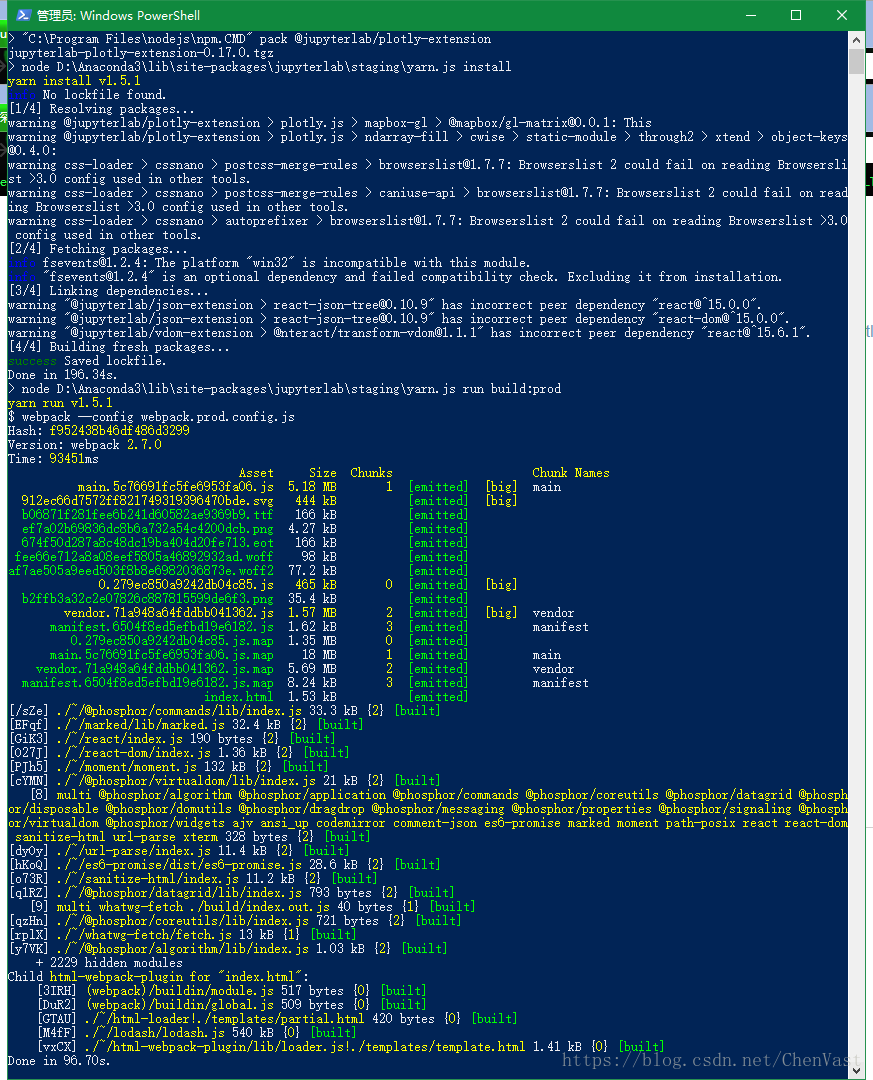
Use the CMD command line to execute the following command

jupyter labextension install @jupyterlab/plotly-extension

perhaps

…..\Anaconda3\Scripts\jupyter- labextension.exe install @jupyterlab/plotly-extension

result:

The installation is successful.


Then restart the following jupyterlab!

Solving Linux minute warning: no support for locale: en_ US.utf

$ sudo update-initramfs -u
[sudo] password for marty:
update-initramfs: Generating /boot/initrd.img-3.2.0-29-generic-pae
Warning: No support for locale: en_US.utf8
$ sudo locale-gen --purge --no-archive 
Generating locales...
  en_AG.UTF-8... done
  en_AU.UTF-8... done
  en_BW.UTF-8... done
  en_CA.UTF-8... done
  en_DK.UTF-8... done
  en_GB.UTF-8... done
  en_HK.UTF-8... done
  en_IE.UTF-8... done
  en_IN.UTF-8... done
  en_NG.UTF-8... done
  en_NZ.UTF-8... done
  en_PH.UTF-8... done
  en_SG.UTF-8... done
  en_US.UTF-8... done
  en_ZA.UTF-8... done
  en_ZM.UTF-8... done
  en_ZW.UTF-8... done
Generation complete.
marty@xxxxxx:~
$ sudo update-initramfs -u
update-initramfs: Generating /boot/initrd.img-3.2.0-29-generic-pae

reference resources:

https://forums.linuxmint.com/viewtopic.php?f=42&t=111527 All kinds of answers from netizens

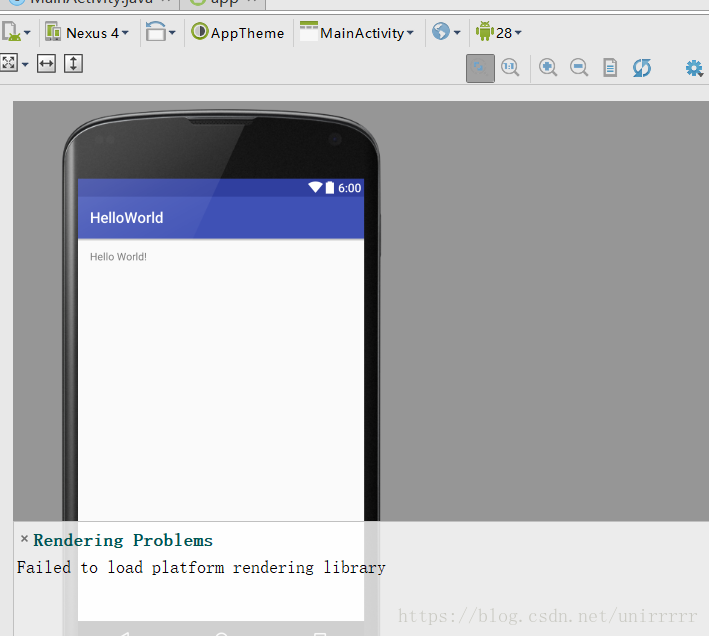
Rendering Problems :Failed to load platform rendering library

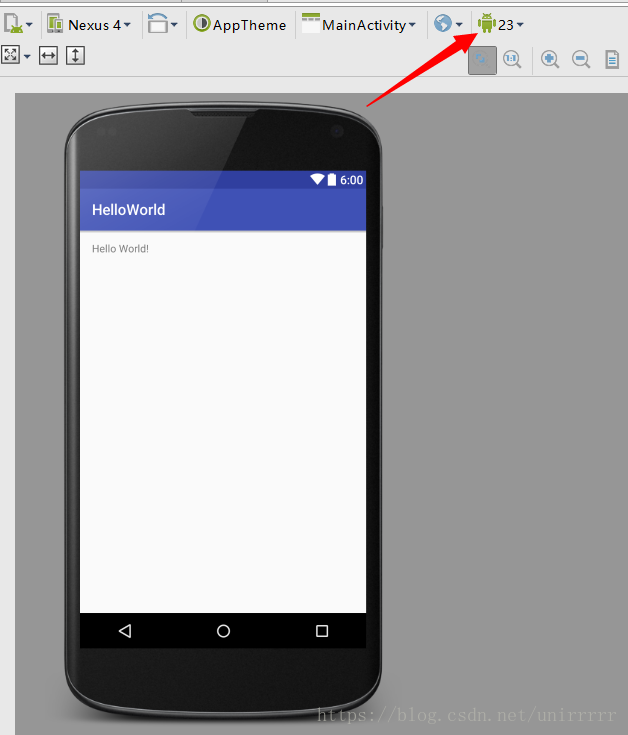
The Internet said that this problem occurred because the API version was too high, and it was OK to lower the version
the original setting was 28, but it couldn’t be adjusted to 27 or 26, so it was OK to adjust 23 24 25 to 23,
when it was adjusted to 24, it was wrong: the Internet said that because Android version 24 was null.

java.lang.NoClassDefFoundError: com/android/util/PropertiesMap
	at com.android.layoutlib.bridge.android.BridgeContext.createStyleBasedTypedArray(BridgeContext.java:940)
	at com.android.layoutlib.bridge.android.BridgeContext.obtainStyledAttributes(BridgeContext.java:638)
	at android.content.res.Resources_Theme_Delegate.obtainStyledAttributes(Resources_Theme_Delegate.java:71)
	at android.content.res.Resources$Theme.obtainStyledAttributes(Resources.java:1436)
	at android.widget.TextView.<init>(TextView.java:761)
	at android.widget.TextView.<init>(TextView.java:704)
	at android.widget.TextView.<init>(TextView.java:700)
	at com.android.layoutlib.bridge.MockView.<init>(MockView.java:50)
	at com.android.layoutlib.bridge.MockView.<init>(MockView.java:45)
	at com.android.layoutlib.bridge.MockView.<init>(MockView.java:41)
	at android.view.BridgeInflater.createViewFromTag(BridgeInflater.java:163)
	at android.view.LayoutInflater.createViewFromTag(LayoutInflater.java:727)
	at android.view.LayoutInflater.rInflate_Original(LayoutInflater.java:858)
	at android.view.LayoutInflater_Delegate.rInflate(LayoutInflater_Delegate.java:70)
	at android.view.LayoutInflater.rInflate(LayoutInflater.java:834)
	at android.view.LayoutInflater.inflate(LayoutInflater.java:492)
	at com.android.layoutlib.bridge.bars.CustomBar.<init>(CustomBar.java:95)
	at com.android.layoutlib.bridge.bars.StatusBar.<init>(StatusBar.java:67)
	at com.android.layoutlib.bridge.impl.Layout.createStatusBar(Layout.java:223)
	at com.android.layoutlib.bridge.impl.Layout.<init>(Layout.java:145)
	at com.android.layoutlib.bridge.impl.RenderSessionImpl.inflate(RenderSessionImpl.java:300)
	at com.android.layoutlib.bridge.Bridge.createSession(Bridge.java:429)
	at com.android.ide.common.rendering.LayoutLibrary.createSession(LayoutLibrary.java:350)
	at com.android.tools.idea.rendering.RenderTask$2.compute(RenderTask.java:510)
	at com.android.tools.idea.rendering.RenderTask$2.compute(RenderTask.java:498)
	at com.intellij.openapi.application.impl.ApplicationImpl.runReadAction(ApplicationImpl.java:967)
	at com.android.tools.idea.rendering.RenderTask.createRenderSession(RenderTask.java:498)
	at com.android.tools.idea.rendering.RenderTask.access$600(RenderTask.java:72)
	at com.android.tools.idea.rendering.RenderTask$3.call(RenderTask.java:610)
	at com.android.tools.idea.rendering.RenderTask$3.call(RenderTask.java:607)
	at com.android.tools.idea.rendering.RenderService.runRenderAction(RenderService.java:359)
	at com.android.tools.idea.rendering.RenderTask.render(RenderTask.java:607)
	at com.android.tools.idea.rendering.RenderTask.render(RenderTask.java:629)
	at com.intellij.android.designer.designSurface.AndroidDesignerEditorPanel$7.run(AndroidDesignerEditorPanel.java:519)
	at com.intellij.util.ui.update.MergingUpdateQueue.execute(MergingUpdateQueue.java:337)
	at com.intellij.util.ui.update.MergingUpdateQueue.execute(MergingUpdateQueue.java:327)
	at com.intellij.util.ui.update.MergingUpdateQueue$3.run(MergingUpdateQueue.java:271)
	at com.intellij.util.ui.update.MergingUpdateQueue.flush(MergingUpdateQueue.java:286)
	at com.intellij.util.ui.update.MergingUpdateQueue.flush(MergingUpdateQueue.java:244)
	at com.intellij.util.ui.update.MergingUpdateQueue.run(MergingUpdateQueue.java:234)
	at com.intellij.util.concurrency.QueueProcessor.runSafely(QueueProcessor.java:238)
	at com.intellij.util.Alarm$Request$1.run(Alarm.java:352)
	at java.util.concurrent.Executors$RunnableAdapter.call(Executors.java:511)
	at java.util.concurrent.FutureTask.run(FutureTask.java:266)
	at java.util.concurrent.ThreadPoolExecutor.runWorker(ThreadPoolExecutor.java:1142)
	at java.util.concurrent.ThreadPoolExecutor$Worker.run(ThreadPoolExecutor.java:617)
	at java.lang.Thread.run(Thread.java:748)

All the calls to 25, 26, 27 and 28 are errors of failed to load platform rendering library.

Insert keyframe giving keying set failed to insert any key frames (solved)

Blender 2.81 beta

problem description

After entering the posture mode , adjust the posture, and then press the I key to try to insert the key frame, but the error message is very difficult to understand

Frame position to insert key

So switch to the English version

“Insert keyframe giving keying set failed to insert any key frames”

On the Internet, it is said that the channels to be inserted are locked, but I did not lock them. At present, there is no good solution. You have to right-click to add frames in the N panel’s transform menu. I don’t know if this is a bug or not

solutions

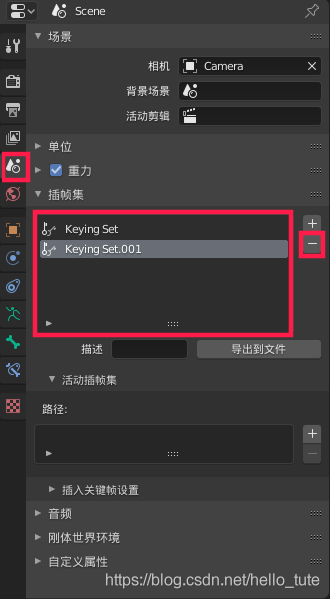
In the scene attributes tab, check the insert frame set list. If the data named keying set or keying set.001 is in the list, just delete them

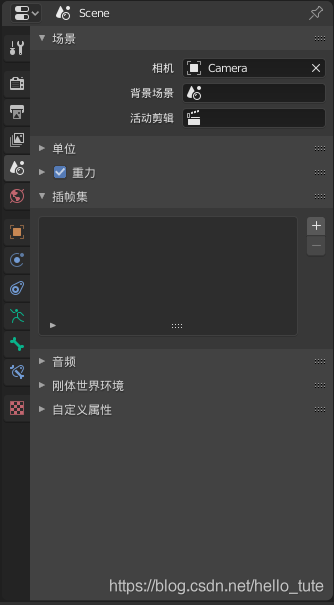
Delete completed

Then press the I key to insert the keyframe normally

Note: in fact, the so-called keying set is a very convenient mechanism. You need to select all the channels you need in advance and put them into a set. Then, when you press I key, blender will automatically insert frames for the channels in the set.