Author Archives: Robins

TypeError: Required argument ‘mat‘ (pos 2) not found

Traceback (most recent call last):
  File "/Users/*******/*****.py", line 225, in <module>
    cv2.imshow(r_image)
TypeError: Required argument 'mat' (pos 2) not found

This error prompt means that the required parameter is not found, that is, the function in the code is missing the necessary parameter.

cv2.imshow()

There should be two parameters: one is the name of the image window, namely title, and the other is the pixel value matrix of the displayed image.
In addition, the data type of the matrix is np.uint8 , floating point type will display exception.
Error will be reported:

TypeError: img is not a numpy array, neither a scalar

Solution:
transform the data type

image = numpy.array(image)
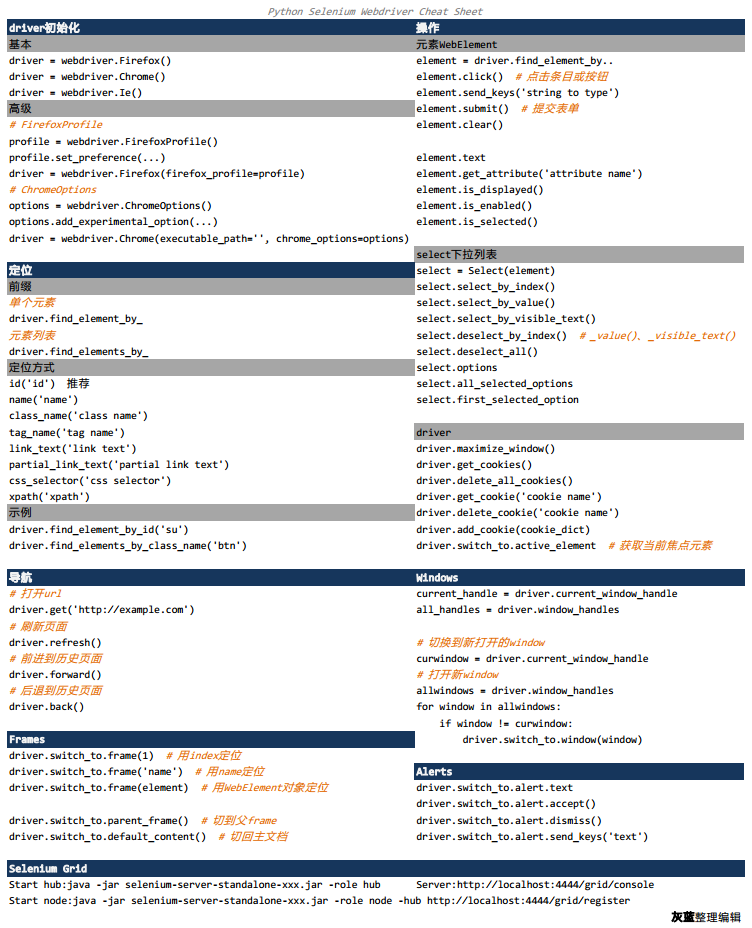
Python selenium — webriver cheat sheet

Recently, I saw a webriver cheat sheet on axatrikx, which is only made in Java. I thought I could organize a python version, and I got this blog post. The main methods and key points in webriver are sorted into a table for easy reference.

Webdriver Cheat Sheet

If it helps you, or if you have any good suggestions, please let me know.

Pdf version can be downloaded here


For more articles on Python selenium, please pay attention to my CSDN column: Python selenium automated test details

How to Export All data in DataGridView to Local Excel

Export all data in DataGridView to local excel

When the method is called, the parameter can be written into its own DataGridView name

 #region DataGridView Export to local Excel file method
        public void DownloadDataGridView(DataGridView dgv)
        {
            SaveFileDialog saveFileDialog = new SaveFileDialog
            {
                Filter = "Execl files (*.xls)|*.xls",
                FilterIndex = 0,
                RestoreDirectory = true,
                CreatePrompt = true,
                Title = "Exported Excel"
            };
            saveFileDialog.ShowDialog();
            if (saveFileDialog.FileName == "")
            {
                return;
            }//end if
            Stream myStream = saveFileDialog.OpenFile();
            //use the default encode
            StreamWriter sw = new StreamWriter(myStream, System.Text.Encoding.GetEncoding(-0));
            string str = "";
            try
            {
                for (int i = 0; i < dgv.ColumnCount; i++)
                {
                    str += dgv.Columns[i].HeaderText;
                    str += "\t";
                }//end for
                sw.WriteLine(str);
                for (int j = 0; j < dgv.Rows.Count - 1; j++)
                {
                    string strTemp = "";
                    for (int k = 0; k < dgv.Columns.Count; k++)
                    {
                        object obj = dgv.Rows[j].Cells[k].Value;
                        if (obj != null)
                        {
                            strTemp += dgv.Rows[j].Cells[k].Value.ToString();
                        }//end if
                        else
                        {
                            strTemp = "";
                        }//end else
                        strTemp += "\t";
                    }//end for k
                    sw.WriteLine(strTemp);
                }//end for j
                sw.Close();
                myStream.Close();
                MessageBox.Show("Success to Export the Excel File:\n" + saveFileDialog.FileName);
            }//end try
            catch (Exception ex)
            {
                MessageBox.Show(ex.Message);
            }//end catch
            finally
            {
                sw.Close();
                myStream.Close();
            }//end finally
        }
        #endregion

How to Fix “Microsoft Visual C ++ 14.0 is required” Error

Error message:

error: Microsoft Visual C++ 14.0 is required. Get it with “Microsoft Visual C++ Build 		Tools”: http://landinghub.visualstudio.com/visual-cpp-build-tools

Solution

# Open the link to download the whl file for the corresponding version of twisted The version I downloaded is Twisted-17.9.0-cp36-cp36m-win_amd64.whl (cp followed by python version, amd64 stands for 64-bit)
http://www.lfd.uci.edu/~gohlke/pythonlibs/#twisted  

# After downloading, execute the following command. 
python -m pip install E:\Twisted-17.9.0-cp36-cp36m-win_amd64.whl 

# Run with the following error. 
Twisted-17.9.0-cp36-cp36m-win_amd64.whl is not a supported wheel on this platform.

# After changing to another version of Twisted-17.9.0-cp36-cp36m-win32.whl, execute the following command. 
python -m pip install E:\Twisted-17.9.0-cp36-cp36m-win32.whl 

# After executing the previous command, the following message indicates that Twisted is successfully installed 
Successfully installed Twisted-17.9.0 

# Then execute the following command.
python -m pip install scrapy 

This time, it can be installed successfully

List: How to de-duplication according to an attribute of an object

List is de-duplicated according to an attribute of an object

public class Test {
    public static void main(String[] args) {
        List<User> list = new Lists.newArrayList();
        list.add(new user(1,"Zhang San", "ShangHai"));
        list.add(new user(2, "Li Si", "Beijing"));
        list.add(new user(3, "Wang Wu", "Jinan"));
        list.add(new user(4, "Li Si", "Beijing"));

        // de-duplicate the list according to the city in the list
        newList = list.stream().filter(distinctByKey(User::getCity)).collect(Collectors.toList());
    }
    
    private static <T> Predicate<T> distinctByKey(Function<? super T, Object> keyExtractor) {
        Map<Object, Boolean> seen = new ConcurrentHashMap<>();
        return t -> seen.putIfAbsent(keyExtractor.apply(t), Boolean.TRUE) == null;
    }
}

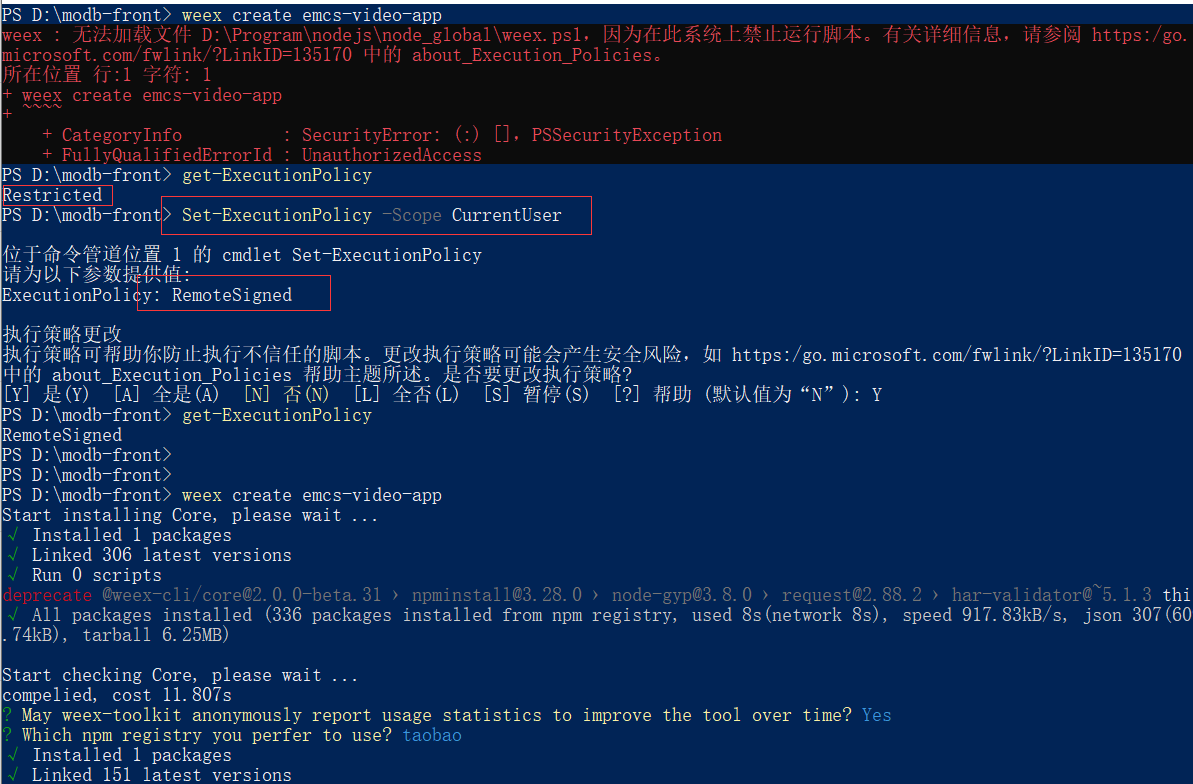
[Weex]Error in creating project NPM: unable to load file D:\program files\nodejs\node_ global\ weex.ps1 Because scripts are not allowed to run on this system.

Use weex to create a new app and find NPM error:

npm : The file D:\Program Files\nodejs\node_global\weex.ps1 could not be loaded because running scripts is disabled on this system. For more information, see https:
/go.microsoft.com/fwlink/?LinkID=135170 in about_Execution_Policies.
Location Line:1 Character: 1
+ npm run dev
+ ~~~
    + CategoryInfo          : SecurityError: (:) [],PSSecurityException
    + FullyQualifiedErrorId : UnauthorizedAccess

Because it is forbidden to run scripts on this system, that is to say, you do not have permission

get-ExecutionPolicy
// Output: Restricted
// Restricted

Restricted means that the state is prohibited. Give permission:

Set-ExecutionPolicy -Scope CurrentUser

// At the prompt, enter.
RemoteSigned

Verify:

get-ExecutionPolicy
// Output: RemoteSigned

Then recreate the project.

Pytorch: How to Handle error warning conda.gateways.disk.delete:unlink_or_rename_to_trash(140)

I want to bring the version of Python back to 1.6.0, so I need to install it again.
Under the condition of Tsinghua image source, enter
CONDA install Torch = = 1.6.0 torch vision = = 0.7.0 in CONDA environment

However, the alarm during installation is as follows:

WARNING conda.gateways.disk . delete:unlink_ or_ rename_ to_ trash(140): Could not remove or rename D:\anaconda\pkgs\pytorch-1.6.0-py3.7_ cuda101_ cudnn7_ zero tar.bz2 . Please remove this file manually (you may need to reboot to free file handles)
WARNING conda.gateways.disk . delete:unlink_ or_ rename_ to_ trash(140): Could not remove or rename D:\anaconda\pkgs\pytorch-1.6.0-py3.7_ cuda101_ cudnn7_ 0\Lib\site-packages\torch\lib\torch_ cuda.dll . Please remove this file manually (you may need to reboot to free file handles)

This solution has been referred to here, but it can’t be solved, but I also open the permission.
Later, simply follow the prompts and manually set the_ cuda101_ cudnn7_ zero tar.bz2 And “D: anaconda, Pkgs, pytorch-1.6.0-py3.7″_ cuda101_ cudnn7_ 0\Lib\site-packages\torch\lib\torch_ cuda.dll The file referred to by “.” will be deleted and no error will be reported.
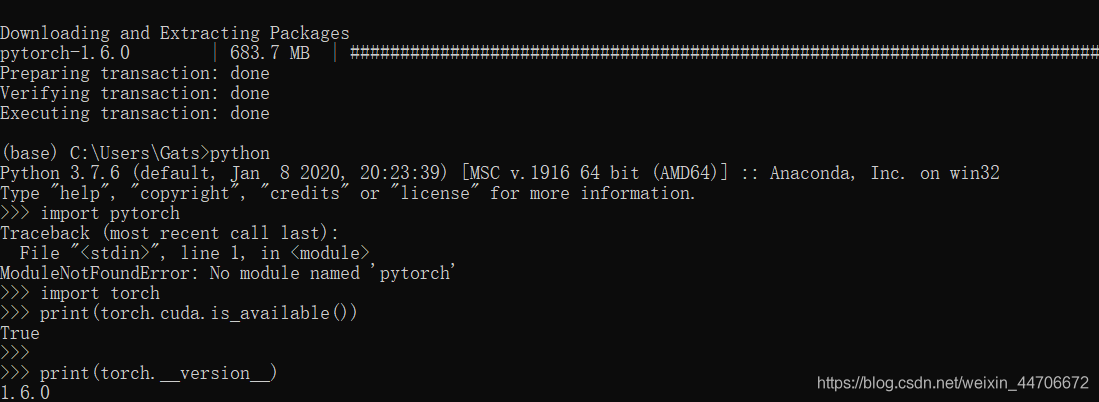
Finally, the installation is successful and the version number is displayed

import torch
print(torch.__version__)  #Note the double underscore

Solution to the problem of vs2017 error report unable to open source file

Problem Description:

Problem Description: a new QT GUI project is created without any modification, but the error list shows that the existing file cannot be opened, and there are various red underscores under the header file of the file code, but it can be run directly main.cpp no problem.

terms of settlement:

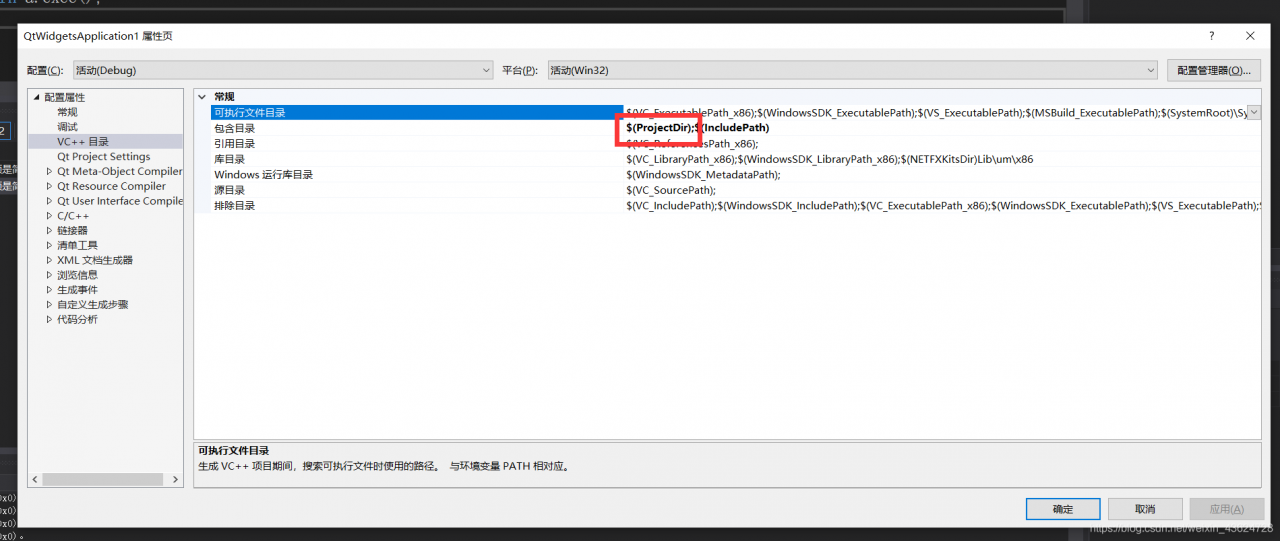
For the existing files in the project that cannot be opened, it means that the path of the current project is not included. Here, you can refer to the acquisition method of C + + header file reference (c + + knowledge focus). So we just need to add in the current project path.
Methods: right click the project, click properties, select the included directory in VC + + directory, add $(projectdir) , then apply and confirm.

principle

#Include & lt; XX. H & gt; means to search for files directly from the function library of the compiler, and the compiler starts to search for. Xxh from the standard library path

#Include “XX. H” means to search from the user-defined file first. If not, search from the function library. The compiler starts to search XX. H from the user’s working path

If we refer to the header file written by ourselves in the way of & lt; & gt;, we will inevitably be unable to find the source file, because our file is placed in the user directory. The above solution is essentially to append the user directory to the compiler search scope. In fact, we can solve the problem by replacing & lt; & gt; with “” instead.

Navicat remote connection SQL Server 2014 express report 08001 error

Scenario: Navicat remote connection SQL Server 2014 express reports 08001 error, and it is verified that the firewall port 14341433 has been opened

Process: 1. At first, I think it’s a problem with the connection name. I use IP address or host name to connect, and then change to IP address / instance naming mode, which is better

2. After changing the connection string, the error 08001 is still reported. Try to close the firewall, and the connection is successful, indicating that the problem is on the port

3. Use the netstat – ano command to check, and find that this command is too weak. Find tools on the Internet, and find currports tool, which is very good. Send a screenshot. The software can clearly see all kinds of connection information, especially the remote IP, which is convenient to view the port needed for remote connection when the firewall is closed.

4. It is found that Navicat needs to use port 9061 to open in the firewall, and the remote connection is successful.

Reproduced in: https://www.cnblogs.com/zhengcong/p/4417916.html

Installing docker on Huawei Kunpeng server arm64

Installing docker on Huawei Kunpeng server arm64


1、 Download of installation package

The required version of the installation package can be downloaded according to the actual needs

https://download.docker.com/linux/ubuntu/dists/xenial/pool/stable/arm64/

2、 Installation procedure

1. Download the installation package

wget https://download.docker.com/linux/ubuntu/dists/xenial/pool/stable/arm64/containerd.io_1.2.6-3_arm64.deb

wget https://download.docker.com/linux/ubuntu/dists/xenial/pool/stable/arm64/docker-ce_19.03.8~3-0~ubuntu-xenial_arm64.deb

wget https://download.docker.com/linux/ubuntu/dists/xenial/pool/stable/arm64/docker-ce-cli_19.03.8~3-0~ubuntu-xenial_arm64.deb


2. Installation

Enter the location where the installation package is downloaded and install it

dpkg -i *.deb

Set boot up

systemctl enable docker

Start docker service

systemctl start docker

View docker status

systemctl status docker


How to introduce iconfont into uni-app

There are two ways to introduce iconfont into uniapp, one is introduced locally, the other is introduced online.

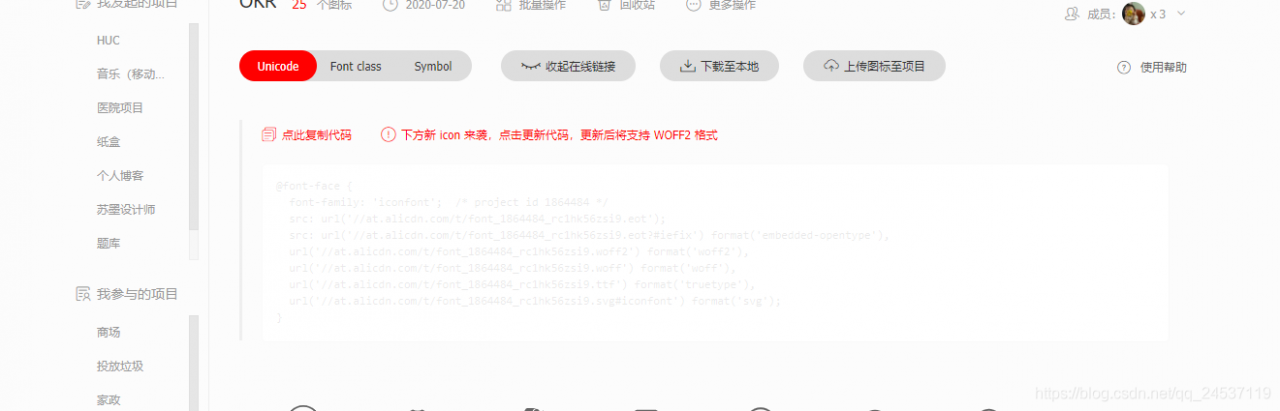
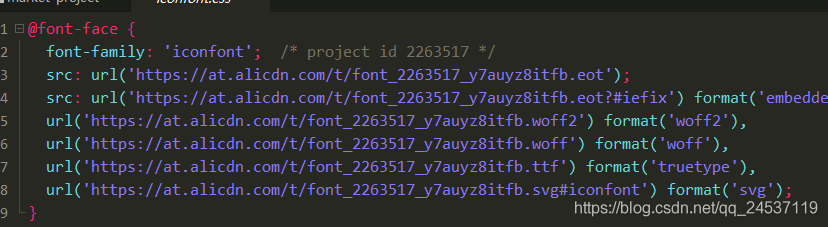
Let’s talk about the method of online introduction. Create your own project in iconfont, and then add some icons,

Select Unicode and copy the code. Then download the code to the local and find it in it iconfont.css We only use this one. After we get CSS, we put it into our uniapp project and post the code to replace the previous code

stay app.vue Introduce CSS file into

It’s easy to use

We can see that the above method is still introduced into the external chain. We generally don’t like it. We always feel that it’s not safe, so the local one is more appetizing

The iconfont file contains iconfont.ttf 、 iconfont.css , will iconfont.ttf File transpose Base64.
Recommended translation tool address: https://www.giftofspeed.com/base64-encoder/

Then open it iconfont.css File, modify the @ font face part, paste the converted Base64 code to the corresponding location, and set the code as follows:

@font-face { font-family: "iconfont";
 src: url(data:font/truetype;
charset=utf-8;
base64,Converted base64 content) format('truetype'); } .iconfont { display: inline-block; }

Finally, it is in the project App.vue Introduced in iconfont.css file

<style> @import "./font/iconfont.css"; </style>

How to use it in any component:

<view class="iconfont icon-XXX"></view>

404 error in accessing GitHub personal blog

Warehouse name must be uername.github.io , the user name is your GitHub user name, so that 404 will not appear
but I didn’t use my user name at first, and later found that it was the same, so I went to modify my user name to keep it consistent with the warehouse name, so the final result of this operation is still 404
solution: Delete the warehouse you just built, create another warehouse with the new user name, and repeat the steps