Author Archives: Robins

Raspberry Pi 3 installation and software configuration issues collection

After hosting ali, toutiao, and Meituan interviews this year, I’ve made an important discovery… > > >

Permanent update address:
https://my.oschina.net/bysu/blog/1583968
System related information

bysu@bysu:~ $ inxi
CPU~Quad core ARMv7 rev 4 (v7l) (-MCP-) speed~1200 MHz Kernel~4.9.41-v7+ armv7l Up~14:21 Mem~102.5/927.3MB HDD~NA(-) Procs~291 Client~Shell inxi~2.3.5  
bysu@bysu:~ $ uname -a
Linux bysu 4.9.41-v7+ #1023 SMP Tue Aug 8 16:00:15 BST 2017 armv7l GNU/Linux

System article
 

Software installation configuration section

Samba related
Error executing restart service command.

bysu@bysu:~ $ sudo systemctl start samba
Failed to restart samba.service: Unit samba.service is masked.

For the solution, see here

bysu@bysu:~ $ sudo rm /lib/systemd/system/samba.service
bysu@bysu:~ $ sudo systemctl enable samba
samba.service is not a native service, redirecting to systemd-sysv-install.
Executing: /lib/systemd/systemd-sysv-install enable samba
update-rc.d: error: samba Default-Start contains no runlevels, aborting.
bysu@bysu:~ $ sudo systemctl start samba
bysu@bysu:~ $ sudo systemctl status  samba
● samba.service - LSB: ensure Samba daemons are started (nmbd, smbd and samba)
   Loaded: loaded (/etc/init.d/samba; generated; vendor preset: enabled)
   Active: active (exited) since Sat 2017-12-02 15:28:45 UTC; 9s ago
     Docs: man:systemd-sysv-generator(8)
  Process: 2525 ExecStart=/etc/init.d/samba start (code=exited, status=0/SUCCESS)

Dec 02 15:28:45 bysu systemd[1]: Starting LSB: ensure Samba daemons are started (nmbd, smbd and samba)...
Dec 02 15:28:45 bysu samba[2525]: Starting nmbd (via systemctl): nmbd.service.
Dec 02 15:28:45 bysu samba[2525]: Starting smbd (via systemctl): smbd.service.
Dec 02 15:28:45 bysu systemd[1]: Started LSB: ensure Samba daemons are started (nmbd, smbd and samba).


SSH write failed broken pipe

When SSH to a machine, it sometimes pops up:
Write failed: Broken pipe

It’s usually because the SSHD on the server sees that a connection has been closed at some point without a message, and then the client side breaks.

There are three solutions:
Add the following configuration in /etc/ssh/sshd_config of the server: ClientAliveInterval 60

2 if it is difficult to change the server, you can change the client setting: add config file in ~/.ssh/ folder, and add the following configuration: ServerAliveInterval 10, tell the SSH client to send a “keep-alive” packet to the other side every 10 seconds.
3 If you only want to use it temporarily for one operation, you can add an argument to the login command: sSH-O ServerAliveInterval=10 [email protected].

Original: http://blog.csdn.net/hongchangfirst/article/details/51308366
Author: hongchangfirst
Hongchangfirst homepage: http://blog.csdn.net/hongchangfirst

windows GitLab: PTY allocation request failed on channel 0

The company code is on GitLab, ready to upload a project code, operation reference:
https://blog.csdn.net/qq_20663229/article/details/80413188
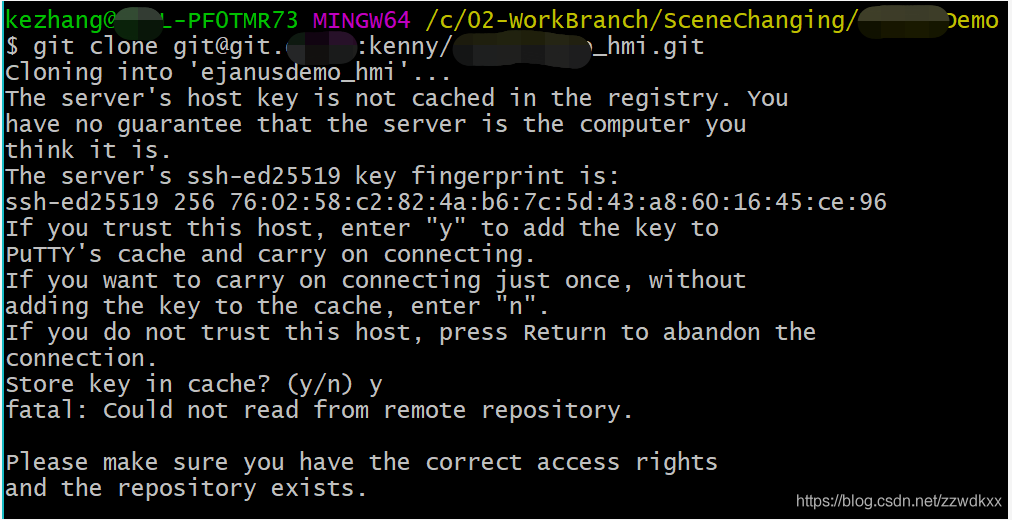
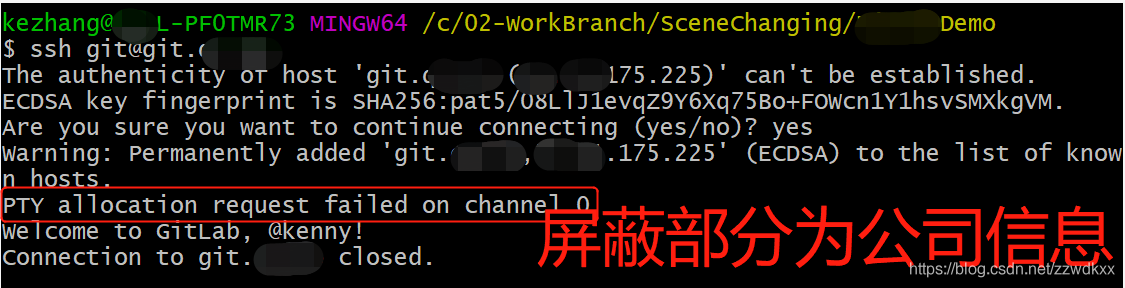
When I submitted the code, I encountered some problems, and solved several problems through Baidu. Finally, I got stuck in two error reports like this:
fatal: Could not read from remote repository
PTY allocation request failed on channel 0
Process screenshot 1:

Process screenshot 2:

Solutions, reference:
https://stackoverflow.com/questions/13509293/git-fatal-could-not-read-from-remote-repository/56264790#56264790
I had this problem using gitbash on windows 10. I tried several things to solve this problem, the major ones being these:

    Recreated my SSH keys and updated to bitbucket. Didn’t helpTurned on debugging using this and found out that I was getting “shell request failed on channel 0” as asked hereRebooted my Windows PC

None of the above helped. I ended up re-installing Git for Windows This took only a few minutes compared to other things I did and it solved the problem!
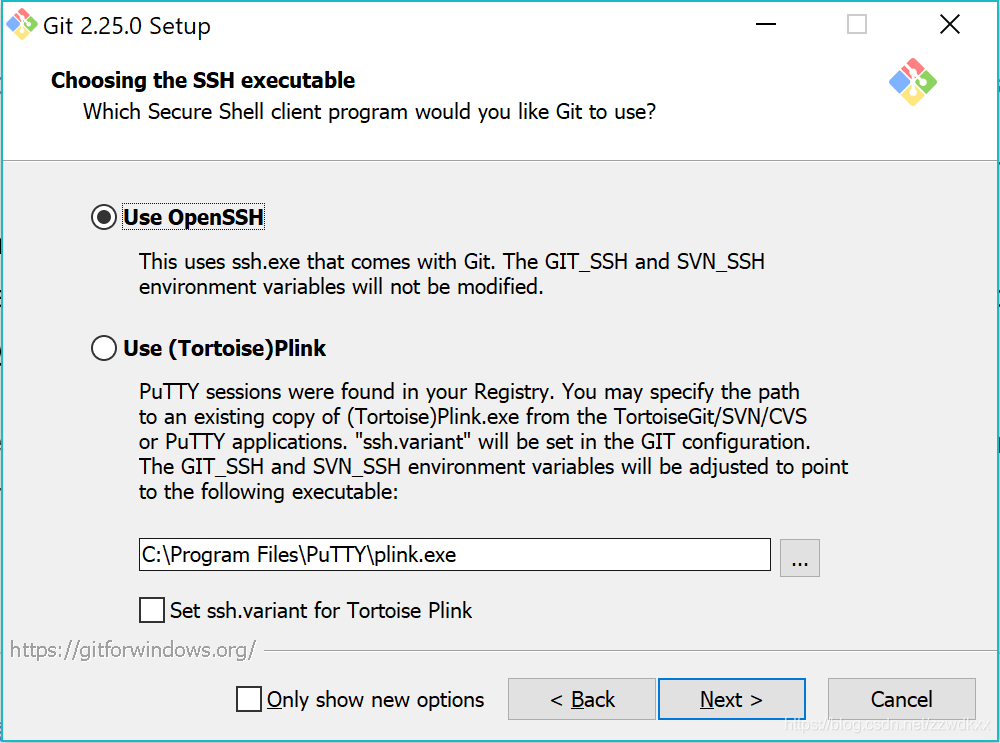
According to the above steps, I reinstalled Git to solve the problem. When I installed Git, I chose OpenSSH. It is not clear whether it is related to this:

【Linux】psql: FATAL: Ident authentication failed for user “username” Error and Solution

Question:I have installed Postgresql.x server under Red Hat Enterprise Linux 5. I have created username/password and database. But when I try to connect it via PHP or psql use the following syntax:

psql -d myDb -U username -W
It gives me an error that reads as follows:

psql:Fatal: Ident authentication failed for user “username”.
How do I fix this error?

A. To fix this error, open the PostgreSQL client authentication configuration file /var/lib/pgsql/data/pg_hba.conf:
# vi /var/lib/pgsql/data/pg_hba.conf:
# vi /var/lib/pgsql/data/pg_hba.conf: # vi /var/lib/pgsql/data/pg_hba.conf: # vi /var/lib/pgsql/data/pg_hba.conf.

    Which hosts are allowed to connect, which clients are authenticated, which PostgreSQL usernames are available to which users, and which databases are accessible

By default, Postgresql uses identity-based authentication. All you have to do is allow authentication to your network or web server based on username and password.IDENT will never allow you to log in via the -U and -W options. Add the following to allow logins through local hosts only:

local all all trust
host all 127.0.0.1/32 trust

Save and close the file. Restart the Postgresql server:
# service Postgresql Restart
Now you should be able to log in using the following command:
$ psql -d myDb -U username -W

Strong name validation failed solution

If you are a 64-bit operating system, and you encounter the following exceptions:
Could not load file or assembly ‘[Your file], Version=[version], Culture=neutral, PublicKeyToken=[public key token]’ or one of its dependencies. Strong name validation failed. (Exception from HRESULT: 0x8013141A)
 
#1 Start the command-line tool as an administrator.
Locate the directory where SN. exe is located. For example, the directory of Visual Studio 2013 is: C:\Program Files (x86)\Microsoft SDKs\Windows\v7.0A\Bin\x64.
Execute the command SN-VR *,[public key Token].
 
Reference:
http://blogs.msdn.com/b/shitals/archive/2008/05/01/8446582.aspx

Reproduced in: https://www.cnblogs.com/Erik_Xu/articles/4196113.html

Ubuntu network configuration+Fixing “Failed to bring up eth0” in Ubuntu

When I installed Ubuntu Server on one machine, the installation process skipped the step of network configuration, and When I logged in this machine via SSH on another machine, I was still unable to connect. Looking through the list of router DHCP Client Table, I found that the machine installing Ubuntu Server was not connected to the network, which was very strange.
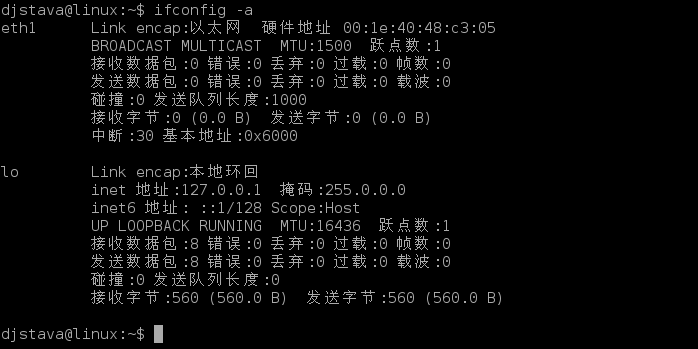
$ifconfig
returns lo instead of eth0, which may be related to skipping network configuration during installation. Simply configure this machine to join the network normally.
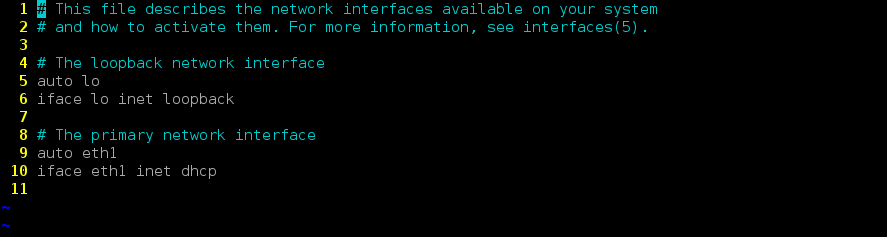
$sudo pico /etc/network/interfaces
this will launch a simple text editor to edit Linux network configuration files
which you should see here:

auth lo
iface lo inet loopback

is exactly the lo loop. I need this machine running Ubuntu Server to get IP through DHCP to join the network. Then I just need to add the following configuration content of the lo loop above:

auth eth0
iface eth0 inet dhcp

press
Ctrl+O to save, press Ctrl+X to exit.

There are two ways to get your network configuration files into effect:
1, restart Ubuntu:

$sudo reboot
2, restart network components:

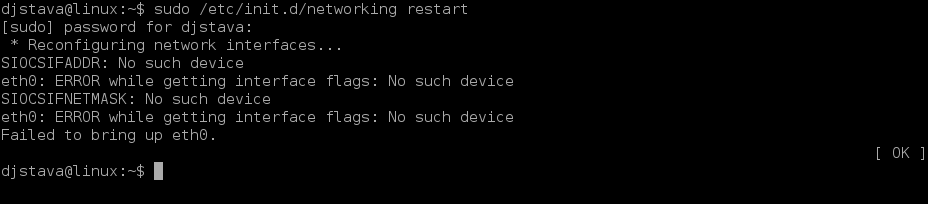
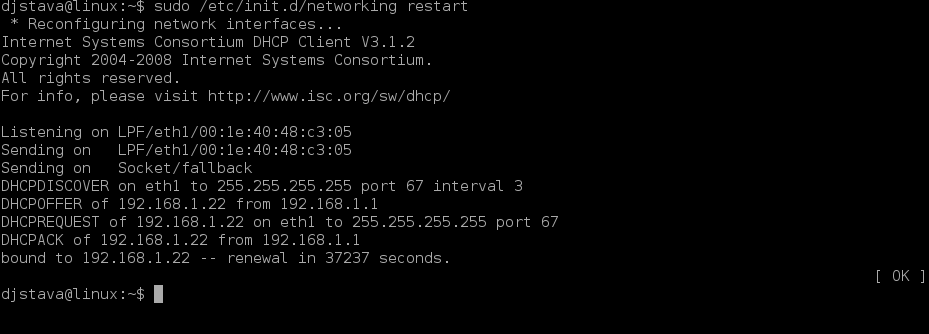
$sudo /etc/init.d/networking restart

as long as shown
Reconfiguring network interfaces… [OK]

is a successful restart of the network component.

if the IP is required instead of being obtained by DHCP
Manually specify the IP (such as 192.168.1.1) and specify the gateway (such as 192.168.1.254), then configure as follows:

Auth eth0
iface eth0 inet static
address 192.168.1.1
netmask 255.255.255.0
gateway 192.168.1.254

if you are manually specifying IP and you also need to access the Internet, such as wget download, then you also need to set DNS:

$sudo pico /etc/resolv.conf

to add configuration content here:

nameserver xxx.xxx.xxx.xxx

just save.

The attached:
Fixing “Failed to bring up eth0” in Ubuntu

1.
sudo /etc/init.d/networking restart


2,
ifconfig -a

3,
sudo vi /etc/network/interface

4.
sudo /etc/init.d/networking restart

5,
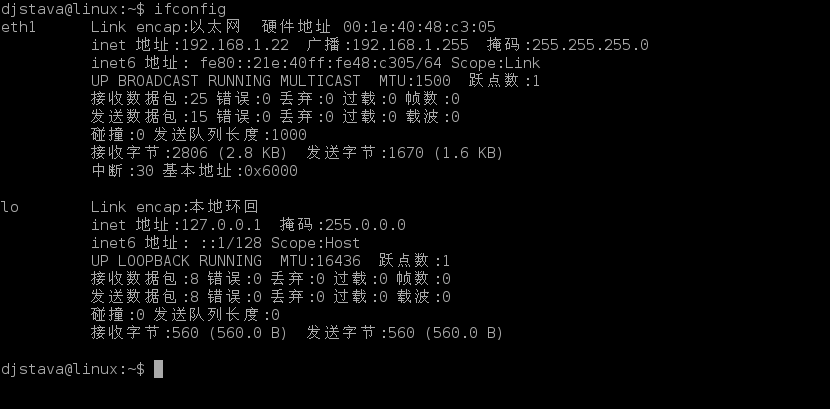
ifconfig


or


sudo rm /etc/udev/rules.d/70-persistent-net.rulessudo rm /etc/udev/rules.d/70-persistent-net.rulessudo rm /etc/udev/rules.d/70-persistent-net.rulessudo rm /etc/udev/rules.d/70-persistent-net.rules

The network card is fine after the reboot.

Reporting Services Catalog Database File Existence” error during installing SQL Server 2008 R2

“Reporting Services Catalog Database File Existence” error during installing SQL Server 2008 R2

Question:

The reason:
I installed SQL Server 2008 R2 CTP before, and selected all components (including AS, RS, etc.) when installing RS, a database named ReportServer would be created by default, but the Database file of ReportServer was not cleared when uninstalling, and the installation path I chose this time was the same AS last time. This caused me to install SQL Server 2008 R2’s detection fail again.
 
Solutions:
Removes undeleted data files from the installation path. In %Program Files%\Microsoft SQL Server\ MSSQL10_50.msSQLServer \MSSQL\DATA\


Xcode ffmpeg Error:/clang:1:1: linker command failed with exit code 1 (use -v to see invocation)

Has been poked in here several times… You must note that
error is because
is not compiled so remember to compile from the command line before configuration! Compile! Compile!

cd /Users/aaronjackey/downloads/ffmpeg-copy/ffmpeg-4.3
./configure --enable-debug --enable-ffprobe
./configure --disable-optimizations
make -j8

And then configure the following content can
don’t refer to link below

php_network_getaddresses: getaddrinfo failed (How to Fix)

When calling an external service request, PHP addresses: getaddrinfo failed: Name or Servicenot Known with an error:The reason:
PHP host cannot connect to DNS server

Analysis: such as the services you access request is www.leyangjuntestxxxx.com

You can first ping or Telnet the domain name to see if it is accessible, if it is responsive

Failure to ping indicates that your service is now connected to a problematic DNS server

General solutions:

One: It is necessary to check whether the remote host of the request is in /etc/hosts of the native host

Two: the need to check the rules of the firewall, is not intercepted by the response

Three: You can manually bind host in the /etc/hosts file

Fatal error: MSpanList_Insert error when installing golang source code

Golang was originally used in version 1.9, but today wants to upgrade to the latest version 1.11. Encountered the following error

failed MSpanList_Insert 0x905000 0x9b51f3c97b8 0x0 0x0
fatal error: MSpanList_Insert
runtime stack:
runtime.throw(0x5e5cf0, 0x10)
    /home/travis/.gimme/versions/go1.6.linux.amd64/src/runtime/panic.go:530 +0x90 fp=0x7fff5fbff0b0 sp=0x7fff5fbff098
runtime.(*mSpanList).insert(0x865d08, 0x905000)
    /home/travis/.gimme/versions/go1.6.linux.amd64/src/runtime/mheap.go:933 +0x293 fp=0x7fff5fbff0e0 sp=0x7fff5fbff0b0
runtime.(*mheap).freeSpanLocked(0x865500, 0x905000, 0x100, 0x0)
    /home/travis/.gimme/versions/go1.6.linux.amd64/src/runtime/mheap.go:809 +0x4be fp=0x7fff5fbff148 sp=0x7fff5fbff0e0
runtime.(*mheap).grow(0x865500, 0x8, 0x0)

The Internet did not find a good solution, finally put GOROOT_BOOTSTRAP go1.9 installation directory to solve. (The default GOROOT_BOOTSTRAP is pointing to go1.4)

cd ~/go/src
GOROOT_BOOTSTRAP='~/go1.9' ./all.bash

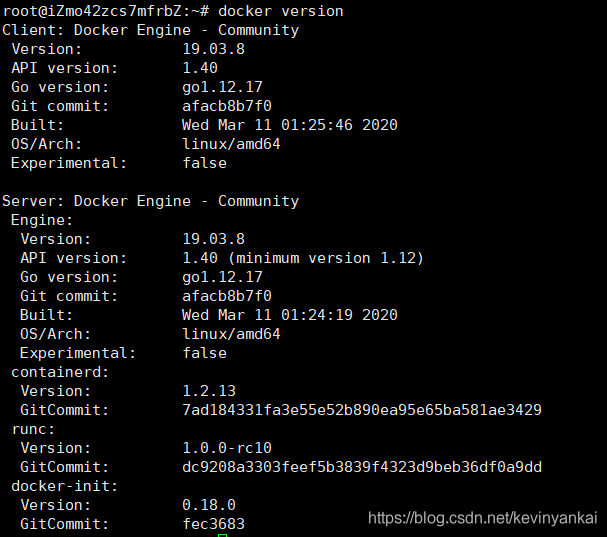
Docke Run: response from daemon: OCI runtime create failed: container with id exists:XXX:unknown

Environment:
Ubuntu 18.0.4
Docker

Problem description:
System restart is abnormal. When docker container is started, the following error message is prompted:

Where 8ADF is the first four letters of my container ID.
Solutions:
1, implement

 find/-name "8adfcb497827c65a7c8c05dc745f206af2679f2333112570124e8d1af581a7fe"

8 adfcb497827c65a7c8c05dc745f206af2679f2333112570124e8d1af581a7fe is full container id. The results are as follows:

2. Delete the following files:

sudo rm -rf /var/run/docker/runtime-runc/moby/8adfcb497827c65a7c8c05dc745f206af2679f2333112570124e8d1af581a7fe/

3. Restart the container

docker start 8adf

done

Program RPC 1726 error tracking

Recently, I encountered a headache in the client environment. One node successfully connected to another node via RPC, but returned 1726 error when sending THE RPC message.
The error message
First take a look at the MSDN explanation, “this remote call failed”, this sentence information content is really too little ah, there is an error I must know is the remote call failed ah.

RPC_S_CALL_FAILED
1726 (0x6BE)
The remote procedure call failed.

However, Google also rarely had a definitive explanation for the tracking of RPC 1726 errors. What did they do?The customer is urging again, help me to solve quickly!! I searched the company’s internal cases on this issue, most of them were caused by firewalls, and many of them were non-Windows built-in firewalls, such as IPS, SOME IBM suites, etc… However, it was found that the Windows firewall had been shut down on the customer’s machine, and there was no suspicious third-party firewall software. Is there a firewall between the two nodes?The client said that the firewall of the intermediate node would not block any communication with RPC… Well, always be suspicious of what customers say, and it turns out they’re wrong.

This is both a review of the code and a constant search for ways to track the problem. Customers are also anxious to urge, at this time found a Microsoft technical article described as follows:

Explanation
A server connection was lost while the server was attempting to perform a remote procedure call. It is unknown whether the remote procedure call executed, or how much of it executed. The connection might have broken because of a problem with the network hardware or because a process terminated.

   
User Action
Wait a few minutes and then try the operation again. If this message reappears, check the server or try to connect to another server. You might also have to check the integrity of the network. If the problem persists, contact the supplier of the running application.

First of all, Microsoft has said that this problem is usually caused by two possible causes: network hardware problems (which should be counted as network firewall problems) or RPC Server process termination. To be sure, our RPC Server process has not terminated, so you have to be suspicious of network reasons!

The problem tracking
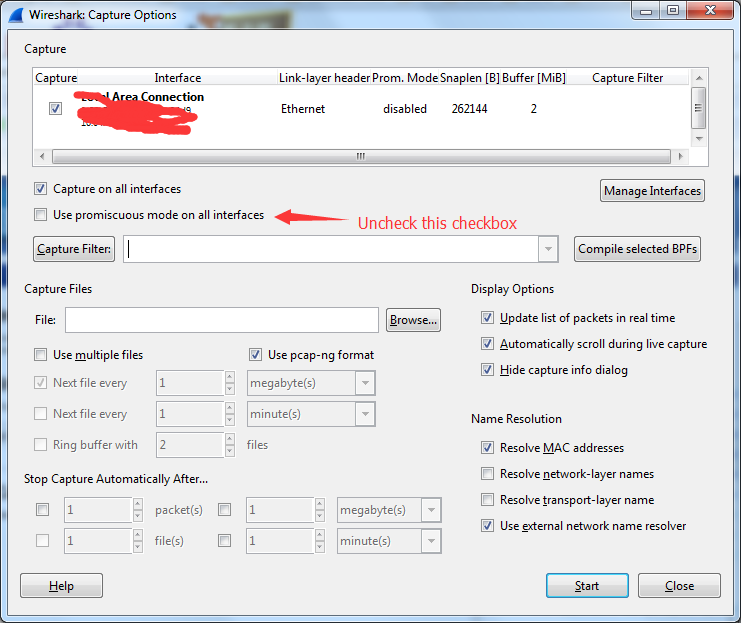
This direction was clear enough, so we used unmixed mode capture on both the Client and Server sides of RPC in the Client environment. Capturing packets in unmixed mode ensures that all network packets are captured with a specified native network card. Set Wireshark’s unmixed mode as shown below, and start capturing packets:
The RPC 1726 error problem is then reproduced, stopping the Client side and the Server side from capturing packets. To begin the analysis, set the following filter in the Wirehshark filter on the Client side:

(ip.src_host==x.x.x.98 && ip.dst_host==x.x.x.207) || ((ip.src_host==x.x.x.207 && ip.dst_host==x.x.x.98)) && dcerpc

X.x.x.x.98 is the IP address of the Client, and x.x.x.207 is the address of the Server. This filtering means that only the RPC package with interaction between the Client and the Server is shown (in our program, the default is TCP/ IP-based RPC communication). We did not receive a Response package from the Server!
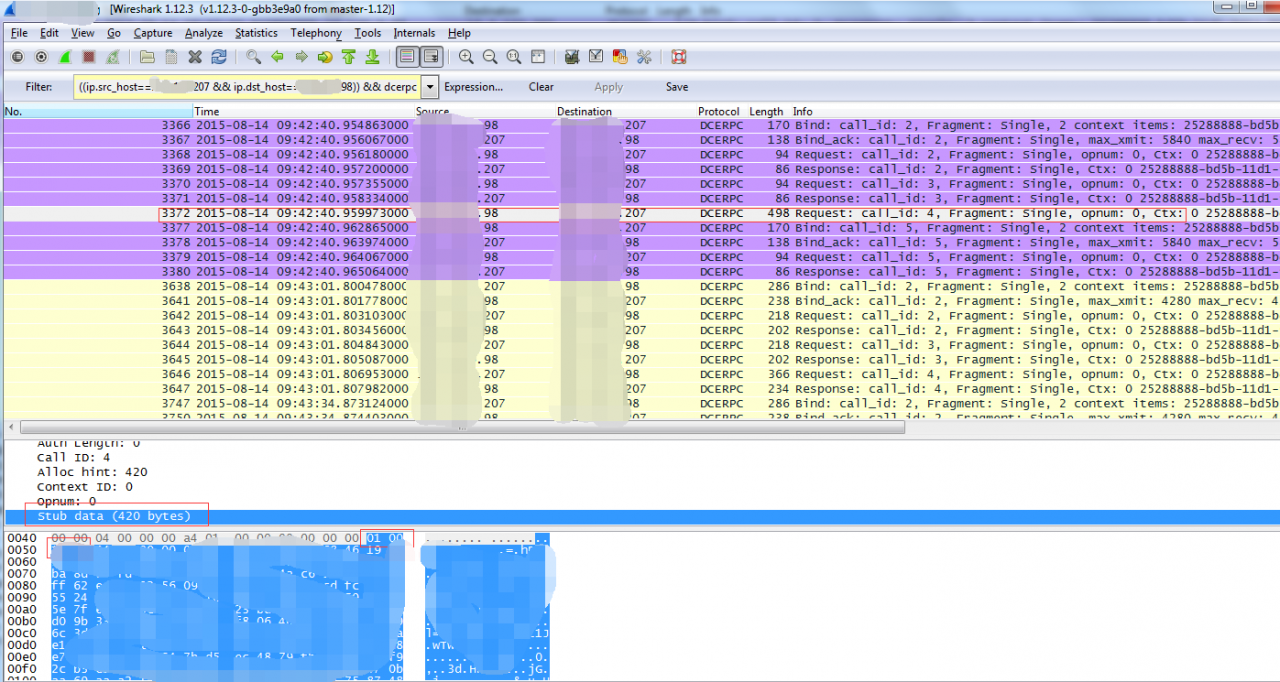

Is that a problem that RPC Server handles?On the Server side, we used the same Wireshark Filter to Filter out the RPC package communicated between Client and Server, and we did not find that we received the RPC Request. The network packet was swallowed by the network firewall. Although at this time it can be basically proved that it is not the problem of our product itself, but is there more powerful evidence?
TCP connection Reset
At this time, take a look at TCP packets. First, the following filters are adopted on the Client side:

(ip.src_host==x.x.x.98 && ip.dst_host==x.x.x.207) || ((ip.src_host==x.x.x.207 && ip.dst_host==x.x.x.98))

As you can see in the figure below, after sending Request No. 3372, you received a TCP Reset packet!! That’s what firewalls do all the time. In other words, the Client and Server are disconnected.
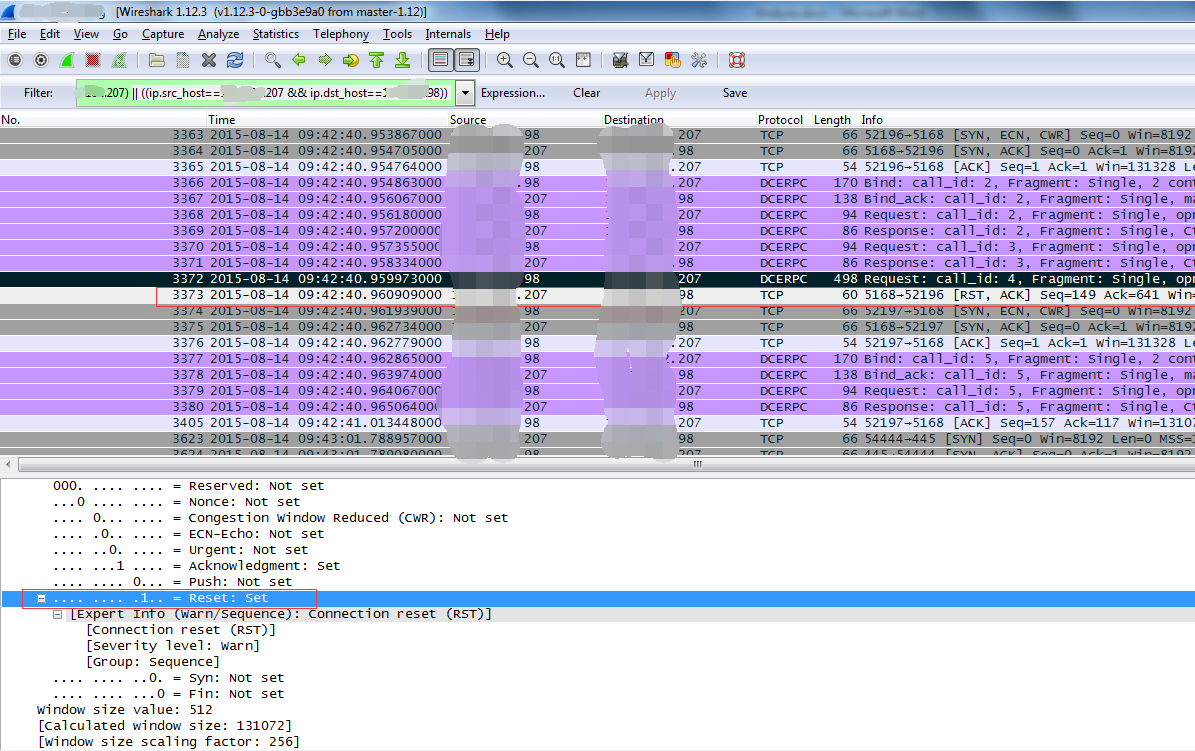

Does the connection Reset really come from the Server to the Client?After analyzing the Server with the same Wireshark Filter, it is found that the Server did not send the TCP Reset packet and received the TCP Reset packet with IP Source as Client at the same time. It can be found from the Wireshark capture packet of the Client that the Client did not send the TCP Reset packet to the Server. Then this time is basically sure that the Client and Server in the middle of a node of the firewall, shut down this connection!!
It looks like we’re almost done, and since the root cause isn’t our product, it’s time for their webmasters to find out. But the customer always thinks their firewall is ok, he just wants our product to work properly… Since the customer is in the United States, it is Webex every time. In such a network environment, it is more suitable for the network administrator to slowly catch up and investigate.
We hope that the administrator will find them, but they do not cooperate with us, so we have to make our product run normally, so we can only find other feasible solutions. Finally, the feasible solution is to use RPC based on Namepiped for communication, which is a last resort.

Refer to the article
RPC Error:
http://www.microsoft.com/technet/support/ee/transform.aspx?ProdName=Windows+Operating+System& ProdVer = 5.0 & amp; EvtID=1726& EvtSrc=RPC