preface
qrcodejs2.js/QRCode.jsplug-in is in normalVue.jsproject works normally. When you are innuxt.jswhen used in the project, there will be an error, becauseqrcodejs2.js/qrcode.jsthe plug-in internally uses “browser specific (such as window/document) objects”. When compiled intonuxt.jswithout these, an error will be generated.
This article will provide you with the way to introduce the plug-in from 0-1, which runs perfectly.
Qrcodejs2.js and QRcode JS can be used.
First step
Download the adapter
nuxt.jsplug-in core code online.

Step 2
Prepare the file you just downloaded.
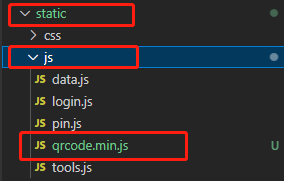
Put the QRcode.min.js file into the JS folder under the static static directory of the project (create one if you don’t have one).
Step 3
This step requires you to read the notes carefully, and you must understand why the path is written in this way.
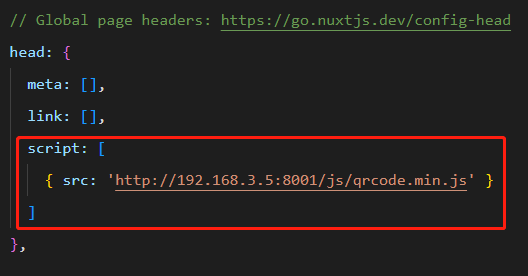
Open the project nuxt.config.js configuration file, add the following code to the head configuration item:
// For now, we are using the local IP address http://192.168.3.5:8001 because we are in a development environment.
// Please replace it when you deploy your project later.
// --------- ---------- ---------- ---------- ---------
// For example, my future website deployment will be: http://www.demo.com
// Then this is how it should be written: http://www.demo.com/js/qrcode.min.js
// [domain + /js/qrcode.min.js]

src: 'http://192.168.3.5:8001/js/qrcode.min.js'
As shown in the following figure, pay attention to the position:
Step 4
At this point, your project can use the plug-in.
Cancel your import Import Code:

Test use
Or the original way of use:
// QRCode The keyword is a wrapped instance of the plugin, you can't change it!
let qrcode = new QRCode(qrcodeImgEl, {
    width: 100,
    height: 100,
    colorDark: '#000000',
    colorLight: '#ffffff',
    correctLevel: QRCode.CorrectLevel.H
})