Category Archives: Linux

Git initializes the local existing project

1. Initialize the warehouse

git init

2.remote

git remote add origin warehouse address

3. Pull the Master branch from the remote branch and merge with the local master branch

git pull origin master:master

4. Submit the local branch to the remote branch

git push -u origin master

5. Add and submit existing projects for upload

git add -A
git commit -m ''
git push --set-upstream origin master

How to Add Dfrours Model

ROS URDF adds sensor model
Add sensor model
Add camera
The corresponding model file is camera.xacro, which reads as follows

<?xml version="1.0"?>
<robot xmlns:xacro="http://www.ros.org/wiki/xacro" name="camera">

    <xacro:macro name="usb_camera" params="prefix:=camera">
        <link name="${prefix}_link">
            <inertial>
                <mass value="0.1" />
                <origin xyz="0 0 0" />
                <inertia ixx="0.01" ixy="0.0" ixz="0.0"
                         iyy="0.01" iyz="0.0"
                         izz="0.01" />
            </inertial>

            <visual>
                <origin xyz=" 0 0 0 " rpy="0 0 0" />
                <geometry>
                    <box size="0.01 0.04 0.04" />
                </geometry>
                <material name="black"/>
            </visual>

            <collision>
                <origin xyz="0.0 0.0 0.0" rpy="0 0 0" />
                <geometry>
                    <box size="0.01 0.04 0.04" />
                </geometry>
            </collision>
        </link>
    </xacro:macro>

</robot>

The above code USES a macro called USB_camera to describe the camera, and the input parameter is the name of the camera.
Create a top-level XACro file that splicing together the robot and camera modules. The contents of the top-level file mrobot_with_camera.urdf.xacro are as follows, where the contents of the robot ontology description file mrobot_body.urdf.xacro can be found in the previous blog.

<?xml version="1.0"?>
<robot name="mrobot" xmlns:xacro="http://www.ros.org/wiki/xacro">

    <xacro:include filename="$(find mrobot_description)/urdf/mrobot_body.urdf.xacro" />
    <xacro:include filename="$(find mrobot_description)/urdf/camera.xacro" />

    <xacro:property name="camera_offset_x" value="0.1" />
    <xacro:property name="camera_offset_y" value="0" />
    <xacro:property name="camera_offset_z" value="0.02" />

    <!-- MRobot Robotics Platform-->
    <mrobot_body/>

    <!-- Camera -->
    <joint name="camera_joint" type="fixed">
        <origin xyz="${camera_offset_x} ${camera_offset_y} ${camera_offset_z}" rpy="0 0 0" />
        <parent link="plate_2_link"/>
        <child link="camera_link"/>
    </joint>

    <xacro:usb_camera prefix="camera"/>

</robot>

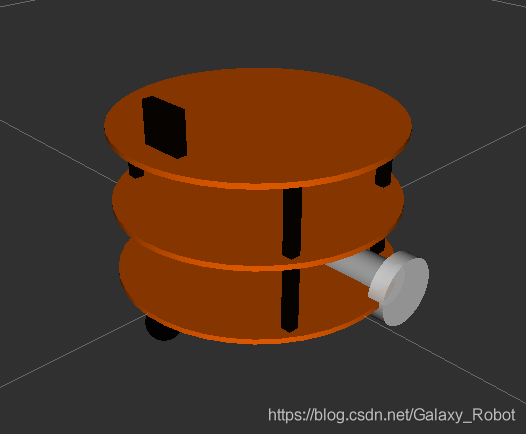
Display the model in RVIz, as shown in the figure below

 roslaunch mrobot_description display_mrobot_with_camera_xacro.launch 


Add it
Kinect is a commonly used RGB-D camera, and the XACro file is shown below

<?xml version="1.0"?>
<robot xmlns:xacro="http://www.ros.org/wiki/xacro" name="kinect_camera">

    <xacro:macro name="kinect_camera" params="prefix:=camera">
        <link name="${prefix}_link">
            <origin xyz="0 0 0" rpy="0 0 0"/>
            <visual>
                <origin xyz="0 0 0" rpy="0 0 ${M_PI/2}"/>
                <geometry>
                    <mesh filename="package://mrobot_description/meshes/kinect.dae" />
                </geometry>
            </visual>
            <collision>
                <geometry>
                    <box size="0.07 0.3 0.09"/>
                </geometry>
            </collision>
        </link>

        <joint name="${prefix}_optical_joint" type="fixed">
            <origin xyz="0 0 0" rpy="-1.5708 0 -1.5708"/>
            <parent link="${prefix}_link"/>
            <child link="${prefix}_frame_optical"/>
        </joint>

        <link name="${prefix}_frame_optical"/>
    </xacro:macro>

</robot>

You can import the mesh file of the model by setting the label in visualization. And then the Kinect and the robot were put together. The top-level Xacro file, mrobot_with_kinet.urdf.xacro, has the following contents

<?xml version="1.0"?>
<robot name="mrobot" xmlns:xacro="http://www.ros.org/wiki/xacro">

    <xacro:include filename="$(find mrobot_description)/urdf/mrobot_body.urdf.xacro" />
    <xacro:include filename="$(find mrobot_description)/urdf/kinect.xacro" />

    <xacro:property name="kinect_offset_x" value="-0.06" />
    <xacro:property name="kinect_offset_y" value="0" />
    <xacro:property name="kinect_offset_z" value="0.035" />

    <!-- MRobot Robotics Platform-->
    <mrobot_body/>

    <!-- Kinect -->
    <joint name="kinect_frame_joint" type="fixed">
        <origin xyz="${kinect_offset_x} ${kinect_offset_y} ${kinect_offset_z}" rpy="0 0 0" />
        <parent link="plate_2_link"/>
        <child link="camera_link"/>
    </joint>
    <xacro:kinect_camera prefix="camera"/>

</robot>

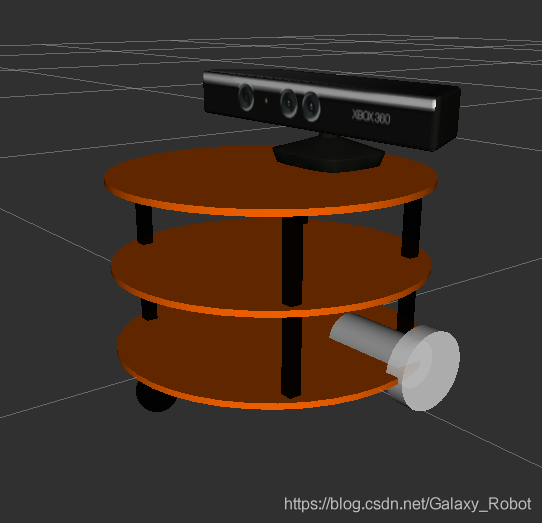
The results displayed in RVIz are shown below

other sensors can be modeled in a similar way.

CentOS Yum error: cannot retrieve repository metadata (repomd.xml) for repository:

An error is always reported when using Yum Install again after installing Gitlab. The error code is as follows:

Error: Cannot retrieve repository metadata (repomd.xml) for repository: gitlab_gitlab-ce. Please verify its path and try again

the solution is as follows:

A. open/etc/yum. Repos. D/XXXXX. Repo, for this example is the/etc/yum. Repost. D/XXX. ‘
b. Change the term ‘enabled=1’ in [XXX] to ‘enabled=0

As indicated in the code above, my error is gitlab_gitlab-CE, so the enabled=0 in gitlab_gitlab-ce-repo’s [gitlab_gitlab-CE]

[root@web1 ~]# cd /etc/yum.repos.d
[root@web1 yum.repos.d]# vim gitlab_gitlab-ce.repo

Set enabled=1 to enabled=0 in [gitlab_gitlab-ce]


How to Uncompress 7z files on Ubuntu, Debian, Fedora

Question: How do I uncompress a *.7z file ( 7zip file ) in UNIX/Linux ?Can you explain with a simple example?
Answer: Use 7za command to unzip a 7z file ( 7zip file ) on Unix platform as shown below.

Verify whether you have 7za command on your system.

# whereis 7za
7za: /usr/bin/7za /usr/share/man/man1/7za.1.gz

If you don’t have 7za command, install p7zip package as shown below.
Install p7zip to unzip *.7z files on Fedora

# yum install p7zip

Install p7zip to unzip *.7z files on Debian and Ubuntu

$ sudo apt-get install p7zip

Uncompressing a *.7z 7zip files in Linux using 7za

$ 7za e myfiles.7z 

7-Zip (A) 9.04 beta  Copyright (c) 1999-2009 Igor Pavlov  2009-05-30
p7zip Version 9.04 (locale=C,Utf16=off,HugeFiles=on,1 CPU)

Processing archive: ../../myfiles.7z

Extracting  myfiles/test1
Extracting  myfiles/test2
Extracting  myfiles/test
Extracting  myfiles

Everything is Ok

Folders: 1
Files: 3
Size:       7880
Compressed: 404

7za – command namee – specifies the 7z to be extractedmyfiles.7z – is the file that is to be extracted
Creating a 7zip compression file in Linux

$ 7za a myfiles.7z myfiles/

7-Zip (A) 9.04 beta  Copyright (c) 1999-2009 Igor Pavlov  2009-05-30
p7zip Version 9.04 (locale=C,Utf16=off,HugeFiles=on,1 CPU)
Scanning

Creating archive myfiles.7z

Compressing  myfiles/test1
Compressing  myfiles/test2      

Everything is Ok

Files and sub directories of myfiles/ will be added to the myfiles.7z.
a – add to archivefile.7z – archive file to which these files and dir from dir1 will be added to.

[Maven] Fatal error compiling: invalid target release: 1.7 -> [Help 1]

Fatal error compiling: invalid target release: 1.7 -> [Help 1]

[ERROR] Failed to execute goal org.apache.maven.plugins:maven-compiler-plugin:3.2:compile (default-compile) on project bugkillers-core: Fatal error compiling: invalid target release: 1.7 -> [Help 1]
[ERROR]

How to Fix
1. mvn -v displays the following results.

Apache Maven 3.2.5 (12a6b3acb947671f09b81f49094c53f426d8cea1; 2014-12-15T01:29:23+08:00)
Maven home: /usr/share/java/apache-maven-3.2.5
Java version: 1.6.0_65, vendor: Apple Inc.
Java home: /System/Library/Java/JavaVirtualMachines/1.6.0.jdk/Contents/Home
Default locale: en_US, platform encoding: MacRoman
OS name: "mac os x", version: "10.9.2", arch: "x86_64", family: "mac"

2. Pom Settings are as follows:

 <plugin>
                    <groupId>org.apache.maven.plugins</groupId>
                    <artifactId>maven-compiler-plugin</artifactId>
                    <version>3.2</version>
                    <configuration>
                        <source>1.7</source>
                        <target>1.7</target>
                        <encoding>${project.build.sourceEncoding}</encoding>
                    </configuration>
                </plugin>

3. But the java-version result is as follows:

java version "1.7.0_79"
Java(TM) SE Runtime Environment (build 1.7.0_79-b15)
Java HotSpot(TM) 64-Bit Server VM (build 24.79-b02, mixed mode)


4. 1.7 is not used for compilation, and Maven’s Java Home is set to 1.7 (multiple versions of the JDK are set locally)
Modify maven’s configuration. Java_home points to 1.7,/etc/mavenrc, and ~/.mavenRC. Two files do not exist by default, you need to create, you can choose one
For example: vi ~/.mavenrc
Writing:

JAVA_HOME=`/usr/libexec/java_home -v 1.7`


5. Then mVN-V, the results are as follows:

Apache Maven 3.2.5 (12a6b3acb947671f09b81f49094c53f426d8cea1; 2014-12-15T01:29:23+08:00)
Maven home: /usr/share/java/apache-maven-3.2.5
Java version: 1.7.0_79, vendor: Oracle Corporation
Java home: /Library/Java/JavaVirtualMachines/jdk1.7.0_79.jdk/Contents/Home/jre
Default locale: en_US, platform encoding: UTF-8
OS name: "mac os x", version: "10.9.2", arch: "x86_64", family: "mac"

Done

Server hardware and RAID configuration

Playing with server hardware and RAID configuration
RAID disk Array Introduction TO RAID 0 Disk Array Introduction to RAID 5 Disk Array Introduction to RAID 6 Disk Array Introduction to RAID 1+0 Disk Array Introduction to the disk array experiment

An introduction to RAID disk arrays
1, it is an abbreviated Independent Redundant disk Array
; 2, it combines several Independent physical hard Disks in a variety of ways to form a disk group (logical hard disk). To provide higher than a single hard disk storage performance and provide the data backup technology
3, known as the way of disk array of different RAID Levels (RAID Levels) commonly used RAID level

RAID 0, RAID 1, RAID5, RAID 6, RAID 1 + 0, etc
An introduction to RAID 0 disk arrays
RAID 0, RAID 0
1 continuous segmentation data bits or bytes as a unit, parallel read/write on multiple disks, so has the very high data rate, but it has no data redundancy
2, RAID 0 is just simply increase performance, did not provide guarantee for the reliability of data, and one of the disk failure will affect all data
3, RAID 0 cannot be applied to data security demanding situations
An introduction to RAID 1 disk arrays
RAID 1 (2)
1, through the disk image data to realize data redundancy, each other in pairs of independent disk backup data
2, when the original data is busy, can be directly read data from the mirror copy, so the RAID 1 can improve read performance
3, RAID 1 is the cost per unit of the highest in the disk array, but provides high data security and usability. When a disk fails, the system can automatically switch to read and write on the mirror disk instead of reorganizing the failed data
An introduction to RAID 5 disk arrays
RAID 5
1, N (N> = 3) piece of disk array, a data N – 1 stripe, 1 and check the data at the same time, a total of N copies of data on the N drive cycle balance store
2, N piece of disk read and write at the same time, the read performance is very high, but due to problems have check mechanism, write performance is relatively high,
3, (N – 1)/N
4 disk utilization, high reliability, allow bad 1 piece of plate, do not affect all the data
An introduction to RAID 6 disk arrays
RAID 6
N. = 4) piece of disk array, (N – 2)/N disk utilization
compared with RAID 5, RAID 6 added a second independent parity information block
two independent parity system using different algorithms, even though the disk failure will not affect the use of the data at the same time
relative to RAID 5 more “loss”, so write performance is poorer
Introduction to RAID 1+0 disk arrays
RAID 1+0
N (even, N> =4) after two mirror blocks, then combined into a RAID 0
N/2 disk utilization
N/2 block read and write at the same time, N block disk read
performance is high, high reliability
Disk array experiment

1、Find the process number: fuser /data
(process number)
2. kill process: kill-9 (process number) 
3、Uninstall: sumount /data
Check raid: mdama-Dsv.
4, Create raid5: mdadm -C md0 -l 5 -n 3 -x 1 /dev/sd/[b-e]
Check raid status information: mdadm -D /dev/mad/md0
5、Generate raid configuration file: madadm -Dsv > /etc/mdadm.conf
Formatted: mkfs.ext4 /dev/md/md0
6, create mount point: mkdir -pv/data
7. Permanent RAID mount
(1) Get the UUID of the RAID.
mdadm --detail /dev/md/md0 | grep -i uuid
(2) Start setting up mdadm.conf.
vim /etc/mdadm.conf
ARRAY /dev/md0 UUID=.......
(3) Get test information
blkid /dev/md0(this uuid is the global uuid, used to uniquely represent this device)
(4) Set boot-up
vi /etc/fstab
UUID=....... /data ext4 defaults 0 0
(5) Let the /etc/fstab configuration take effect.
mount -a
(6) Testing
df -Th

Vue implements page caching with keep alive

Keep-alive is a built-in component of the VUE that allows the contained component to be left in a preserved state or to avoid being rerendered.

<div>
    <keep-alive>
        <router-view></router-view><!-- The components in this are cached in the-->
    </keep-alive>
</div>

Next, let’s combine the Settings of router caching section page
in app.vue

<template>
  <div id="app">
    <!-- This is with the components. -->
		<!-- add cache -->
        <keep-alive>
			<router-view v-if="this.$route.meta.keep"></router-view>
		</keep-alive>
		<router-view v-if="!this.$route.meta.keep"></router-view>
  </div>
</template>

Add the configuration meta
router to configure keep, which requires true cache instead of false

{
	path: '/shop_detail',
	name: 'shop_detail',
	component: shop_detail,
		meta:{
			keep:true  // keep(optional name) true means the page needs to be cached.
		}
},
{
	 path: '/details',
	 name: 'details',
	 component: details,
	     meta:{
		    keep:false // keep(optional name) false means the page does not need to be cached.
	}
},

How to Fix Ubuntu(Linux) mount error(22)

error log
execute an order

sudo mount -t cifs //ip/sharename /tmp/1 -o username=11,password=tmp

error log

mount error(22): Invalid argument
Refer to the mount.cifs(8) manual page (e.g. man mount.cifs)

solution
View root cause:

tail -f /var/log/kern.log

Note:

No dialect specified on mount. Default has changed to a more secure dialect, SMB2.1 or later (e.g. SMB3), from CIFS (SMB1). To use the less secure SMB1 dialect to access old servers which do not support SMB3 (or SMB2.1) specify vers=1.0 on mount.

The solution has been specified in the prompt, and the version of cifs shared is not specified, cifs is divided into smb1.0/2.0/3.0/3.1.
Solution

sudo mount -t cifs //ip/sharename /tmp/1 -o username=11,password=tmm,vers=1.0

Linux changing password enter new UNIX password: passwd: authentication token manipulation error

How to Fix “passwd: Authentication token manipulation error” in Linux
by Aaron Kili | Published: July 19, 2018 | Last Updated: July 19, 2018

Linux Certifications –
RHCSA/RHCE Certification |
Ansible Automation Certification |
LFCS/LFCE Certification

In Linux, the passwd command is used to set or change user account passwords, while using this command sometimes users may encountered the error: “passwd: Authentication token manipulation error” as shown in below example.
Recently I was logging in to my CentOS server using my username “tecmint“. Once I am logged in I am trying to change my password using passwd utility, but a second after I am getting the following error messages.

# su - tecmint
$ passwd tecmint
Changing password for user tecmint
Changing password for tecmint

(current) UNIX password: 
passwd: Authentication token manipulation error 

In this article, we will explain different ways of fixing “passwd: Authentication token manipulation error” in Linux systems.
1. Reboot System
The first basic solution is to reboot your system. I can’t really tell why this worked, but it did worked for me on my CentOS 7.

$ sudo reboot 


If this fails, try out the next solutions.
2. Set Correct PAM Module Settings
Another possible cause of the “passwd: Authentication token manipulation error” is wrong PAM (Pluggable Authentication Module) settings. This makes the module unable to obtain the new authentication token entered.
The various settings for PAM are found in /etc/pam.d/.

$ ls -l /etc/pam.d/

-rw-r--r-- 1 root root 142 Mar 23  2017 abrt-cli-root
-rw-r--r-- 1 root root 272 Mar 22  2017 atd
-rw-r--r-- 1 root root 192 Jan 26 07:41 chfn
-rw-r--r-- 1 root root 192 Jan 26 07:41 chsh
-rw-r--r-- 1 root root 232 Mar 22  2017 config-util
-rw-r--r-- 1 root root 293 Aug 23  2016 crond
-rw-r--r-- 1 root root 115 Nov 11  2010 eject
lrwxrwxrwx 1 root root  19 Apr 12  2012 fingerprint-auth -> fingerprint-auth-ac
-rw-r--r-- 1 root root 659 Apr 10  2012 fingerprint-auth-ac
-rw-r--r-- 1 root root 147 Oct  5  2009 halt
-rw-r--r-- 1 root root 728 Jan 26 07:41 login
-rw-r--r-- 1 root root 172 Nov 18  2016 newrole
-rw-r--r-- 1 root root 154 Mar 22  2017 other
-rw-r--r-- 1 root root 146 Nov 23  2015 passwd
lrwxrwxrwx 1 root root  16 Apr 12  2012 password-auth -> password-auth-ac
-rw-r--r-- 1 root root 896 Apr 10  2012 password-auth-ac
....

For instance a mis-configured /etc/pam. d/common-password file can result into this error, running the pam-auth-update command with root privileges can fix the issue.

$ sudo pam-auth-update

3. Remount Root Partition
You might also see this error if the / partition is mounted as read only, which means no file can be modified thus a user’s password can’t be set or changed. To fix this error, you need to mount the root partition as as read/write as shown.

$ sudo mount -o remount,rw /

4. Set Correct Permissions on Shadow File
Wrong permissions on the /etc/shadow file, which stores actual passwords for user accounts in encrypted format can also cause this error. To check the permissions on this file, use the following command.

$ ls -l  /etc/shadow

To set the correct permissions on it, use the chmod command as follows.

$ sudo chmod 0640 /etc/shadow

5. Repair and Fix Filesystem Errors
Minor storage drive or filesystem errors can also cause the error in question. You can use Linux disk scanning tools such as fsck to fix such errors.

Linux Nagios failed to log in to internal server error (Fixed)


Today, after completing the installation of Nagios, I can’t log in, with the following error message
Internal Server Error

The server encountered an internal error or misconfiguration and was unable to complete your request.
Please contact the server administrator, root@localhost and inform them of the time the error occurred, and anything you might have done that may have caused the error.
More information about this error may be available in the server error log.

So look at the first shutdown log file, the relevant error logs can be viewed in Apache

vi /var/log/httpd/error_log

or

vi /usr/localapache/logs/error_log

Log prompts are validation errors,

nagios could not open password file :/usr/local/nagios/etc/htpasswd

Unable to open the htpasswd file, go to the directory to check

cd /usr/local/nagios/etc/htpasswd

The original actual file is htpasswd.users, missing users
Finally, enter the Apache to modify the httpd.cof file. In the AuthenUserFile, you should fill in the following address

/usr/local/nagios/etc/htpasswd.users

Finally, restart Apache,Nagios, verify login, OK, a little thought, or as the old saying goes, be careful to make a million years ship!

In addition, several other troubleshooting methods that cannot be logged in are provided:
1.

htpasswd  -c /usr/local/nagios/etc/htpasswd.users nagiosadmin

The default password file permissions generated under root are root, and be sure to change to user Nagios

chown -R nagios.nagios /usr/local/nagios/etc/htpasswd.users

2. Change the setting of selinux =disabled in the /etc/selinux/config file

3. Add the verified

after httpd.conf

#setting for nagios
ScriptAlias /nagios/cgi-bin "/usr/local/nagios/sbin"
<Directory "/usr/local/nagios/sbin">
     AuthType Basic
     Options ExecCGI
     AllowOverride None
     Order allow,deny
     Allow from all
     AuthName "Nagios Access"
     AuthUserFile /usr/local/nagios/etc/htpasswd             //File for authentication for this directory access
     Require valid-user
</Directory>
Alias /nagios "/usr/local/nagios/share"
<Directory "/usr/local/nagios/share">
     AuthType Basic
     Options None
     AllowOverride None
        AuthName "Nagios Access"

         AuthUserFile /usr/local/nagios/etc/htpasswd             //File for authentication for this directory access

         Require valid-user
    
</Directory>

Alias /nagios "/usr/local/nagios/share"

<Directory "/usr/local/nagios/share">

     AuthType Basic

     Options None

     AllowOverride None

     Order allow,deny

     Allow from all

     AuthName "nagios Access"

     AuthUserFile /usr/local/nagios/etc/htpasswd

     Require valid-user

</Directory>

Htpasswd useful htpasswd. Users,Apache default validation file is htpasswd.users, with other filenames need to be defined
5./usr/local/nagios/etc/cgi. The CFG whether the user to set the password in the account of the account