Category Archives: Error

Mac installation tree command error solution

Android studio can input tree command in Terminal command line to view the directory structure of the current Android project, which is very convenient, but you need to install the tree command first.
Install tree command brew install tree, the error is reported as follows:

Error: /usr/local/Cellar is not writable. You should change the
ownership and permissions of /usr/local/Cellar back to your
user account:
  sudo chown -R $(whoami) /usr/local/Cellar
Error: Cannot write to /usr/local/Cellar

Follow the prompt sudo chow-r $(whoami) /usr/local/Cellar :

sudo chown -R $zhangsan /usr/local/Cellar
//zhangsan is your name.

Then execute brew install tree.
After the installation is complete, type tree-d in the Terminal command line of as to print out all directory names. In addition tree -a display directory and content.

rsync error: error starting client-server protocol (code 5) at main.c(1648) [Receiver=3.1.2]

Rsync error: error starting client-server Protocol (Code 5) at main.c(1648) [Receiver=3.1.2]
1. Try to close the firewall test

[root@sm ~]# systemctl stop firewalld

2. Check whether the confidential file attribute is 600

[root@sm ~]# ls -l /etc/rsyncd.secrets 
-rw------- 1 root root 26 Nov 29 22:00 /etc/rsyncd.secrets

3, check the configuration file for formatting errors, including command comments cannot be peer

[share]
comment = user share
path = /share
ignore errors
#exclude = lost+found/  
auth users = bob,maray

4, command syntax formatting error
rsync command syntax formatting error.

MacOS Mojave uses SMB LAN share as backup disk of timemachine time machine. Disk does not support time machine backups. (error 45)

Refer to the tutorial on the Web and use disk Tools to create a “sparse Disk image” in the Shared folder, then use the command to set it to the target disk of the TimeMachine.

sudo tmutil setdestination -a /Volumes/SMBTimeMachine

But the error:

/Volumes/SMBTimeMachine: Disk does not support Time Machine backups. (error 45)
The backup destination could not be added.

For a long time, Google did not find a solution, but finally found a solution sharing method with Apple’s help, and finally solved it smoothly:
1, use the command line tool to create a “sparse binding disk image”, not “Disk Tools”, I tried using “Disk Tools” still does not work, there is no problem with the command line.

sudo hdiutil create -size 260g -type SPARSEBUNDLE -nospotlight -volname "SMBTimeMachine" -fs "Case-sensitive Journaled HFS+" -verbose /Volumes/yanghl/HaiLong_Mac_TimeMachine.sparsebundle

“SMBTimeMachine” is the label of the newly created disk image, followed by the path saved to the disk image file, “-size 260g” is the size of the disk image, these parameters can be changed.
command run output reference:

Initializing...
Creating...
DIDiskImageCreatorProbe: interface  1, score     1000, CSparseBundleDiskImage
DIDiskImageCreatorProbe: interface  2, score    -1000, CSparseDiskImage
DIDiskImageCreatorProbe: interface  3, score    -1000, CRawDiskImage
DIDiskImageCreatorProbe: interface  7, score    -1000, CWOUDIFDiskImage
DIDiskImageCreatorProbe: interface  9, score    -1000, CCFPlugInDiskImage
DIDiskImageCreateWithCFURL: CSparseBundleDiskImage
CBSDBackingStore::createProbe directory, not a valid image file.
DIBackingStoreCreatorProbe: interface  0, score    -1000, CBSDBackingStore
DIBackingStoreCreatorProbe: interface  1, score     1000, CBundleBackingStore
DIBackingStoreCreatorProbe: interface  2, score        0, CRAMBackingStore
DIBackingStoreCreatorProbe: interface  3, score      100, CCarbonBackingStore
DIBackingStoreCreatorProbe: interface  5, score     -100, CCURLBackingStore
DIBackingStoreCreateWithCFURL: CBundleBackingStore
DIFileEncodingCreatorProbe: interface  2, score    -1000, CEncryptedEncoding
DIBackingStoreCreatorProbe: interface  0, score      100, CBSDBackingStore
DIBackingStoreCreatorProbe: interface  1, score    -1000, CBundleBackingStore
DIBackingStoreCreatorProbe: interface  2, score        0, CRAMBackingStore
DIBackingStoreCreatorProbe: interface  3, score      100, CCarbonBackingStore
DIBackingStoreCreatorProbe: interface  5, score     -100, CCURLBackingStore
DIBackingStoreCreateWithCFURL: CBSDBackingStore
DIBackingStoreCreateWithCFURL: creator returned 0
DIDiskImageCreateWithCFURL: creator returned 0
DI_kextWaitQuiet: about to call IOServiceWaitQuiet...
DI_kextWaitQuiet: IOServiceWaitQuiet took 0.000007 seconds
Formatting...
near completion...
created: /Volumes/yanghl/HaiLong_Mac_TimeMachine.sparsebundle
hdiutil: create: returning 0

2. When finished, find the disk image file in the Finder and double-click to load it. Then use the command:

sudo tmutil setdestination -a /Volumes/SMBTimeMachine/

3. The command was successfully executed without any output. Go to system Settings -& GT; “TimeMachine”, you can see that “SMBTimeMachine” has been set as the target disk.
This should allow the TimeMachine to proceed normally.
Note: It is currently found that this method must be backed up all at once. If the backup is interrupted, the SparseBundle disk image, once unmounted, can no longer be loaded because the file is incomplete and cannot be reloaded without a backup

The article published at the same time in my Jane books: https://www.jianshu.com/p/9f56587af82c

Attempted import error: ‘mobx-react‘ does not contain a default export (imported as ‘observer‘).

We introduced this one here in the React

import observer from "mobx-react"
@observer

The following error is then reported:
Mobx-react ‘does not contain a default export (imported as’ observer’).
Let me put curly braces, and I’ll do it like this

 import {observer from} "mobx-react"
@observer

You won’t get an error

How to Fix error: conversion from “” to non-scalar type “”

Error: the conversion from ‘STD: : _List_const_iterator & lt; _Mylist> To non-scalar Type ‘STD ::_List_iterator< _Mylist> ‘the requested
Error C2440 resolved: “Initialize” : cannot be retrieved from “STD ::_List_const_iterator< _Mylist & gt;” Into “STD: : _List_iterator & lt; _Mylist & gt;”
Writing C++ code often USES const as a function argument, which is easy to do when using iterator if the variable is of type STL or contains type STL.

void list_print(const list<int> &list)  
{  
    for (list<int>::iterator iter = list.begin();
         iter != list.end();
         ++iter) {
        ...    
     }
}  

The following error will be reported in this case

error C2440: “initialize”: cannot “std::_List_const_iterator<_Mylist>” to “std::_List_iterator<_Mylist>”
or
error: conversion from 'std::_List_const_iterator<_Mylist>' to non-scalar type 'std::_List_iterator<_Mylist>' requested

Here, because list itself is of type const, we need to use a const-type iterator, which is list::const_iterator
Code to

void list_print(const list<int> &list)  
{  
    for (list<int>::const_iterator iter = list.begin();
         iter != list.end();
         ++iter) {
        ...    
     }
}   

done

C++ Use of deleted function error

Reason:
contains a STD ::unique_ptr.
A std::unique_ptr cannot be copied
or
contains a std::shared_ptr
A std::unique_ptr cannot be copied
Solutions:
To:

//cpp1
class B{
A::getPTR(target_ptr)
}

//cpp2
class A{
    getPTR(const B& target_ptr)
    {
    std::shared_ptr<B> copied_ptr = std::make_shared<B>(target_ptr);
    }
}

target_ptr:is the ptr you want to copy.
Copied ptr: is the ptr you copied

PIP Fatal error in launcher: Unable to create process using

This happened again when installing Python on a new environment, and this time I looked up and found that there were errors in the original article, so this update should fix most of the problems.

The environment is win8 and only python2.7 was originally installed. And then because python3 is going to be used, in order for them to co-exist, the running file of python3 is changed to python3.exe. This is where PIP running python3 gets the following error
Fatal error in launcher: Unable to create process using ‘”
But running PIP2 is good. If you change the running file for python2.7 to python 2.exe at this point, you will see that pip2 also throws a generic error. This tells you that the error was caused by changing the name of the Python executable.
Many of the scenarios on the Web say that running PYTHON 3-M PIP install — Upgrade PIP to upgrade the PIP version is fine in most cases. Because after reloading, associations are created based on the changed Python execution file. But if your PIP is already up to date, it won’t work, because it doesn’t allow you to upgrade at all. Then use the following command to force a PIP reinstall
Python3-m PIP install — Upgrade –force-reinstall PIP

This solves the PIP error.

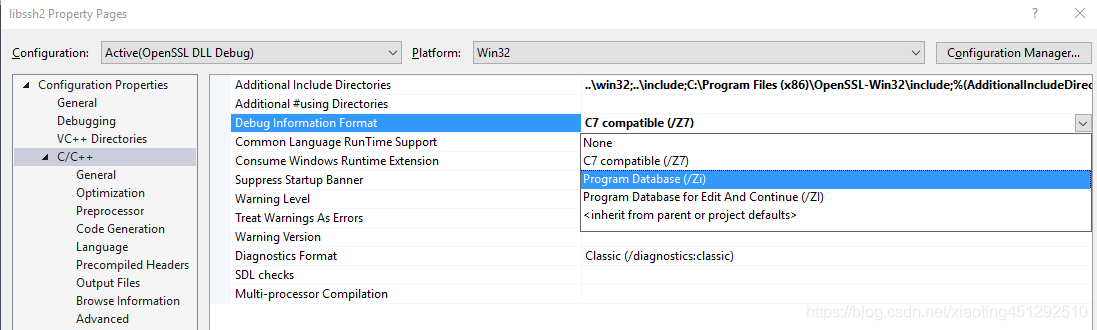
visual studio Error D8016 ‘/ZI’ and ‘/Gy-‘ command-line options are incompatible

An error occurred while compiling the project with Visual Studio:

Error D8016 ‘/ZI’ and ‘/Gy-‘ command line options are incompatible TextCat E:\ Desktop \20161\ Machine learning \project\002-2266031 _2_MLKD-project2-TC \ TC\ TextCat\cl 1Solutions:
Right-click project — “properties –” C/C++ — “Debug Information Format –” Select: Program Database(/Zi)

How to Fix ERROR Couldn’t connect to Docker daemon at http+docker://localunixsocket

Ubuntu16.04 executes docker in the directory where the docker-compose. Yml file is located after installing docker:

jing@ubuntu:/tmp/docker$ docker-compose up -d

Error:

ERROR: Couldn’t connect to Docker Daemon at HTTP + Docker :// localunixSock-is it running?
If it’s at a non-standard location, specify the URL with the DOCKER_HOST environment variable.

Online all kinds of way seven eight bad solution, really ridicule.
What is correct is to add the current user to the Docker group

jing@ubuntu:/tmp/docker$ sudo gpasswd -a ${USER} docker

Then exit the current user and switch to, say, root and then switch to Jing again. Then execute Docker-Compose up-D and it will be ok.

jing@ubuntu:/tmp/docker$ sudo su
root@ubuntu:/tmp/docker$ su jing
jing@ubuntu:/tmp/docker$ docker-compose up -d